
AI Tools for Content Creators on Windows
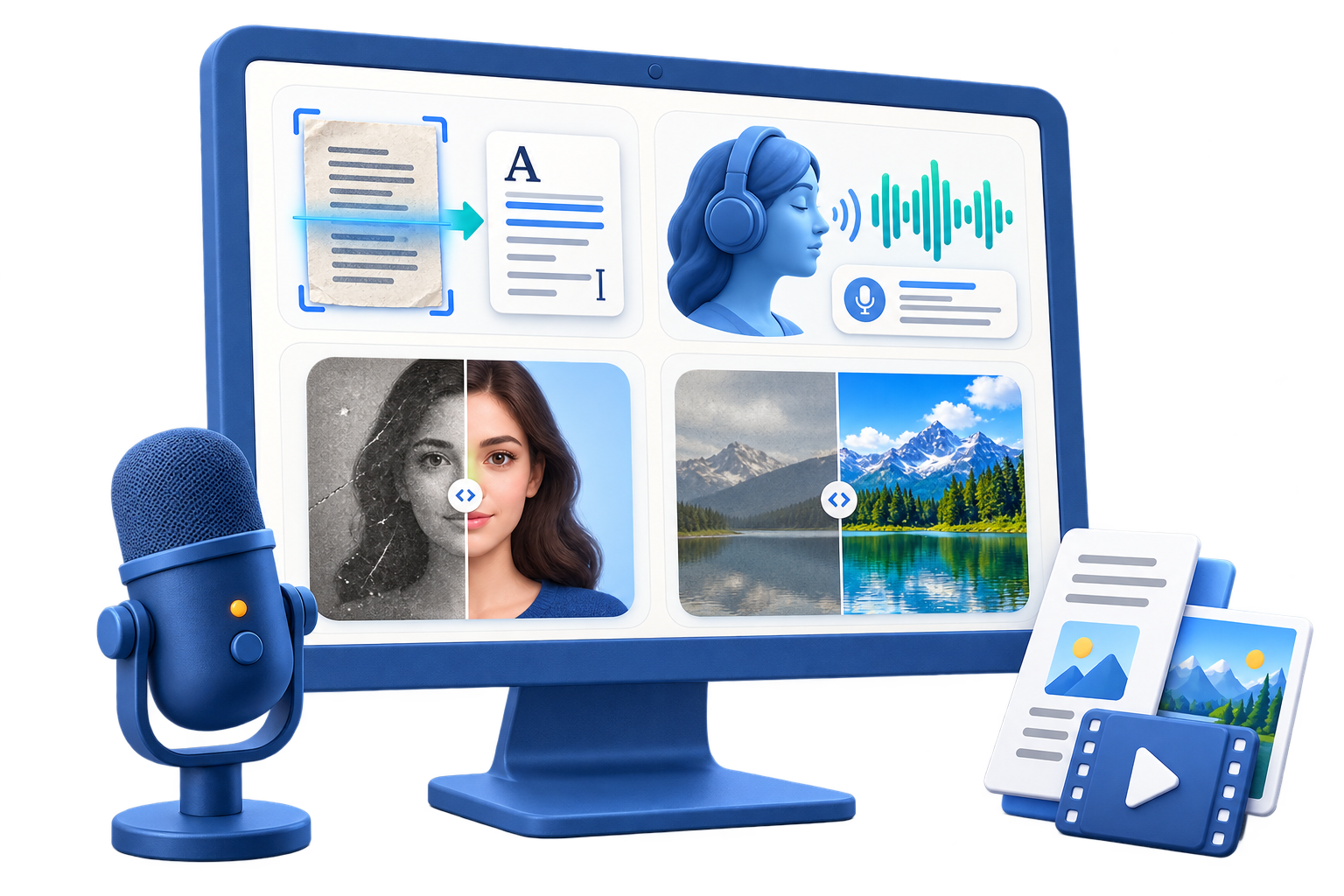
Content creation often begins with scattered inputs: screenshots, recorded speech, scripts, portraits, and older images. The useful question is not how many AI tools are available, but which output you need and how you will review it.
Quick answer
Use OCR for text trapped in images, speech-to-text for editable transcripts, text-to-speech for authorized narration drafts, and image tools for cleanup or restoration. GiliSoft AI Toolkit groups these tasks locally on Windows, but every generated or repaired asset still needs human review.
Before You Start
- Keep an unchanged source file and work from a copy.
- Confirm permissions, ownership, privacy, and destination requirements before processing.
- Test a short representative sample before a long recording, conversion, or batch.
Match the Source to the Task
| Starting point | Recommended action | Review checkpoint |
|---|---|---|
| Screenshot or scanned page | Extract text with OCR | Compare the result with the source line by line |
| Recorded speech | Create a transcript before rewriting | Check names, numbers, and specialist terms |
| Photo or portrait | Repair, enhance, or prepare the image | Inspect faces, edges, text, and small details at full size |
Step-by-Step Workflow
- Define the intended asset
Write down whether you need editable text, a transcript, a narration draft, or a repaired visual.
- Prepare a clean source
Crop unnecessary borders, choose the clearest recording, and keep the original file unchanged.
- Run one focused AI task
Open the matching workspace in GiliSoft AI Toolkit and process a small representative input first.
- Review high-risk details
Check names, dates, quotations, faces, hands, logos, text, and any detail that could change meaning.
- Export and label the result
Save a new file with a clear status such as draft, reviewed, or final; retain the source and permission records.
Review the Result Before Delivery
- The output preserves the source meaning and does not invent unsupported claims.
- People, brands, voices, and copyrighted material are used with permission.
- The final format suits the editor, publishing system, or reviewer who receives it.
Know the Limits
AI output can contain transcription mistakes, visual artifacts, or misleading reconstructions. Do not present generated content as authentic evidence, and do not clone a voice or alter a person's likeness without authorization.
Frequently Asked Questions
Which AI tool should I use first?
Start with the source bottleneck: OCR for image text, speech-to-text for recordings, text-to-speech for a reviewed script, or image tools for an authorized visual.
Can AI output be published without review?
No. Verify factual text, voice pronunciation, visual details, permissions, and destination requirements.
Does AI Toolkit replace a full editor?
It handles focused AI utilities; complex layout, multitrack audio, or timeline video work may still need a dedicated editor.
Should I keep the original files?
Yes. Preserve originals so you can compare, correct, or reproduce the result.