
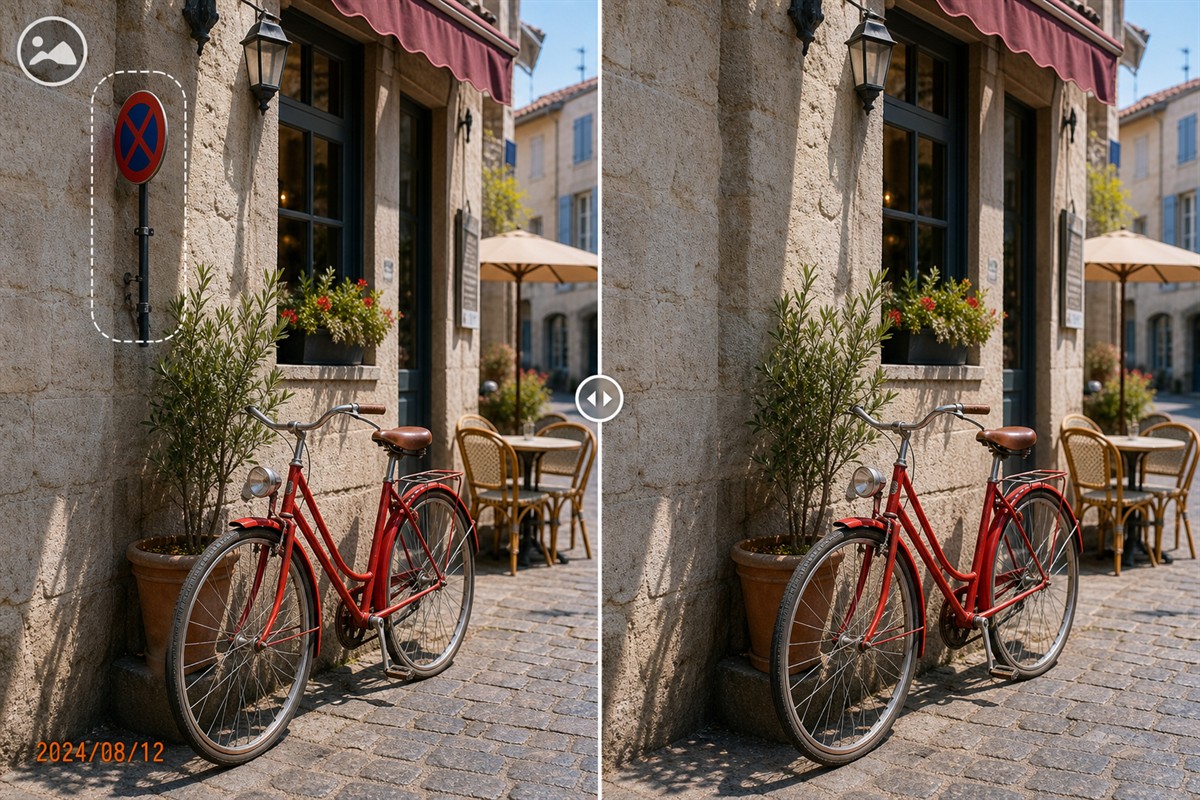
Batch Photo Cleanup Software for Repeated Image Sets
Batch cleanup works best when marks have similar positions and the surrounding backgrounds are not wildly different. One oversized selection applied everywhere can damage useful image detail.
Quick answer
Group photos by mark placement, test a representative subset in MarkEase, use the supported repeated-set workflow, and inspect repaired backgrounds and output counts before handing off the entire batch.
Before You Start
- Confirm editing rights and keep untouched originals.
- Sort photos by logo, date, or object location; create a separate group for moving marks.
- Choose an output folder and filename convention that prevents overwrites.
Choose the Right Approach
| Situation | Approach | Check |
|---|---|---|
| Same corner date on every photo | Repeat a tight selection or batch setting | No remaining digits or damaged edges |
| Different product positions | Split into smaller groups or work individually | Product details stay intact |
| Large object over complex background | Use individual cleanup with manual review | No repeated texture or blur patch |
Batch Photo Cleanup Software for Repeated Image Sets: Step by Step
- Pilot each pattern
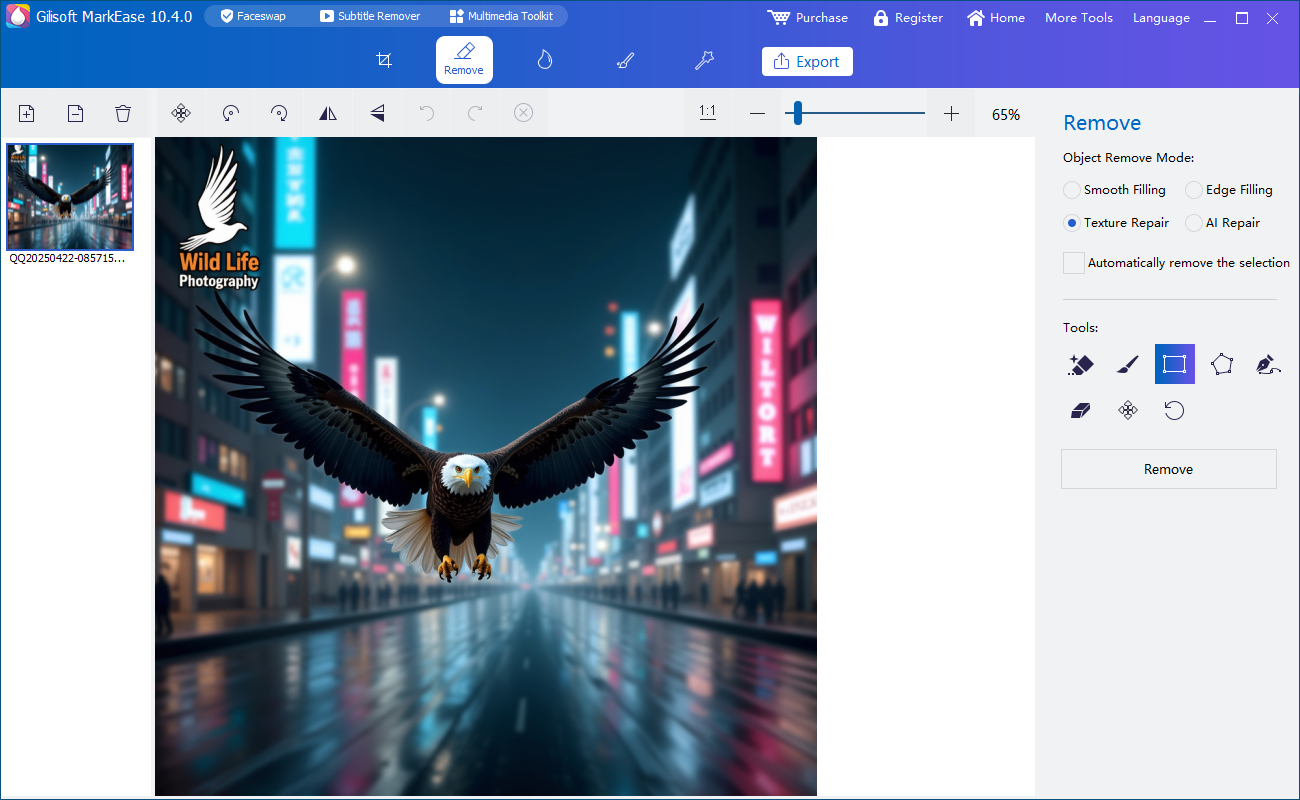
Select one easy and one difficult image per group in MarkEase.
- Mark the complete unwanted area
Include shadows or antialiased borders but keep the region as tight as possible.
- Process compatible images
Use available repeated-set or batch controls and send outputs to a separate folder.
- Inspect exceptions
Review beginning, middle, and end files at full size, then redo images with complex backgrounds individually.
Review the Result
- Do processed file counts match source counts?
- Did a fixed selection overlap a face or product in another photo?
- Are format, transparency, dimensions, and names still suitable?
Limits and Common Mistakes
Batch settings do not understand every image composition. Quality can vary when backgrounds change or a mark overlaps important content; isolate those cases for manual treatment.
Frequently Asked Questions
Is batch cleanup always better than one-by-one editing?
Only when the same task and placement repeat consistently.
Can I use this for video?
MarkEase is photo-focused; use Watermark Remover or ClipMark for video tasks.
Does offline image cleanup mean AI video is offline too?
No. Photo and AI video features have different processing requirements.