
Can You Clean Photos Without Uploading Them?
Yes. A desktop application can open, process, preview, and export photos directly from Windows storage without requiring the source image to be submitted through a browser form.
This is useful for family portraits, unpublished client assets, internal business images, product drafts, scans, and other material that should not be sent to an unknown web service merely to remove one visible distraction.
What “Without Uploading” Actually Means
Using desktop software removes one obvious transfer step, but privacy depends on the complete file path rather than the application window alone.
No browser uploader
The source does not need to be selected on a web page and sent to a remote service for the core cleanup task.
Local processing controls
You choose the source folder, output folder, file name, working copy, and when the result is moved or delivered.
Synchronization still matters
Desktop, Documents, Pictures, or another local-looking folder may synchronize through OneDrive or a company backup policy.
Metadata is separate
Cleaning visible pixels does not automatically remove EXIF dates, camera details, comments, or location information embedded in the file.
Local does not automatically mean isolated
A photo can still leave the PC through cloud sync, network storage, backups, email, support submissions, remote desktop tools, or a feature with separate online processing. Verify the exact workflow instead of relying only on a desktop label.
Photo Cleanup Tasks You Can Prepare Locally
Visible watermark removal
Clean an authorized ownership mark or old overlay when you have rights to edit the image and the surrounding pixels can support repair.
Date and timestamp cleanup
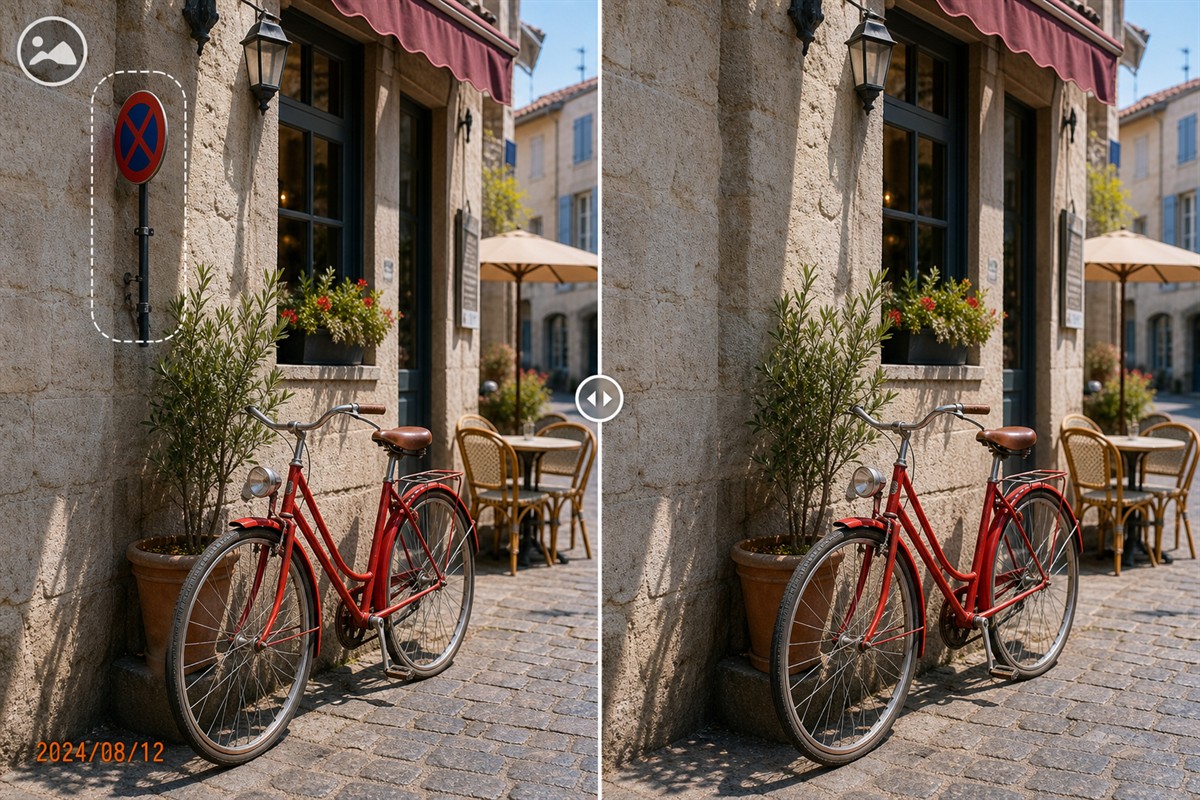
Remove a burned-in camera date from a working copy while preserving the dated original and reviewing metadata separately.
Logo and text removal
Select printed overlays carefully, including anti-aliased edges, outlines, glow, and shadows beyond the obvious letters.
Small object cleanup
Remove litter, signs, cables, labels, or compact background distractions over repeatable texture.
Background person removal
Clean a distant photobomber when enough matching background remains and the person does not hide critical subject detail.
Scanned photo preparation
Work on a high-quality copy to remove authorized scan labels, dates, or minor distractions without changing the archive master.
Understand reconstruction before editing
A finished JPEG or PNG does not contain untouched pixels hidden behind a watermark, date, logo, or person. Cleanup software reconstructs a plausible replacement from surrounding texture and context; it does not reveal an original layer that is no longer present.
How to Clean a Photo Locally with GiliSoft MarkEase
Prepare the storage workflow before opening confidential or irreplaceable photos. This avoids cleaning the image correctly but saving it into the wrong folder.
- Create a controlled working folderUse a location whose Windows permissions, synchronization, backup, and network behavior you understand. Copy in only images authorized for editing.
- Preserve the untouched originalWork from a copy and keep the source in a separate folder. Do not rely on undo history as the only recovery method.
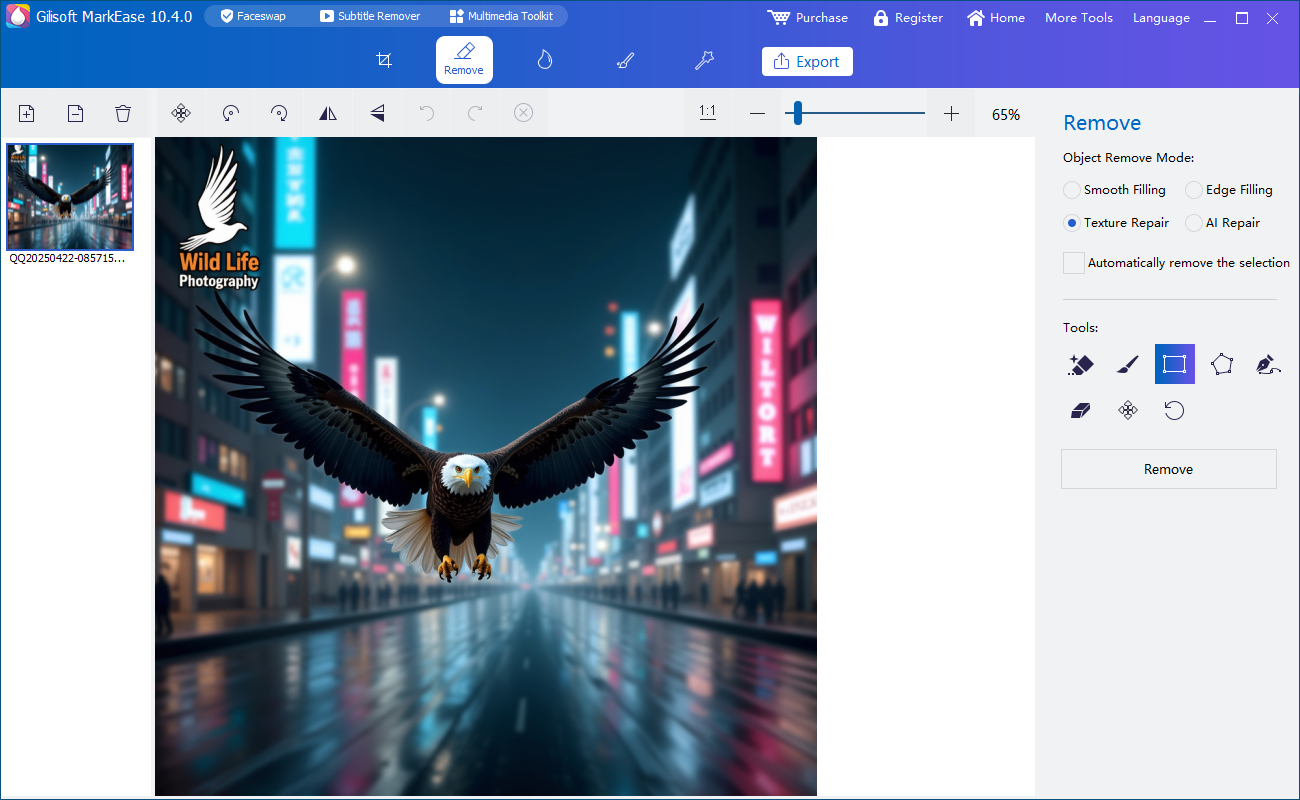
- Open the image in GiliSoft MarkEaseChoose the cleanup function that matches the visible watermark, date, logo, text, object, or person.
- Select only the unwanted pixelsZoom in and include related outlines, shadows, reflections, or disconnected parts without covering clean subject detail.
- Repair complex backgrounds in smaller passesSeparate sky, walls, clothing, hair, pavement, vegetation, and geometric lines so each section uses relevant nearby texture.
- Inspect and export a separate fileReview at 100%, save to the intended local output folder, and open the export outside MarkEase before delivery.
Test the local workflow with MarkEase
Download GiliSoft MarkEase for Windows and test one representative authorized photo. Inspect the repaired pixels and confirm the source and output folders before processing more images.
Download MarkEase TrialLocal Desktop Cleanup vs Online Photo Removers
| Workflow | Where the main work happens | Best fit | Questions to check |
|---|---|---|---|
| GiliSoft MarkEase core cleanup | Windows application using selected source and output folders | Authorized watermarks, dates, logos, text, people, and small objects | Exact feature, folder sync, metadata, backup, and final delivery |
| Browser-based remover | The image is commonly uploaded to a remote service | Fast one-off cleanup when provider and transfer policy are acceptable | Retention, training use, deletion, account history, region, encryption, and file limits |
| Built-in photo editor | Usually on the device, though behavior can vary by feature and account | Simple crop, rotate, exposure, and supported erase tasks | Cloud library status, feature connectivity, export quality, and controls |
| Professional desktop editor | Desktop, cloud, or a mixture depending on the selected function | Complex restoration, layers, precise cloning, and detailed retouching | Feature processing, learning time, project files, caches, and scratch disks |
Why service evaluation matters
NIST guidance on public-cloud use recommends evaluating security and privacy implications before outsourcing data or applications. Applied to photo cleanup, that means knowing where the image goes, which organization controls it, how long it is retained, and what happens to generated outputs.
Technical and privacy principles consulted: NIST cloud privacy guidance, Adobe Content-Aware Fill, Microsoft Photos editing guidance, and GIMP Heal documentation.
Private Photo Cleanup Checklist
Privacy does not replace permission
Keeping a photo local does not create the right to remove someone else's copyright mark or republish their image. Use MarkEase only on photos you own or are authorized to edit, and preserve truthful context in legal, news, scientific, inspection, insurance, and evidentiary material.
Photo Cleanup Without Uploading FAQ
Can I clean a photo without uploading it to a website?
Yes. The core GiliSoft MarkEase selection, repair, preview, and export workflow runs in the Windows application and does not require a browser uploader.
Does local processing guarantee that a photo never leaves the PC?
No. Cloud-synchronized folders, backups, network storage, support uploads, delivery tools, and functions with separate connectivity requirements can still transfer files.
What can MarkEase remove from an authorized photo?
It can be used for visible watermarks, dates, text, logos, small objects, and selected people when the surrounding scene supports reconstruction.
Are all AI-labelled MarkEase features guaranteed to be offline?
No blanket claim is made for every AI-labelled feature. Confirm the exact function's processing and connectivity requirements before using confidential images.
Does removing a visible watermark erase photo metadata?
No. Visible pixels and embedded metadata are different. Review EXIF and other metadata separately when privacy or file organization requires it.
Should I overwrite the original photo?
No. Keep the untouched master and export the cleaned image as a separate file for comparison, recovery, and record keeping.


