

Users can read approved data discs, but cannot burn new company files to blank or rewritable optical media.
How to Block CD/DVD Writing on Windows 11/10
Keep approved disc reading available while preventing new files from being burned to optical media.
Quick answer: if users still need to open files from existing discs, block writing or burning only. In GiliSoft USB Lock, open USB & CD Lock and enable Disable Burning DVD/CD. On supported Windows editions, the built-in equivalent is CD and DVD: Deny write access in Removable Storage Access policy.
Decide What the Optical Drive Should Still Be Allowed to Do
Blocking the entire drive is often more restrictive than the actual requirement. Windows separates optical-media access into reading, writing, and execution, so choose the rule that matches the risk.
Use this on shared or public PCs where optical discs should not be an input or an output channel.
Prevent applications from launching from optical media while keeping separate read and write decisions under policy control.
Most offices need write-only restriction: it closes the disc-burning path without breaking legitimate access to archived manuals, approved media, or installation discs.
Method 1: Block CD/DVD Burning with GiliSoft USB Lock
USB Lock puts optical-drive controls beside USB storage, SD card, phone-transfer, trusted-device, and activity-log settings. This is useful when the PC needs more than one removable-media rule and the administrator wants one graphical interface.
1
Open USB & CD Lock
Start GiliSoft USB Lock, enter the administrator password, and select USB & CD Lock in Control Center.
2
Enable Disable Burning DVD/CD
Select the burning restriction when users may read existing optical discs but must not create new discs.
3
Add read restriction only when required
Select Disable Reading DVD/CD only on computers where files must not be opened or imported from optical media.
4
Protect the settings and test both directions
Keep the USB Lock password with administrators. Test an existing data disc and a blank rewritable disc to confirm that reading and burning behave exactly as intended.
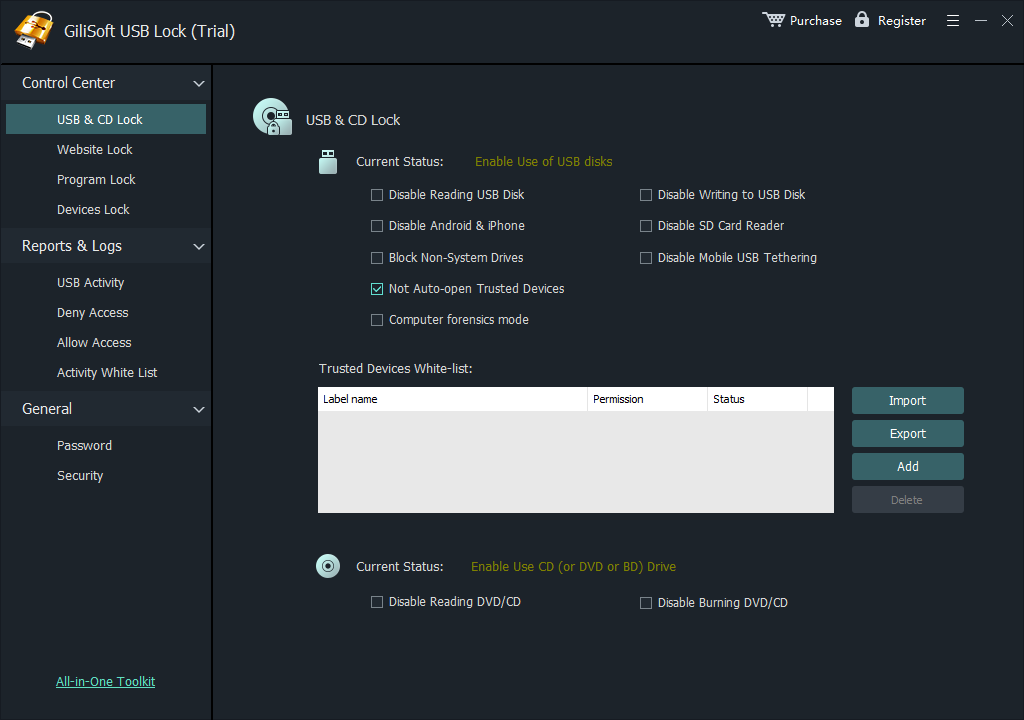
The current USB & CD Lock screen provides independent checkboxes for DVD/CD reading and burning, so a write restriction does not have to disable legitimate read access.
Method 2: Use Windows Removable Storage Group Policy
Windows Pro, Enterprise, and Education include class-based removable-storage policies. This route is appropriate when administrators already manage Windows policy and only need the built-in optical-media rule.
1
Open Local Group Policy Editor
Press Windows + R, enter gpedit.msc, and press Enter.
2
Open Removable Storage Access
Go to Computer Configuration > Administrative Templates > System > Removable Storage Access.
3
Enable CD and DVD: Deny write access
Open the policy, choose Enabled, and apply the change. Do not enable deny-read or deny-all rules unless those restrictions are also required.
4
Refresh policy and verify the result
Run gpupdate /force from an elevated Command Prompt or restart the PC, then test with the actual burning application and drive model used in your environment.
Windows Home note: the standard Local Group Policy Editor is not included in Home editions. Do not rely on unofficial Group Policy installers; use a supported control product or an edition of Windows designed for managed policy.
GiliSoft USB Lock vs Windows Group Policy
| Requirement | GiliSoft USB Lock | Windows policy |
|---|---|---|
| Block CD/DVD writing | Enable Disable Burning DVD/CD in a graphical interface. | Enable CD and DVD: Deny write access. |
| Keep disc reading | Leave the separate reading restriction disabled. | Leave Deny read access not configured or disabled. |
| Other removable channels | Manage USB storage, SD cards, phones, tethering, optical media, and trusted devices from the same product. | Configure each relevant storage class and policy separately. |
| Protect administration | USB Lock uses administrator password and security settings. | Depends on Windows administrative permissions and policy management. |
| Activity review | Includes allow, deny, and USB activity views for supported device-control events. | Requires separate Windows auditing and event-analysis configuration. |
| Windows edition | Designed for supported Windows PCs, including situations where a simple local interface is preferred. | Local Group Policy Editor is available on Pro, Enterprise, and Education, not standard Home. |
Test the Restriction Before Applying It to Every PC
Disc-burning controls are easy to misunderstand because reading an existing disc and writing a new disc are different operations. Verify both before wider use.
Confirm approved files still open when only burning is blocked.
Try the Windows burner and the third-party burning software actually used by staff.
Connect the USB DVD or Blu-ray drive models used in the office, not only an internal drive.
Check reading and execution separately if legacy applications still install from optical media.
Document which PCs or roles may burn discs and who may change the restriction.
Retest after major Windows updates, drive replacement, or burning-software changes.
Block CD/DVD Writing FAQ
Can users still read a DVD after writing is blocked?
Yes, provided only the burning or write rule is enabled. Reading is controlled separately.
Does blocking writing disable the optical drive?
No. A write-only restriction prevents new data from being burned but does not need to remove the drive or block existing discs.
Can USB DVD drives be restricted?
They should be included under the relevant optical-media class, but always test the actual external drive and burning software before deployment.
Can Blu-ray use be restricted too?
GiliSoft USB Lock groups CD, DVD, and BD optical-drive controls in the same USB & CD Lock area.
Can the same product block USB storage and phone transfer?
Yes. Those are separate controls in USB Lock, so administrators can block disc burning without automatically applying the same rule to every other device channel.
Official Windows referencesMicrosoft Learn: Removable Storage Access policy settingsMicrosoft Learn: Storage Policy CSP