
Quick answer
Use Direct Block when a game must not run. Use Password Verification when a parent, teacher, or administrator may approve a launch. If the real goal is daily play-time limits for a child's Microsoft account, Microsoft Family Safety is the more appropriate built-in option.
Choose the Right Way to Restrict Games
The best method depends on whether you need a hard launch block, occasional approval, or a recurring time allowance.
| Method | Best for | What happens | Main consideration |
|---|---|---|---|
| EXE Lock: Direct Block | Shared, school, or work PCs | The selected game or launcher is stopped before it opens. | No password prompt is shown to the user. |
| EXE Lock: Password Verification | Parent- or administrator-approved play | The game starts only after the release password is entered. | Keep the password and recovery email private. |
| Microsoft Family Safety | Children using separate Microsoft accounts | Parents can block apps or set app and game time limits. | Requires a Microsoft family group and supported account setup. |
| Standard Windows account | Reducing installations and system changes | Administrative actions require approval. | It does not reliably stop every already-installed game. |
Recommended when the game must remain installed
GiliSoft EXE Lock controls the launch instead of deleting game files. You can block traditional EXE games, protect supported Store apps, approve a launch with a password, temporarily unlock protection, and review blocked attempts.

Before You Block a Game
Identify the real launch target
A desktop shortcut may open a launcher, which then starts a separate game executable. Note both paths when direct launching is possible.
Set recovery details first
Confirm the EXE Lock password and recovery email before adding restrictions to a shared or remotely supported PC.
Protect approved software
Keep system-critical processes and required school, communication, accessibility, or work apps in the whitelist.
How to Block Games on a Windows PC
These steps keep the game installed while controlling whether it can start.
Configure the password, recovery email, and whitelist
Open Settings first. Set the startup and release password, add a recovery email, and confirm that critical Windows processes and approved applications are excluded from the lock list.
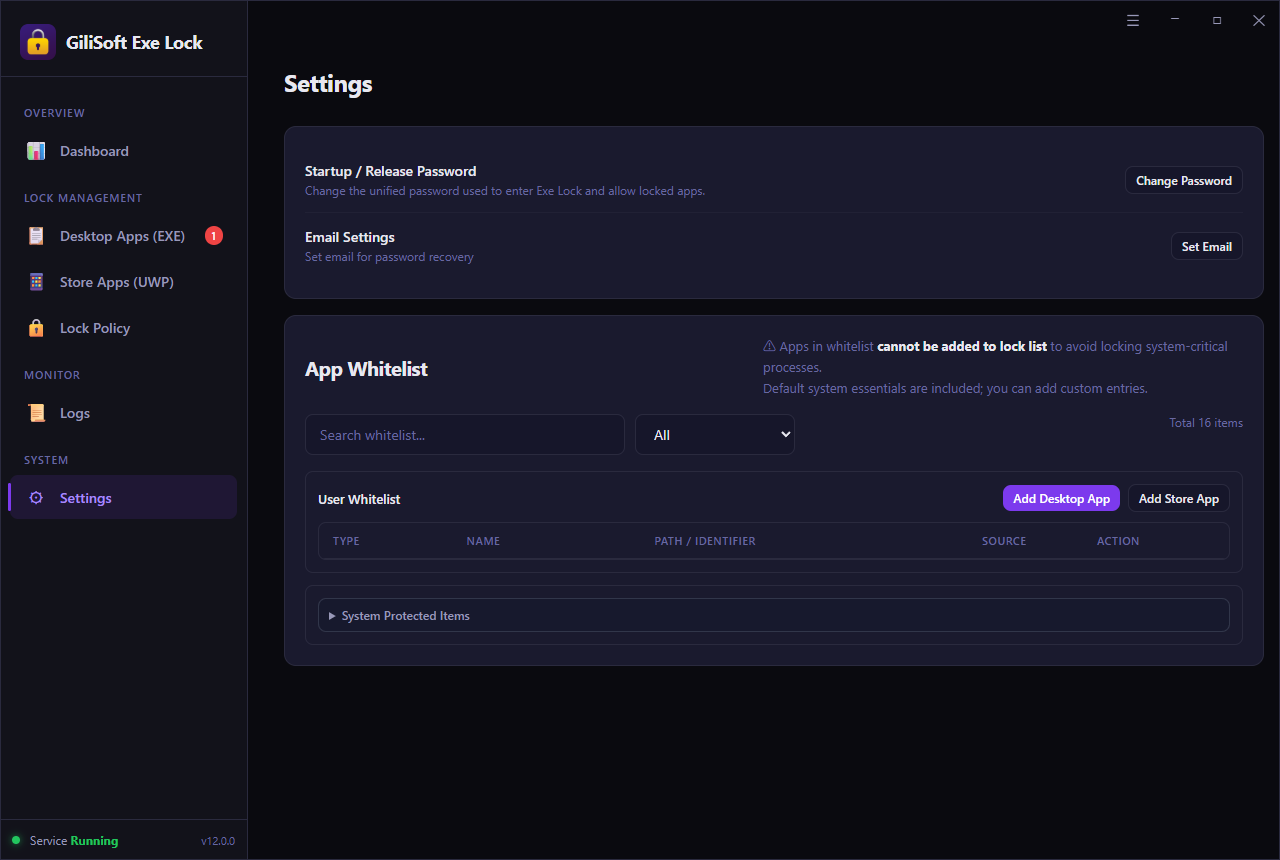 Prepare recovery and whitelist rules before restricting games.
Add the desktop game or its launcher
Open Desktop Apps (EXE), choose Add, and select the game executable, launcher, or shortcut. If users can bypass the launcher and open the game EXE directly, add both targets.
- Traditional installed games: add the main EXE.
- Portable games: add the executable at its actual location.
- Store games: use the separate Store Apps (UWP) area.
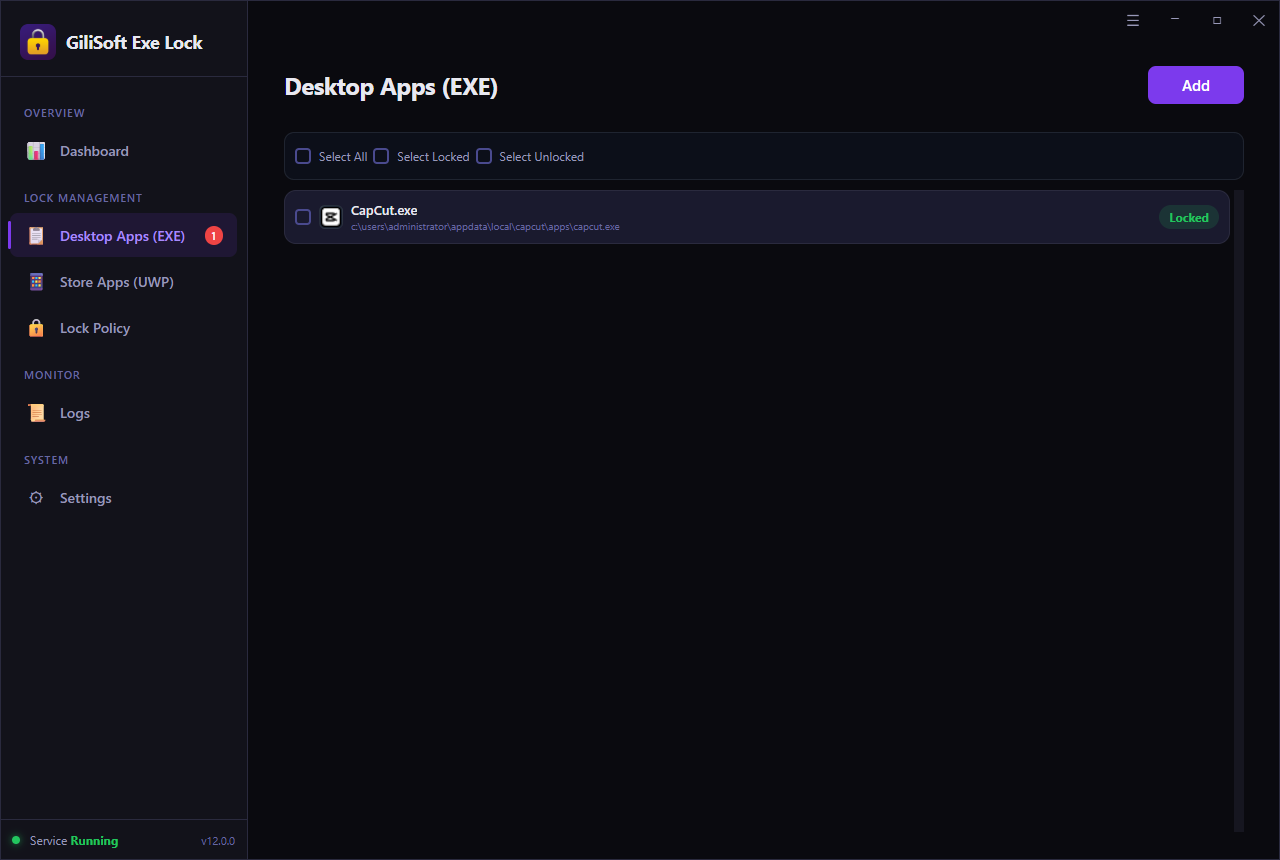 Add the executable that actually starts the game.
Choose Direct Block or Password Verification
Select Direct Block when the game must not run at all. Select Password Verification when an authorized adult, teacher, or administrator should be able to approve play without removing the rule.
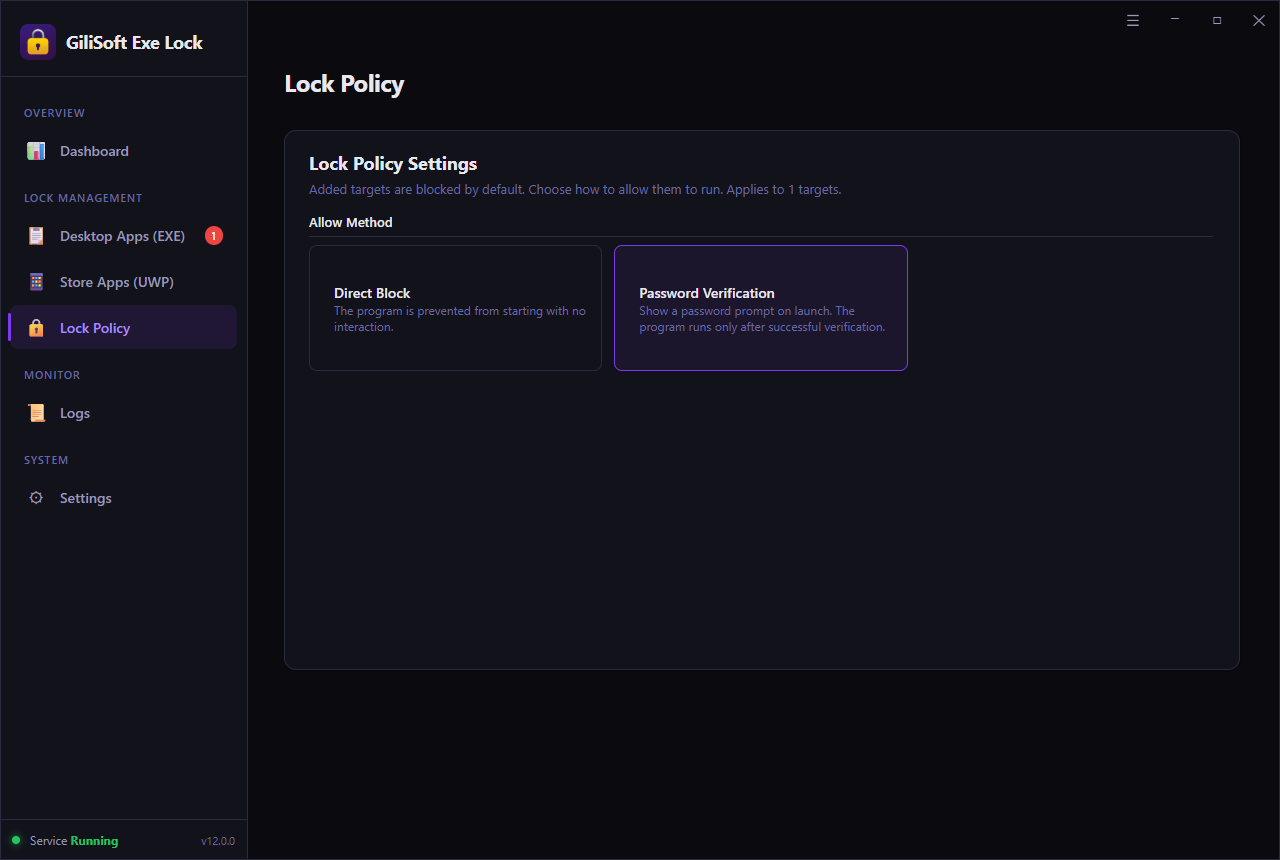 Choose a strict block or an approval-based launch rule.
Test every launch path and review attempts
Try the desktop shortcut, Start menu entry, launcher, and direct game EXE. Then check the dashboard and recent intercept logs. A blocked-attempt count confirms that the launch rule is being enforced.
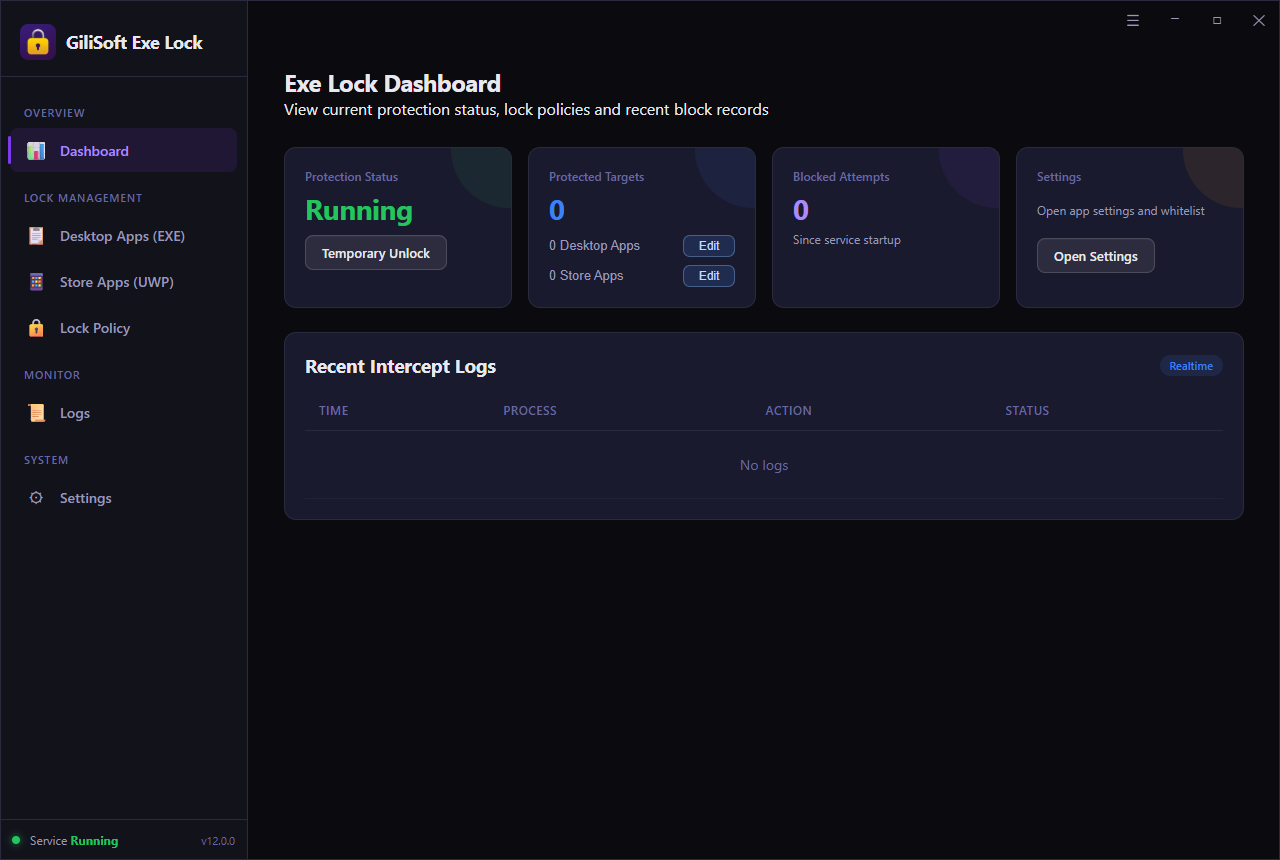 Verify the rule rather than assuming the shortcut is the only launch path.
Direct Block or Password Approval?
Direct Block
Use this for school labs, office workstations, front-desk PCs, and family computers during no-play periods. The selected game is prevented from starting.
Best when no exception is needed.Password Verification
Use this when games may be opened after homework, during supervised sessions, or by an administrator performing updates and maintenance.
Best when an authorized person can approve access.Windows Options for Game Limits
Microsoft Family Safety
Family Safety can block apps and games or assign time limits to a child's account. It is useful when each child signs in with the correct Microsoft family account and the goal is scheduled use rather than a shared-PC launch password.
AppLocker for managed environments
AppLocker supports allow and deny rules for applications and can target users or groups. It is designed for managed Windows environments and requires more policy planning than a local app-lock tool.
Standard user accounts
A standard account reduces unauthorized installations and administrative changes, but it should not be treated as a complete game-blocking method for software that is already installed.
Removing shortcuts is not a block
Games can still be opened from search, a launcher, the Start menu, an installation folder, or a portable drive. Control the executable or app target instead.
Official references: Microsoft Family Safety app blockingMicrosoft app and game limitsMicrosoft AppLocker rules
Where Game Blocking Is Useful
Family and homework computers
Keep school, browser, and communication apps available while selected games remain blocked or require parent approval.
Schools and training rooms
Stop game launchers and portable games on PCs intended for lessons, exams, practice, or supervised training.
Office and customer-facing PCs
Prevent games from running on reception, support, kiosk-adjacent, and shared workstations without removing unrelated user files.
Shared production or gaming PCs
Keep paid games installed for authorized sessions while restricting access during work, maintenance, streaming, or recording periods.
Common Game-Blocking Mistakes
Blocking only the launcher
Some games can start directly from their own EXE. Test both the launcher and the installed game path.
Locking required services
Do not casually add Windows services, drivers, anti-cheat components, or system processes. Restrict the game target and preserve critical items in the whitelist.
Forgetting recovery setup
Set the recovery email and keep the release password outside the restricted account before enabling rules.
Using a hard block when limits are needed
If the real policy is two hours per day for a child account, use Family Safety time limits instead of repeatedly enabling and disabling a launch block.
Block Games on Windows FAQ
Can I block a game without uninstalling it?
Yes. EXE Lock can prevent the game executable or launcher from opening while leaving its files, updates, and settings installed.
Can a parent allow a game with a password?
Yes. Choose Password Verification so the game opens only after an authorized person enters the release password.
Can I block Microsoft Store games?
EXE Lock includes a Store Apps (UWP) area for supported Microsoft Store app and game targets.
Can I see whether someone tried to play?
Yes. The dashboard and recent intercept logs show blocked-attempt activity for protected targets.