
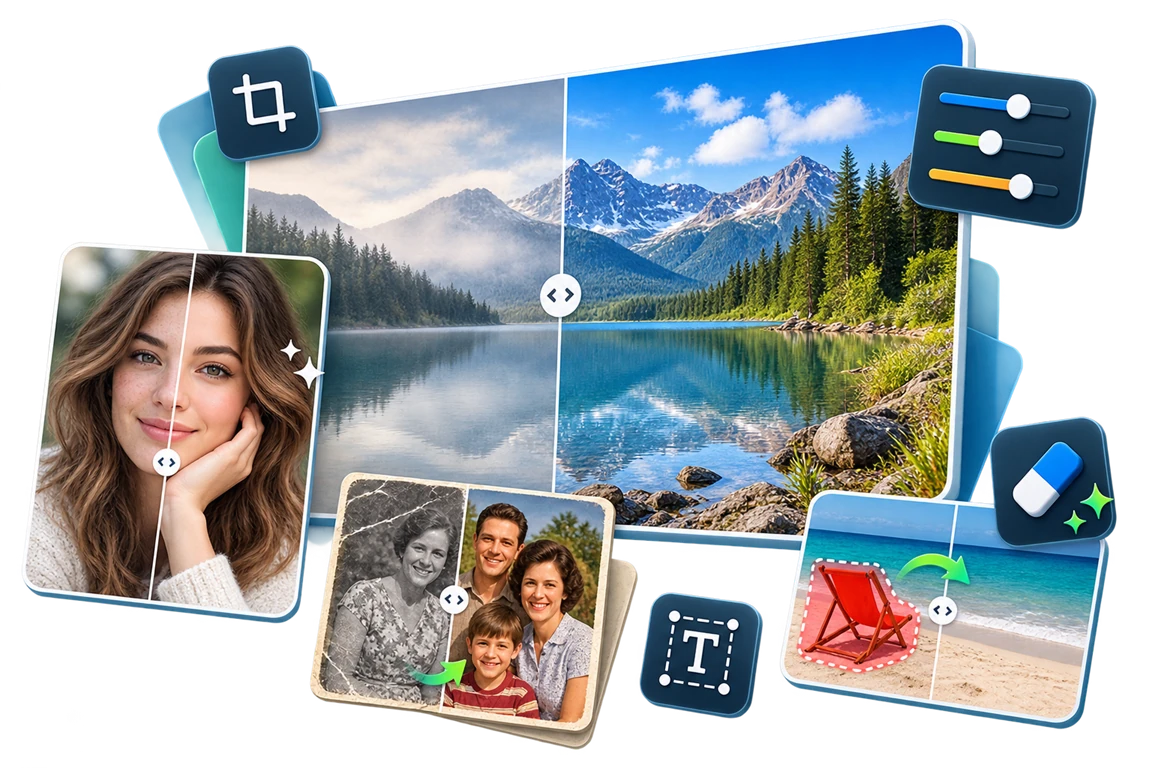
Change the Sky in a Photo on Windows
Sky replacement is more than a cutout. The new sky must match the foreground light, horizon detail, water or glass reflections, and overall color temperature.
Quick answer
Open a copy in GiliSoft Image Editor, use the Change Sky task, choose a sky with compatible light and perspective, then inspect trees, rooftops, hair, and reflected areas before export.
Before You Start
- Keep the original and choose a high-resolution sky image with appropriate usage rights.
- Check whether the foreground is backlit, golden-hour, or overcast; this affects what replacement looks plausible.
- Identify complicated boundaries such as branches, wires, water, and transparent objects.
Choose the Right Approach
| Situation | Approach | Check |
|---|---|---|
| Simple horizon | Use an appropriate sky preset or source | Horizon transition is clean |
| Trees, wires, or fine edges | Inspect mask and refine the boundary | No halos or missing branches |
| Water or reflective buildings | Check reflections and color grading | Scene lighting agrees with the new sky |
Change the Sky in a Photo on Windows: Step by Step
- Open the foreground photo
Use the highest-quality copy and inspect the existing horizon at full resolution.
- Select a compatible sky
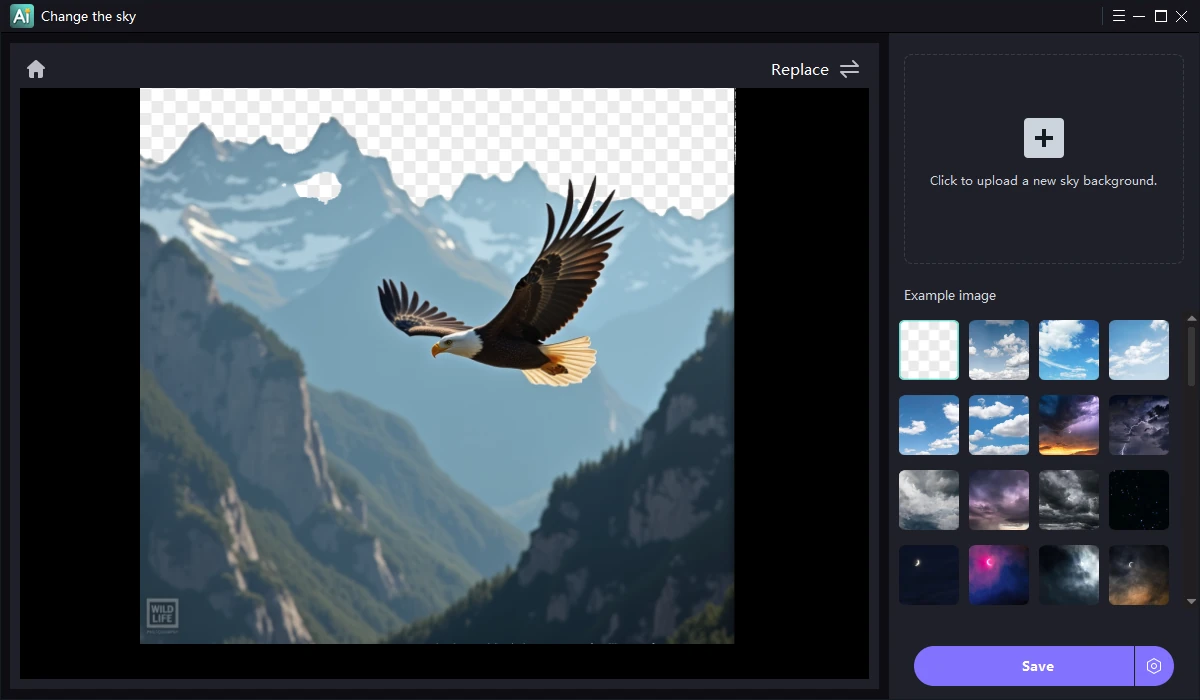
Match horizon position, cloud scale, sun direction, and time of day.
- Review the boundary
Use Image Editor's available Change Sky controls and inspect fine edges at full size.
- Balance the scene
Adjust foreground and sky tone subtly so shadows and reflections make sense.
- Export and compare
Check the result at normal viewing size and retain the untouched original.
Review the Result
- Are trees, wires, rooftops, and hair free of bright halos?
- Does sunlight direction match foreground shadows?
- Are reflective surfaces still plausible?
Limits and Common Mistakes
A replacement sky cannot fix a foreground captured under incompatible lighting automatically. For documentary, evidence, or real-estate uses, disclose material scene changes where accuracy matters.
Frequently Asked Questions
Why is there a bright outline around trees?
The sky boundary or mask is inaccurate; refine the selection and compare at full size.
Can I use any sky image?
Use one you are licensed to use and choose lighting that matches the scene.
Will the foreground light change automatically?
Do not assume so; inspect shadows, white balance, and reflections after the swap.