
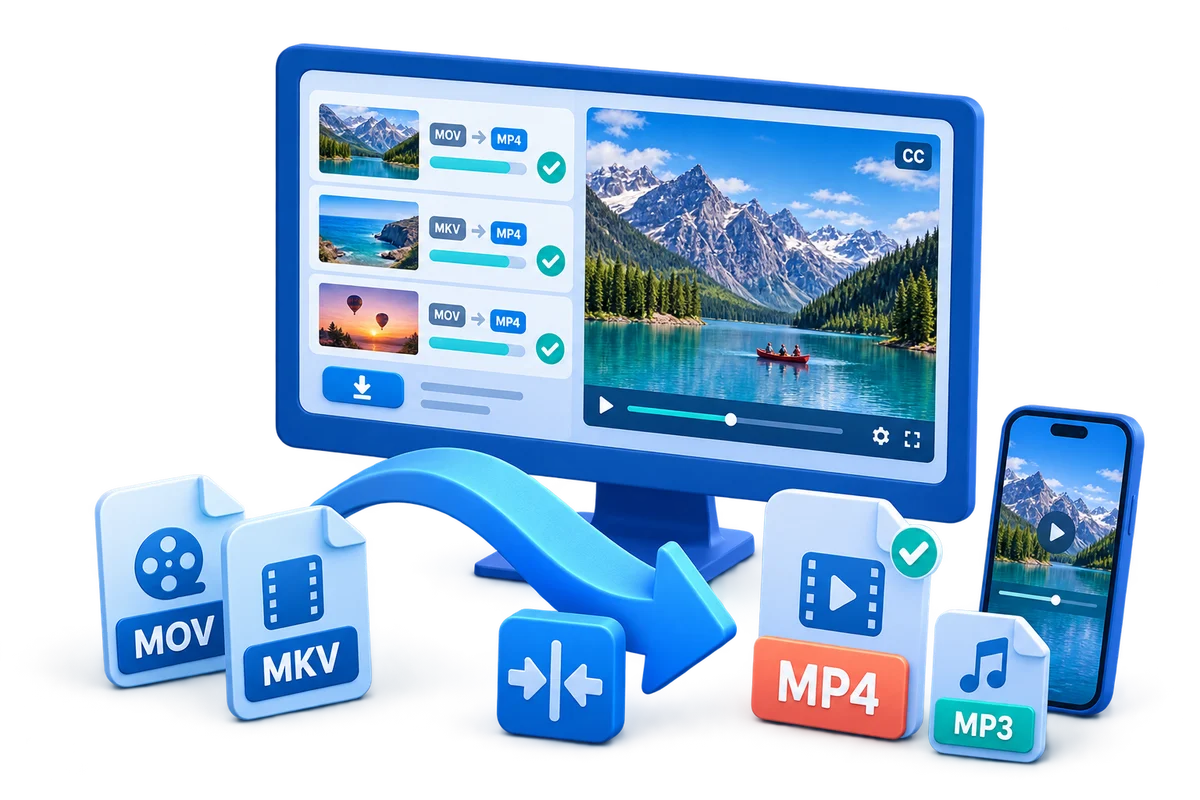
Convert Videos for Archive Storage
Use this workflow to create documented preservation and access copies instead of replacing originals with smaller files. Preserve the best source, choose settings from the destination backward, and verify the complete output.
Quick answer
Keep the original bitstream, document its provenance and checksums, and create a preservation master only when policy requires normalization. Make smaller access copies separately for routine viewing. Retain native resolution and frame rate where possible and verify every file after transfer or conversion.
Choose the Right Conversion Approach
| Situation | Recommended approach | What to verify |
|---|---|---|
| Original bitstream | Retain unchanged with checksum and metadata | Integrity and provenance |
| Preservation master | Normalize only under an archive policy | Resolution, frame rate, tracks, and metadata |
| Access copy | Use a practical viewing format | Playback, captions, and traceable relation to master |
Step-by-Step Workflow
- Inventory and preserve originals
Record file names, provenance, technical metadata, and checksums before any conversion.
- Define preservation and access policy
Choose whether normalization is required and keep viewing copies separate from preservation masters.
- Convert representative samples
Preserve native resolution and frame rate where possible and include required audio, captions, timecode, and metadata.
- Validate every output
Check hashes where used, duration, streams, frame count or playback, captions, and decoding outside the converter.
- Store documentation with the files
Keep relationships between original, preservation master, access copy, conversion settings, and rights information.
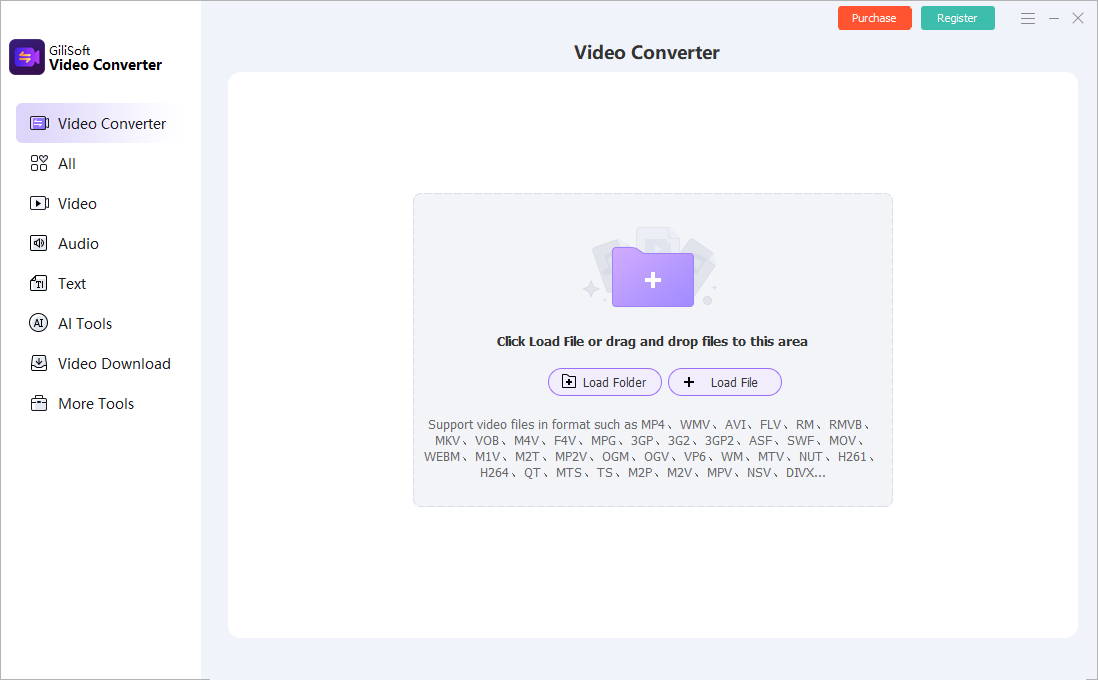
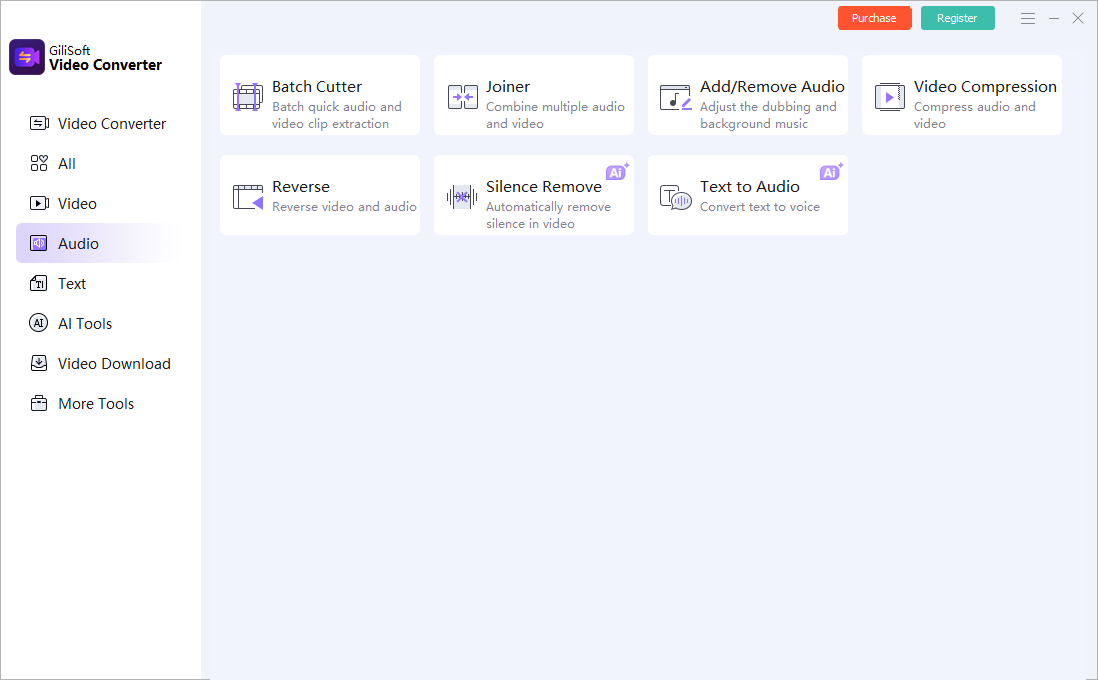
Use the GiliSoft Video Converter Workspace
These screenshots show real product workspaces. Presets and controls can change, so inspect the source and test the actual destination instead of treating a preset name as proof of compatibility.
Verify the Output Before Delivery
| Preservation master versus access copy | Test a representative section and the complete file on the actual destination. |
|---|---|
| Picture and sound | Check aspect ratio, motion, color, audio sync, channels, captions, and readable text. |
| File identity | Confirm the output path, name, size, duration, version, and relationship to the preserved source. |
Frequently Asked Questions
Is MP4 always an archival format?
No. It can be an excellent access or delivery format, but archive policy must define the preservation master, metadata, checksums, and retained streams.
Should I convert every old format?
Not automatically. Preserve originals first and normalize only when policy, decoder risk, or access needs justify it.
Why keep access copies separately?
Viewing copies can be smaller and easier to play without reducing or replacing preservation-quality files.
Should I overwrite the source?
No. Keep the source or approved master and create a separate converted output.
Why test outside the converter?
The internal preview does not prove that codecs, tracks, captions, seeking, metadata, and destination playback are correct.