
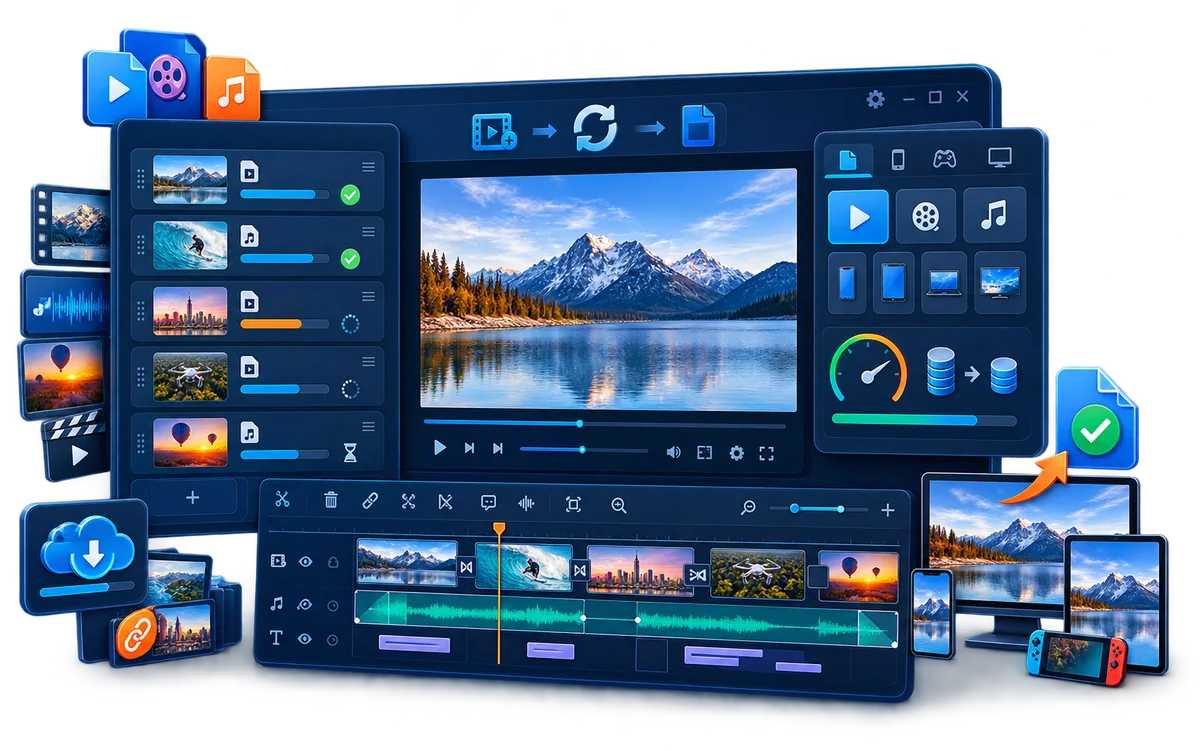
Why Use a Dedicated Video Converter on Windows 11?
Windows 11 can play many common files, but a file extension does not tell the whole story. MP4, MOV, MKV, and AVI are containers; playback also depends on the video codec, audio codec, profile, resolution, subtitles, and the receiving application or device.
Microsoft documents native support for common Media Foundation formats such as MPEG-4 containers, H.264, AAC, AVI, and WMV. It also documents optional extensions for HEVC, AV1, VP9, MPEG-2, and Web Media. This is why a video may play in one Windows application but fail in another, or work on one PC while producing an error on a different Windows 11 machine.
Choose the Right Windows 11 Output
| Destination | Practical starting point | What to check |
|---|---|---|
| General Windows 11 playback | MP4, H.264 video, AAC audio | Confirm the player supports the selected profile, resolution, frame rate, and audio track. |
| Website, LMS, or social upload | Follow the service specification; H.264 and AAC are common | Check file-size limits, aspect ratio, frame rate, subtitle method, and maximum resolution. |
| Newer devices and smaller delivery files | HEVC/H.265 where supported | Microsoft notes that HEVC support is not identical across all devices; test the actual receiver. |
| Review or email copy | MP4 with reduced resolution or bitrate | Keep the full-quality master and inspect small text, faces, and motion after compression. |
| Editing or archive master | Higher-quality output or the untouched source | Avoid repeated lossy conversion and do not choose the smallest file merely to save space. |
| Audio-only delivery | MP3, WAV, FLAC, AAC, or M4A according to use | Choose compact output for listening and editing-friendly or lossless output for production. |
How to Convert Video on Windows 11 with GiliSoft
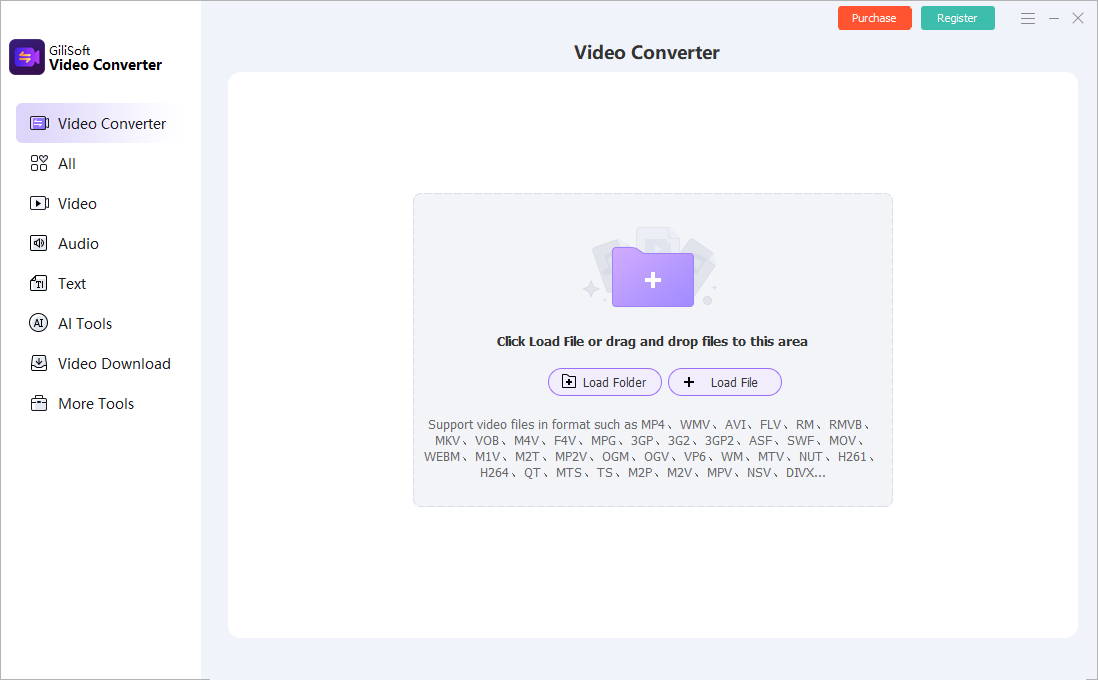
- Add files or a complete folder.
Open GiliSoft Video Converter and load the source videos or audio files. Review duration, dimensions, orientation, tracks, and subtitle requirements before applying one profile to a mixed queue. - Choose an output format or device preset.
Select MP4, another video format, an audio profile, or a preset that matches the receiving website, player, phone, television, archive, or editing application. - Set codec, resolution, frame rate, quality, and audio.
Preserve aspect ratio, avoid unnecessary upscaling, and keep the source frame rate unless the destination specification requires a change. - Enable supported hardware encoding when useful.
Use NVIDIA NVENC when the installed GPU, driver, selected codec, and output settings support it. Hardware encoding is valuable for repeated work and larger batches, but it is not a file-size or quality guarantee. - Prepare any required finishing work.
Trim, crop, rotate, compress, add subtitles, adjust audio, or place a watermark before final conversion instead of moving the file through several separate utilities. - Convert a sample, then run the batch.
Check playback, picture quality, audio sync, subtitles, duration, file size, and destination compatibility. Keep the original files and use a separate output folder.
Common Windows 11 Video Conversion Jobs
GiliSoft Video Converter is useful when Windows 11 playback is only one part of the job. It can standardize sources for another device, reduce large files, extract audio, or prepare media with subtitles and visible branding before delivery.
Convert MOV, MKV, AVI, or WMV to MP4
Prepare camera footage, older Windows files, screen recordings, and mixed downloads for broader playback and upload compatibility.
Batch-convert recurring folders
Apply consistent settings to lessons, demos, review files, product clips, or an archive migration without exporting every file separately.
Compress 4K or oversized video
Create upload, email, mobile, or review copies while retaining the original master in a separate location.
Prepare video for another device
Match the codec, resolution, aspect ratio, frame rate, and audio requirements of a phone, tablet, television, projector, or presentation PC.
Extract or convert audio
Save a soundtrack, narration, interview, lecture, or music track as MP3, WAV, FLAC, AAC, M4A, or another suitable audio output.
Add subtitles, audio, or watermarks
Finish routine delivery preparation in the same conversion workflow and verify timing in the completed file.
GiliSoft Video Converter combines these tasks with a batch queue and supported GPU encoding. Download the Windows trial and test a representative source against the actual destination before purchasing.
Preserve Useful Quality Without Creating Needlessly Large Files
Normal conversion re-encodes the picture, so “no quality loss” should not be treated as a guaranteed switch. The practical goal is to avoid visible damage while producing a file the destination can decode smoothly.
- Preserve source resolution: do not upscale 720p footage to 4K merely to create a larger number.
- Keep the source aspect ratio: separate portrait, square, 4:3, and widescreen jobs when one forced profile would stretch them.
- Keep the source frame rate when possible: raising frame rate does not recreate motion that was never captured.
- Use enough quality for the content: screen text, fast motion, fine texture, gradients, and noise expose compression sooner.
- Return to the master: repeated lossy conversion compounds artifacts. Create new outputs from the original source.
- Test the receiving device: a technically valid file is not useful if the final player, browser, editor, or television cannot decode it.
Batch Conversion, GPU Encoding, and Built-In Media Tools
Format conversion is often part of a larger Windows 11 workflow. GiliSoft keeps related preparation close to the queue instead of forcing the source through several unrelated utilities:
Batch video and audio conversion
Add files or folders, apply suitable profiles, monitor progress, and keep destination folders organized for repeated work.
NVIDIA NVENC support
Use supported hardware encoding for compatible codecs and settings. NVIDIA documents dedicated NVENC and NVDEC engines for video encode and decode.
Compression and device output
Control format, resolution, bitrate, and quality for upload, storage, review, mobile playback, or a specific receiving device.
Subtitles and audio
Add or render captions, extract or convert audio, adjust sound, and check that the final streams work in the target player.
Trim, join, crop, and rotate
Remove unwanted time, combine clips, fix orientation, and reframe footage before the final conversion.
Watermarks and visual preparation
Add text or image branding and make practical visual adjustments before export when delivery requires them.
Fix Common Windows 11 Video Conversion Problems
| Problem | Likely cause | What to do |
|---|---|---|
| Video plays in one app but not another | The applications support different containers, codecs, profiles, or optional Windows extensions | Convert to a tested H.264 and AAC MP4 profile or match the receiving application's documented requirements. |
| HEVC, AV1, VP9, or MPEG-2 will not open | The Windows installation, player, or hardware lacks the corresponding decoder or optional extension | Use an authorized extension from Microsoft Store or convert to a format already supported by the destination. |
| No sound after conversion | Unsupported audio codec, missing source stream, or wrong track selection | Inspect the source audio and choose AAC or another codec accepted by the final player. |
| NVIDIA acceleration is unavailable | The GPU, driver, codec, or selected settings do not support NVENC | Update the official display driver, choose a supported encoder profile, or use CPU conversion. |
| Output looks stretched or cropped | The source aspect ratio was forced into another frame shape | Preserve aspect ratio and process portrait, square, 4:3, and widescreen sources separately when necessary. |
| Conversion is slow | High resolution, filters, scaling, unsupported hardware settings, slow storage, or thermal limits | Test a supported hardware encoder, reduce unnecessary processing, use local storage, and monitor system temperature and free space. |
| File is too large or visibly poor | The bitrate or quality target is unsuitable for the resolution and content | Return to the original source, test a short demanding section, and adjust quality instead of repeatedly converting the output. |
Video Converter for Windows 11 FAQ
Does GiliSoft Video Converter work on Windows 11?
Yes. It supports current Windows conversion workflows with video and audio formats, batch processing, compression, subtitles, media tools, and supported GPU encoding.
What output format should I choose for broad Windows 11 playback?
MP4 with H.264 video and AAC audio is a practical starting point. The final player, browser, editor, phone, television, or upload service should still be tested.
Can Windows 11 play every HEVC or AV1 file without extra components?
No. Microsoft documents optional codec extensions for HEVC, AV1, VP9, MPEG-2, and Web Media. Support can also vary by application and device hardware.
Does GPU encoding always make conversion faster?
No. It helps supported jobs, especially batches, but source decoding, scaling, filters, storage, driver support, and unsupported settings can limit total speed.
Can GiliSoft convert video to audio?
Yes. Add the video and choose an audio output such as MP3, WAV, FLAC, AAC, or M4A when only the soundtrack is required.
Can several videos be converted together?
Yes. Add files or folders, choose suitable output settings, test one representative source, and process the remaining queue as a batch.
Research Sources
- Microsoft Learn: Supported codecs for Windows apps: container, codec, decode, encode, and optional HEVC or AV1 support.
- Microsoft Support: Troubleshoot Windows Media Player errors: optional codec extensions and the Windows 11 24H2 AC-3 change.
- Microsoft Support: Video playback settings in Windows: hardware-dependent processing, playback settings, and refresh-rate troubleshooting.
- NVIDIA Video Codec SDK: dedicated NVENC and NVDEC hardware engines and supported video-processing use cases.
Convert Video and Audio on Windows 11
Use GiliSoft Video Converter to standardize formats, process batches, use supported GPU encoding, compress large media, and prepare subtitles, audio, watermarks, and device-ready output.