
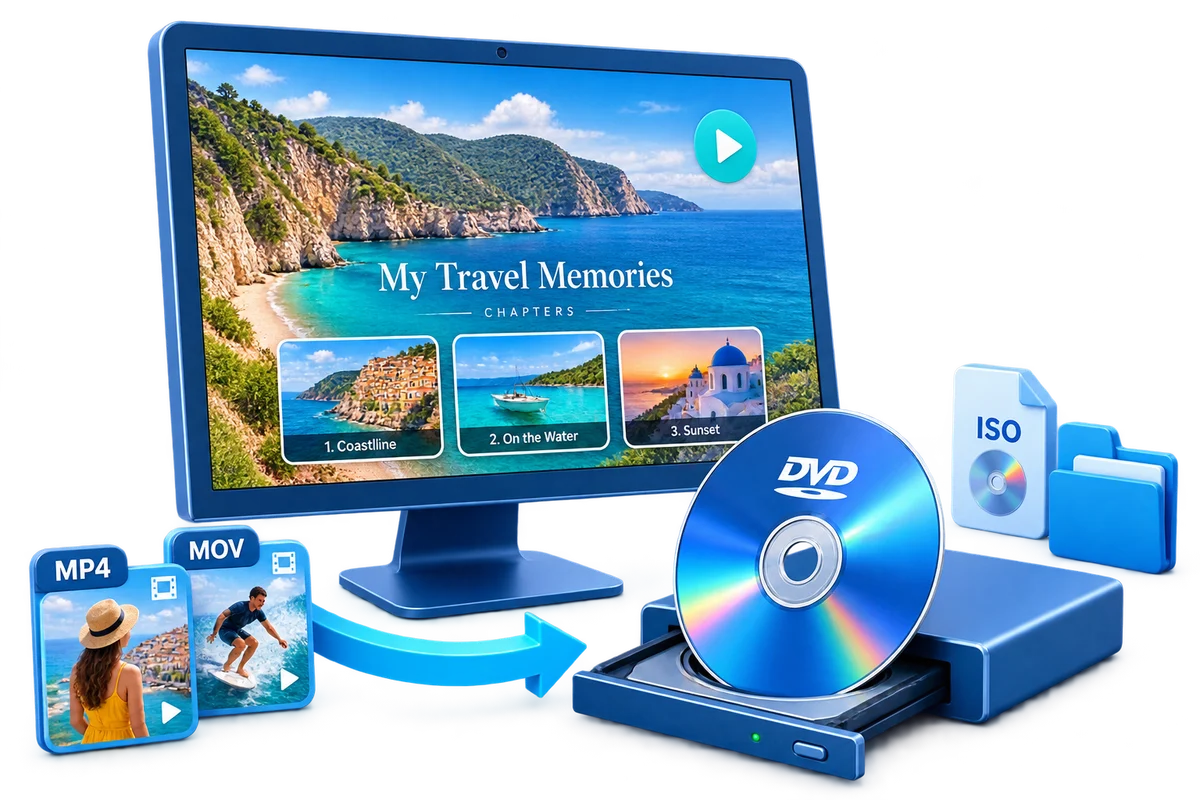
Choose the Output by How It Will Be Used
| Goal | Best choice | Why |
|---|---|---|
| Burn one disc immediately | Physical DVD | Direct output when the writer and media are ready |
| Keep one reusable master | DVD ISO | Single image containing the authored disc structure |
| Inspect individual DVD files | DVD folder | Accessible VIDEO_TS-style folder structure |
| Store original footage | Source files | Preserves original resolution and editability |
Prepare Before Creating the DVD
Estimate free space
Allow room for temporary encoding plus the finished ISO.
Finish the menu first
The ISO captures the authored project exactly as created.
Choose a clear filename
Include project, standard, and date when useful.
Select stable storage
Do not save an important master only to a temporary or nearly full drive.
How to Create a DVD ISO from Video Files: Step by Step
Import and arrange the videos
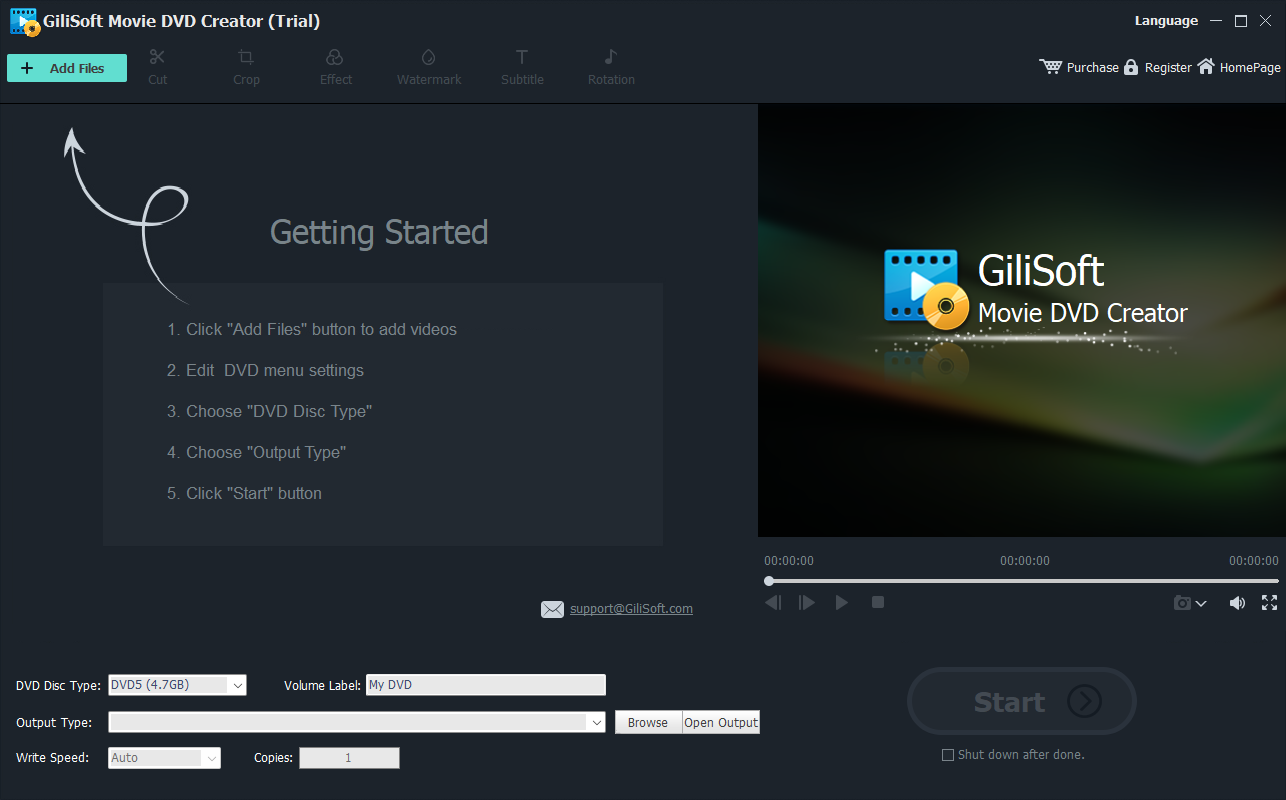
Add final local source files and set their playback order.
Prepare titles and chapters
Complete trimming, captions, and navigation points.
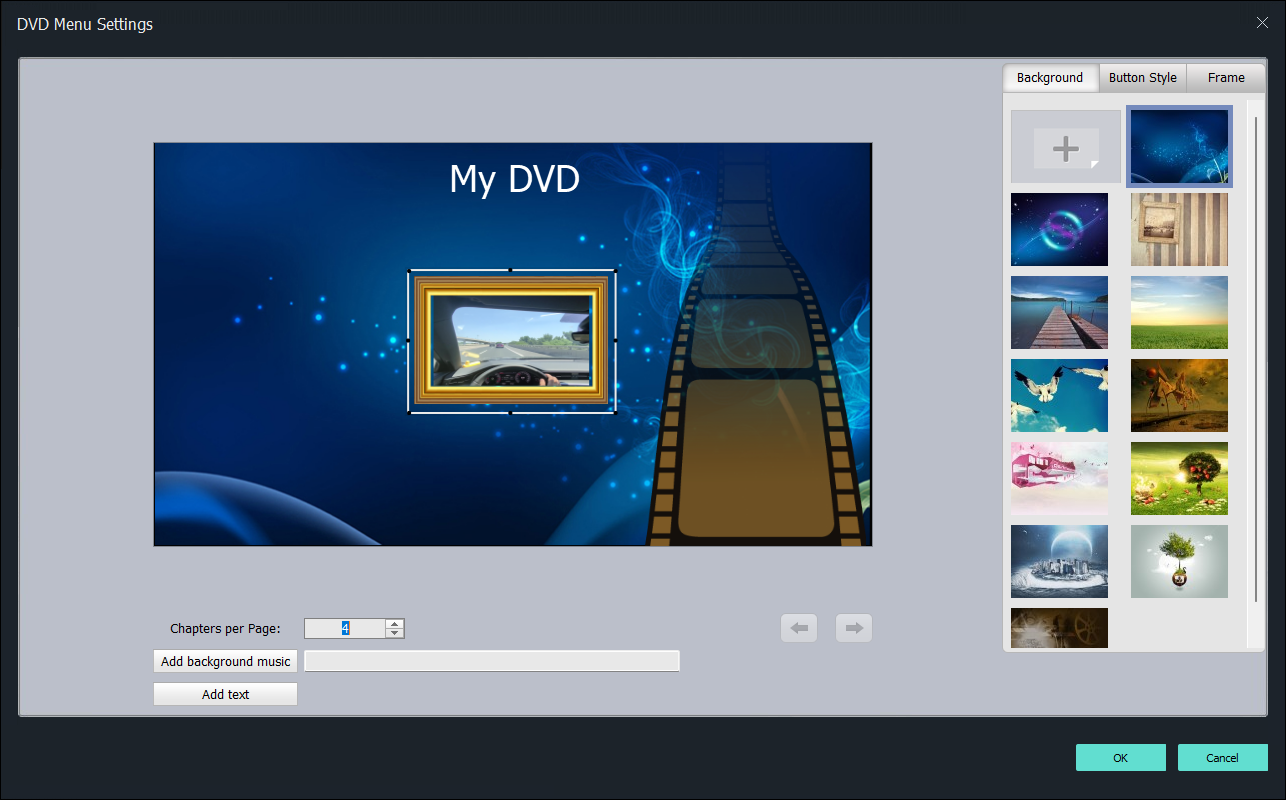
Build and preview the menu
Verify every title, chapter, and return route.
Choose the video standard
Set PAL or NTSC for the destination playback environment.
Select ISO output
Choose an output path with enough working and final storage space.
Create and verify the image
Finish encoding, confirm the ISO exists and has a plausible size, then test or burn it.
When an ISO Is Better Than Burning Immediately
No writer required
Author the complete disc on a PC even when no optical drive is attached.
Repeatable output
Burn multiple copies from the same verified image.
Simpler transfer
Move one image file instead of a folder containing many DVD files.
Exact project snapshot
Menus, title order, and navigation remain together in the image.
Author the Complete Project with GiliSoft Movie DVD Creator
GiliSoft Movie DVD Creator keeps source preparation, titles, chapters, menu design, PAL or NTSC selection, preview, and disc, ISO, or DVD-folder output in one workflow. It is intended for creating DVD-Video, not merely copying loose video files to optical media.
Troubleshooting
- ISO creation stops for low space: free room on both temporary and destination drives.
- The image is unexpectedly small: check that all intended videos were included and creation completed.
- A mounted ISO has no menu: confirm the project was authored as DVD-Video.
- The later burn fails: test different media, a moderate speed, and the correct image-burning mode.
- The ISO plays differently from the preview: recheck startup and end-action settings before recreating it.
Create Discs Only from Authorized Video
Use recordings you own or have permission to copy and distribute. DVD creation does not override copyright, privacy, licensing, or technical protection.
Frequently Asked Questions
What is a DVD ISO?
It is one image file representing the authored disc content and logical structure.
Do I need a DVD writer to create an ISO?
No. The image can be created first and burned later on a system with a compatible writer.
Does the ISO include the DVD menu?
Yes, when the source project was authored with that menu and navigation.
Can I burn more than one disc from the ISO?
Yes. A verified ISO is useful for repeat burns of the same project.
Is an ISO a replacement for original video files?
No. Keep original source videos separately for quality, editing, and preservation.
Can Windows open an ISO?
Current Windows versions can mount many ISO files, but test DVD navigation with suitable playback software or a burned disc.