
How to Flatten a PDF Before Sharing
Use this workflow to prepare a stable delivery copy when comments or form fields should no longer remain interactive. Keep an untouched source and judge success from the reopened output, not only from a completed progress message.
Quick answer
Keep the editable original, identify the interactive fields or annotations that must remain visible, and use a PDF workflow that explicitly flattens them into the page appearance. Reopen the result in another reader and test that the expected content is visible and no longer editable.
Choose the Right PDF Workflow
| Situation | Recommended approach | What to verify |
|---|---|---|
| Editable working copy | Keep comments and fields live | Reviewer can continue the workflow |
| Stable visual copy | Use an explicit flattening workflow | Visible values remain but fields are no longer interactive |
| Confidential release | Use true redaction and sanitization | Underlying and hidden data are removed |
Step-by-Step Workflow
- Protect the source
Duplicate the original, record its page count, and use a clear working filename.
- Inspect the document first
Check form values, annotations, links, and editability before changing anything.
- Create the required delivery state
Keep interactive content when collaboration continues, or use an explicit flattening or sanitization workflow when required.
- Save a separate result
Write the output to a new filename and keep the source until review is complete.
- Reopen and verify
Use another PDF reader where practical; check the first, middle, and last affected pages plus search, copy, forms, links, or print behavior relevant to the task.
Use the GiliSoft PDF Editor Workspace
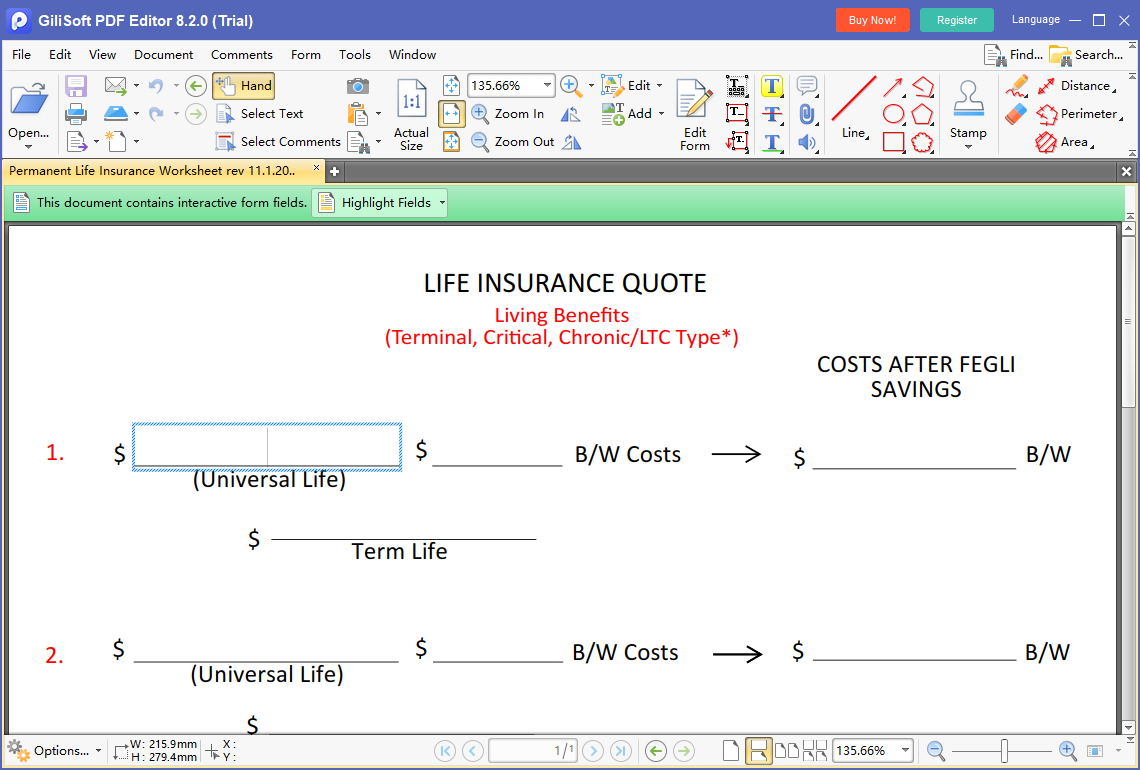
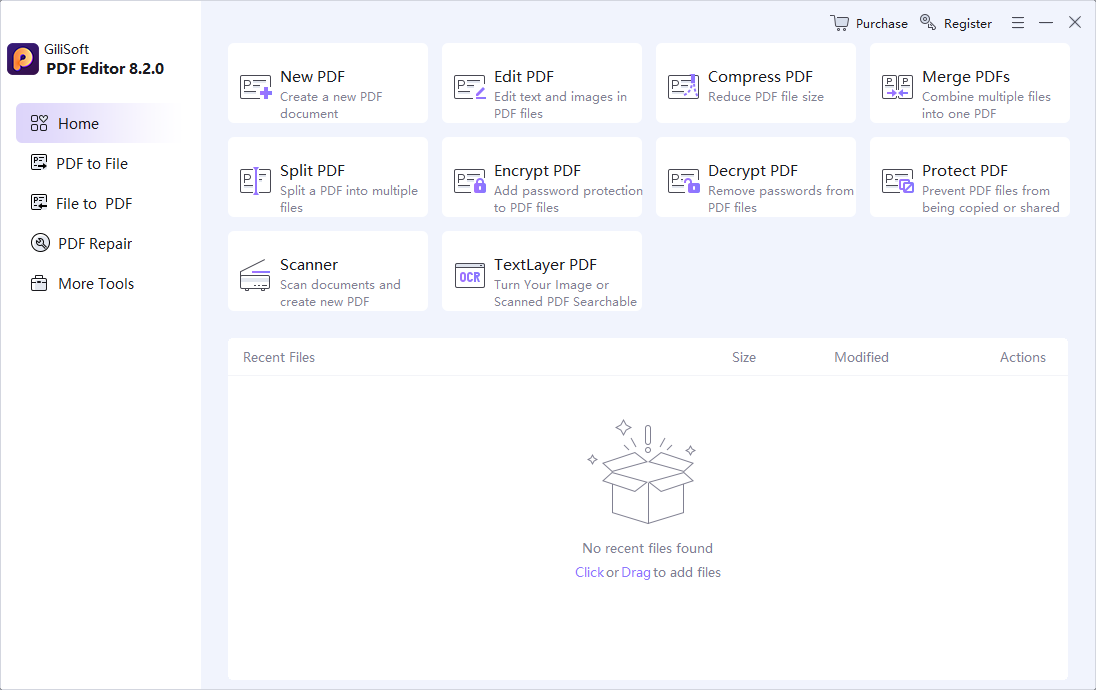
These are real product screens for the part of the workflow GiliSoft PDF Editor supports. Exact controls can vary by document type, so verify the saved file independently.
Review the Output Before Delivery
| Form values, annotations, links, and editability | Compare the saved result with the source and the intended deliverable. |
|---|---|
| Document behavior | Check page order, selectable text, comments, forms, links, attachments, permissions, and print behavior relevant to the task. |
| Delivery copy | Use a clear filename, retain the source, and share only through the approved channel. |
Frequently Asked Questions
What does flattening normally do?
It converts interactive fields or annotations into a fixed page appearance so they are no longer editable in the same way.
Does flattening remove hidden information?
Not necessarily. Treat sanitization and true redaction as separate security tasks.
Should I keep an editable copy?
Yes. Flattening can make later corrections difficult, so retain the source separately.
Should I overwrite the original PDF?
No. Keep the source and save the changed file under a new, descriptive name until the output is verified.
Why reopen the finished PDF?
A completed operation does not prove that page order, form values, links, searchability, print behavior, or confidential content is correct.