
How to Redact PDF Documents on Windows Safely
Use this workflow to remove confidential PDF content rather than merely cover it on screen. Keep an untouched source and judge success from the reopened output, not only from a completed progress message.
Quick answer
Use GiliSoft PDF Editor to prepare and inspect a working copy, but use a tool and workflow that explicitly removes the underlying text or image and sanitizes hidden information for true redaction. Save a separate redacted copy, then test search, copy, extraction, and metadata before release.
Choose the Right PDF Workflow
| Situation | Recommended approach | What to verify |
|---|---|---|
| Ordinary correction | Edit supported content and verify the result | Old content is not exposed by copy or search |
| Confidential removal | Use an explicit redaction tool | Underlying text or image is removed |
| Sensitive release | Redact and sanitize hidden information | Metadata, comments, attachments, and layers are checked |
Step-by-Step Workflow
- Protect the source
Duplicate the original, record its page count, and use a clear working filename.
- Inspect the document first
Check underlying content, hidden data, and independent verification before changing anything.
- Apply real redaction and sanitization
Use an approved tool that explicitly removes marked content and checks hidden information; never rely on a drawn rectangle.
- Save a separate result
Write the output to a new filename and keep the source until review is complete.
- Reopen and verify
Use another PDF reader where practical; check the first, middle, and last affected pages plus search, copy, forms, links, or print behavior relevant to the task.
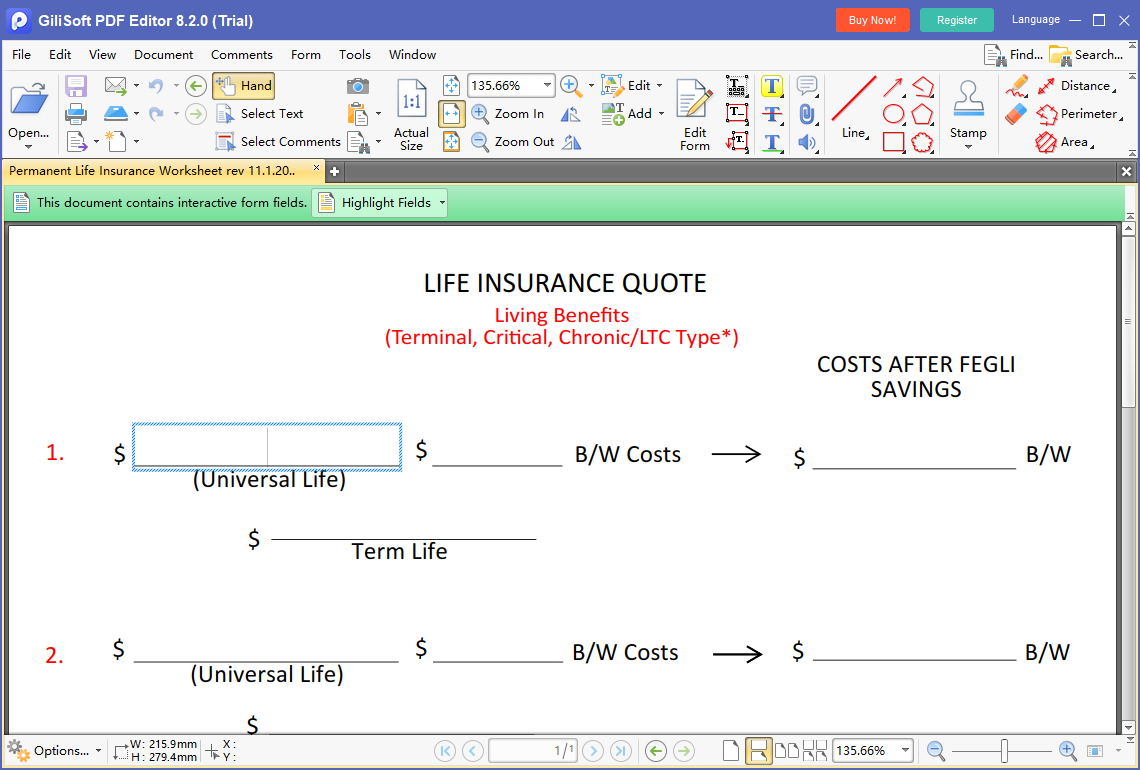
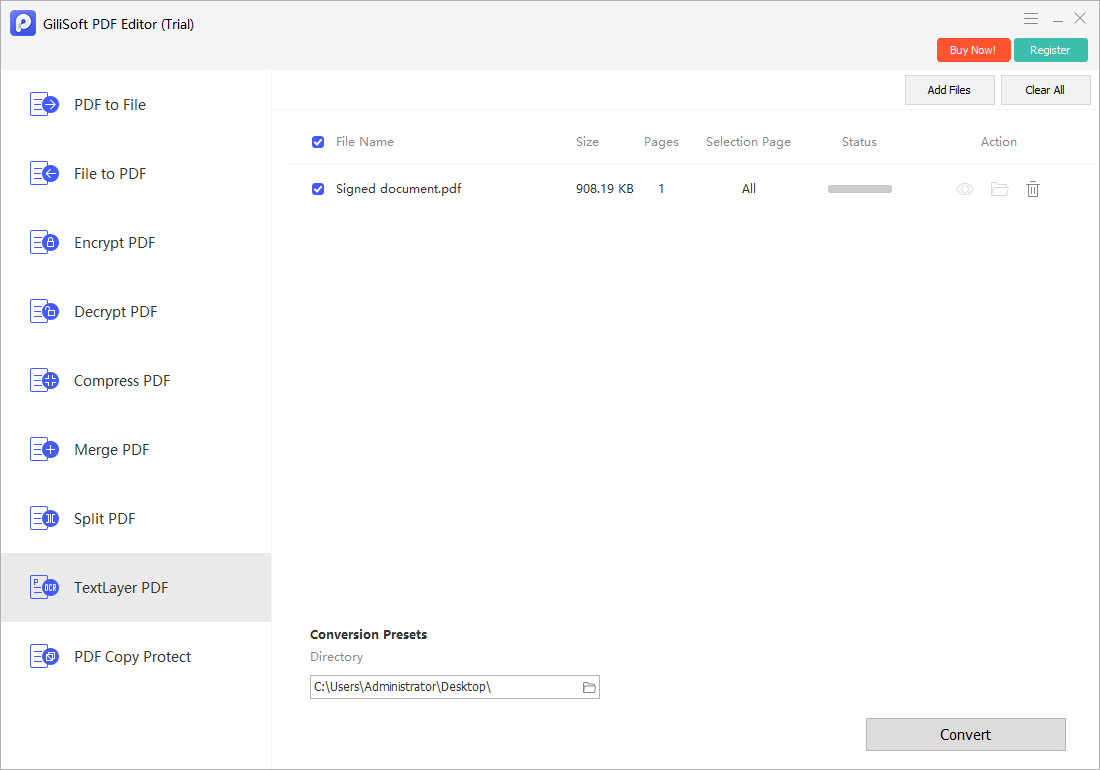
Use the GiliSoft PDF Editor Workspace
These are real product screens for the part of the workflow GiliSoft PDF Editor supports. Exact controls can vary by document type, so verify the saved file independently.
Review the Output Before Delivery
| Underlying content, hidden data, and independent verification | Compare the saved result with the source and the intended deliverable. |
|---|---|
| Document behavior | Check page order, selectable text, comments, forms, links, attachments, permissions, and print behavior relevant to the task. |
| Delivery copy | Use a clear filename, retain the source, and share only through the approved channel. |
Frequently Asked Questions
Is drawing a black box over text secure redaction?
No. A visual cover can leave the underlying text or image recoverable. True redaction removes the content and hidden information must be checked separately.
Can flattening make a PDF safely redacted?
No. Flattening may make fields or annotations non-interactive, but it is not proof that sensitive content was removed.
Can I use GiliSoft PDF Editor in the workflow?
Yes, for preparing and inspecting a local working copy. Use an approved tool with explicit redaction and sanitization capabilities for the final confidential release.
Should I overwrite the original PDF?
No. Keep the source and save the changed file under a new, descriptive name until the output is verified.
Why reopen the finished PDF?
A completed operation does not prove that page order, form values, links, searchability, print behavior, or confidential content is correct.