
FLV Joiner for Windows: Merge FLV Files in Order
FLV is a legacy Flash Video container that may carry Sorenson Spark, VP6, or H.264 video with MP3 or AAC audio. A reliable join keeps the intended order, resolves incompatible streams and timestamps, avoids gaps or repeated frames, preserves audio sync, and creates an output the destination can still play.
Quick answer
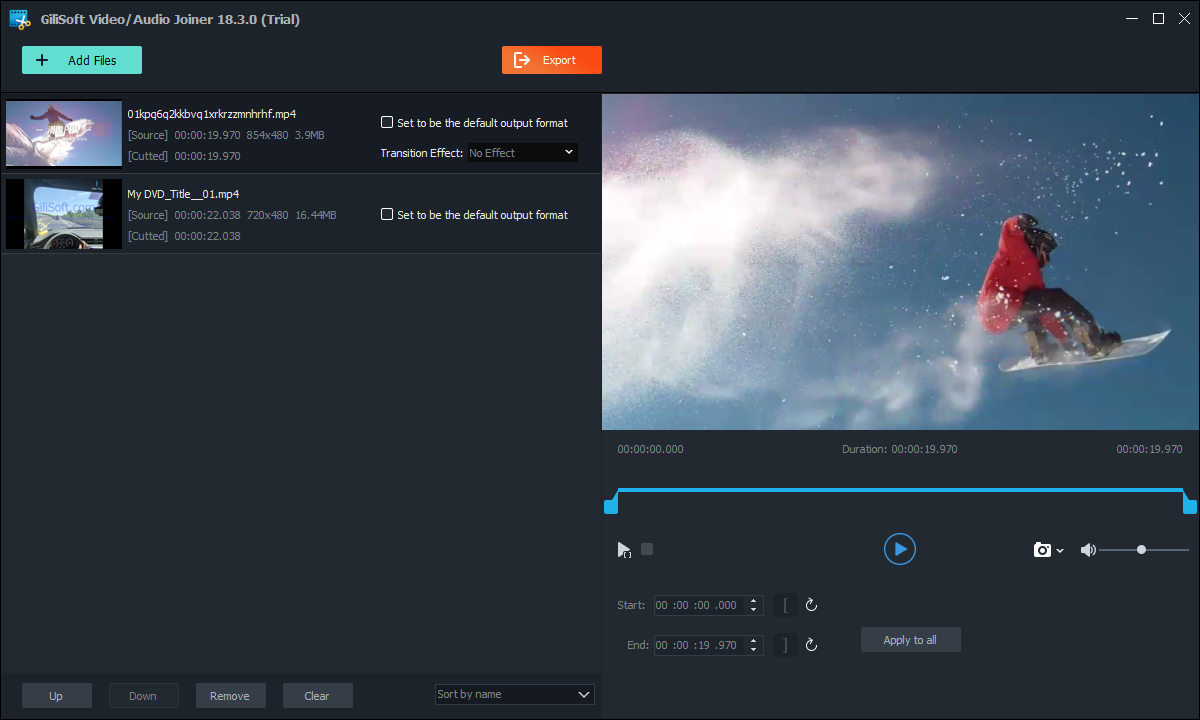
Open Joiner in GiliSoft Video Editor Pro, add the FLV files, arrange them with Up and Down, preview or trim every boundary, and export one combined file. Use Video Studio only when the project needs transitions, titles, overlays, separate audio, or complex timing.
Choose the right FLV joining workflow
| Goal | Recommended tool | Why it fits |
|---|---|---|
| Combine FLV clips in sequence | Joiner | Focused ordering, boundary preview, and one combined export |
| Sources use different video or audio settings | Joiner with one output profile | Normalizes the files into a consistent deliverable |
| Add transitions, titles, overlays, or separate audio | Video Studio | Provides a multitrack timeline for a more complex edit |
How to merge FLV files on Windows
-
Keep the source files and inspect them
Play every FLV clip before editing. Note its video codec, audio codec, dimensions, frame rate, aspect ratio, audio level, duration, and whether seeking near the beginning or end behaves correctly.
-
Open the dedicated Joiner
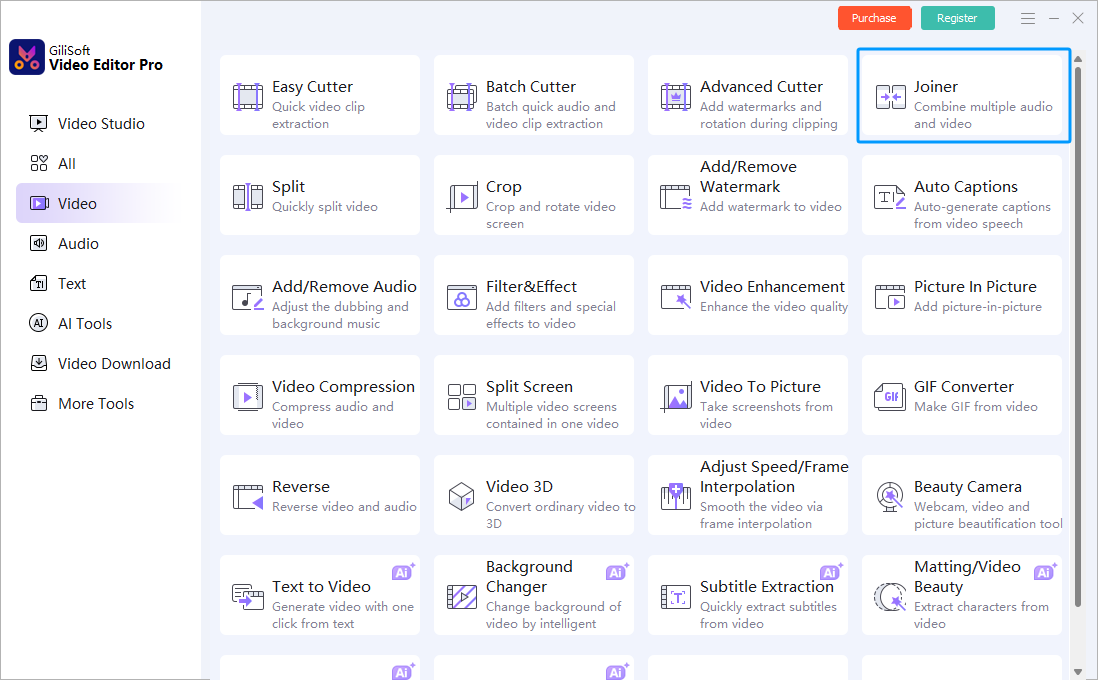
Choose Joiner from the Video tools in GiliSoft Video Editor Pro. This is the direct workflow for combining clips; Video Studio remains available when the project develops into a multitrack edit.
-
Add the FLV files and set their order
Import the clips, then move them up or down until the list matches the intended sequence. Use clear file names when similar takes are easy to confuse.
-
Trim unwanted heads and tails
Remove black frames, loading screens, silence, repeated material, or damaged tails before joining. Listen across each boundary as well as watching for a timestamp jump or frozen first frame.
-
Choose one output profile
Select one resolution, frame rate, video codec, and audio profile for the destination. Mismatched H.264, VP6, Sorenson Spark, MP3, or AAC streams normally require a new encoded output.
-
Export and verify the combined file
Play every join point outside the editor. Also check the beginning, middle, ending, total duration, audio sync, aspect ratio, and final file size.
Keep joined FLV video consistent
- Keep the originals. Export the combined result as a new file so an ordering or encoding mistake is reversible.
- Choose one frame size. Decide whether lower-resolution legacy clips should fit with borders or be cropped; do not stretch them.
- Choose one frame rate. Review motion carefully when sources differ because normalization can introduce duplicate or dropped frames.
- Match audio levels. Large volume changes make an otherwise clean visual join feel abrupt.
Understand direct joining and re-encoding
Joining without re-encoding is practical only when the streams closely match in video codec, dimensions, frame rate, profile, audio codec, sample rate, channels, and timestamps. If those properties differ, decode the clips and export one consistent file.
FLV depended heavily on the retired Flash ecosystem. Keep FLV only when a legacy workflow requires it; otherwise create a compatible MP4 delivery copy for the receiving browser, player, or device. Renaming the extension is not conversion.
Fix common FLV joining problems
A gap, frozen frame, or repeated frame appears at the join
Trim incomplete material from the end of the first clip and the beginning of the next. Preview several seconds on both sides of the boundary before exporting again.
The image size changes between clips
The sources use different dimensions or aspect ratios. Select one output canvas and choose a consistent fit, crop, or border policy.
Audio clicks or changes volume suddenly
Trim silence or waveform discontinuities and normalize obvious level differences. Use Video Studio for a short audio fade when a hard cut still sounds distracting.
The merged file will not play on another device
FLV support is limited on modern destinations. Confirm the actual video and audio codecs, or create a compatible MP4 delivery copy for that browser, player, or device.
Frequently Asked Questions
How do I merge FLV files on Windows?
Open Joiner in GiliSoft Video Editor Pro, add the FLV clips, arrange them in order, preview every boundary, choose one output profile, and export a separate combined file.
Can I join FLV files without losing quality?
A fast join may avoid re-encoding when the source streams and timestamps closely match. Files with different video codecs, dimensions, frame rates, audio codecs, or channel settings normally require a new encoded output.
Can FLV files with different resolutions be merged?
Yes, but select one output resolution and decide whether each clip should fit, crop, or retain borders. Preview the result to avoid stretching.
Why is there a gap or audio click between joined clips?
A source may contain silence, a damaged tail, mismatched FLV timestamps, or an abrupt waveform boundary. Trim the ends and preview the join; use Video Studio for a short fade when needed.
When should I use Video Studio instead of Joiner?
Use Joiner for ordered clip combination. Use Video Studio when the result needs transitions, overlays, separate audio, titles, or complex multitrack timing.