
FLV Cutter for Windows: Cut and Trim FLV Files
FLV is a legacy Flash Video container that may carry Sorenson Spark, VP6, or H.264 video with MP3 or AAC audio. Reliable cutting depends on keyframes, timestamp metadata, codec support, dimensions, frame rate, aspect ratio, and audio timing rather than the .flv extension alone.
Quick answer
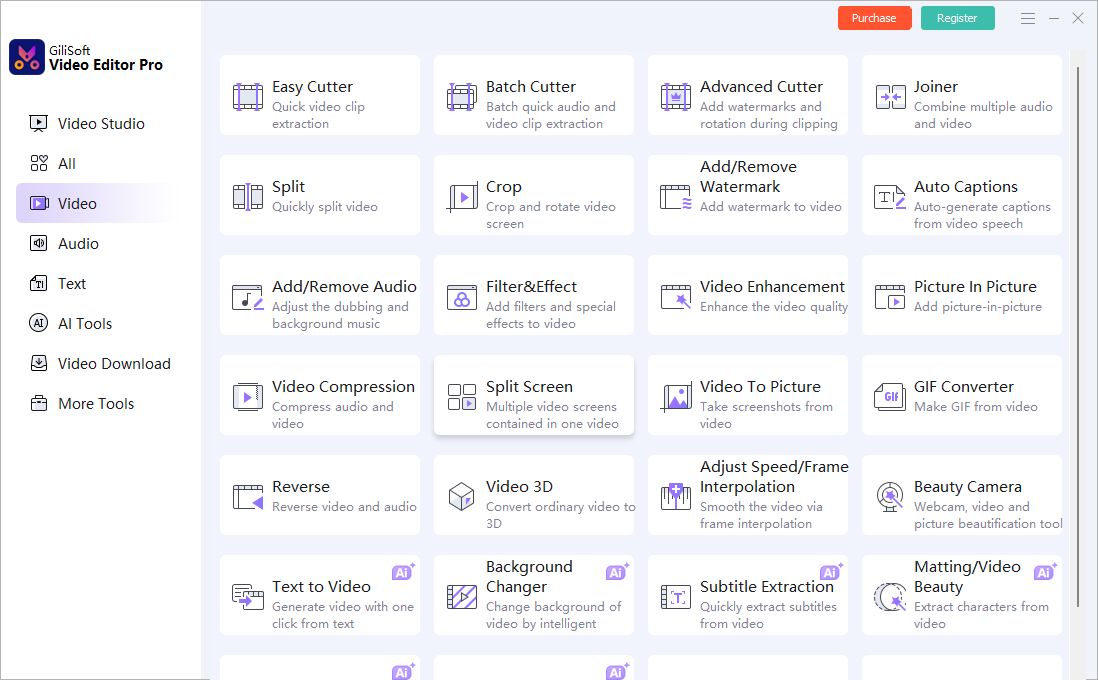
Open Easy Cutter in GiliSoft Video Editor Pro, add the FLV file, mark the range to keep, preview picture and MP3 or AAC audio at both boundaries, and export a separate result. Use Batch Cutter for several files and Video Studio only for complex multitrack work.
Choose the right FLV cutting workflow
| Goal | Recommended tool | Why it fits |
|---|---|---|
| Extract one or more scenes from one FLV file | Easy Cutter | Focused range selection without a full project |
| Cut several independent FLV files | Batch Cutter | Repeats the workflow across multiple sources |
| Cut plus crop, watermark, or rotate | Advanced Cutter | Combines clip extraction with visual adjustments |
| Add transitions, titles, overlays, or separate audio | Video Studio | Provides a timeline for complex multitrack editing |
How to cut a FLV file on Windows
-
Keep the source and inspect playback
Play the FLV from beginning to end. Check seeking, dimensions, aspect ratio, frame rate, video codec, MP3 or AAC audio, duration, and whether the source already freezes or drifts out of sync.
-
Open the focused cutter
Choose Easy Cutter for one file, Batch Cutter for several independent files, or Advanced Cutter when the clip also needs cropping, rotation, or a watermark.
-
Add the FLV file and mark the scene
Set the beginning and ending around complete action and dialogue. Note that an exact selected frame may fall between compressed-video keyframes.
-
Preview picture and audio
Review several seconds around both cut points. Check for a frozen first frame, missing action, black frames, audio clicks, timestamp jumps, and sync drift.
-
Choose an output for the destination
Keep FLV only when a legacy workflow requires it. For modern delivery, create a compatible MP4 copy when the receiving browser, phone, TV, or application does not support FLV or its source codecs.
-
Verify the exported clip
Open the result outside the editor and check both boundaries, seeking, duration, aspect ratio, motion, MP3 or AAC audio sync, and playback on the actual destination.
Preserve FLV timing, picture, and audio sync
- Keep the source. Export a separate clip so an index, timestamp, codec, or quality problem remains reversible.
- Respect aspect ratio. Preserve the intended picture shape rather than stretching older 4:3 footage to fill a widescreen frame.
- Check audio throughout. Sync may look correct at the first boundary but drift later when the source timestamps are damaged.
- Choose the destination first. Retain FLV for a required legacy workflow or create a modern MP4 delivery copy when appropriate.
Understand keyframes, FLV timestamps, and re-encoding
A fast FLV cut can be limited to nearby keyframes. Exact boundaries normally require decoding and re-encoding around the selected point, while visual changes and format conversion require a new encoded file.
FLV timestamps and keyframe metadata can be damaged, missing, or discontinuous. Test seeking and audio sync across the exported result instead of checking only the first and last frame.
Fix common FLV cutting problems
The cut begins early, late, or with a frozen frame
The selected point may fall between keyframes. Use a frame-accurate export or move the boundary to a nearby natural scene change.
Audio drifts out of sync
Check the source for FLV timestamp or keyframe-metadata problems, then export a short test that includes the difficult boundary. Verify sync near the beginning, middle, and end.
The picture looks stretched
Preserve the source aspect ratio and choose a deliberate fit, crop, or border policy instead of forcing every source to fill the output frame.
The result will not play in a modern browser or device
FLV depended heavily on the retired Flash ecosystem. Confirm the actual video and audio codecs, or create a compatible MP4 delivery copy for the destination.
Frequently Asked Questions
How do I cut a FLV file on Windows?
Open Easy Cutter in GiliSoft Video Editor Pro, add the FLV file, mark the range to keep, preview picture and audio at both boundaries, and export a separate result.
Can I cut FLV without losing quality?
A compatible keyframe-aligned cut may avoid full re-encoding. Exact boundaries, visual changes, or format conversion require a new encode.
Why does a FLV cut start earlier or later than selected?
Compressed FLV video seeks around keyframes. Use a frame-accurate export or move the boundary to a nearby natural scene change.
Why is audio out of sync after cutting FLV?
Damaged FLV timestamps, incomplete keyframe metadata, variable source timing, or an unsafe boundary can cause drift. Preview a test and verify sync throughout the exported clip.
Should I convert FLV to MP4 before cutting?
Not automatically. Cut the source when it opens correctly, and create an MP4 delivery copy only when the destination does not support the FLV container or its codecs.