
FLV Splitter for Windows: Split FLV into Multiple Clips
FLV is a legacy Flash Video container that may carry Sorenson Spark, VP6, or H.264 video with MP3 or AAC audio. Reliable splitting depends on keyframes, timestamp metadata, codec support, frame rate, aspect ratio, and audio timing rather than the .flv extension alone.
Quick answer
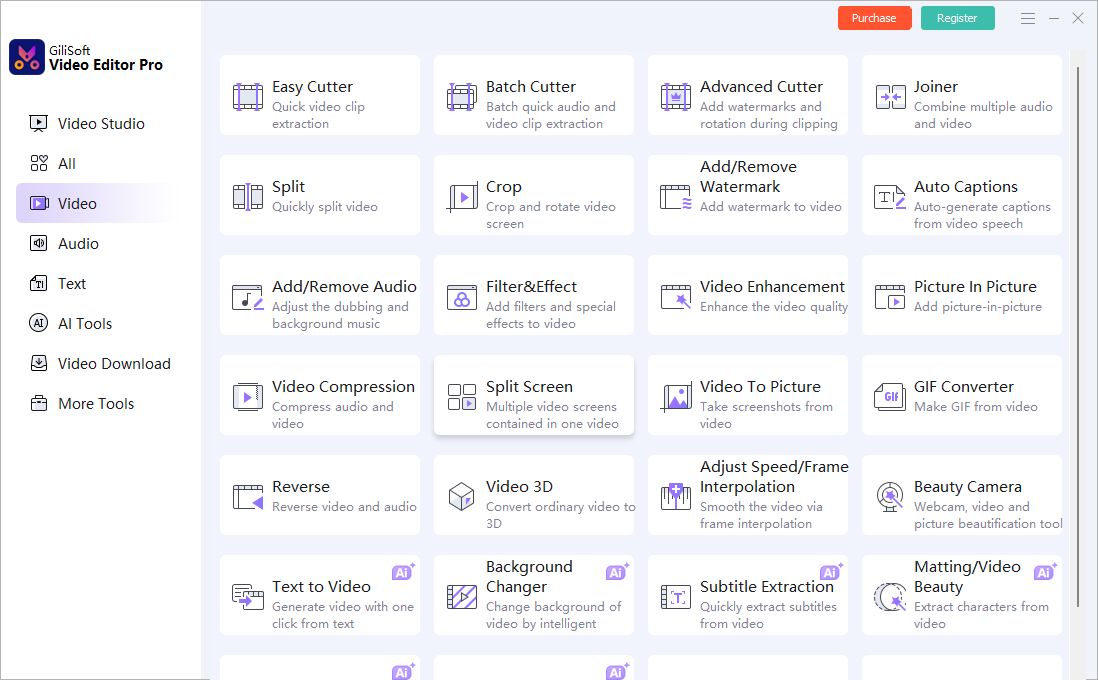
Open Split in GiliSoft Video Editor Pro, add the FLV source, place split points at complete scene or dialogue boundaries, preview every new beginning and ending, and export the clips with clear sequential names. Use Video Studio only when the job also needs multitrack editing.
Choose the right FLV splitting method
| Goal | Recommended method | What to verify |
|---|---|---|
| Divide one long FLV into chapters or scenes | Split with manual boundaries | Each clip begins with enough context |
| Create clips of similar duration | Split at planned time intervals | Dialogue and action are not cut abruptly |
| Extract one selected scene and discard the rest | Easy Cutter | Only the intended range is exported |
| Rearrange parts or add titles, overlays, and audio | Video Studio | The final sequence and tracks stay synchronized |
How to split a FLV file on Windows
-
Keep the original and inspect playback
Play the FLV from beginning to end. Check seeking, duration, aspect ratio, frame rate, video codec, MP3 or AAC audio, and whether the source already freezes or drifts out of sync.
-
Open the Split tool
Choose Split from the Video tools. Use Easy Cutter instead only when you need to keep one selected range rather than create multiple ordered parts.
-
Add the FLV file and plan the parts
Decide whether the output should follow chapters, scenes, dialogue sections, duration limits, or a fixed number of clips. Choose meaningful boundaries before placing markers.
-
Place and review every split point
Preview several seconds before and after each marker. Move a boundary when it interrupts a sentence, action, title card, transition, or audio cue.
-
Name and export the segments
Use zero-padded numbers such as lesson-01, lesson-02, and lesson-03, or descriptive chapter names. Keep FLV only when a legacy destination requires it; otherwise create compatible MP4 delivery copies.
-
Verify every exported clip
Open each result outside the editor and check its beginning, ending, order, duration, seeking, aspect ratio, motion, MP3 or AAC audio sync, and playback on the actual destination.
Keep every FLV segment consistent
- Keep the source. Export separate segments so an index, timestamp, codec, or quality problem remains reversible.
- Respect aspect ratio. Preserve the intended picture shape rather than stretching older 4:3 footage to fill a widescreen frame.
- Check every part. One segment can be correct while another starts on a damaged timestamp or unsafe keyframe boundary.
- Choose the destination first. Retain FLV for a required legacy workflow or create a modern MP4 delivery copy when appropriate.
Understand split points, keyframes, and re-encoding
A fast FLV split can be limited to nearby keyframes. Exact boundaries normally require decoding and re-encoding around the selected point, while visual changes and format conversion require newly encoded files.
FLV timestamps and keyframe metadata can be damaged, missing, or discontinuous. Test seeking and audio sync in every exported segment instead of checking only the first result.
Fix common FLV splitting problems
A segment begins early, late, or with a frozen frame
The selected point may fall between keyframes. Use a frame-accurate export or move the boundary to a nearby natural scene change.
Audio drifts out of sync in one part
Check the source for FLV timestamp or keyframe-metadata problems, then export a short test around the difficult split point. Verify sync near the beginning, middle, and end of that segment.
The picture looks stretched
Preserve the source aspect ratio and choose a deliberate fit, crop, or border policy instead of forcing every source to fill the output frame.
The segments will not play in a modern browser or device
FLV depended heavily on the retired Flash ecosystem. Confirm the actual video and audio codecs, or create a compatible MP4 delivery copy for the destination.
Frequently Asked Questions
How do I split a FLV file into multiple clips?
Open Split in GiliSoft Video Editor Pro, add the FLV source, place split points at complete scene or dialogue boundaries, preview every new beginning and ending, and export the numbered clips.
Can I split FLV without losing quality?
Keyframe-aligned splitting may avoid a full re-encode in a compatible workflow. Exact boundaries or output conversion can require re-encoding.
Can I split a FLV file into equal parts?
Yes. Divide by duration or a planned number of segments, then adjust any split point that cuts through dialogue or action.
Why is audio out of sync in some FLV segments?
Damaged timestamps, incomplete keyframe metadata, or unsafe boundaries can affect individual segments. Test every exported part from beginning to end.
How should I name split FLV files?
Use a stable base name with zero-padded numbers or descriptive chapter names so the intended order remains clear.