
SWF to MP4 Converter for Windows
Use GiliSoft Video Converter when a legacy SWF animation needs to become an MP4 or another linear video file. The Windows desktop software processes the source locally and supports automatic recording for self-playing animation or interactive recording when clicks and manual timing are required.
Quick answer
Add the SWF to GiliSoft Video Converter, choose automatic recording for self-playing animation or interactive recording when clicks are required, select MP4, capture the complete playback, and verify the exported video.
Choose the Correct SWF Conversion Mode
| SWF behavior | Recommended mode | Verify |
|---|---|---|
| Animation plays from start to finish | Automatic recording | Duration and final frame |
| Playback needs clicks or navigation | Interactive recording | Every required action is captured |
| SWF loads external content | Keep related assets together and test first | Images, audio, fonts, and scripts load |
| Video is needed for current playback | Export MP4 | Motion, sound, resolution, and framing |
How to Convert SWF to MP4 Step by Step
-
Preserve and test the SWF source
Keep the original file and related assets unchanged. Confirm that the complete animation still plays before starting conversion.
-
Add the SWF to GiliSoft Video Converter
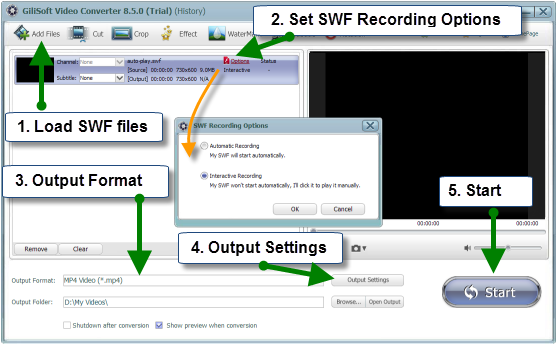
Open the converter, select Add Files, and load the SWF content you are authorized to convert.
-
Choose automatic or interactive recording
Use automatic mode for a self-running animation. Use interactive mode when playback depends on clicks, menus, or manual timing.
-
Select MP4 and output settings
Choose MP4 for broad compatibility, then set resolution, frame rate, audio, quality, and the destination folder.
-
Capture the complete playback
Start conversion and allow the animation to finish. In interactive mode, perform every required action without covering the playback window.
-
Verify the exported video
Play the result from beginning to end and check duration, motion, audio, text, cropping, interaction timing, and the final frame.
Use the SWF Recording Controls in Video Converter
These product screens show the SWF-specific workflow. Interface details can vary by installed version, but the key decision remains automatic versus interactive playback recording.

Choose Output Settings for the Final Use
| Format | Use MP4 for common playback and sharing. Choose another format only when the destination requires it. |
|---|---|
| Resolution | Preserve the original proportions and avoid stretching. Confirm that small text remains readable. |
| Frame rate | Choose a rate that keeps motion smooth without creating unnecessary output size. |
| Audio | Confirm that the source plays sound and check the exported file for missing or delayed audio. |
| Crop and watermark | Apply edits only after confirming that the full animation stage and important content remain visible. |
Common SWF Conversion Problems
- Blank playback: the SWF may depend on a missing runtime, external asset, font, script, or network resource.
- Recording stops too early: switch to interactive mode and stop only after the final action completes.
- Missing sound: test source audio and related assets before conversion, then verify the result in another player.
- Cropped animation: preserve the original aspect ratio and inspect the complete stage.
- Buttons do not work in MP4: a video output is linear and cannot retain SWF interactivity.
Frequently Asked Questions
Can GiliSoft Video Converter convert SWF to MP4?
Yes. Add the SWF, choose automatic or interactive recording, select MP4, and capture the complete playback.
Why does interactive SWF conversion use recording?
Interactive SWF content can depend on clicks and timing, so capturing rendered playback preserves the visible result.
Can every SWF file be converted?
Not always. Some files depend on missing external assets, scripts, fonts, network resources, or older runtime behavior.
Does MP4 preserve SWF buttons and links?
No. The exported video is linear and does not retain clickable buttons, links, forms, or scripts.
Why is the converted SWF video silent?
The source may not include audio, an external audio asset may be missing, or the selected recording behavior may not capture the expected sound.
Is GiliSoft SWF to MP4 Converter free?
You can download the free trial of GiliSoft Video Converter to test an SWF file and verify the MP4 output before purchasing the full version.
Can I convert SWF to MP4 without uploading the file?
Yes. GiliSoft Video Converter runs on Windows and processes the source locally. An SWF that loads external network resources may still need those resources to reproduce its complete playback.


