
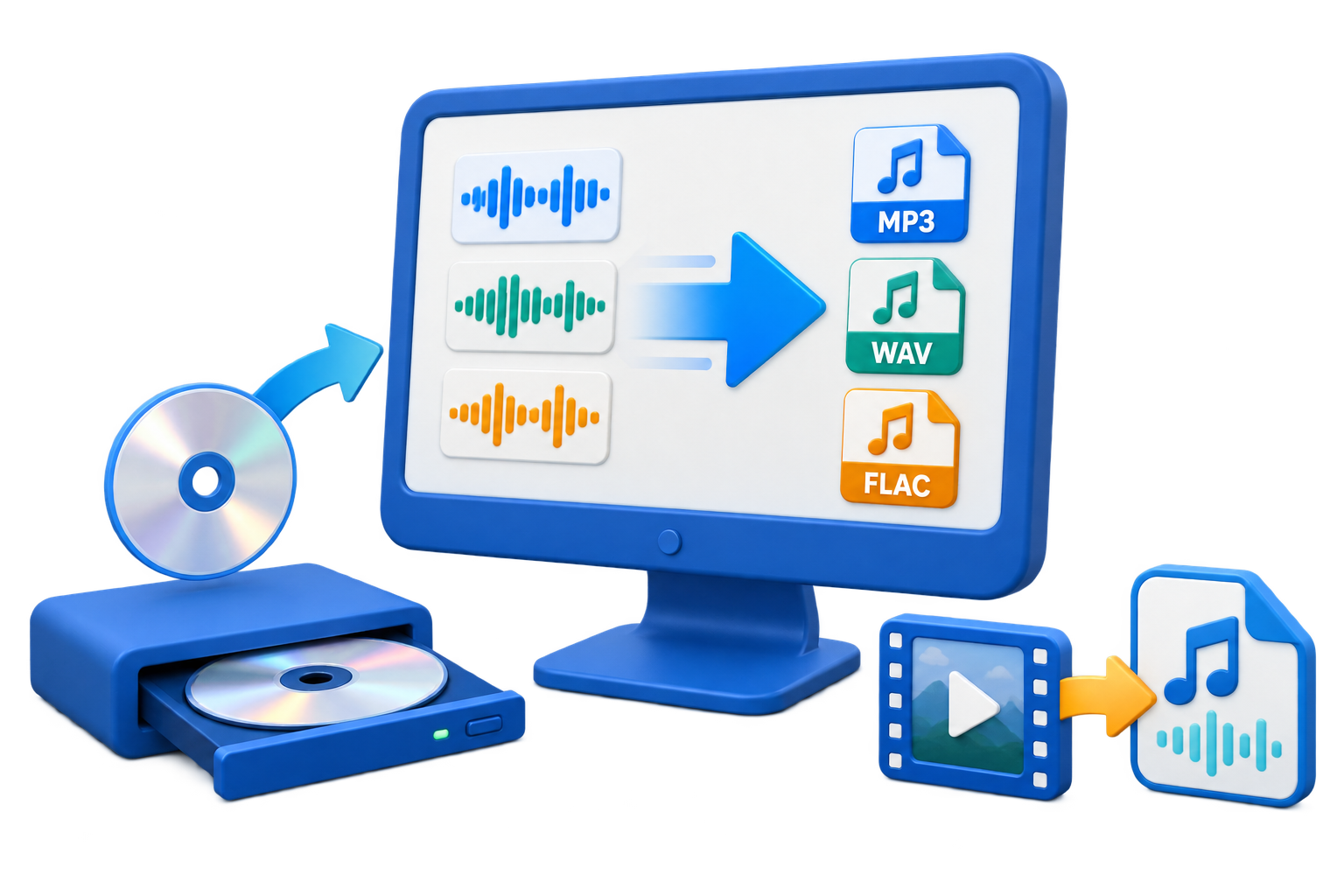
Confirm What MP4-to-MP3 Conversion Keeps
Quick answer: MP4 to MP3 extracts and re-encodes audio; it does not keep the video, subtitles, chapters, on-screen text, or visual context. Use it only when an audio-only result is appropriate and when you have permission to extract and reuse the soundtrack.
| Need | Best approach | Important limit |
|---|---|---|
| Listen without video | Extract the complete MP3 | Visual information will be absent |
| Create a short quote or clip | Trim before MP3 export | Check context and usage rights |
| Reuse music or narration | Export authorized audio only | MP4 ownership may not include soundtrack rights |
| Keep video and audio together | Do not convert to MP3 | Use the MP4 source instead |
Inspect the MP4 Before Extracting Audio
Watch the source first. On-screen labels, demonstrations, pauses, multiple languages, and visual-only explanations may make an audio-only copy incomplete or confusing.
Choose the correct file
Confirm episode, language, edit version, and duration before conversion.
Listen for multiple tracks
Use the intended language or mix when the source exposes more than one audio stream.
Mark the required range
Write down exact start and end points if only one section is needed.
Plan the filename
Identify source, date, language, and clip range when several exports are expected.
Convert MP4 to MP3 in 6 Steps
Open the approved MP4 source
Play the file and confirm that its audio is complete and suitable without the video.
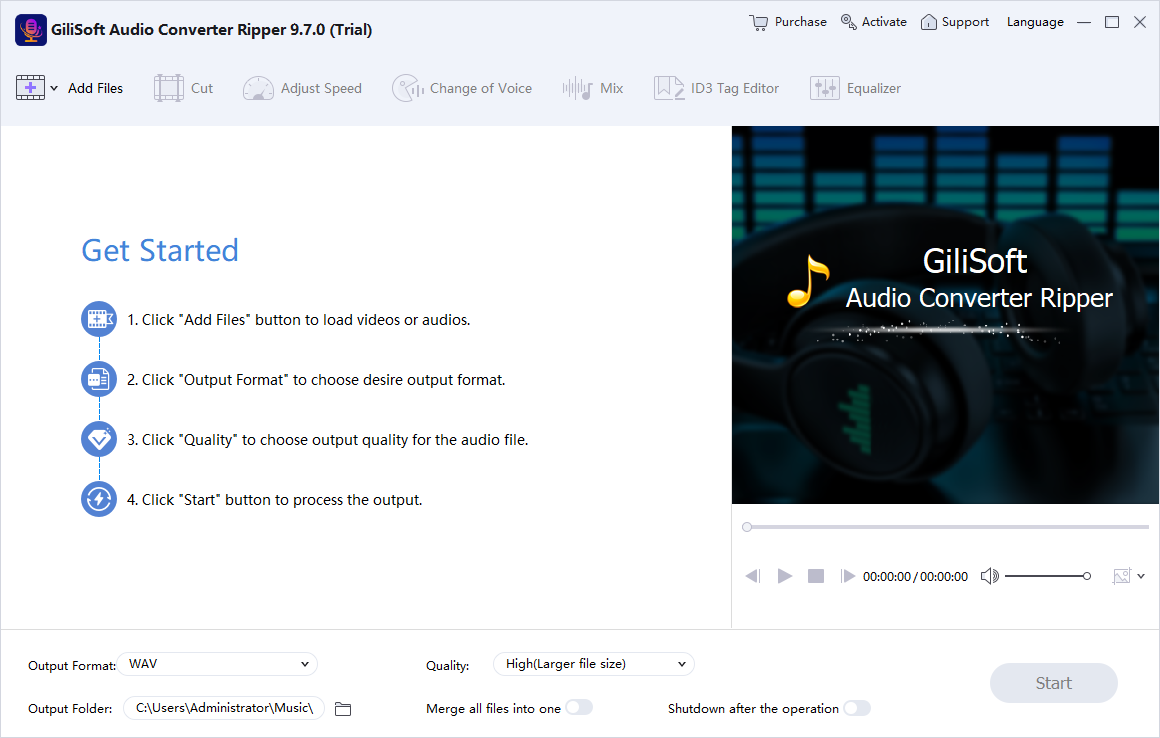
Add the MP4 to Audio Converter Ripper
Import one file or a batch of video sources.
Choose MP3 as the output
Review quality, channels, sample rate, filename, and destination folder.
Trim the range when needed
Use the cut tool to remove unrelated video sections before audio export.
Convert the file
Start processing and keep the source available until the result is verified.
Review the MP3 from start to finish
Check duration, language, sync-independent meaning, audible transitions, volume, and the final seconds.
Audio-Only Output Changes the Experience
No picture
Anything communicated only through the video frame will be lost.
No subtitle track
Subtitles and captions do not become spoken audio automatically.
New encoding
MP3 settings can affect size and audible quality even when the MP4 audio already uses compression.
Context review
A clip should remain accurate and understandable after the surrounding video is removed.
Important: Converting a lossy MP4 soundtrack to MP3 introduces another encoding generation. Use a suitable output setting and avoid repeated conversion of the MP3.
Extract MP3 Audio with Audio Converter Ripper
GiliSoft Audio Converter Ripper accepts audio and video sources in one conversion queue. It can extract sound from MP4, trim a required range, choose MP3 output settings, process batches, and edit the resulting ID3 information.
- Use the original MP4 rather than a previously recompressed copy when possible.
- Trim at natural speech or music boundaries and replay both cut points.
- Keep a source reference with the MP3 when context or provenance matters.
Troubleshoot Common Audio Workflow Problems
- The MP3 contains the wrong language: Confirm the source track and preview the audio before conversion.
- The output includes long silence: Inspect the source timeline and trim only verified unwanted sections.
- Voices sound degraded: Choose a higher-quality MP3 setting and reconvert from the original MP4.
- The clip starts mid-word: Move the cut point earlier and listen around the boundary before exporting.
- The audio makes little sense alone: Keep the MP4 or add an authorized narration or transcript instead of forcing audio-only delivery.
- The file has no useful title: Add descriptive MP3 ID3 tags and a source-aware filename.
Extract Only Audio You May Use
Audio embedded in a video can have separate ownership and licensing. Convert, quote, publish, or redistribute it only when the intended use is authorized, and preserve enough context to avoid a misleading edit.
Frequently Asked Questions
Does MP4 to MP3 keep the video?
No. MP3 is audio-only, so the video picture and other visual content are removed.
Are subtitles converted to speech?
No. Subtitle and caption tracks do not automatically become spoken audio during extraction.
Can I convert several MP4 files at once?
Yes. Add multiple supported video files, choose MP3 output, and verify each result.
Can I extract only part of a video?
Yes. Use the cut tool to select the needed range, then check both boundaries.
Why can MP3 quality be lower than the MP4 audio?
The soundtrack may already be lossy, and MP3 conversion adds another encoding generation.
Should I use Video Converter or Audio Converter Ripper?
For an audio-only MP3 result and related audio preparation, Audio Converter Ripper is the focused product.