

How to Hide Files and Folders on Windows Safely
The Windows Hidden attribute only changes ordinary display behavior and is easy to reverse. For sensitive files, use a password-controlled tool and choose hiding, locking, or encryption according to the threat.
Quick answer
Use GiliSoft File Lock Pro to hide authorized files from ordinary browsing, but choose locking or encryption when access control matters more than visibility. Keep a verified backup and test how to restore access before relying on the setup.
Choose Hiding, Locking, or Encryption
| Situation | Recommended approach | Check carefully |
|---|---|---|
| Reduce casual visibility | Hide the file or folder | Not protection against an administrator or forensic access |
| Prevent ordinary opening or modification | Lock the selected item | Recovery password and application access |
| Protect a portable copy or stronger at-rest case | Use an encryption workflow | Key storage, backup, and compatibility |
Step-by-Step Workflow
- Classify the files and threat
Decide whether the goal is tidier visibility, access prevention, or encrypted storage; do not treat these as interchangeable.
- Back up before protection
Keep an approved backup outside the item being hidden and confirm the administrator or recovery process.
- Add the correct target in File Lock Pro
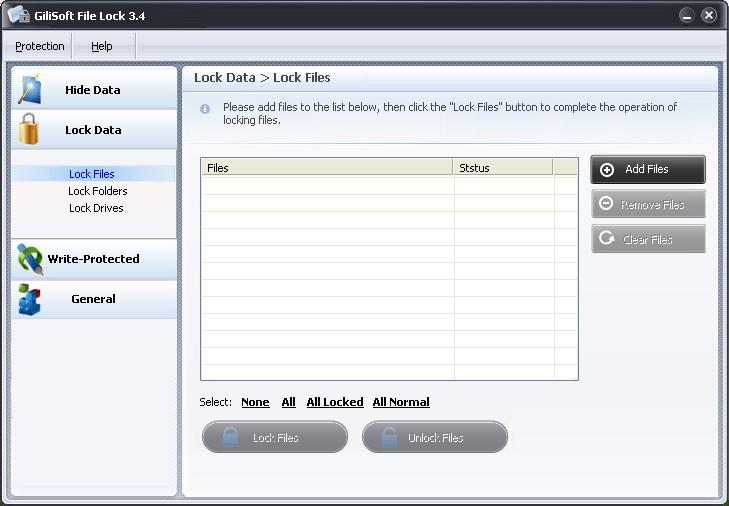
Open the hide or lock workspace, select the exact file, folder, or drive, and avoid broad parent folders unless intended.
- Verify both invisibility and recovery
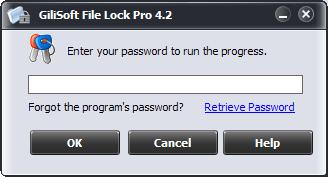
Close the program, check ordinary browsing, reopen File Lock Pro with the correct password, and restore access to confirm the workflow.
For every product control and supporting task, see the File Lock Pro user guide.
GiliSoft File Lock Pro Interface
These real product screenshots connect the advice above to the Windows workflow.
Review Before You Finish
- Keep the untouched source or a verified backup before changing protected data or media.
- Test the finished result in the real destination, recipient, or restart workflow.
- Document passwords, recovery material, ownership, and exceptions in an appropriate controlled location.
- Do not treat one product control as a replacement for authorization, backups, endpoint security, and policy.
Frequently Asked Questions
Is the Windows Hidden checkbox secure?
No. It mainly changes normal Explorer display and can be reversed.
What if I forget the File Lock Pro password?
Use the documented recovery process configured in advance. Do not rely on a protected item without verifying recovery access.