How to Hide Files from Other Users on the Same Computer
A shared Windows computer can mean a family PC, a dorm computer, a reception workstation, or one machine used by several office accounts. The right protection depends on whether you only want files removed from casual view, blocked from another standard account, or unreadable even if somebody copies the data or gains administrator access.
Choose the Privacy Goal Before Choosing a Method
“Hide” and “protect” are not interchangeable. Microsoft lets any user reveal Hidden items from File Explorer, while Windows access control decides which authenticated users may read or modify an object. Encryption adds a different layer by making the content unreadable without the required key or identity.
Use Hidden items only when discovery, not unauthorized access, is the concern.
Use individual accounts and NTFS permissions for account-based access control.
Use File Lock Pro to hide, lock, or protect selected content without repeatedly editing account permissions.
Use EFS or a separate encrypted output when visibility and folder location are no longer enough.
First, Give Every Person a Separate Windows Account
Separate accounts establish the basic identity boundary that Windows permissions depend on. Keep private files inside your own profile rather than a public folder, shared desktop, or broadly accessible data partition. For everyday use, a standard account also reduces the number of people who can change system-wide settings.
Open Settings > Accounts > Other users and create a separate account for each person who uses the PC.
Keep each user’s documents inside that account’s Documents, Pictures, or another private profile folder.
Use standard accounts for routine users and keep administrator access limited to people who manage the computer.
Sign in to a second account and test whether the private folder is visible or accessible before relying on the setup.
Compare Ways to Hide or Protect Files on a Shared PC
| Method | What it protects | Main limitation | Best fit |
|---|---|---|---|
| Separate accounts | Normal access between Windows identities | Administrators retain broader control | Essential starting point |
| Hidden items | Visibility in ordinary File Explorer views | Any user can enable Hidden items | Casual privacy only |
| NTFS permissions | Read, write, modify, and delete access by account | Owners or administrators may change ACLs | Managed users and office PCs |
| File Lock Pro Recommended | Selected files, folders, or drives through local product rules | Requires the protected PC and product password | Simple daily privacy on a shared PC |
| Windows EFS | File contents for one Windows identity and certificate | Unavailable in Windows Home; certificate recovery matters | Supported Pro or Enterprise editions |
| BitLocker | An entire volume against offline access | Does not separate signed-in users after the drive is unlocked | Lost or stolen device protection |
| Encrypted output | A separate protected copy that can be stored or transferred | The original remains unprotected until handled separately | Backup, transfer, and archives |
Restrict Other Accounts with NTFS Permissions
Windows access control lists assign permissions such as Read, Write, Modify, and Full control to users and groups. This is the proper built-in approach when protection should follow Windows identities.
Right-click the folder, choose Properties, and open the Security tab.
Select Edit, choose or add the target user, and grant only the permissions that person needs.
Review inherited group permissions before using Deny rules; a broad Deny entry can block the owner as well as the intended user.
Test open, edit, rename, and delete operations from the other account.
Encrypt Files for Your Windows Account with EFS
EFS encrypts supported files for a Windows identity and certificate. Microsoft states that this file-encryption option is not available in Windows Home.
Right-click the folder, choose Properties, then choose Advanced.
Select Encrypt contents to secure data, close the dialogs, and apply encryption to the folder and its contents.
Back up the encryption certificate and private key before relying on EFS for important data.
Test access from another Windows account and verify your recovery procedure with disposable files.


Hide and Lock Selected Content with File Lock Pro
File Lock Pro is designed for people who want one local password and a visible interface for hiding, locking, or restricting selected content instead of managing Windows ACLs folder by folder.
Open File Lock Pro and enter the master password.
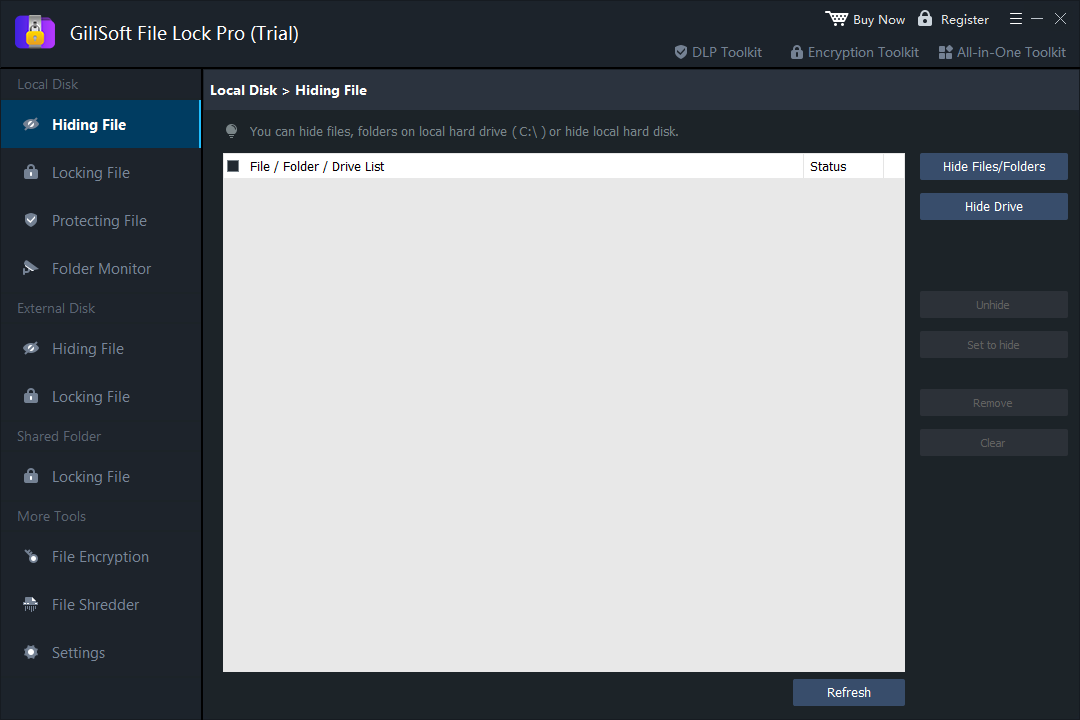
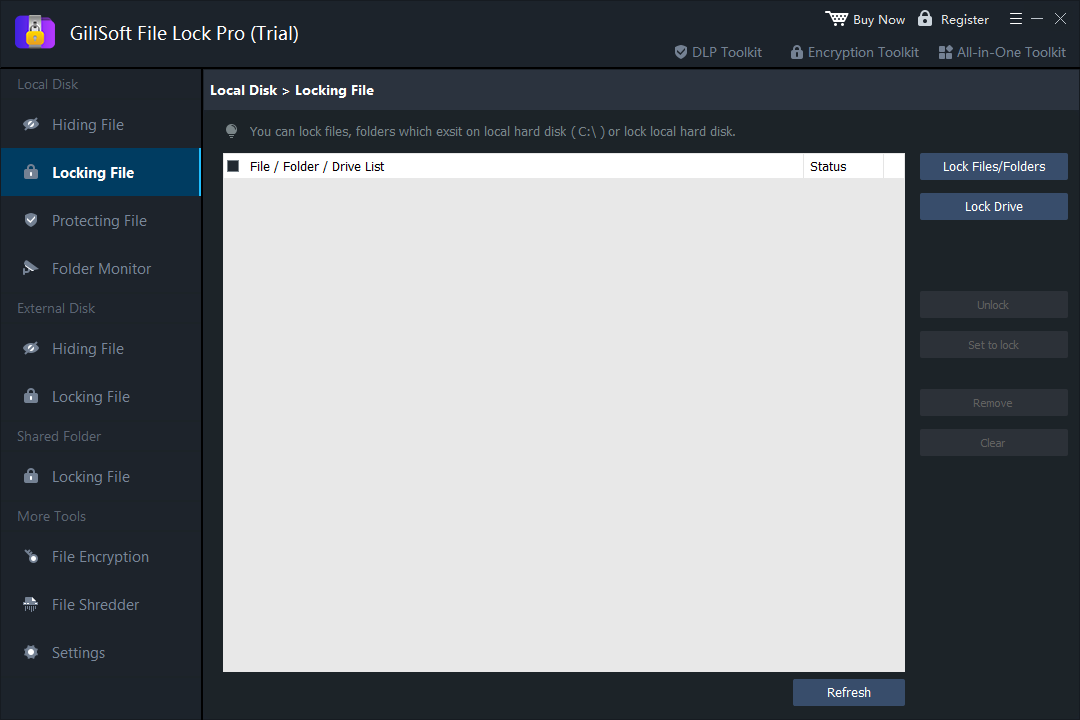
Choose Hiding File when the item should disappear from ordinary views, or Locking File when it may stay visible but should not open normally.
Add the file, folder, or drive and apply the selected protection rule.
Switch to another Windows account and test the exact actions you intend to block.


Create an Encrypted Copy When the File May Be Moved
If another user could copy the file or access the storage outside your normal Windows session, protect the content itself rather than relying only on its folder location.
Open More Tools > File Encryption in File Lock Pro and add the files or folder.
Create the available encrypted output and save it to a controlled destination.
Open the result, verify several files, and confirm the password before removing or relocating the unprotected source.
Keep the password, recovery details, and verified backup separate from the encrypted copy.

Why BitLocker Does Not Hide Files from Another Signed-In User
BitLocker encrypts an entire drive and is especially useful when a device or disk is lost, stolen, or removed for offline access. After Windows unlocks that drive, normal signed-in users are governed by account permissions. BitLocker therefore complements account permissions or File Lock Pro; it does not replace them for same-computer privacy.
BitLocker protects the encrypted volume from offline reading.
The authorized protector unlocks the volume.
Windows accounts and permissions control normal access.
File Lock Pro or EFS applies the selected content-level rule.
Best Choice for Common Shared-Computer Situations
Family computer
Use separate accounts first. Add File Lock Pro for personal photos, journals, financial files, or private folders that need a direct local password.
Roommate or dorm PC
Do not rely on Hidden items. Lock the folder and encrypt portable copies before leaving the computer unattended.
Shared office workstation
Use centrally managed accounts and NTFS permissions. Add selected folder protection only where company policy permits it.
Local administrator is not trusted
Use encryption, secure the recovery material elsewhere, and avoid leaving readable temporary or backup copies on the same PC.
Shared-PC Privacy Checklist
Encryption and access controls do not replace a backup. Test that the backup can actually be opened.
Keep passwords, EFS certificate backups, and BitLocker recovery keys away from the protected data.
Do not assume the rule works. Test visibility, opening, editing, renaming, copying, and deletion.
Check Downloads, recent files, temporary exports, cloud-sync folders, email attachments, and removable media.
Frequently Asked Questions
Does hiding a folder stop another user from finding it?
No. Another user can enable Hidden items in File Explorer. The Hidden attribute is useful for casual privacy, not confidentiality.
Can another standard Windows account open my files?
It depends on the folder location and its permissions. Keep private data in your profile and test NTFS permissions from the other account.
Can an administrator access files blocked by permissions?
An administrator may take ownership or change ACLs. Use encryption when the content must remain unreadable to someone with administrative control.
Does Windows EFS work on Windows Home?
No. Microsoft states that built-in file and folder encryption with EFS is unavailable in Windows Home.
Will BitLocker hide one folder from another user?
No. BitLocker protects a volume against offline access. After the drive is unlocked, Windows permissions and content-level controls determine normal user access.
What is the simplest local password option?
File Lock Pro provides a direct interface for hiding, locking, or protecting selected files and folders behind one local master password.
Sources and Further Reading
- Microsoft Support: File Explorer and Hidden items
- Microsoft Learn: Windows access control overview
- Microsoft Learn: icacls and discretionary access control lists
- Microsoft Learn: takeown and administrator ownership recovery
- Microsoft Support: Encrypt a file or folder with EFS
- Microsoft Support: BitLocker overview
- CISA: Protect data stored on your devices