

For Windows 11, open Settings > Privacy & security > Searching Windows and add the location under Exclude folders from enhanced search. On Windows 10, use Settings > Search > Searching Windows. This removes the location from the Windows index; it does not hide the folder in File Explorer or prevent another user from opening it.
What Does "Hide from Windows Search" Mean?
Windows exposes files through more than one surface. Before changing a setting, decide which result you actually need:
Compare the Available Methods
| Method | Changes Windows Search | Hides in Explorer | Stops access | Best use |
|---|---|---|---|---|
| Excluded folder | Yes, for that location | No | No | Reducing indexed results |
| Classic Indexing Options | Yes, for selected locations | No | No | Managing Classic index scope |
| Not Content Indexed | Limits content indexing | No | No | Keeping document text out of the index |
| Hidden attribute | May reduce ordinary results | Only while Hidden items is off | No | Casual concealment |
| File Lock Pro hiding Private use | Removes the hidden item from ordinary views | Yes while hidden | Password controls restoration | Local private folders |
Exclude a Folder from Windows Search
This is Microsoft's clearest option when the goal is a cleaner local search index.
Open Settings. In Windows 11, go to Privacy & security > Searching Windows. In Windows 10, go to Search > Searching Windows.
Find Exclude folders from enhanced search and select Add an excluded folder.
Select the target folder and confirm that it appears in the exclusion list.
Search for a distinctive file name from that folder after Windows has updated the index.
Microsoft explains that Enhanced mode searches the PC broadly except excluded folders, while Classic mode focuses on common profile locations and locations selected through Indexing Options.
Remove a Location in Classic Indexing Options
Use this route when Windows Search is configured around the Classic index scope.
Search Windows for Indexing Options, or open Advanced indexing options from Searching Windows.
Select Modify.
Expand the drive tree and clear the checkbox beside the folder or parent location you no longer want indexed.
Confirm the change and allow the index to reconcile. Rebuild the index only when stale results persist.
Stop Windows from Indexing File Contents
This can keep document text out of the index without pretending the folder itself is secret.
Right-click the folder, select Properties, and choose Advanced.
Clear Allow files in this folder to have contents indexed in addition to file properties.
Apply the change to the folder, subfolders, and files, then test both a file-name search and a phrase from inside a document.
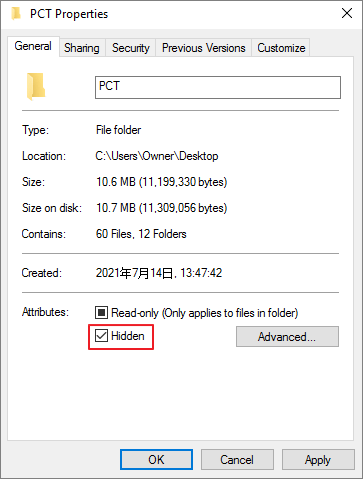
Administrators can apply the same attributes from Command Prompt. Microsoft documents +h as Hidden and +i as Not Content Indexed:
To undo both attributes:
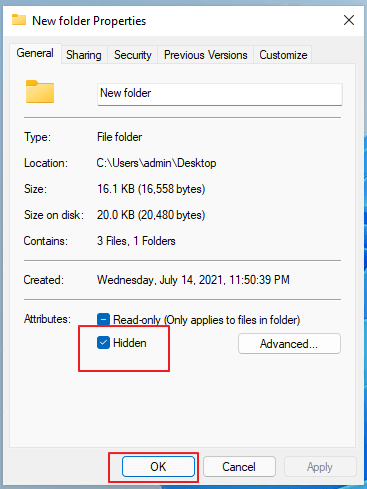
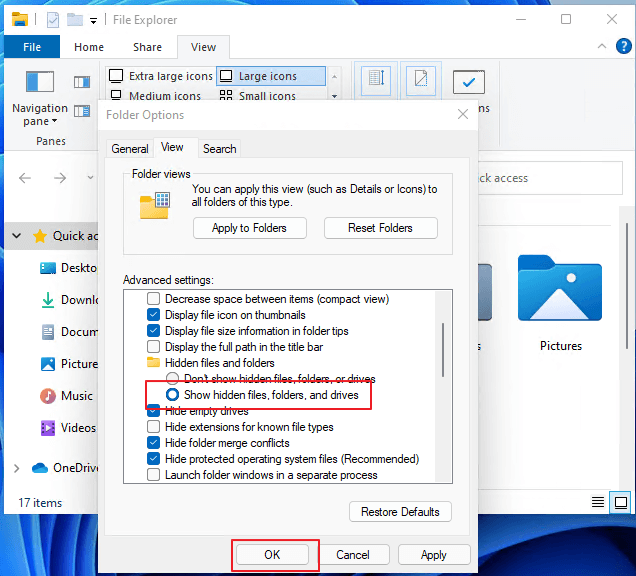
Remove Old Search and Explorer Traces
A correctly excluded folder can still appear somewhere else because Windows has several discovery surfaces. Review these after changing the index:
- File Explorer Home or Quick Access: unpin the folder and clear recent files from File Explorer Options if it was previously opened.
- Device search history: open Search permissions and clear device search history when old queries keep suggesting the name.
- OneDrive or work-account results: Windows can surface cloud content separately. Review Search permissions and the cloud service's own search behavior.
- Third-party search tools: applications such as desktop indexers maintain their own databases and require their own exclusion rules.
Hide a Private Folder with GiliSoft File Lock Pro
Choose this when the folder should disappear from ordinary Windows views and restoration should require a local master password.
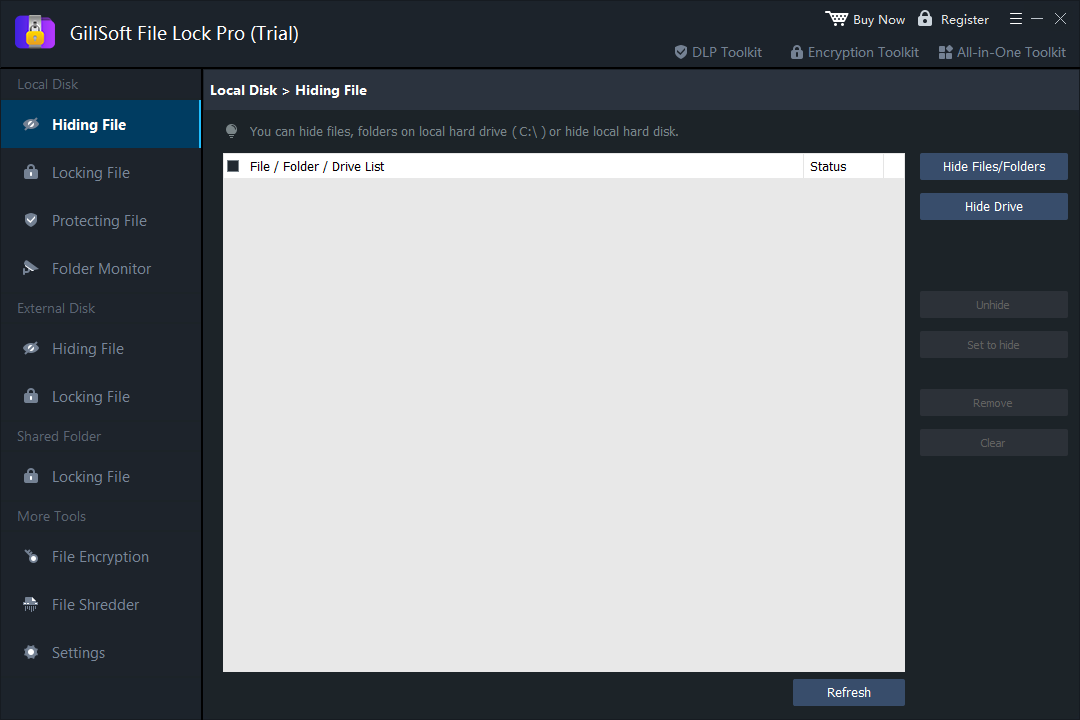
Open GiliSoft File Lock Pro and enter the master password.
Choose Local Disk > Hiding File.
Select Hide Files/Folders, add the target folder, and apply the action.
Verify the result in File Explorer and Windows Search. Keep the recovery email and password information secure.
Why Does the Folder Still Appear?
| What you still see | Likely reason | What to check |
|---|---|---|
| Old Start-menu result | The index has not reconciled yet | Confirm the exclusion, wait, then rebuild only if the stale result remains |
| Folder in File Explorer | Search exclusion does not hide browsing | Use Hidden for casual concealment or password-based hiding for private data |
| Folder in Home or Quick Access | Recent-item history is separate | Unpin it and clear File Explorer history |
| OneDrive result | Cloud content is surfaced separately | Review Search permissions and OneDrive search/history |
| Result in another search app | The app has its own index | Add an exclusion in that application |
Privacy Checklist Before You Finish
Test a name that exists only inside the target folder, not just the folder name.
Index exclusion is successful even though the folder remains visible. Decide whether that is acceptable.
Quick Access, device history, and OneDrive are not the same as the local index.
Hiding, locking, and index settings are not substitutes for a recoverable backup.
Frequently Asked Questions
Does the Hidden attribute remove a folder from Windows Search?
It can keep the folder out of ordinary views while Hidden items is off, but it is not reliable access control. Another user can reveal hidden items or browse directly to the path.
Can other users review excluded folders?
The Windows Search settings expose configured exclusions to users who can open that page. Treat exclusion as a search preference, not secrecy.
Why does an excluded folder still appear?
The result may be stale, pinned in Quick Access, stored in search history, coming from OneDrive, or supplied by another search tool.
Does exclusion hide a folder in File Explorer?
No. It changes the Windows Search index scope. It does not remove the folder from normal browsing.
Can I prevent content indexing but keep names searchable?
Yes. Clear the folder's content-indexing attribute. Windows may still index properties such as the name and path.
Does the exclusion automatically cover OneDrive search?
Not necessarily. Windows Search can include cloud results, while OneDrive also has its own search behavior. Check both surfaces.
Research Sources
- Microsoft Support: Windows Search and privacy
- Microsoft Support: Search indexing in Windows
- Microsoft Learn: Windows Search performance and excluded folders
- Microsoft Learn: attrib command
- Microsoft Support: View hidden files and folders
- Windows Central: Windows 11 search settings
Windows paths and attribute meanings were checked against Microsoft documentation. External guides were used to compare common reader workflows; product instructions were verified against the current File Lock Pro interface.