Wise Folder Hider
Wise combines hiding, locking restrictions, removable-drive support, and separately created encrypted lockers. It is a close comparison for users who want context-menu-driven hiding and a dedicated privacy utility.


Windows 11 includes simple ways to remove files from ordinary views, but hiding, excluding from search, password protection, and encryption are different jobs. This guide compares the built-in options, representative third-party tools, and the File Lock Pro workflow for private local or removable-drive content.
For casual concealment, use the Windows Hidden attribute. It is fast, but anyone can reveal the item by turning on View > Show > Hidden items.
For search results only, exclude the folder from Windows Search. The folder still remains visible in File Explorer. For master-password-managed hiding of files, folders, complete drives, USB storage, or external disks, use File Lock Pro.
| Method | Hidden from File Explorer | Password control | Encryption | Best fit |
|---|---|---|---|---|
| File Explorer Hidden | Yes, until Hidden items is enabled | No | No | Low-risk clutter and casual concealment |
| attrib command | Yes, until attributes are revealed or changed | No | No | Scripts and command-line administration |
| Windows Search exclusion | No | No | No | Keeping a known folder out of indexed search results |
| Wise Folder Hider | Yes | Application password | Encrypted lockers are separate | General-purpose third-party hiding |
| IObit Protected Folder | Yes | Application password | Not its main positioning | Hide and deny read or write access |
| VeraCrypt hidden volume | Hidden encrypted container | Yes | Yes | Advanced users comfortable creating and mounting volumes |
| GiliSoft File Lock Pro | Yes | Master-password management | Separate file-encryption tool included | Files, folders, drives, USB storage, and external disks |
The command-line method applies the same Hidden attribute without opening Properties. It can be useful in scripts or repeatable administrative tasks, but it still provides no password and no encryption.
attrib +h "C:\Private\Folder"
attrib -h "C:\Private\Folder"
Run Command Prompt with the permissions required for the target path. Keep quotes around paths that contain spaces.
Search exclusion is useful when the folder may remain visible in File Explorer but should not appear in normal indexed search results. Open Settings > Privacy & security > Searching Windows, find excluded folders, and add the target location.
Important: search exclusion is not file hiding. Anyone who knows the folder path can still browse to it. For a search-focused walkthrough, see How to Hide a Folder from Windows Search.
Several Windows utilities target the same broad intent, but their designs differ. These representative options help clarify whether you need simple hiding, access restrictions, or a hidden encrypted container.
Wise combines hiding, locking restrictions, removable-drive support, and separately created encrypted lockers. It is a close comparison for users who want context-menu-driven hiding and a dedicated privacy utility.
IObit focuses on keeping selected files and folders from being seen, read, or modified. Its official product language emphasizes older Windows versions, so confirm current Windows 11 compatibility before deployment.
VeraCrypt can place a hidden encrypted volume inside an outer volume. It offers a stronger cryptographic model, but creating, mounting, and managing volumes is more involved than hiding an existing folder in place.
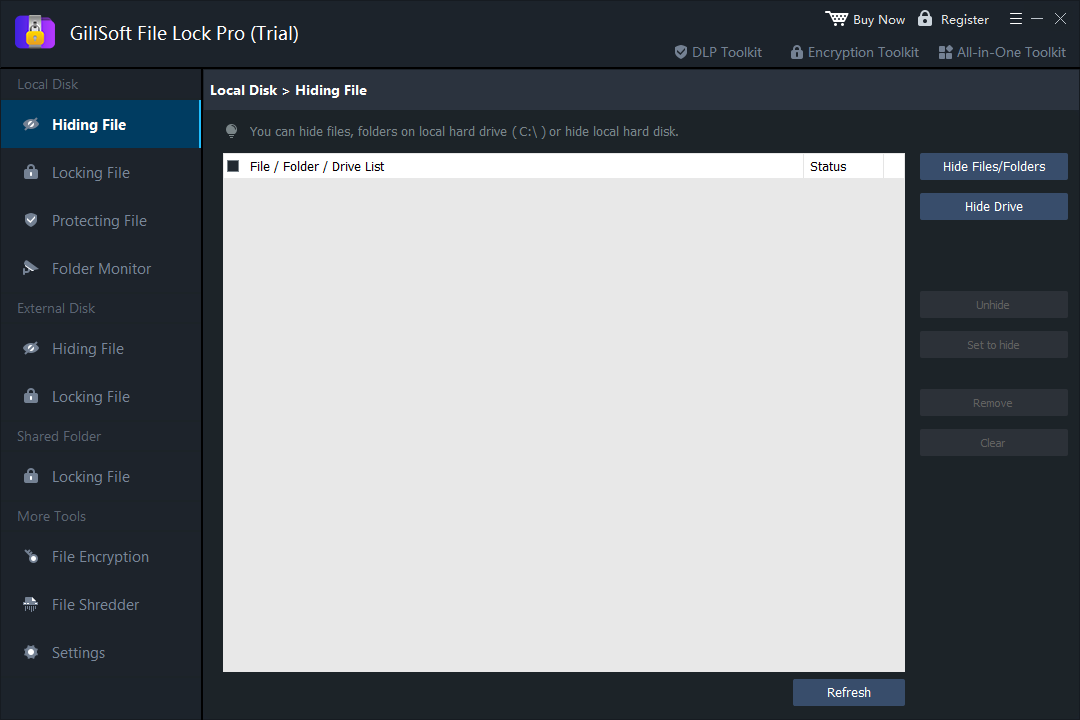
File Lock Pro separates Hiding File, Locking File, and Protecting File so the rule matches the job. It also includes local-drive, external-drive, shared-folder, monitoring, encryption, and secure-deletion workspaces.
Use Local Disk > Hiding File when the content should disappear from ordinary File Explorer browsing. Unlike the Windows Hidden attribute, hidden items are managed inside the password-protected File Lock Pro application.
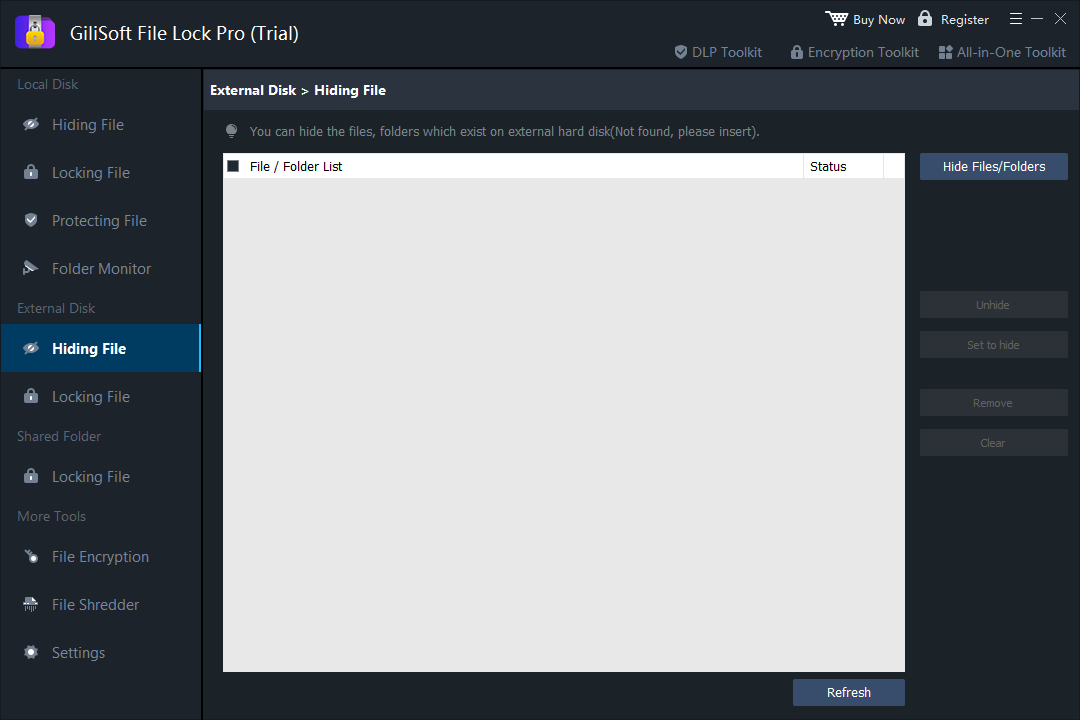
File Lock Pro provides a separate External Disk > Hiding File workspace for supported removable storage. This is useful for personal photos, client documents, presentation files, or private folders carried between Windows PCs.
If the entire removable drive needs cryptographic protection rather than selective hiding, compare GiliSoft USB Encryption.
Turn off View > Show > Hidden items when testing the native Windows attribute.
Unpin the location and clear recent File Explorer history if the old shortcut or activity entry remains visible.
Allow indexing changes time to apply, remove old shortcuts, or rebuild the index after adding a folder exclusion.
A hiding rule applies to the selected path. Copies, backups, cloud-synced versions, and exported files must be managed separately.
Use the External Disk workspace and make sure the device is connected before changing its hidden-item rules.
Hiding reduces ordinary visibility. Use encryption when the data itself must remain unreadable outside the intended access process.
No. It is a visibility setting. Another user can enable Hidden items and reveal the file or folder.
No. The command changes attributes only. It does not create a password prompt or encrypt the data.
Yes, by excluding it from indexing, but the folder remains visible and directly accessible in File Explorer.
Yes. The Local Disk Hiding File workspace includes a Hide Drive action.
Yes. Use External Disk > Hiding File after connecting the supported removable device.
No. Hiding changes visibility, locking restricts access, and encryption transforms the data into unreadable form without the key.


Enter your email address to get our latest newsletter