
How to Create PDF from Office Files and Images
PDF is useful for fixed-layout review, sharing, printing, and archiving, but conversion does not guarantee that every spreadsheet, font, link, comment, or interactive element will survive unchanged. Create the PDF from a copy and inspect the final pages before distribution.
Quick answer
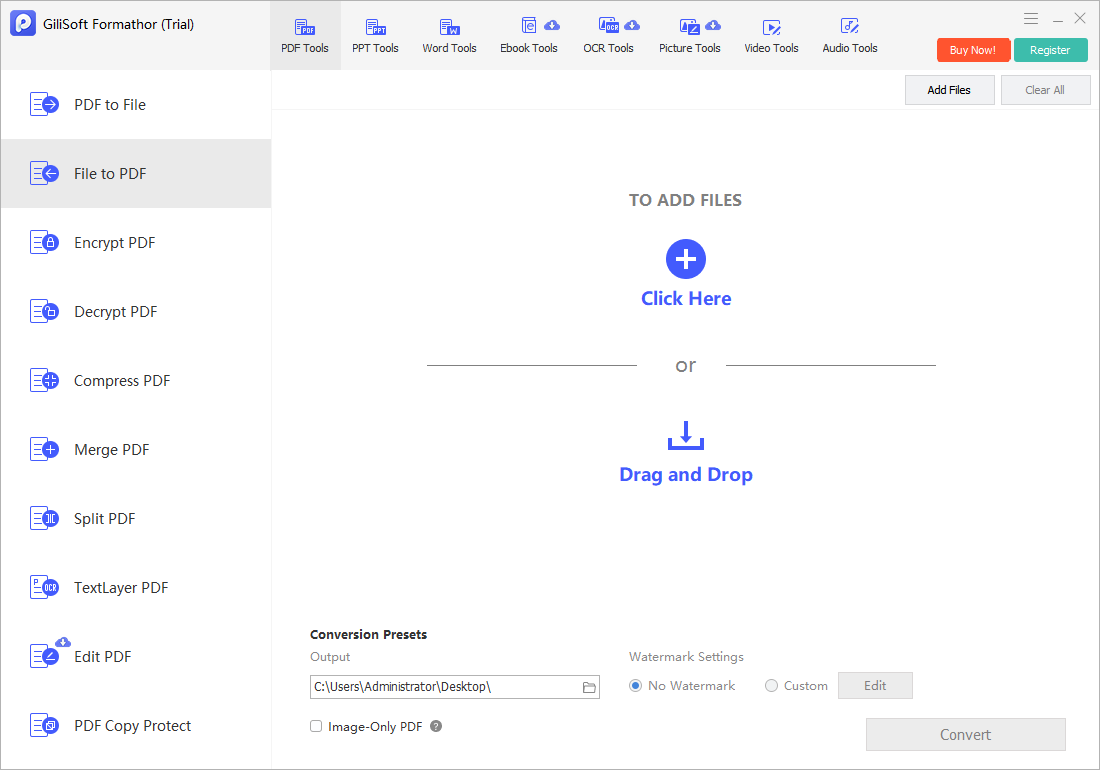
Open Formathor File to PDF, add the Word, Excel, PowerPoint, text, or image files, choose a separate output folder and suitable options, create the PDF, then compare page breaks, tables, links, fonts, and image clarity with the source.
Prepare Each Source for PDF
| Source | Check before conversion | Check in the PDF |
|---|---|---|
| Word document | Tracked changes, comments, fonts, headings, page size | Page breaks, links, bookmarks, and embedded images |
| Excel workbook | Print area, orientation, scaling, hidden sheets | Clipped columns, repeated headers, links, and page count |
| PowerPoint presentation | Slide size, notes, hidden slides, fonts | Slide order, image quality, links, and notes policy |
| Images or scans | Rotation, crop, order, resolution | Page order, readability, compression, and OCR if required |
Step-by-Step Workflow
- Prepare copies of the source files
Resolve comments and tracked changes, define print areas, confirm slide order, and keep the editable originals.
- Open File to PDF in Formathor
Choose the workflow for converting supported Office, text, and image files to PDF.
- Add and arrange the inputs
Confirm the file list and sequence, especially when images or documents will become a combined packet.
- Choose the output folder and settings
Use a separate destination and select page, image, or quality options that match screen review, email, print, or archive needs.
- Create the PDF
Run the conversion and wait for every file to complete before moving the output.
- Inspect and finish the document
Check pages, fonts, links, tables, images, and selectable text, then merge, split, compress, or encrypt only after the base PDF is correct.
For complete product controls, see the Formathor guide.
Product Interface
Important Limits and Checks
Frequently Asked Questions
Why is an Excel sheet split across several PDF pages?
Review the workbook print area, orientation, paper size, margins, and scaling before conversion.
Will comments and tracked changes appear?
That depends on the source application and conversion settings. Resolve or remove material that should not be distributed, then inspect the PDF.
Can images become one multi-page PDF?
Yes when the selected workflow supports combining them. Arrange the image order first and verify rotation and resolution.
Does creating a PDF prevent editing?
No. PDF is a fixed-layout exchange format, not a guarantee against editing. Use appropriate document protection and distribution controls.