
Write converted, merged, compressed, or edited results to a separate folder until the output has been checked.
GiliSoft Formathor User Guide
How to Convert PDF, Office, eBook, Image, and OCR Files on Windows
Use GiliSoft Formathor when one project contains several document families. Convert files, create and organize PDFs or presentations, run OCR, prepare images, and review the finished output from one Windows workspace.
PDF
Office›Choose task›Output
ready
Office›Choose task›Output
ready
ConvertOrganizeProtect

Before you start a Formathor task
Choose the task by the output you need, not only by the source extension. Keep the originals available and test a representative file before processing an important collection.
Decide whether the finished file is intended for editing, presentation, reading, printing, archiving, or secure delivery.
Tables, fonts, page breaks, charts, images, animations, and scanned text deserve closer review after conversion.
Convert one representative document first and confirm its layout, text, page order, and output location.
Formathor is the broad multi-format workspace. For a page focused on one file family, use the dedicated PDF, PowerPoint, Word, Excel, or eBook converter page linked near the end of this guide.
1. Choose the source family and conversion task
Start from the task list, then add the source files
- Open GiliSoft Formathor.
- Choose PDF to File, File to PDF, PPT to File, File to PPT, Word, eBook, OCR, Picture Tools, or another available task.
- Add one file, several files, or a supported folder selection.
- Confirm that every source belongs to the selected task.
- Choose the target format and output folder.
- Run a test and open the result before continuing with the remaining files.
The main workspace keeps conversion and document preparation tools together without forcing every job into a PDF-only path.
 Choose the document family and the task you want to complete
2. Convert files to and from PDF
Use the PDF conversion tasks when documents need to move between fixed-layout delivery and editable or reusable working formats.
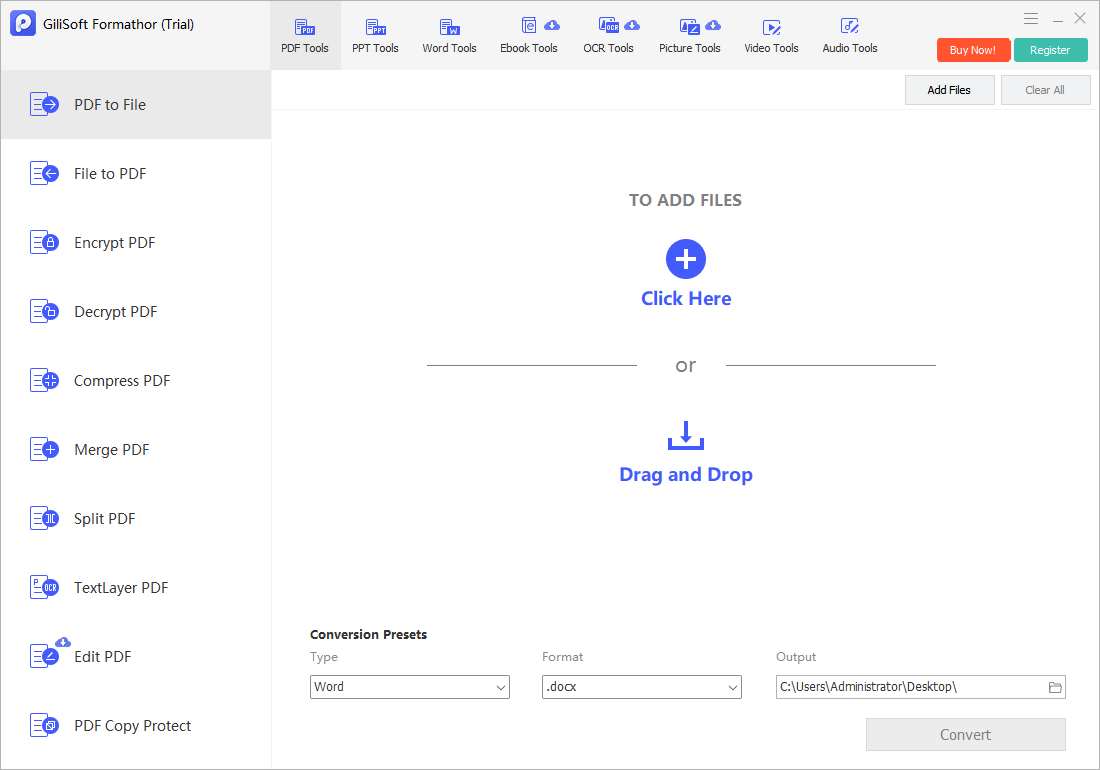 Convert PDF content for follow-up editing or reuse
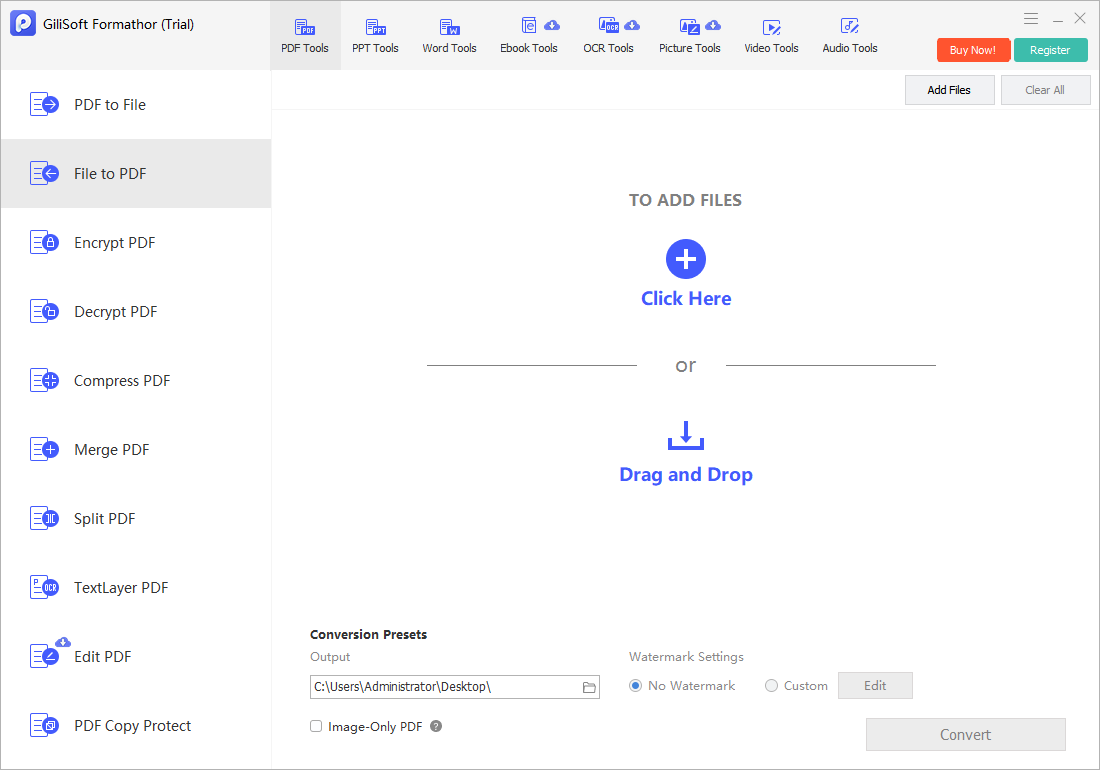 Create standardized PDFs from supported source files
PDF to working formats
Select the target that matches the next application, then inspect text flow, tables, images, and page breaks.
Files to PDF
Arrange the sources in the intended order and verify page size, orientation, margins, and the final reading sequence.
Scanned PDFs
Use OCR or text-layer tasks when image-based pages need searchable or reusable text rather than ordinary conversion alone.
3. Compress, merge, split, edit, and protect PDFs
Prepare the PDF for its actual delivery job
- Use Compress PDF when file size needs to be reduced.
- Use Merge PDF to combine related documents in the correct order.
- Use Split PDF to separate selected pages or sections.
- Use Edit PDF for supported document corrections.
- Use Text-layer PDF when scanned content needs searchable text.
- Use Encrypt or Decrypt PDF only on files you are authorized to manage.
Open the final PDF in a separate viewer and check page order, text readability, links, images, and access settings.
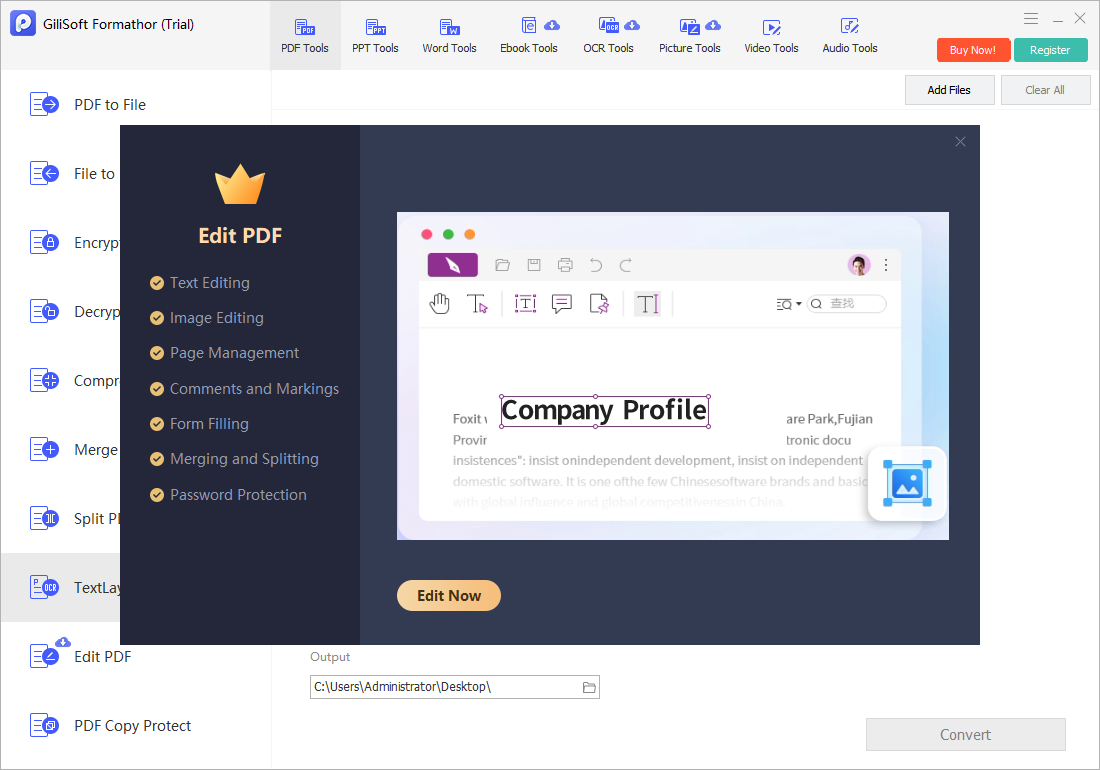 Choose the PDF preparation task that matches the required output
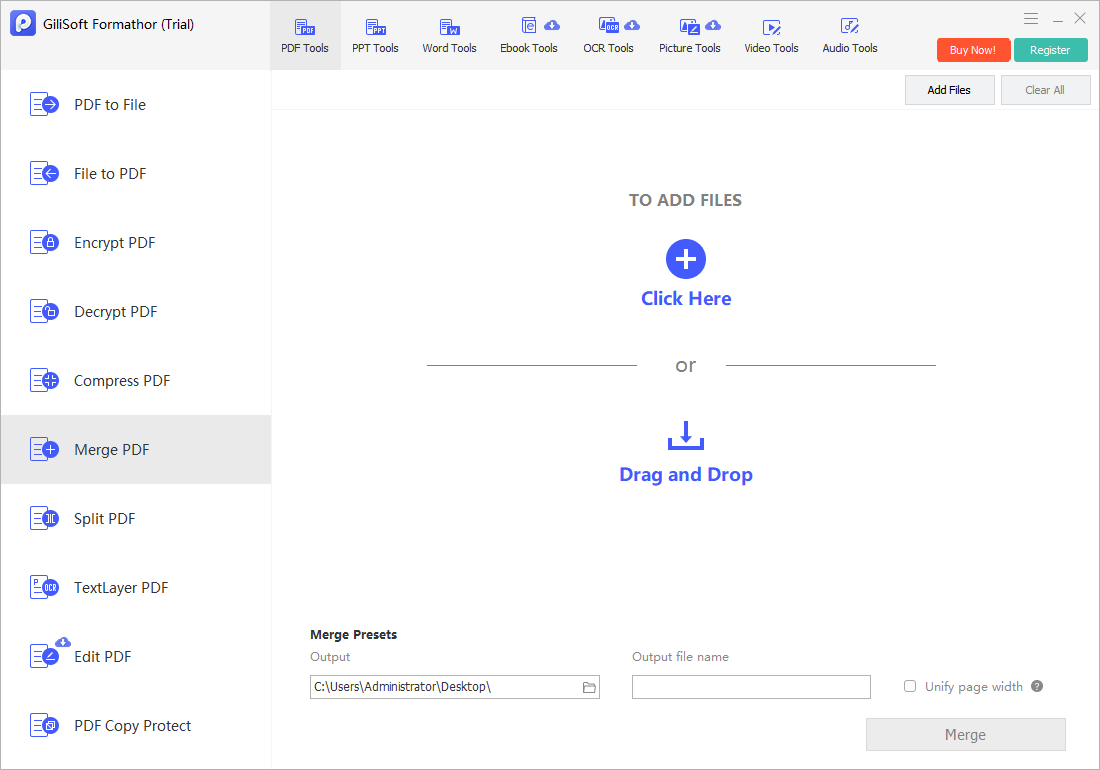 Arrange and combine related PDF documents
 Add a searchable text layer to image-based PDF pages
4. Convert and organize PowerPoint files
Use the PowerPoint tools when presentation content must be converted, assembled, divided, compressed, or protected.
Keep slide structure and presentation intent in view
- Choose File to PPT when supported source content should become a presentation.
- Choose PPT to File when slides need another document or delivery format.
- Use Merge PPT to combine decks and confirm the new slide order.
- Use Split PPT to separate a large presentation into smaller files.
- Use PowerPoint encryption tools for authorized protected documents.
- Open the result in presentation software and check fonts, charts, images, animations, and slide dimensions.
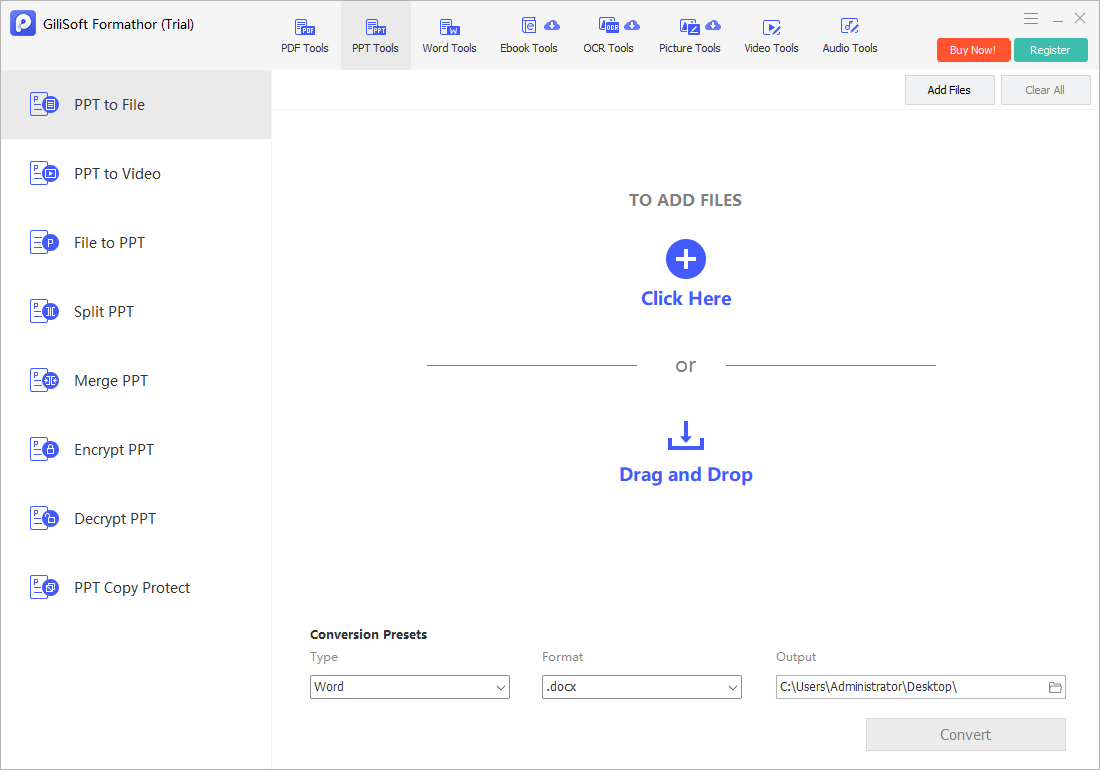 Select a PowerPoint source and the required output format
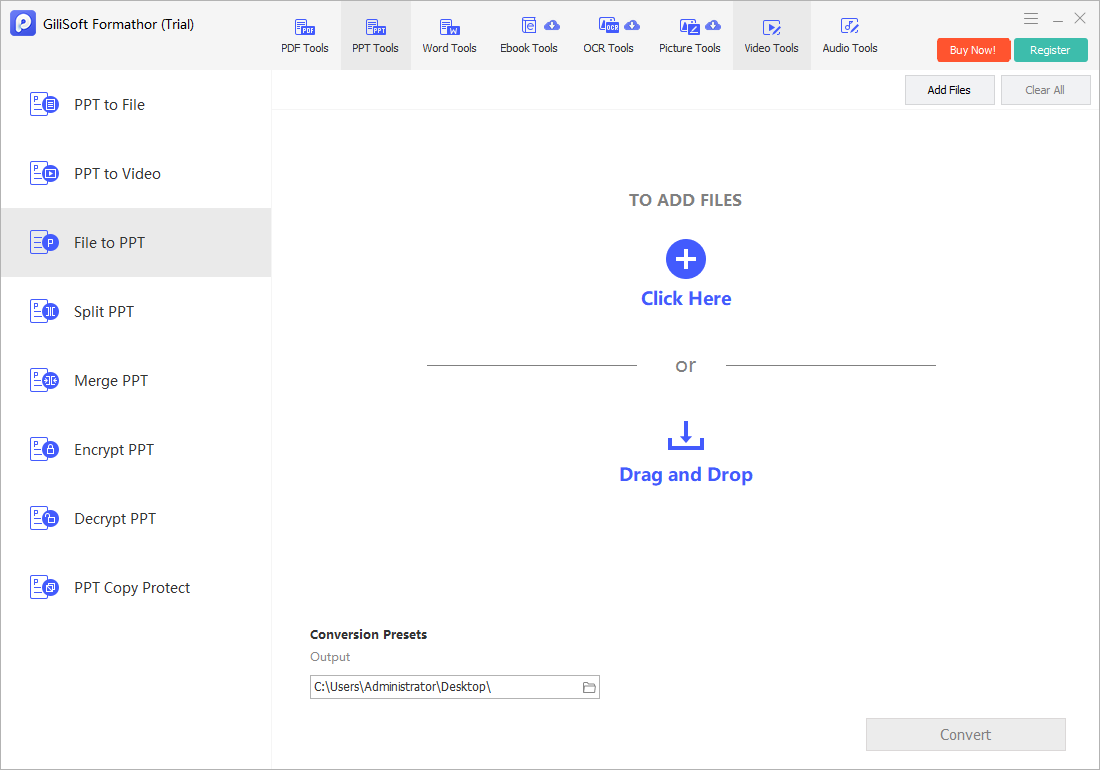 Create a presentation from supported source content
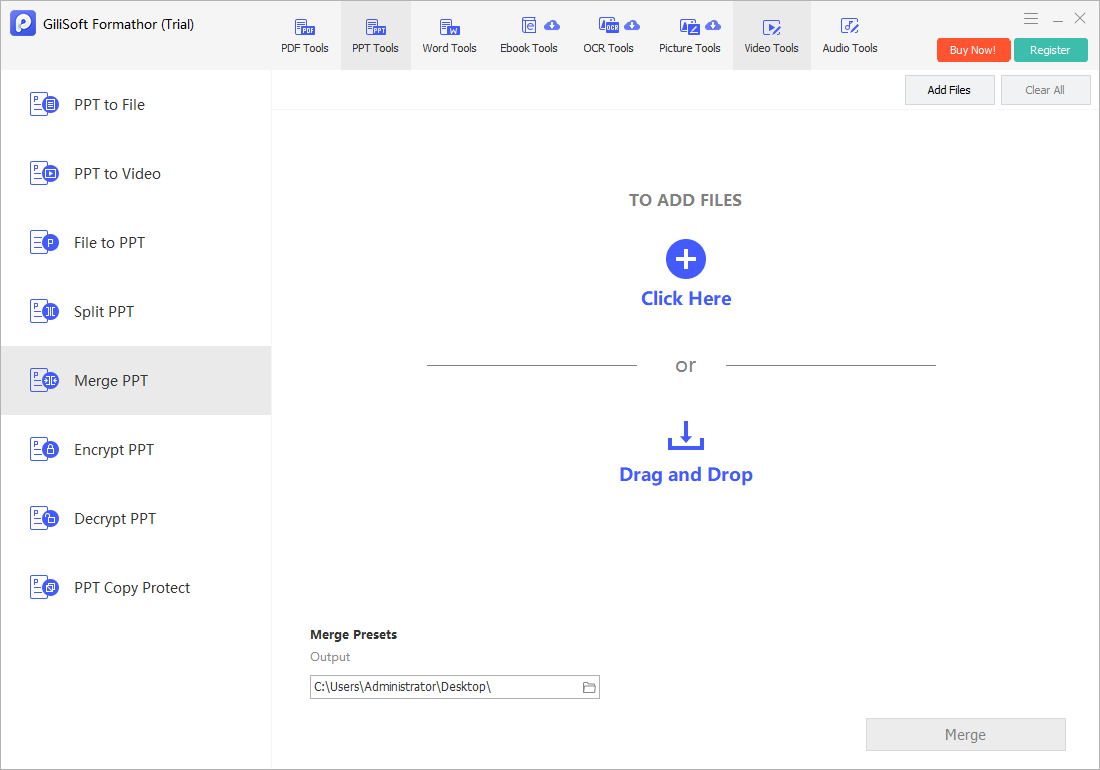 Combine presentation files and verify slide order
5. Handle Word and mixed Office document output
Convert for editing, distribution, or audio use
- Choose File to Word when supported source content needs an editable Word document.
- Choose Word to File when the document needs another supported output.
- Use Word to Audio when the goal is an audio rendering of document text.
- Review language, reading order, headings, tables, and embedded images.
- Keep the original document when exact formatting must remain available.
- Open the output in its destination application before delivery.
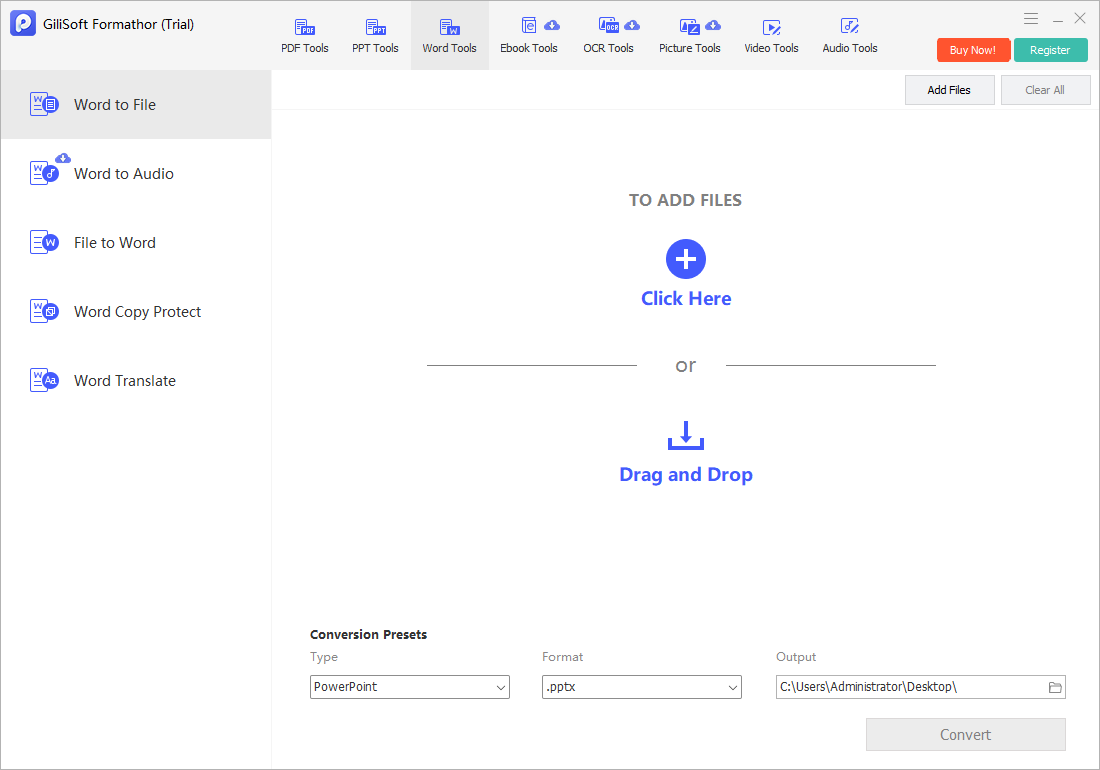 Choose a Word document and the next usable format
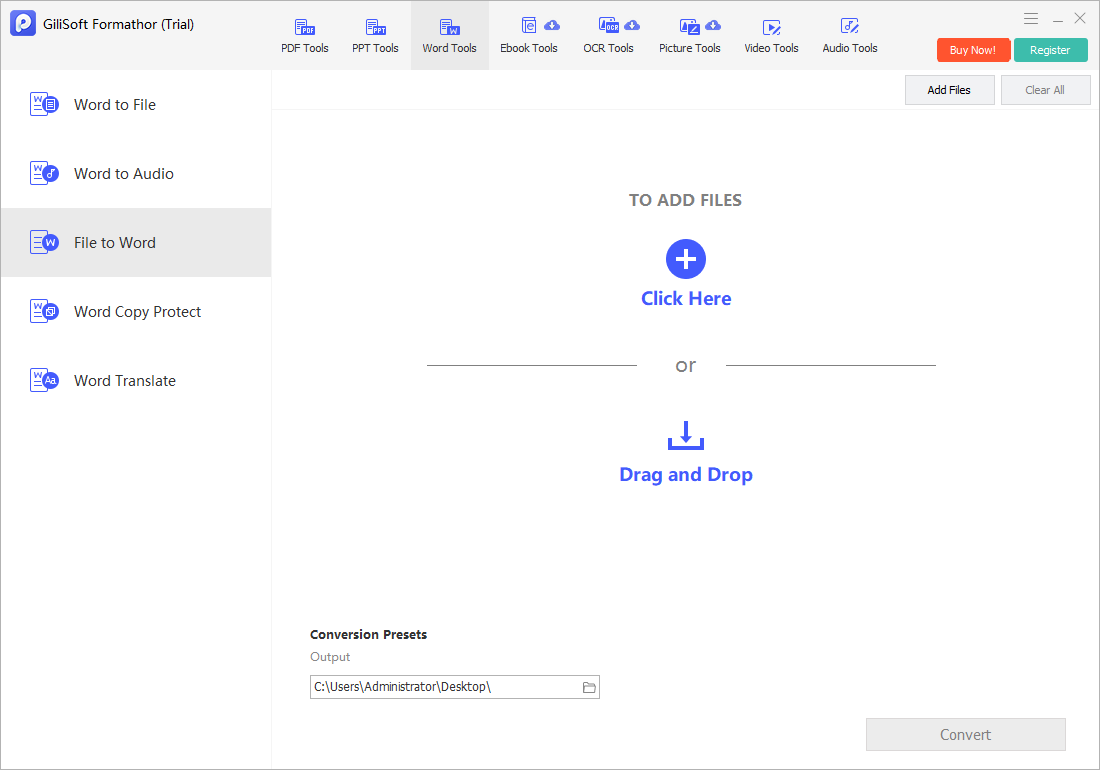 Create an editable Word document from supported source content
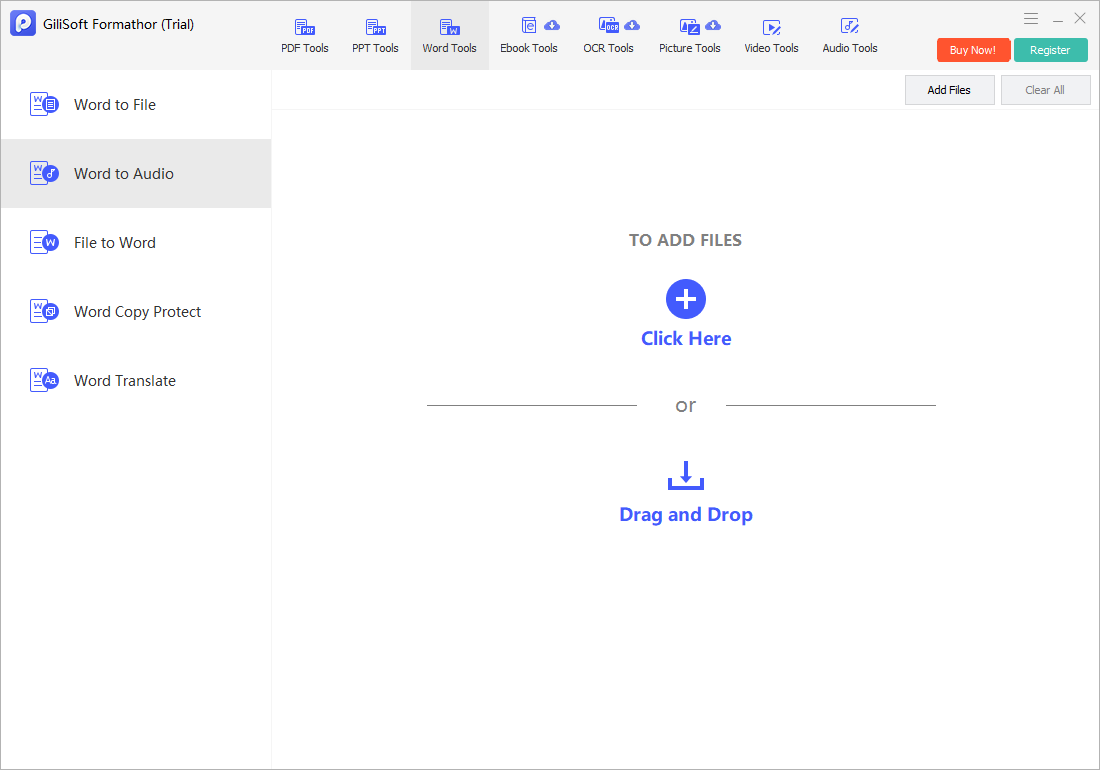 Prepare document text for supported audio output
6. Convert eBooks and run OCR or picture tasks
Use these workspaces when the source is an eBook, a scanned page, or an image collection rather than a conventional Office document.
File to eBook
Choose the target eBook format for the intended reader or device, then review chapters, text flow, and embedded images.
eBook to File
Convert authorized eBook content for reuse in a supported document format and inspect the result for structure changes.
OCR
Recognize text from scanned pages or images, then proofread names, numbers, columns, and unusual characters.
Picture tools
Prepare image sources for document output and confirm dimensions, orientation, order, and visual clarity.
Image to PDF
Arrange the images as pages and verify the complete PDF after creation.
Output verification
Open every representative result in the application or reader that will actually be used.
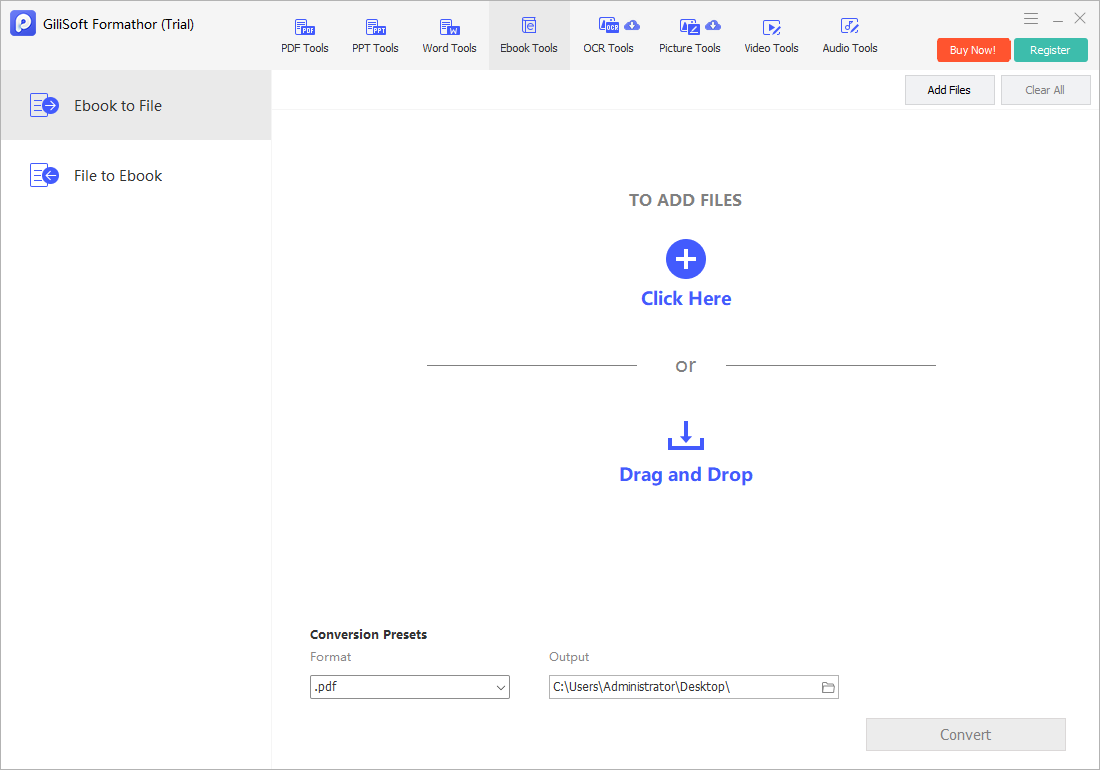 Choose the eBook source and reusable output
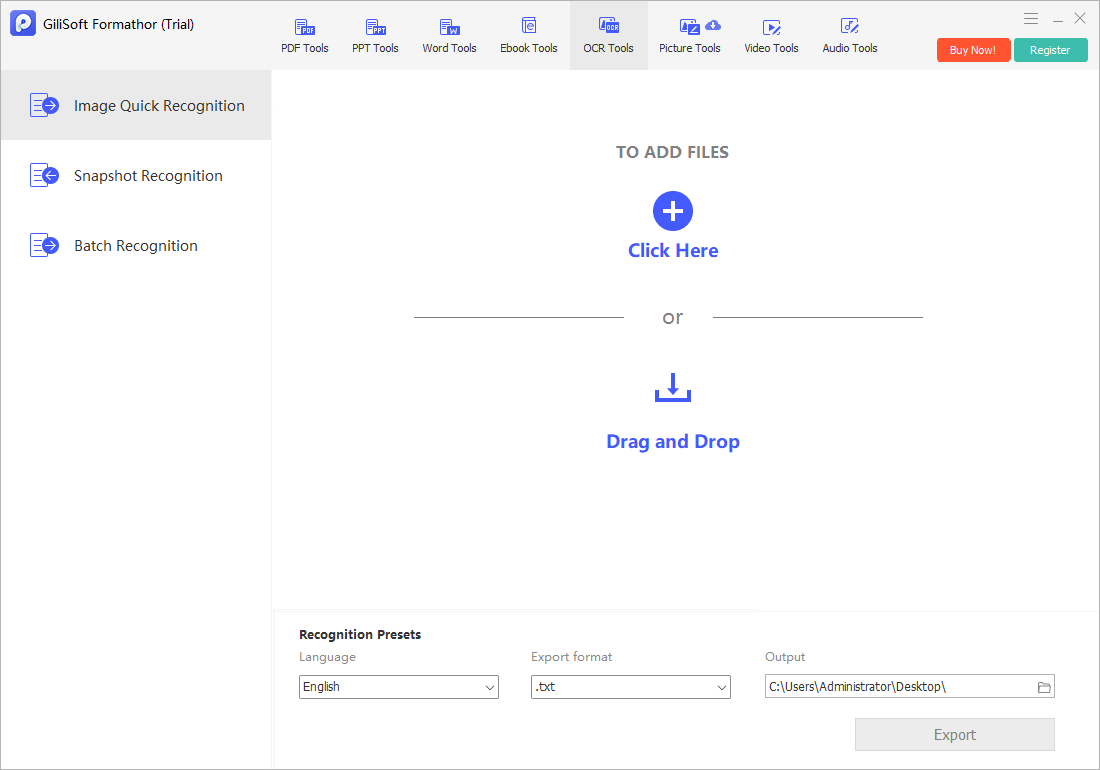 Run OCR and proofread the recognized text
7. Review the converted output before delivery
Check the result in the destination application
- Confirm that the output is in the expected folder and format.
- Open it outside Formathor.
- Check page or slide order, fonts, tables, images, links, and text flow.
- Proofread OCR text and audio-oriented document output.
- Verify encryption, decryption, merge, split, or compression results where used.
- Only then continue with a large batch or deliver the files.
 Return to the task workspace and confirm the completed job
Final Formathor checklist
Confirm these points before sharing a converted document or processing a larger collection.
Formathor troubleshooting and FAQ
Why does the converted layout differ from the source?
Fonts, complex tables, page sizes, charts, and application-specific effects may be interpreted differently. Test a representative file and review it in the destination application.
Why is scanned PDF text not editable?
An image-based PDF may require OCR or a searchable text-layer task. Run recognition and proofread the result before reuse.
Should I merge files before or after conversion?
Use the sequence that preserves the structure you need. Test a small set first, especially when the source files use different page sizes or layouts.
Why is the compressed PDF still large?
High-resolution images and complex pages may limit size reduction. Compare clarity and size rather than applying the strongest compression automatically.
Can Formathor replace every specialized converter?
Formathor is useful for mixed-format document work. The dedicated pages below provide more focused guidance for one file family and its common search tasks.
How should I handle confidential documents?
Keep source and output files in controlled folders, use the available protection tools where appropriate, and verify the final access settings before delivery.
Handle mixed document conversion from one Windows workspace
Use GiliSoft Formathor for PDF, Office, presentation, eBook, image, OCR, and related document preparation tasks.


