
How to Hide a CD or DVD Drive on Windows
Hiding an optical-drive icon and blocking optical-media access are different jobs. Hiding reduces casual visibility in File Explorer, but it is not an access-control boundary. If users must be prevented from reading or burning discs, apply a CD/DVD read or write restriction instead.
Quick answer
Use hiding only when the goal is a cleaner or less obvious File Explorer view. Use device control when users must not read or write optical media. Choose the narrowest control that matches the actual risk and verify it before relying on the finished media or workstation policy.
Choose Hiding or CD/DVD Access Control
| Situation | Recommended approach | Check carefully |
|---|---|---|
| Remove the drive icon from ordinary browsing | Hide the selected drive with File Lock Pro | Other programs or direct paths may still reach it |
| Prevent users from reading discs | Use a CD/DVD deny-read rule in USB Lock | Test approved business media and applications |
| Prevent users from burning discs | Use a CD/DVD deny-write rule in USB Lock | Reading may remain available depending on policy |
| Protect files delivered on a disc | Use Secure Disc Creator to encrypt the content | Hiding the local drive does not protect the disc |
Step-by-Step Workflow
- Decide whether visibility or access is the problem
Use hiding only when the goal is a cleaner or less obvious File Explorer view. Use device control when users must not read or write optical media.
- Back up settings and select a test PC
Record the current drive letter and test with noncritical media before changing a shared, classroom, lab, or office computer.
- Hide the drive with File Lock Pro
Open the drive-hiding area, select the intended CD/DVD drive, apply the hide action, and then close the management window.
- Verify the visibility boundary
Check File Explorer and common Open dialogs, then remember that hiding alone may not block direct paths, administrative tools, or other applications.
- Apply read or write restrictions when required
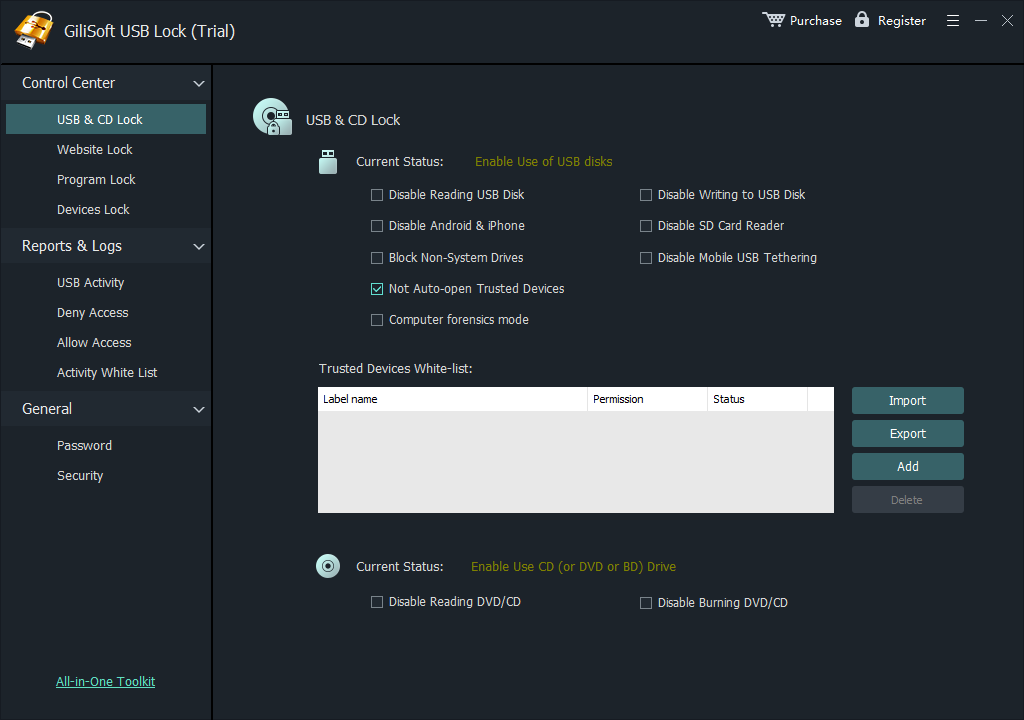
In GiliSoft USB Lock, use the CD/DVD controls to deny reading, writing, or both according to the workstation policy.
- Test and document recovery
Insert representative approved media, test the actions that should be allowed and denied, and record how an authorized administrator restores access.
For the complete product workflow, see the File Lock Pro user guide.
Product Interface
These real GiliSoft screenshots connect the workflow to the controls used on Windows.


Verify the Result Before Use
- Start with noncritical files or media and preserve a verified source copy.
- Test the exact recipient, application, drive, and Windows account involved in the real workflow.
- Document passwords, ownership, exceptions, and authorized recovery separately from the protected item.
- Review the setting when the delivery or workstation requirement changes.
Frequently Asked Questions
Does hiding the drive stop users from opening a disc?
Not reliably. Hiding removes ordinary visual entry points; use a deny-read policy when access itself must be blocked.
Can I block disc burning but still allow reading?
Use the separate CD/DVD write-control option and test the resulting behavior on the managed PC.
Which GiliSoft product should I use?
Use File Lock Pro for hiding a selected drive, USB Lock for CD/DVD read or write control, and Secure Disc Creator for encrypting files delivered on optical media.
Will disabling the icon damage the drive?
No, but broad or incorrect device policies can interrupt legitimate work. Test and document the rollback procedure.