

Private photos can appear in gallery grids, search results, widgets, recent-file lists, or shared-computer folders at the wrong moment. The right hiding method depends on where the pictures are stored and whether you only want a cleaner gallery or need access control.
This guide covers the current built-in options on iPhone, Android, Windows, and Mac. It also explains when GiliSoft File Lock Pro is the more practical choice for photo folders stored locally on a Windows PC or Mac.
Choose the Right Photo-Hiding Method
| Method | Keeps photos out of normal views | Requires authentication | Best use |
|---|---|---|---|
| GiliSoft File Lock Pro | Yes | GiliSoft password | Local Windows or Mac folders |
| Apple Hidden album | Yes, inside Photos | Device authentication on current systems | iPhone, iPad, and Mac Photos libraries |
| Google Photos Locked Folder | Yes | Device screen lock | Private Android photos and videos |
| Windows Hidden attribute | Only while hidden items remain disabled | No | Casual concealment, not real access control |
How to Hide Pictures on iPhone or iPad
Apple Photos moves hidden pictures and videos to the Hidden collection. On current iOS and iPadOS versions, this collection is locked by default and can be opened with Face ID, Touch ID, or the device passcode.
- Open Photos and select the picture or video you want to hide.
- Touch and hold the item, or open the More menu, then choose Hide.
- Confirm that the item should move to the Hidden collection.
- To open it later, go to Collections > Utilities > Hidden, choose View Album, and authenticate.
- For another layer of discretion, open Settings > Apps > Photos and turn off Show Hidden Album.
 Select the private picture and open the available photo actions.
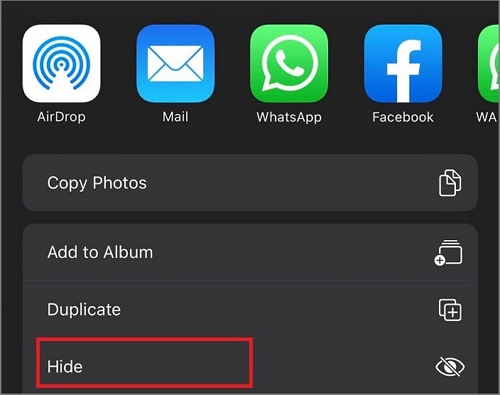 Confirm that the picture should move out of the normal Photos library view.
How to Hide Pictures on Android
Use Google Photos Locked Folder
Locked Folder is the privacy-focused option in Google Photos. Its items do not appear in the main Photos grid, memories, search, albums, or other apps that can normally access your media.
- Open Google Photos, then go to Collections > Locked.
- Choose Set up Locked Folder and follow the screen-lock prompt.
- Return to Photos and select the pictures or videos you want to protect.
- Choose Add to > Move to Locked Folder, then confirm the move.
- Review the Locked Folder backup setting. If backup is off, keep another protected copy before clearing app data, uninstalling the app, or resetting the phone.
How to Hide Pictures on a Windows Computer
Method 1. Hide photo folders with GiliSoft File Lock Pro
For pictures stored on a shared or personal Windows PC, File Lock Pro keeps selected files, folders, or local drives out of ordinary Explorer and search views. Authorized users restore visibility from the application with the master password.
- Open File Lock Pro and enter the master password.
- Select Local Disk > Hiding File.
- Choose Hide Files/Folders and add the folder that contains the private pictures.
- Confirm that the folder no longer appears in File Explorer or Windows search.
- When access is needed, return to the hidden-items list and choose Unhide.
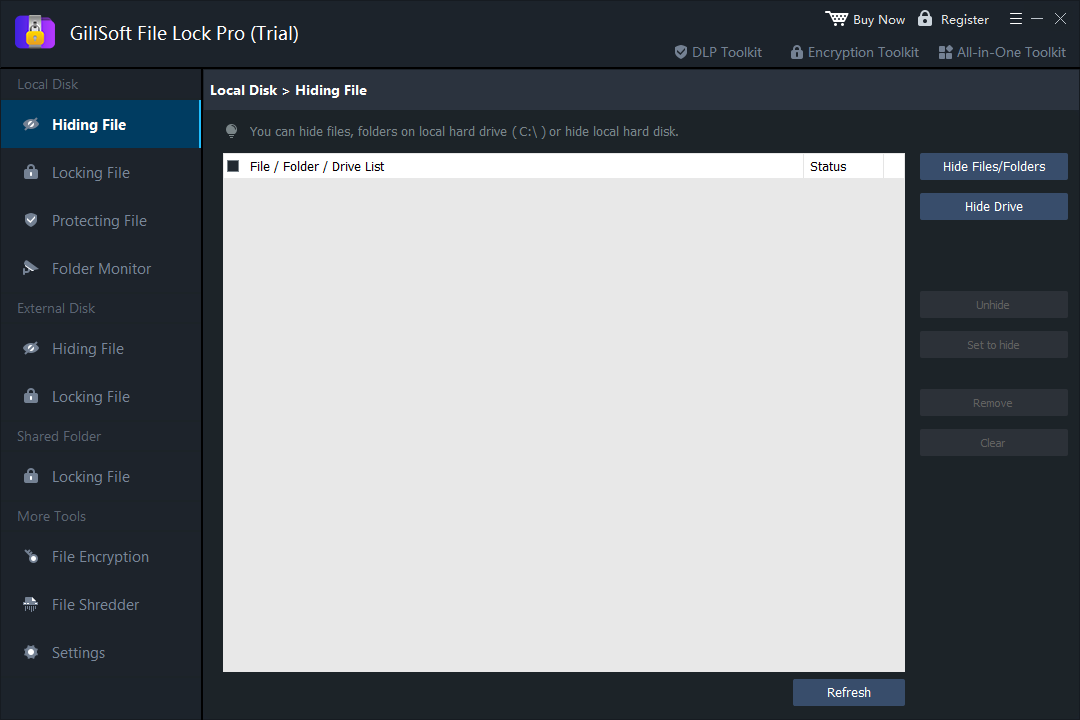 Manage hidden photo files, folders, and local drives from one password-controlled list.
Local photo privacy without cloud syncing
File Lock Pro keeps the original pictures on your computer and adds hiding, locking, change protection, folder monitoring, encryption, and secure deletion tools for local files.

Method 2. Use the Windows Hidden attribute
Windows can mark a picture or folder as Hidden. This is quick, but anyone who enables hidden items can reveal it, so it should not be described as password protection.
- Right-click the picture or folder and choose Properties.
- Under Attributes, select Hidden and apply the change.
- In File Explorer, keep View > Show > Hidden items turned off.
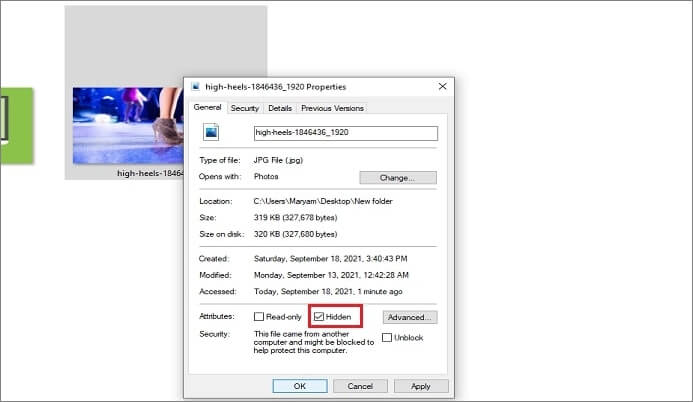 The Hidden attribute removes an item from ordinary views but does not add a password.
How to Hide Pictures on a Mac
Method 1. Use the Hidden album in Photos
- Open Photos and select one or more pictures.
- Choose Image > Hide Photos, or Control-click and choose Hide Photo.
- Confirm the action. The pictures remain in the library but leave normal Photos views.
- To restore them, choose View > Show Hidden Photo Album, open Hidden under Utilities, authenticate, and choose Unhide Photo.
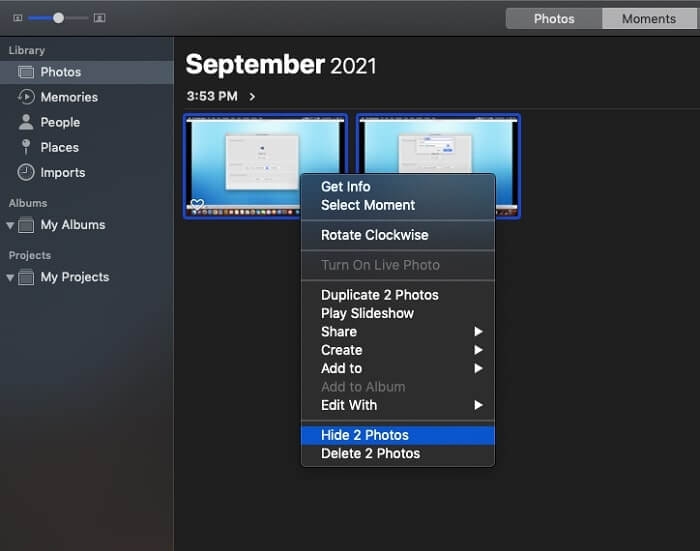 Hide selected pictures from the Photos Image menu.
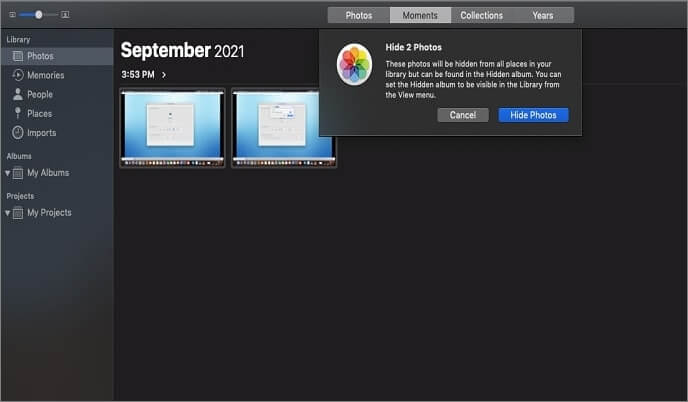 Confirm that the selected pictures should move to the Hidden album.
Method 2. Hide complete folders with File Lock Pro for Mac
Use the Mac edition when private pictures live in Finder folders rather than the Photos library, or when you want one password-controlled list for multiple photo folders.
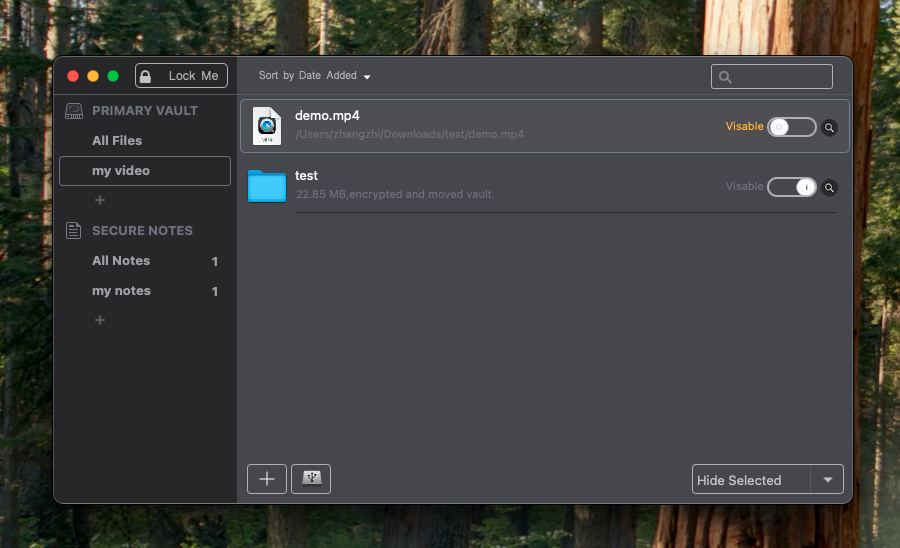 Add a Finder folder to the hidden-items list.
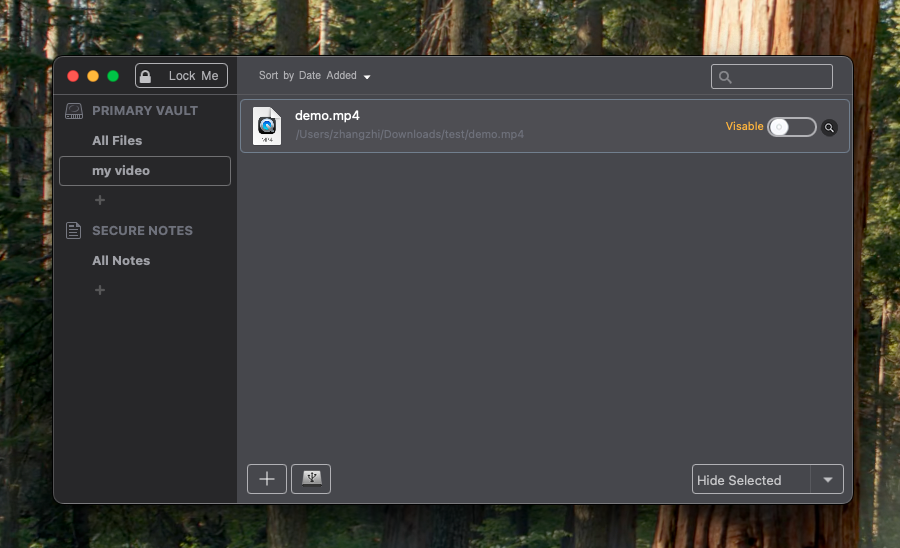 Restore authorized visibility from the Mac application.
What Hiding Pictures Does and Does Not Protect
Before hiding irreplaceable photos, keep a second protected copy and test both the hide and restore steps. Avoid renaming, moving, or deleting application-managed protected content outside the software that controls it.
Frequently Asked Questions
Does hiding a picture delete it?
No. Hiding removes the picture from ordinary views while keeping it available in a hidden or locked location. Deletion is a separate action.
Can hidden Windows pictures still be found?
Yes, if you only use the Windows Hidden attribute. A user can enable Hidden items. Use password-controlled software when basic concealment is not enough.
Is Google Photos Archive private?
No. Archived items can remain accessible through search, albums, and device folders. Use Locked Folder for sensitive Android photos.
Can I hide an entire photo drive on Windows?
File Lock Pro can hide a selected local drive as well as individual folders. Make sure you know how to restore it before hiding the drive.
Protect private picture folders on your computer
Choose GiliSoft File Lock Pro for password-controlled local hiding on Windows, or open the Mac edition for private Finder folders.
View GiliSoft File Lock Pro