

Windows Notepad can create and edit plain-text files, but it does not include a command for assigning an opening password to a TXT file. To protect one, you need to control access to the original file, encrypt it for the current Windows account, or place a protected copy inside an encrypted archive.
This guide explains all three approaches and shows what each one actually protects. For a file that is edited regularly and should remain in its normal folder, GiliSoft File Lock Pro is the most direct option.
Which Notepad File Protection Method Should You Use?
| Method | Password behavior | What happens to the original TXT file | Best use |
|---|---|---|---|
| File Lock Pro | Managed through the File Lock Pro master password | Can remain in place, be hidden, be locked, or be exported as an encrypted package | Private notes used regularly on a Windows PC |
| Windows EFS | No separate opening password; access follows the Windows account and encryption certificate | Encrypted in its current NTFS location | Account-bound protection on Windows Pro, Enterprise, or Education; not Windows Home |
| 7-Zip or WinRAR archive | Archive asks for a separate password | Usually remains unprotected unless removed after verifying the archive | Sending or storing a protected copy |
Method 1: Lock or Encrypt a Notepad File with GiliSoft File Lock Pro
File Lock Pro provides several protection modes for plain-text files. Choose Locking File when the file should remain visible but unavailable without authorization, Hiding File when it should disappear from ordinary Explorer and search views, or Protecting File when reading is allowed but unwanted editing and file operations should be blocked.
- Open GiliSoft File Lock Pro and enter the master password.
- Choose Local Disk > Locking File.
- Select Lock Files/Folders, then add the Notepad TXT file or the folder containing several private notes.
- Apply the lock and test the TXT file from File Explorer.
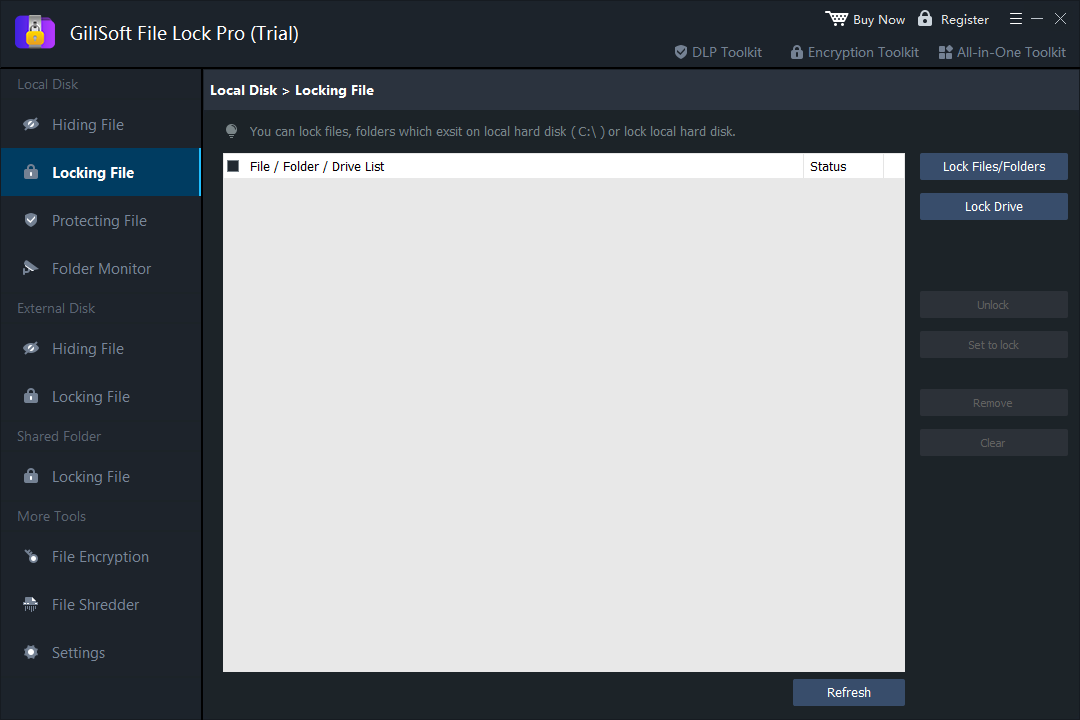 Add a TXT file, folder, or local drive to the password-controlled locking list.
Choose another mode when the goal is different
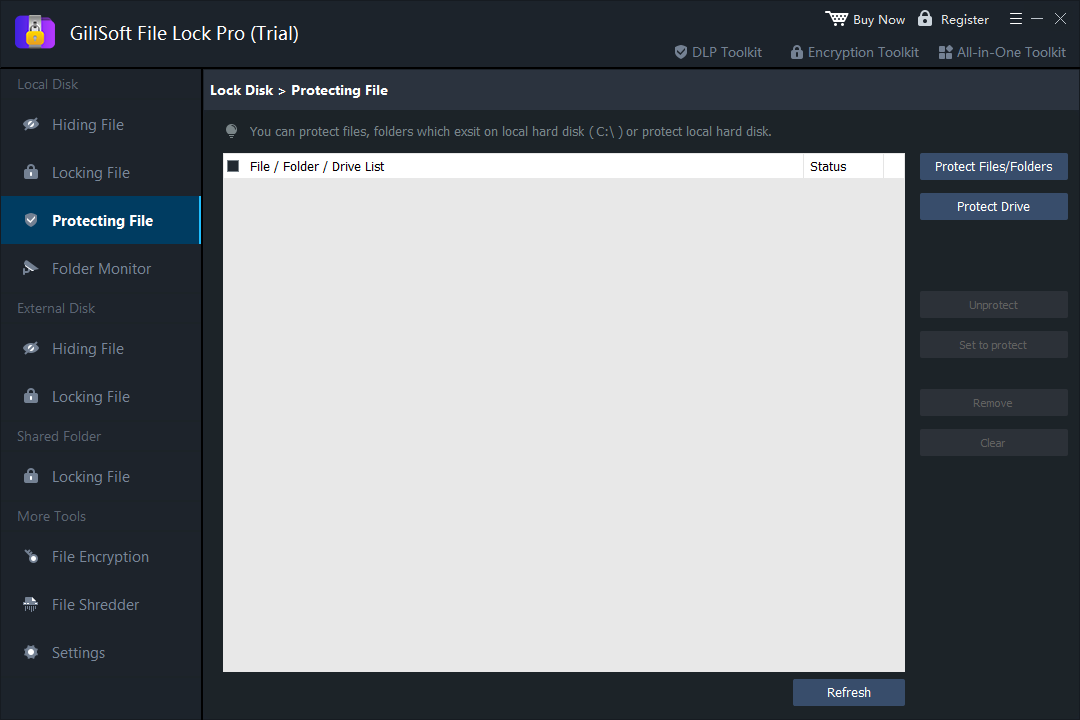 Keep a text file readable while controlling unwanted changes and file operations.
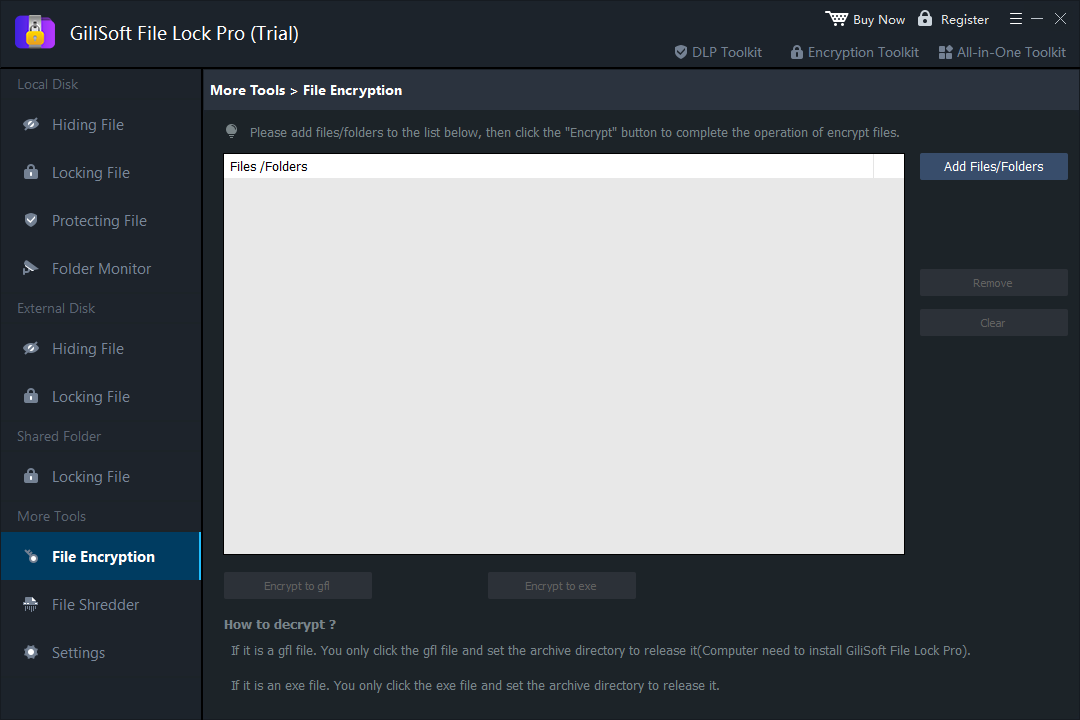 Add the TXT file and choose encrypted GFL or EXE output.
One tool for TXT files, folders, and drives
The same File Lock Pro password can manage private notes alongside documents, pictures, local folders, external drives, and shared folders without moving them to cloud storage.

Method 2: Encrypt a Notepad File with Windows EFS
Encrypted File System (EFS) is available in supported Windows Pro, Enterprise, and Education editions, but Microsoft states that file encryption is not available in Windows Home. EFS encrypts the selected TXT file for the current Windows user account rather than showing a separate password prompt each time the file opens.
- Right-click the Notepad TXT file and choose Properties.
- On the General tab, select Advanced.
- Enable Encrypt contents to secure data, then select OK and Apply.
- When Windows asks what to encrypt, choose Encrypt the file only or include its parent folder.
- Back up the EFS certificate and recovery key when Windows offers the option.
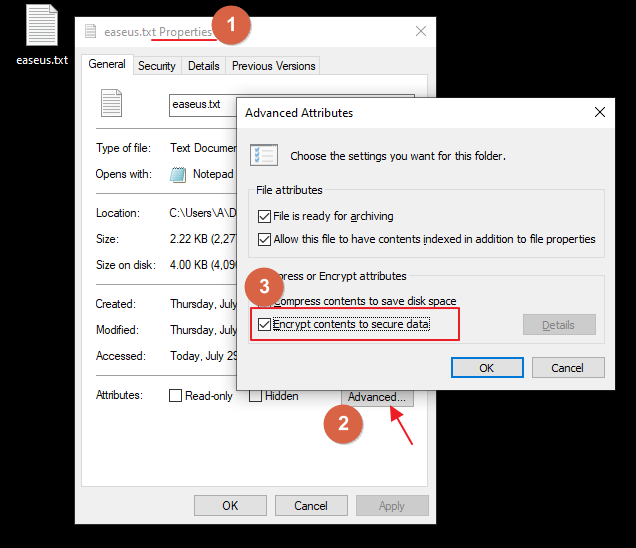 Open Advanced Attributes and enable Windows file encryption.
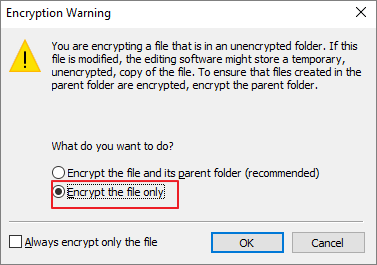 Choose whether to encrypt only the TXT file or its parent folder.
Method 3: Put the TXT File in a Password-Protected Archive
7-Zip, WinRAR, and similar tools can place a Notepad file inside an encrypted archive. This is useful when you need a protected copy for email, USB storage, or long-term archiving.
- Right-click the TXT file and choose the archive tool's Add to archive command.
- Select ZIP, 7Z, or RAR and open the password or encryption settings.
- Enter a strong password. Enable file-name encryption when the selected format supports it.
- Create the archive, close it, and reopen it to verify the password before relying on it.
- Remember that the original TXT file is still present unless you remove or protect it separately.
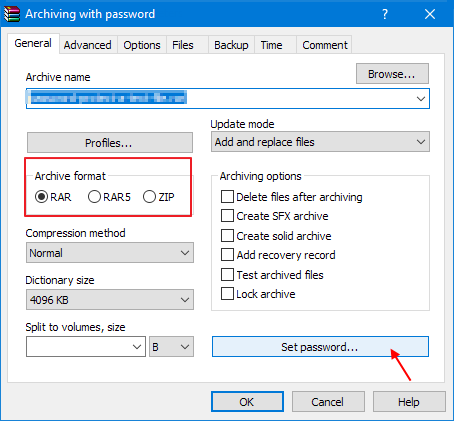 Add the TXT file to an archive and open its password settings.
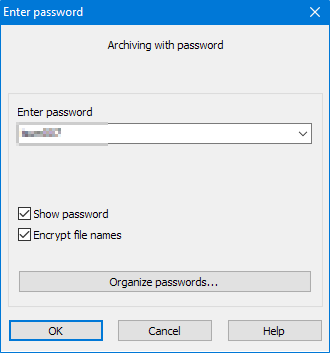 Enter and confirm the archive password before creating the protected package.
Which Option Is Best for a Private TXT File?
Related File Protection Guides
Frequently Asked Questions
Can Notepad itself password protect a TXT file?
No. Notepad saves plain-text files and does not provide an Encrypt with Password command. Protection must come from Windows, an archive tool, or file-locking software.
Does changing a TXT file extension protect its contents?
No. Renaming .txt to another extension only changes how Windows identifies the file. The text can still be recovered by opening it with a compatible editor.
Can I lock several Notepad files at once?
Yes. Add the folder containing the TXT files to File Lock Pro, or select multiple files when creating an encrypted archive.
What if I forget the File Lock Pro password?
Set and maintain a valid recovery email in the application settings, and keep purchase and recovery details in a separate safe location.
Keep private notes local and password controlled
Use GiliSoft File Lock Pro to lock, hide, protect, or encrypt Notepad TXT files together with the other private files on your Windows PC.