Does Windows have a built-in password button for folders?
No. Windows offers account permissions, EFS, and BitLocker, but an ordinary folder does not receive its own password prompt from one Properties setting.

GiliSoft File Lock Pro
GiliSoft File Lock Pro is a folder / file locker which protects user's privacy and important data from theft, loss or leaks.

Password protection is very important for you today. No matter whether you share your PC with someone else or not, password protecting your files and folders is important to preserve your privacy. Do you want to password protect a folder in Windows 10 for extra security? Yes, but you don't want to password protect a folder using third-party software. Then, that's not at all a problem.
Windows 10 offers an amazing three options to password protect your files or folders without software. Excited to find out how to password protect a folder on Windows 10 without the software? Let's walk through this guide.
A Batch file or .bat file is a DOS file that allows users to execute commands with the Windows Command Prompt (cmd.exe). This file contains several line commands in plain text to perform numerous operations such as running maintenance utilities or launching a program.
These files are used by Windows users to make it easy to run repetitive tasks. So, here you can create BAT files with a Notepad or Wordpad to add series commands to password protect your files without software.
Right now, it might sound like a daunting task. So, let's check out simple steps to password protect folders via .bat files on Windows 10:
Step 1. First of all, open a plain text editor on your computer. We are going to use Notepad for this tutorial.
Step 2. Now, all you have to do is copy the below-mentioned command lines and paste them into Notepad. Just one thing, type your password where it says YOUR PASSWORD HERE:
| cls @ECHO OFF title Folder Locker if EXIST "Control Panel.{21EC2020-3AEA-1069-A2DD-08002B30309D}" goto UNLOCK if NOT EXIST Locker goto MDLOCKER :CONFIRM echo Are you sure u want to Lock the folder(Y/N) set/p "cho=>" if %cho%==Y goto LOCK if %cho%==y goto LOCK if %cho%==n goto END if %cho%==N goto END echo Invalid choice. pause goto CONFIRM :LOCK ren Locker "Control Panel.{21EC2020-3AEA-1069-A2DD-08002B30309D}" attrib +h +s "Control Panel.{21EC2020-3AEA-1069-A2DD-08002B30309D}" echo Folder locked goto End :UNLOCK echo Enter password to Unlock folder set/p "pass=>" if NOT %pass%==YOUR PASSWORD HERE goto FAIL attrib -h -s "Control Panel.{21EC2020-3AEA-1069-A2DD-08002B30309D}" ren "Control Panel.{21EC2020-3AEA-1069-A2DD-08002B30309D}" Locker echo Folder Unlocked successfully goto End :FAIL echo Invalid password pause goto end :MDLOCKER md Locker echo Locker created successfully pause goto End :End |
Step 3. Next, you have to save the document as a .bat file and save it to the location where you want to keep the Folder Locker.
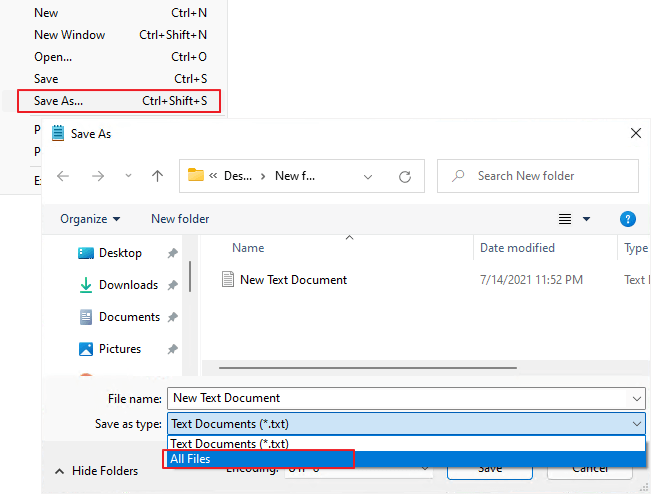
Step 4. Go to the Folder Locker and open it. This will open a Notepad file for you again. You simply have to define the path to the folder you want to password protect and press Y to confirm. That's it.
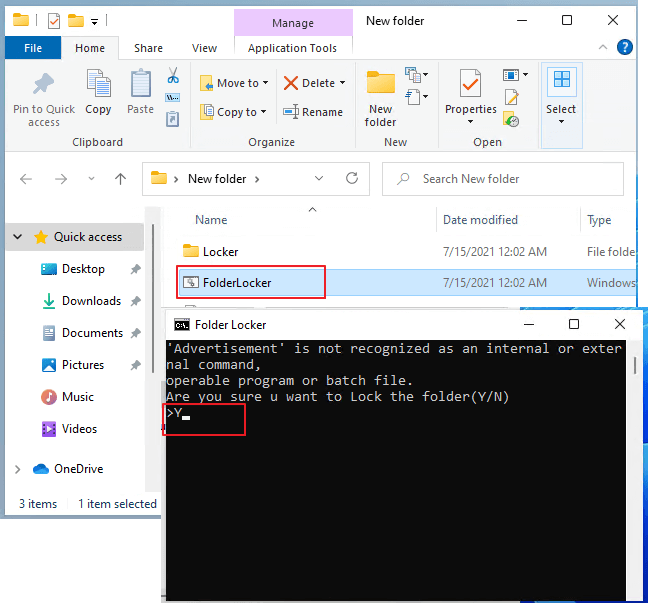
If creating .bat files sounds confusing, Windows 10 has a built-in feature called Encrypting File System (EFS) to password protect folders without passwords. It is a pretty simple way to password protect files as follows:
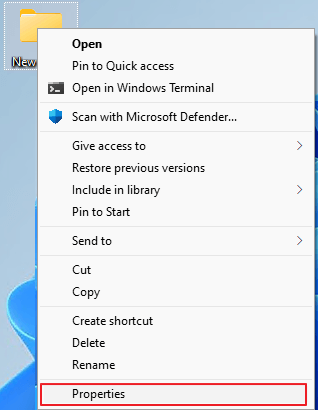
Step 1. Go to the folder you want to protect, right-click on it and select Properties.
Step 2. Click on the "General tab > Advanced > Check the Encrypt contents to secure data checkbox > OK".
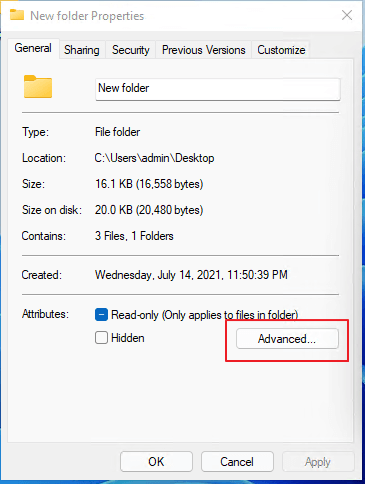
Step 3. Press the Apply button and now select any option between - Apply changes to this folder only or Apply changes to this folder, subfolders, and files. Then click on the OK button.
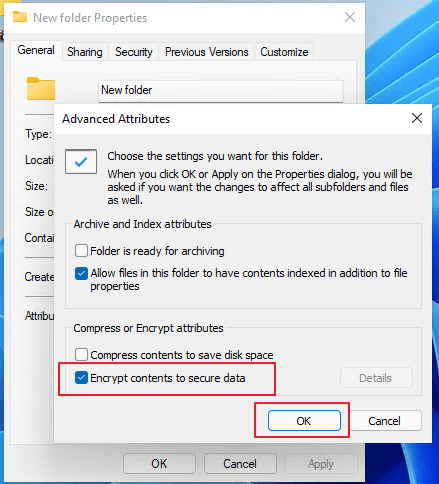
Step 4. If you use EFS to protect the folder for the first time, a notification will pop up to back up the encryption certificate and password protection key. So, select the Backup now (recommended) option.
Step 5. Click on the Next button > Set a password to protect the private key of the protected folder > Next.
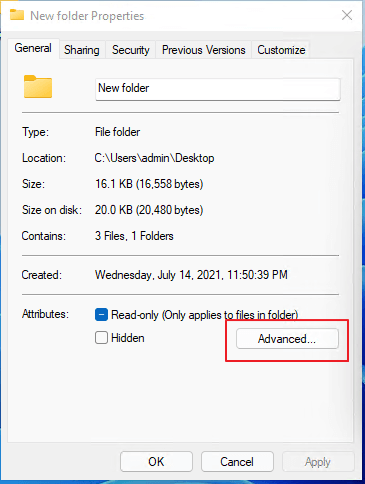
Step 6. Click on the Browser button to select the location to back up the file and give a name to the file you want to export.
Step 7. Click on the Next button and complete your certificate export process.
BitLocker Encryption Program is yet another built-in Windows 10 solution to password protect your files or folders without software. This feature is available for Professional and Enterprise Windows versions with TPM chip support.
To password protect folders on Windows 10 using BitLocker, you have to first create a VHD file container and then store the file you want to password-protect. This process works like this:
Step 1. Open Disk Management > Action > Create VHD.

Step 2. In the Browse section, type the name for the BitLocker Volume and click on the Save button.
Step 3. After that, specify the size for the virtual disk or check the Dynamically expanding option to automatically increase the disk size and then click OK.
Step 4. Once the new disk is created, right-click on it and select Initialize Disk.
Step 5. Keep the default settings and click OK.
Step 6. Once the initialization process is complete, right-click on the unallocated space to create a New Simple Volume.
Step 7. Click Next to create a new volume and format the drive.
Step 8. Now, open BitLocker Drive Encryption from the Control Panel.
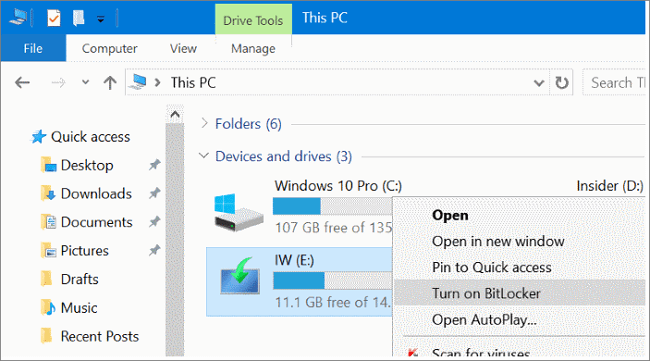
Step 9. Click to Turn on BitLocker encryption on the new volume.
Step 10. Click on Use a password to unlock the drive option and set a strong password.
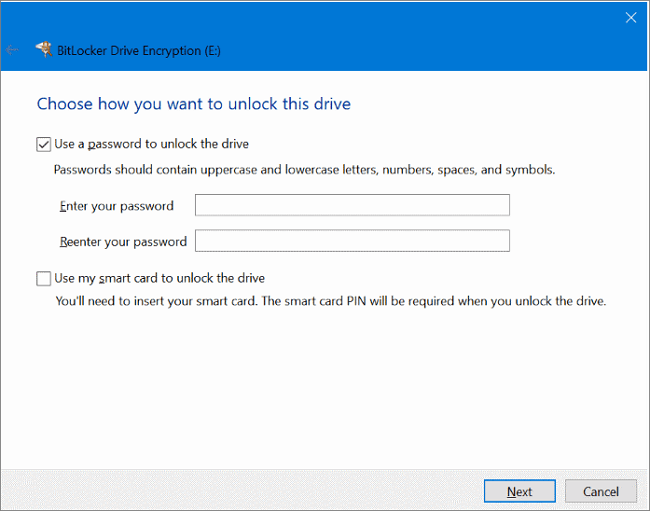
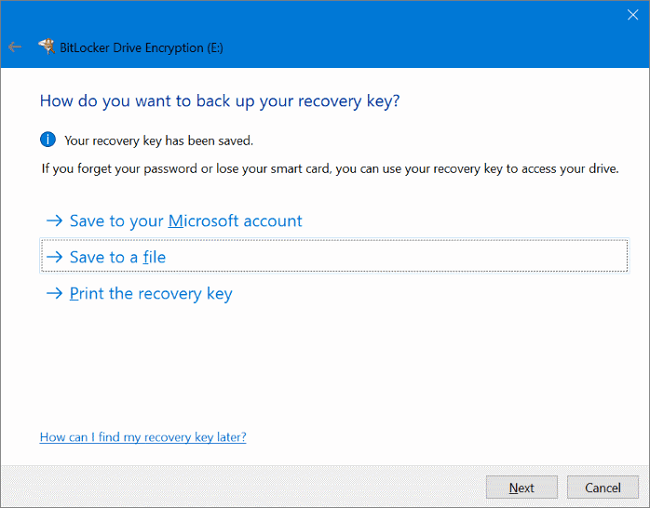
Step 11. Select a location to save the recovery key and then click "Next".
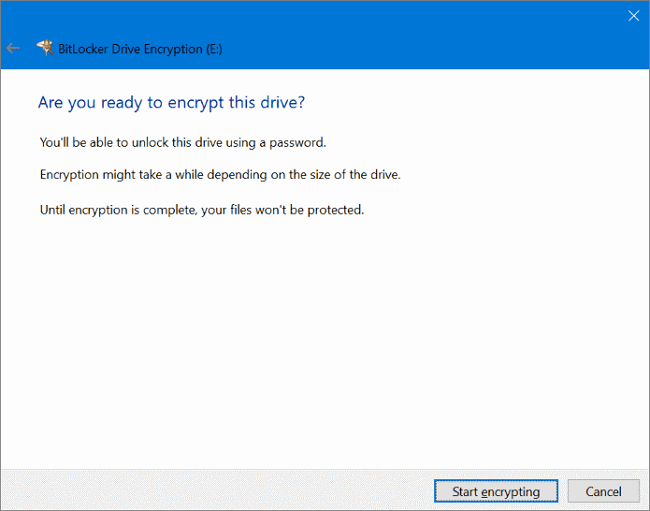
Step 12. Just now click Start encrypting and wait for a few minutes to password protect files without software.
It is indeed possible to password protect files or folders on Windows 10 without software. But, as you have already checked, it is extremely technical to password protect files with BitLocker and .bat files. And EFS saves encryption certificates within your computer, which can be easily accessed.
Thus, if you want a strong and unbiased solution to protect your files or folders, you have to use a powerful software called GiliSoft File Lock Pro.
This is a dynamic tool to hide, lock and encrypt files or folders on your internal as well as external drives. GiliSoft File Lock Pro can also password-protect files on your local drive, LAN network, or USB drive.
Other GiliSoft File Lock Pro Features:
Importantly, it is super simple to password protect files on Windows 10 using GiliSoft File Lock Pro.
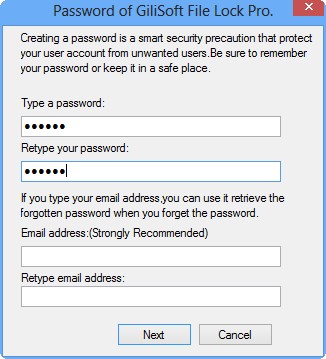
Step 1. Launch GiliSoft File Lock Pro, enter the valid email, and set password to register.
Step 2. Click Protecting File under the Local Disk. Select Protect File(s), Folder or Drive from the right panel.
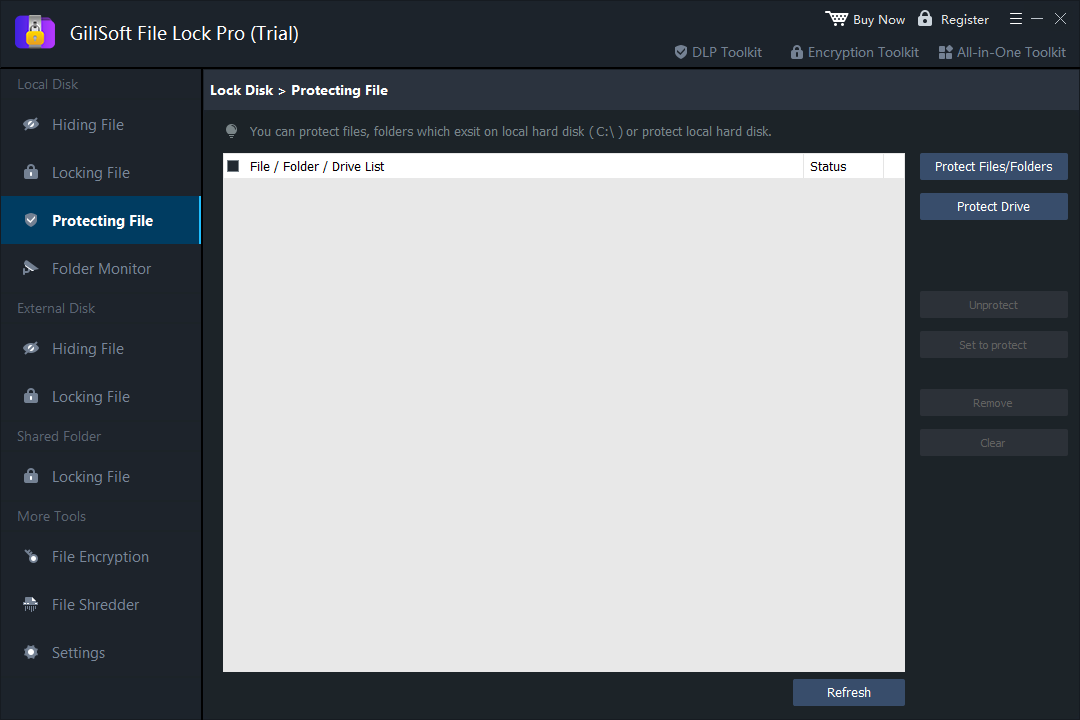
A. Add file(s) or folder from the specific location.
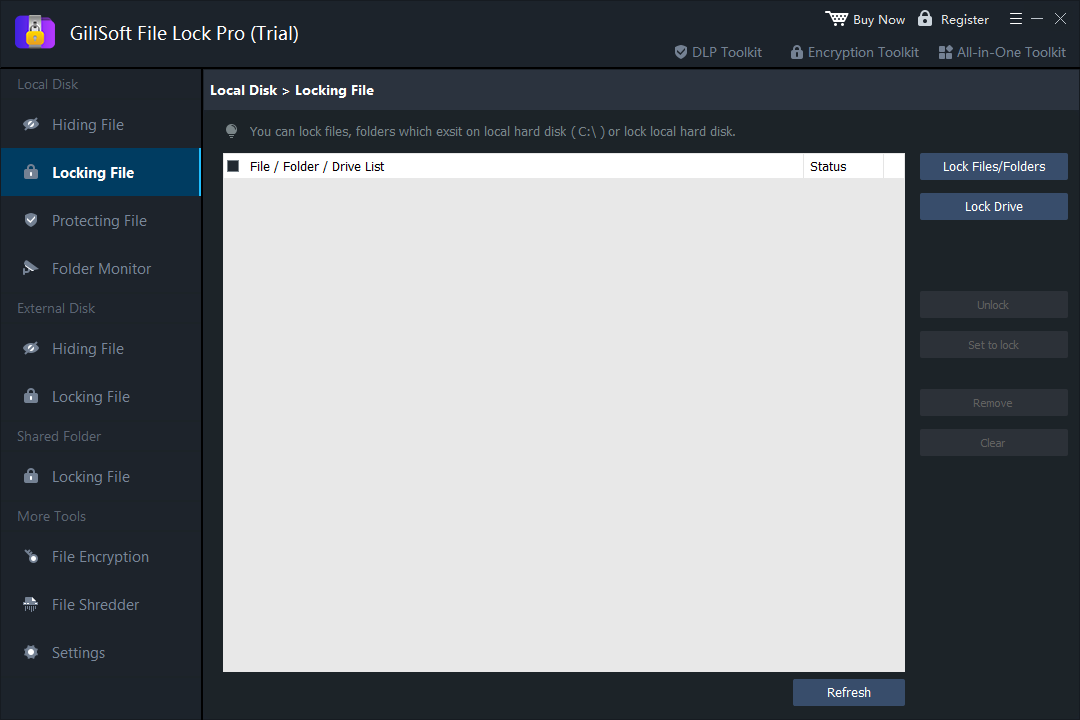
B. Click on the Lock Drive to add drive you want to protect. Select drive and click OK.
Step 3. Check and confirm the files, folder, and drive that you want to protect.
Notes: If you want to unprotect the selected files, folder, or drive, tick the target data and click on the Unprotect button.
| Method | What it protects | Password behavior | Best use |
|---|---|---|---|
| Batch file | Folder visibility | Script-based check | Casual privacy with non-sensitive files |
| EFS | Folder and file contents | Tied to Windows sign-in | Separate Windows accounts on one PC |
| BitLocker VHD | Encrypted virtual drive | Password when mounting | Stronger local encryption for a group of folders |
There you go! You can now password protect your files or folders on Windows 10/11 with or without software. Password protection without a password might be free, but it is complicated, less secure, and compatible. Plus, manual password protection is a tiresome task compared to simple and robust software like GiliSoft File Lock Pro.
Therefore, if you want to provide stronger password protection to your files or folders, do use GiliSoft File Lock Pro. To test the program, you can book the free demo today!
No. Windows offers account permissions, EFS, and BitLocker, but an ordinary folder does not receive its own password prompt from one Properties setting.
It can discourage casual browsing, but it is not strong security because the script and password logic can be inspected.
The drive may not use NTFS, the Windows edition may not support EFS, or a policy may have disabled it.
For a direct lock or hide workflow, GiliSoft File Lock Pro is simpler than creating a VHD or maintaining a batch script.
Use GiliSoft File Lock Pro to lock or hide selected folders, protect removable-drive files, and manage local access from one Windows interface.