
Image to Video: Create a Slideshow on Windows
An image-to-video project works best when you design one viewing sequence instead of dropping unrelated files onto a timeline. Decide the destination, frame shape, image order, and audio rights before styling each scene.
Quick answer
Use GiliSoft Slideshow Maker to import the best available image files, set a destination aspect ratio, arrange the sequence, apply restrained pan and zoom, add licensed audio, and export a test video before the final render.
Plan the Image-to-Video Project
| Situation | Recommended approach | Check carefully |
|---|---|---|
| Mixed landscape and portrait images | Choose the destination frame first | Crop, fit, or background treatment |
| Product or tutorial images | Use deliberate scene order and readable labels | Small interface text at export size |
| Social or presentation video | Match aspect ratio and duration to the channel | Safe areas, music rights, and captions |
Step-by-Step Workflow
- Prepare the source images
Collect authorized originals, remove near-duplicates, correct rotation, and place the chosen files in the intended story order.
- Set the destination frame
Choose a widescreen, vertical, or square layout before detailed styling so important subjects are not cropped later.
- Build the slideshow in GiliSoft Slideshow Maker
Import the images, set scene duration, and use transitions or motion only where they support the sequence.
- Add audio and export a proof
Use music you may publish, balance it against narration, render a short proof, and inspect framing and text on the target device.
For every product control and supporting task, see the Slideshow Maker user guide.
GiliSoft Slideshow Maker Interface
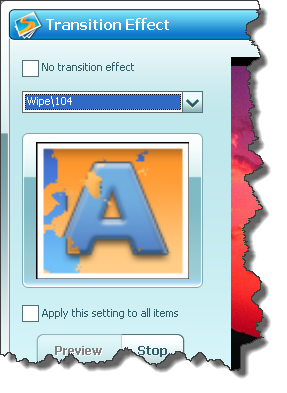
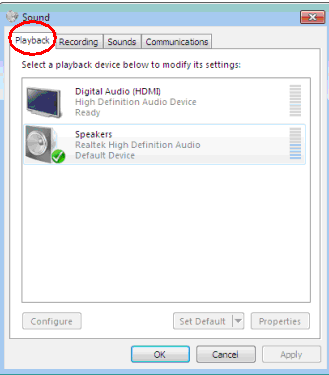
These real product screenshots connect the advice above to the Windows workflow.
Review Before You Finish
- Keep the untouched source or a verified backup before changing protected data or media.
- Test the finished result in the real destination, recipient, or restart workflow.
- Document passwords, recovery material, ownership, and exceptions in an appropriate controlled location.
- Do not treat one product control as a replacement for authorization, backups, endpoint security, and policy.
Frequently Asked Questions
Can I mix portrait and landscape images?
Yes, but choose a consistent crop, fit, or background treatment so orientation changes do not feel accidental.
Does adding motion create new image detail?
No. Pan and zoom animate the existing pixels; they do not restore detail that is absent from the source.