

Pictures to Video: A Simple Windows Workflow
The practical challenge is not whether a picture can appear in a video, but whether the final sequence remains sharp, correctly framed, readable, and compatible with the destination.
Quick answer
Import compatible picture files into GiliSoft Slideshow Maker, put them in the intended order, choose one frame format, set comfortable durations, and export a short sample before processing the full sequence.
Choose Settings Before You Export
| Situation | Recommended approach | Check carefully |
|---|---|---|
| Phone pictures | Correct rotation and mixed orientations | Portrait crops and metadata privacy |
| Scans or old pictures | Use the cleanest available scan | Dust, low resolution, and uneven borders |
| Graphics or screenshots | Preserve sharp text and exact order | Scaling and compression at final resolution |
Step-by-Step Workflow
- Inspect picture quality
Open the source files at full size, fix orientation, remove unusable images, and avoid repeatedly resaving compressed copies.
- Choose the video dimensions
Match the frame to the intended screen or platform and decide how nonmatching pictures will fit.
- Arrange and time the scenes
Import the pictures in GiliSoft Slideshow Maker, set a consistent baseline duration, and adjust only scenes that need more reading time.
- Export and test playback
Render to a new file, watch it on the destination device, and confirm image clarity, text legibility, audio, and total duration.
For every product control and supporting task, see the Slideshow Maker user guide.
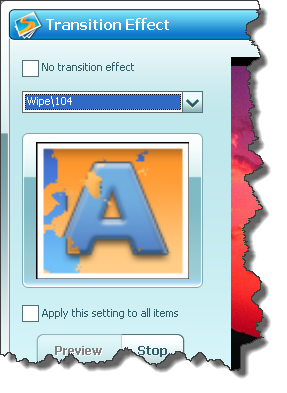
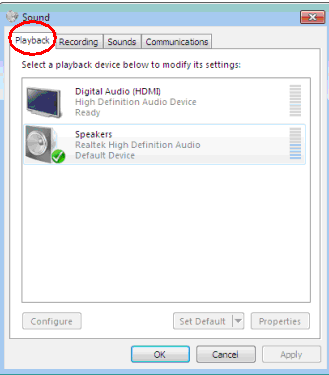
GiliSoft Slideshow Maker Interface
These real product screenshots connect the advice above to the Windows workflow.
Review Before You Finish
- Keep the untouched source or a verified backup before changing protected data or media.
- Test the finished result in the real destination, recipient, or restart workflow.
- Document passwords, recovery material, ownership, and exceptions in an appropriate controlled location.
- Do not treat one product control as a replacement for authorization, backups, endpoint security, and policy.
Frequently Asked Questions
Can scanned pictures be used?
Yes. Crop unwanted scanner borders and use the highest practical scan quality before importing.
Why do screenshot labels look soft?
The picture may have been scaled or the video exported at too low a resolution or bitrate. Test at the real viewing size.