
Quick answer
In GiliSoft EXE Lock, add the target under Desktop Apps (EXE) or Store Apps (UWP), then choose Password Verification. The app remains installed, but it opens only after an authorized person enters the EXE Lock release password.
Choose the Right App Access Method
A password prompt is different from completely blocking an app. Choose the method that matches how the computer is shared.
| Method | What the user sees | Best use | Authorized access |
|---|---|---|---|
| Password Verification | A password request before launch | Shared PCs where approved users still need the app | Enter the release password |
| Direct Block | The selected app cannot start | Games or programs that must not run | Change the policy or temporarily unlock |
| Temporary Unlock | Protection is paused for approved work | Maintenance, updates, and supervised sessions | Re-enable protection afterward |
| Windows password or PIN | Protects the Windows sign-in session | Keeping other people out of the whole account | Sign in to Windows |
Recommended when the app must remain available
GiliSoft EXE Lock adds a password gate to selected desktop and supported Store apps without uninstalling them. It also provides recovery email settings, a whitelist, temporary unlock, and intercept records.

Before You Lock an App
Identify the real target
For desktop software, add its actual EXE rather than relying only on a shortcut. For supported Store apps, use the Store Apps list.
Set recovery first
Choose a release password that authorized users can manage and add a recovery email before applying protection.
Keep critical apps approved
Review the whitelist and system-protected entries so Windows components and essential administration tools remain available.
How to Lock Apps with a Password on Windows
The following process covers both traditional desktop programs and supported Microsoft Store apps.
Set the release password and recovery email
Open Settings. Change the startup and release password, then add a recovery email. Review the app whitelist before protecting shared or business PCs.
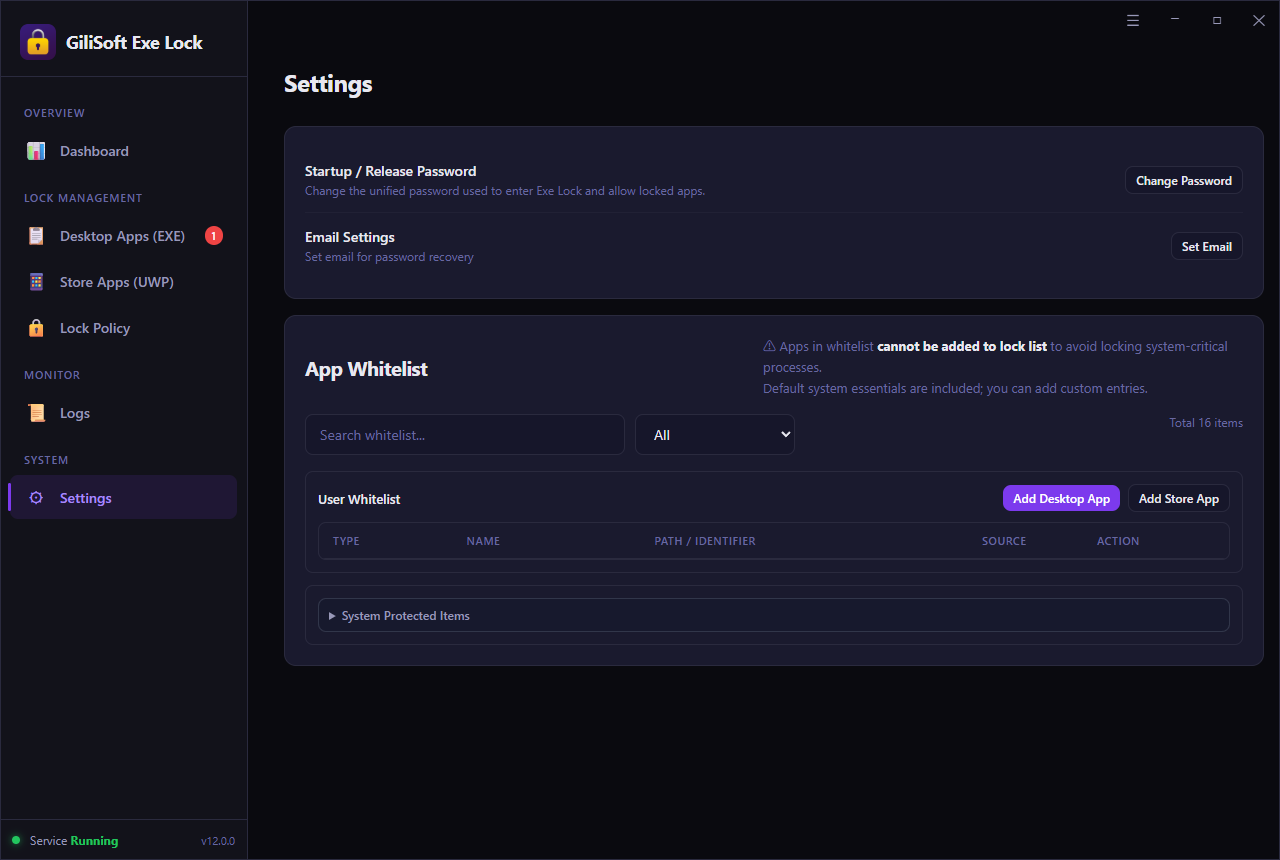 Prepare password recovery and approved applications before deployment.
Add a traditional desktop application
Open Desktop Apps (EXE), click Add, and select the program executable. Confirm the path so you protect the app itself rather than an unrelated launcher or shortcut.
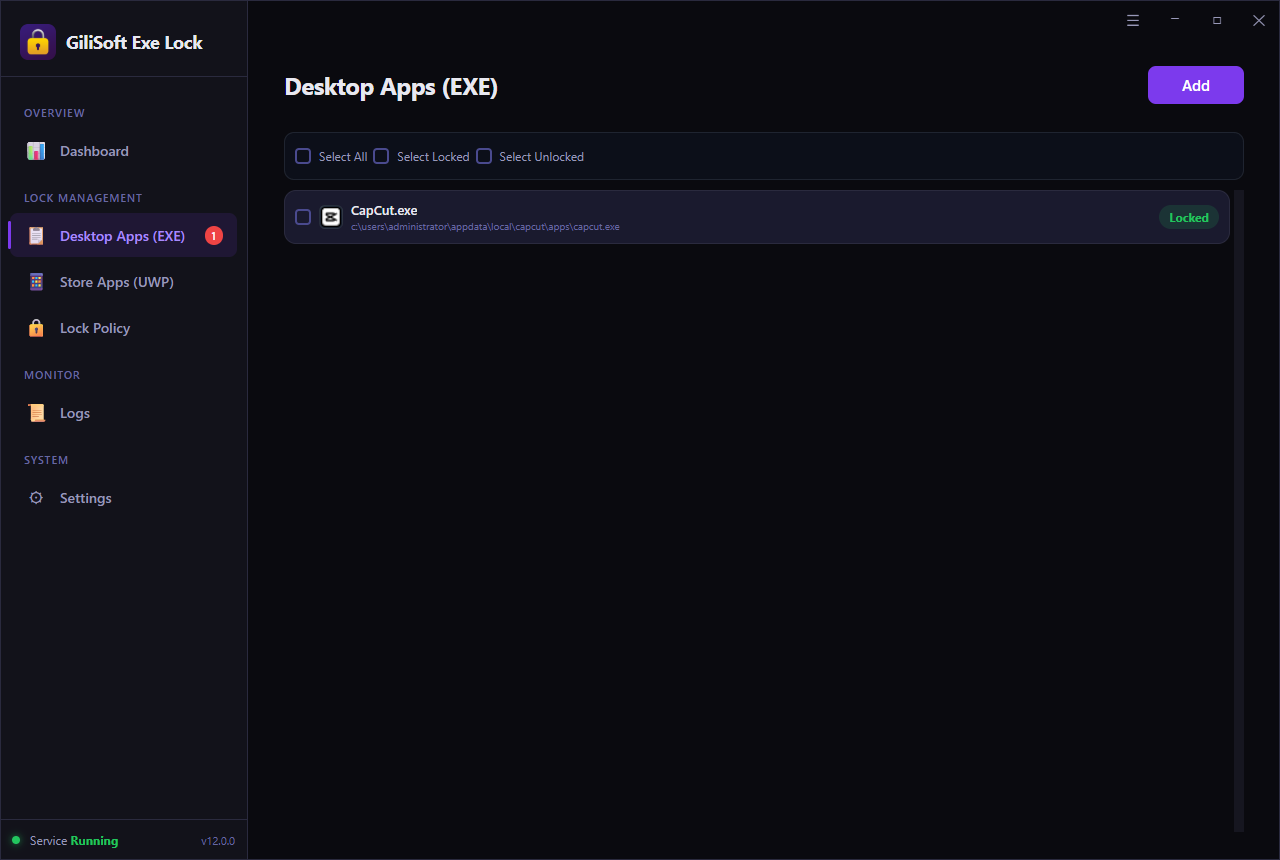 Desktop programs appear with their executable path and current lock status.
Add a supported Microsoft Store app
Use Store Apps (UWP) for supported packaged Windows apps. Select the target from the detected list or use the available add and drag-and-drop controls.
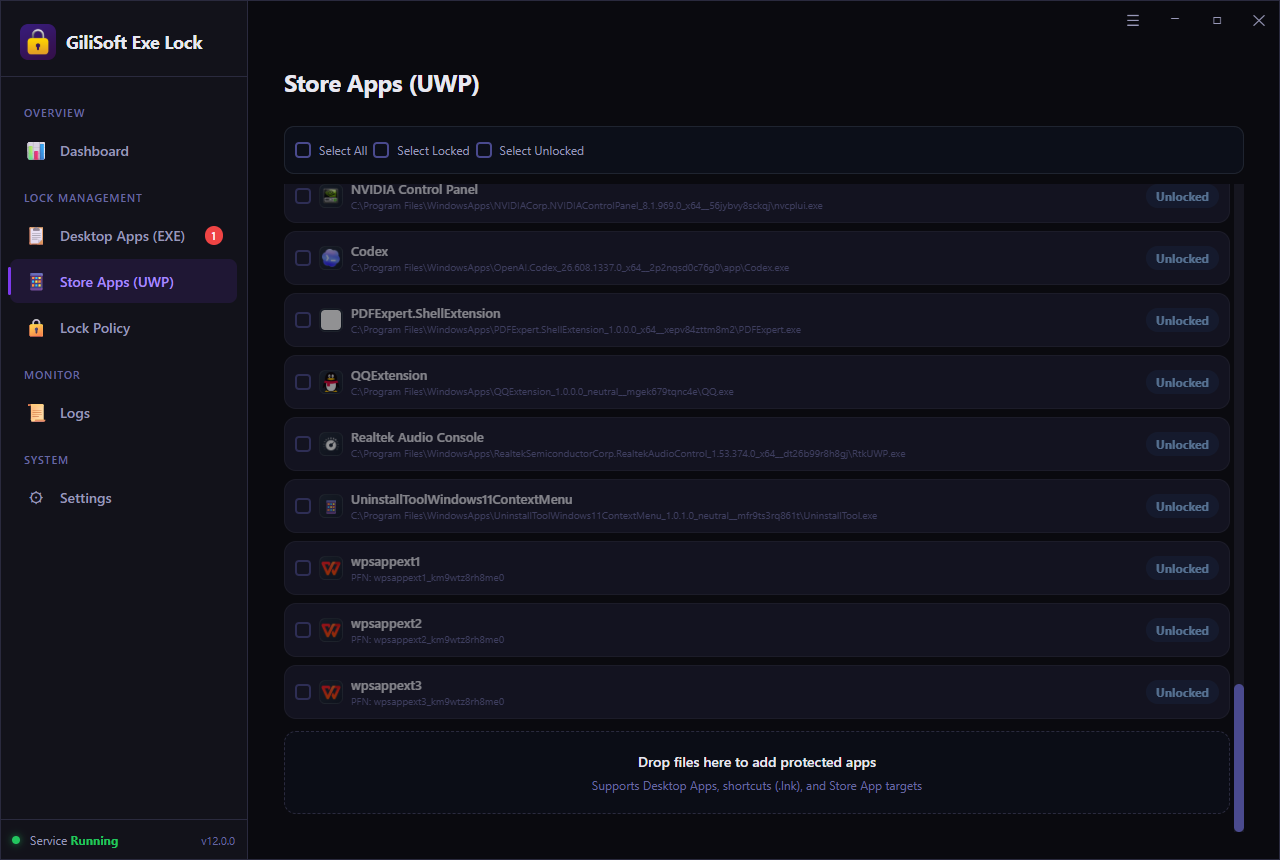 Store app targets are managed separately from ordinary desktop EXE files.
Select Password Verification
Open Lock Policy and choose Password Verification. The protected app can launch only after the correct release password is entered. Use Direct Block only when no launch should be allowed.
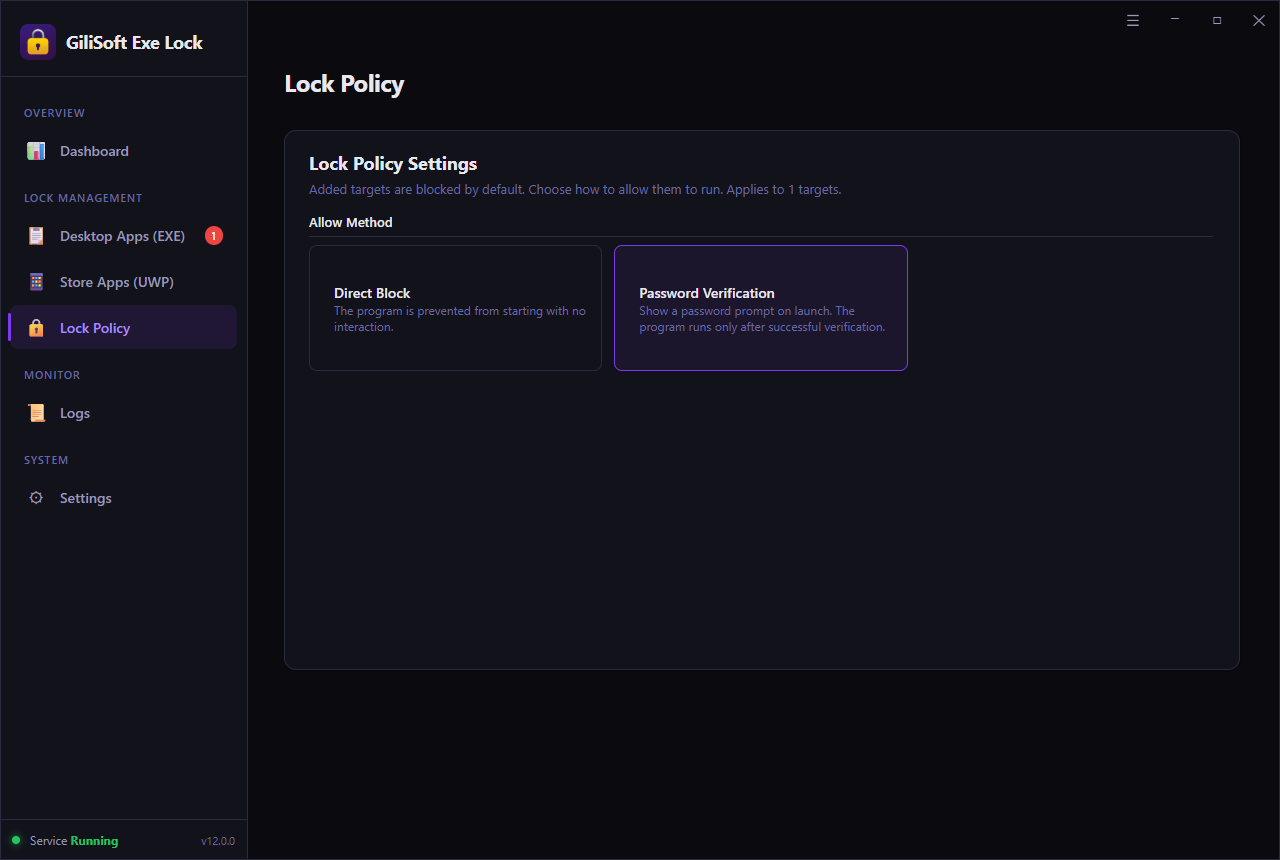 Password Verification preserves authorized access; Direct Block stops launch without a prompt.
Test the prompt and review attempts
Launch the protected app and verify that the password request appears. Return to the dashboard to check protection status, protected targets, blocked attempts, and recent intercept logs.
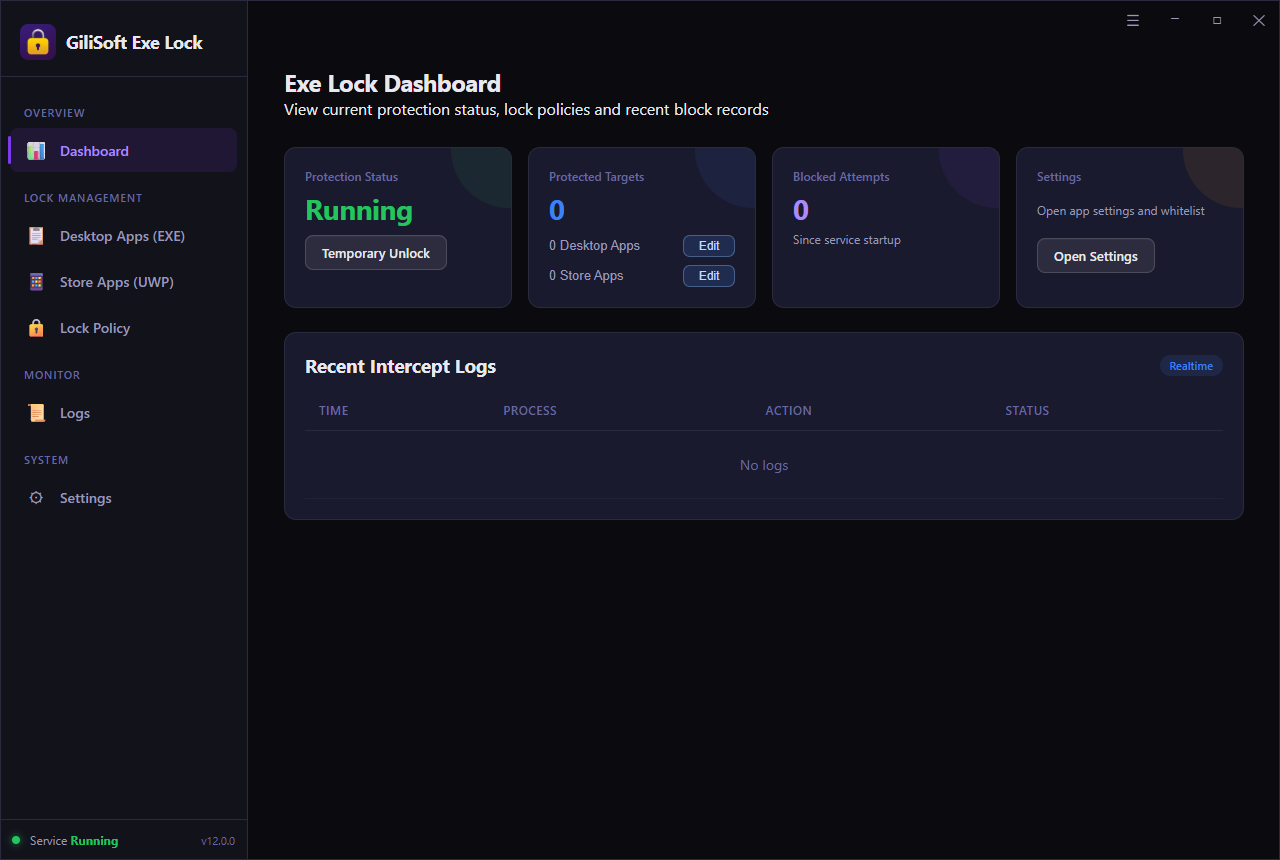 Use the dashboard and logs to confirm the rule is working as expected.
Password Verification or Direct Block?
Password Verification
Choose this when the app contains saved accounts, private records, licensed features, or settings that approved users still need.
Best for: finance, HR, messaging, cloud, creative, and administration apps.Direct Block
Choose this when the program must not run at all during the protected period and no password approval should be offered.
Best for: prohibited games, unauthorized tools, and risky utilities.Windows Alternatives and Their Differences
Windows password, PIN, or Hello
Protects entry to a Windows account. It does not add a separate password before one selected app launches inside an already-open session.
Microsoft Family Safety
Useful for account-based app and game limits, screen-time schedules, and family supervision. It is not a local password prompt for every approved launch.
Windows AppLocker
Designed for managed application-control policies in supported Windows editions and organizational environments. It requires more policy administration.
The app's own password
Some apps can protect an account or internal data, but many do not prevent the program itself from opening or exposing saved sessions.
Where App Password Protection Helps
Accounting and administration
Require approval before payroll, accounting, remote support, inventory, or internal management software opens on a shared PC.
Saved messaging and cloud sessions
Add a launch password before apps that retain signed-in accounts, synchronized files, conversations, or browser-based workspaces.
Family and education computers
Keep learning tools available while requiring a parent or teacher password before games, chat clients, or entertainment apps open.
Creative and licensed software
Protect editors, design software, engineering tools, and project applications from casual launch or unwanted setting changes.
Common Setup Mistakes
Protecting only a shortcut
Add the actual executable or supported Store target so another shortcut does not bypass the intended rule.
Reusing the Windows password
Use a separately managed release password so app approval is not weakened by a password already known to PC users.
Skipping recovery setup
Add and verify the recovery email before the PC is handed to other users.
Locking critical software
Review the whitelist and test one app at a time before applying protection more broadly.
Related Windows App Lock Guides
Windows App Password FAQ
Can I password protect an app without modifying it?
Yes. EXE Lock controls whether the selected app can launch; it does not need to rewrite the application file.
Does the protected app remain installed?
Yes. The app remains installed and opens after an authorized person enters the release password.
Can I lock Microsoft Store apps too?
Yes. Use the separate Store Apps (UWP) area for supported Microsoft Store app targets.
Can I temporarily unlock protected apps?
Yes. Temporary Unlock is useful for maintenance, updates, or short supervised access without deleting the protected list.