
Quick answer: how do you stop someone from opening a program?
For a shared PC, add the program to GiliSoft EXE Lock and choose Direct Block when nobody should run it, or Password Verification when a parent, manager, teacher, or administrator may approve access. For centrally managed organizations, Windows AppLocker provides account and group-based allow or deny rules.
Compare ways to prevent users from opening programs
The right method depends on whether you need a password prompt on one PC, centrally managed Windows rules, or parental controls.
| Method | Best for | What it controls | Main consideration |
|---|---|---|---|
| GiliSoft EXE Lock | Shared home, school, front-desk, and office PCs | Desktop EXE and supported Store apps; direct block or password approval | Install and configure it on each protected Windows PC |
| Windows AppLocker | Administrators managing user or group policies | Executable, script, installer, DLL, and packaged-app rule collections | Needs careful rule planning and testing; it does not show a friendly launch-password prompt |
| Software Restriction Policies | Older Group Policy environments | Path, hash, certificate, and zone-based software rules | Microsoft recommends AppLocker or Windows application control for current deployments |
| Microsoft Family Safety | Parents managing a Microsoft family group | App blocking plus app and game time limits for a family member | Designed for family accounts, not business approval or password-on-launch access |
Recommended for a shared PC: GiliSoft EXE Lock
Choose the exact programs to protect. Password Verification keeps authorized access available; Direct Block stops the selected app immediately. The dashboard then shows protection status and blocked launch attempts.

Before you block a program
A few checks prevent accidental lockouts and make recovery straightforward.
Start with a nonessential app
Test the rule on a program that Windows does not need for sign-in, networking, security, or system maintenance.
Add a recovery email
Set the startup or release password and recovery email before protecting business or family applications.
Review the whitelist
Keep Windows essentials and trusted support tools out of the lock list. Add custom approved apps when needed.
How to prevent users from opening selected programs
The following steps use the current GiliSoft EXE Lock interface.
Set the password, recovery email, and whitelist
Open Settings. Create the startup or release password used to enter EXE Lock and authorize protected apps. Add a recovery email, then review the app whitelist before creating rules.
- System-protected items remain separated from custom entries.
- Approved desktop or Store apps can be added to the user whitelist.
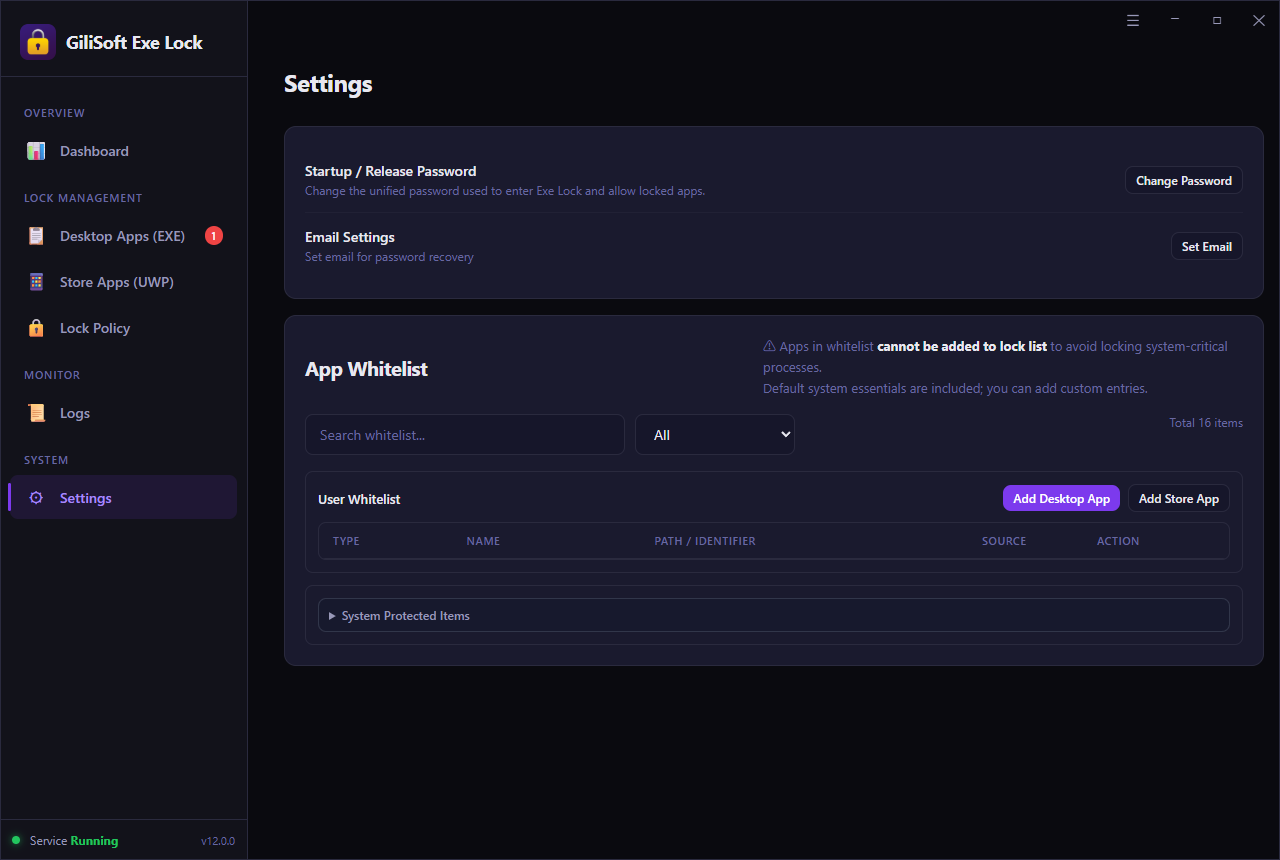 Settings, recovery, and whitelist. Select the image to enlarge.
Add the desktop program you want to restrict
Open Desktop Apps (EXE), select Add, and choose the executable. Confirm the displayed name and path so the rule covers the program that users actually launch.
For supported Microsoft Store software, use the separate Store Apps (UWP) list.
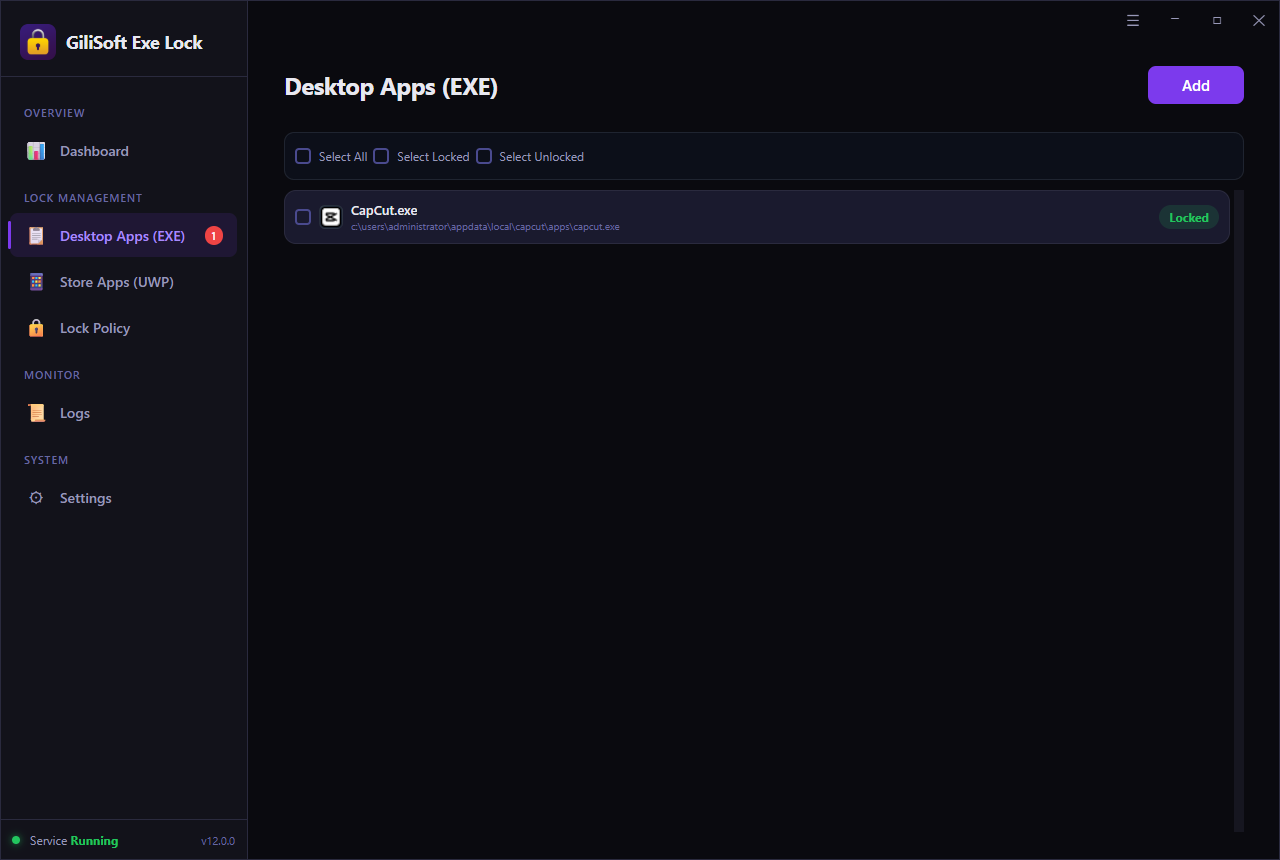 Desktop app list with a protected executable.
Choose Direct Block or Password Verification
Direct Block prevents the selected program from starting. Password Verification allows it to open only after the correct password is entered.
- Use Direct Block for prohibited games, chat tools, or admin utilities.
- Use Password Verification when a supervisor may approve legitimate use.
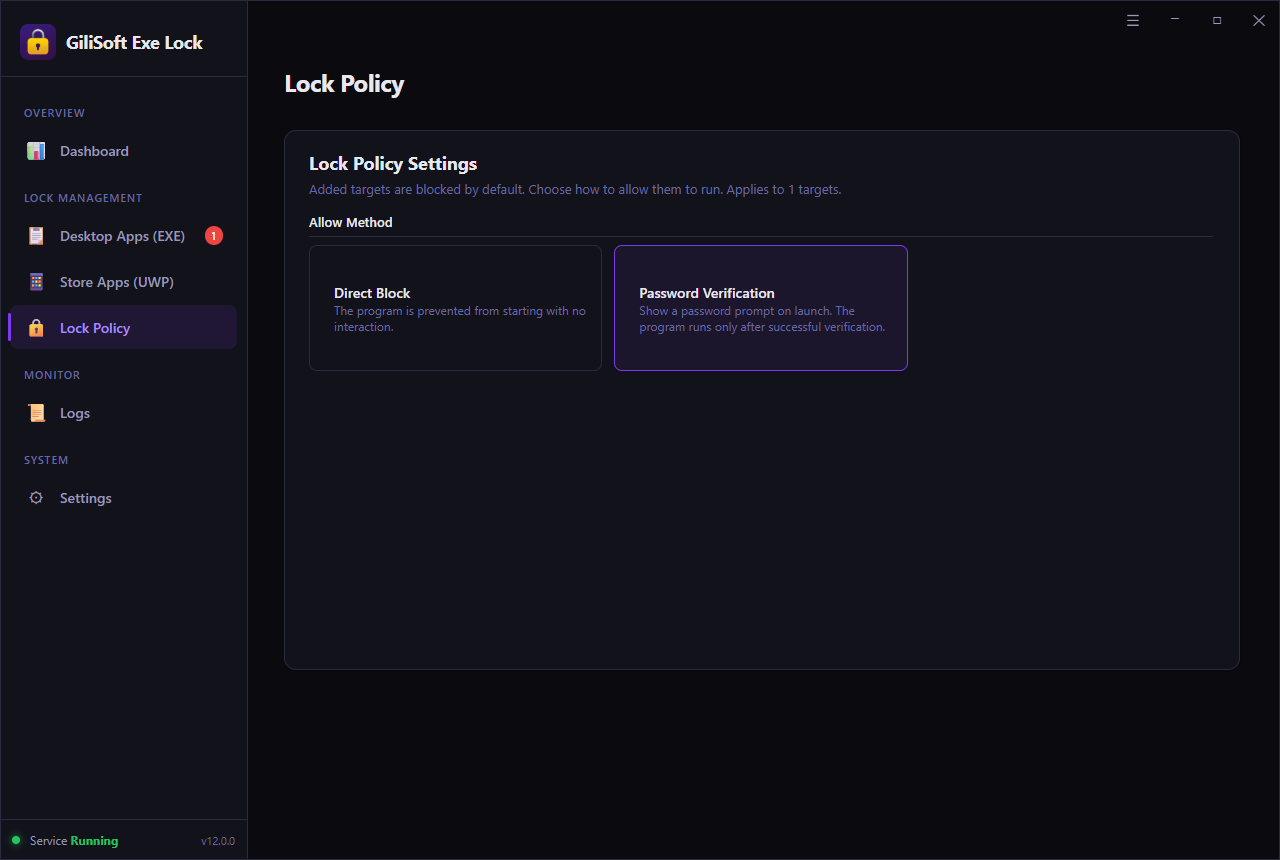 Two launch-control policies for different access requirements.
Test the rule and review blocked attempts
Launch the protected app from the Start menu, desktop shortcut, and its executable path. Return to the dashboard to confirm the protected target and blocked-attempt count. Use Temporary Unlock for supervised maintenance or updates.
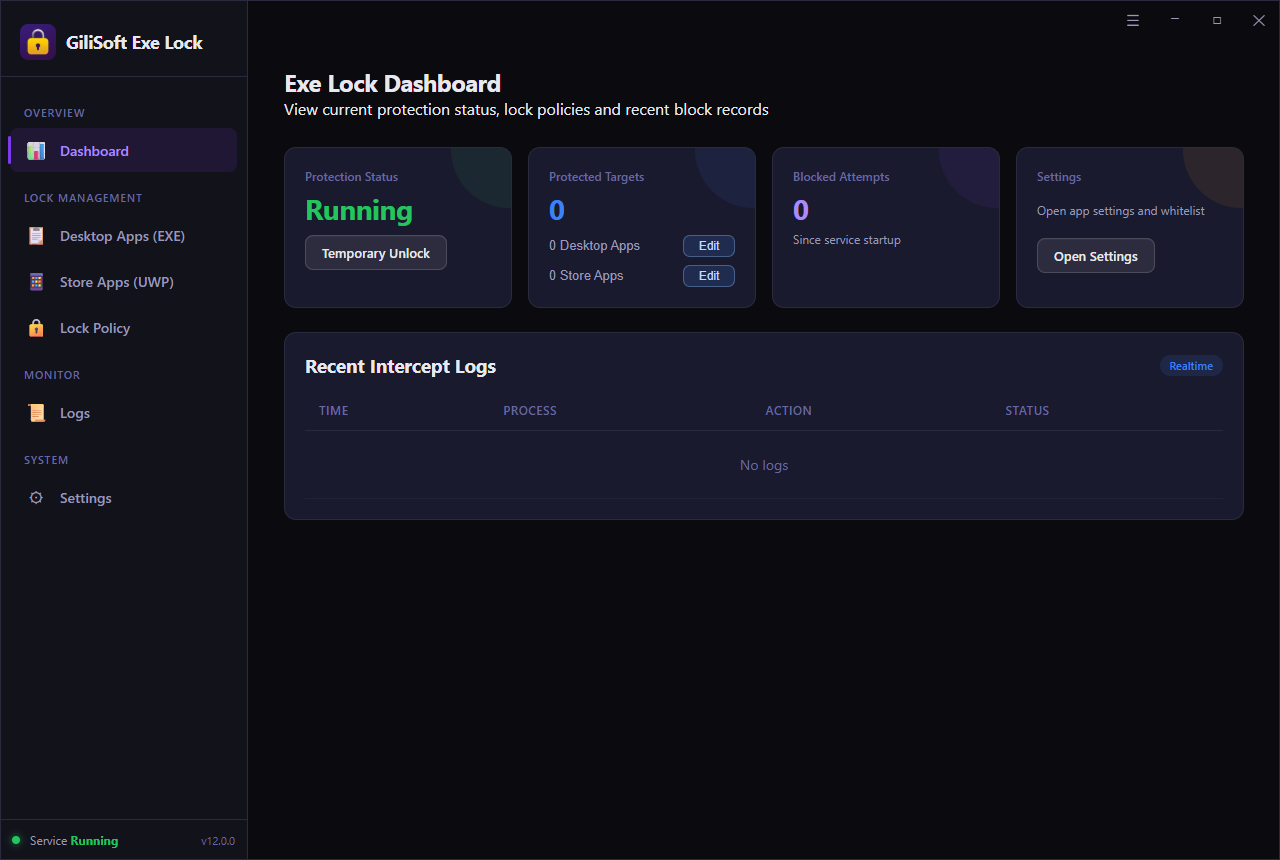 Dashboard, protection status, and recent intercept records.
Choose the access rule that matches the job
Password Verification
The application stays usable, but opening it requires the EXE Lock password.
Use for: accounting software, remote support, licensed tools, and supervised access.Direct Block
The selected program is stopped without asking the user for a password.
Use for: games, unauthorized chat apps, risky utilities, and software that should never run.Windows built-in options and when they fit
AppLocker
AppLocker can create allow and deny rules for executable files, scripts, installers, DLLs, and packaged apps, with rules assigned to users or groups. It suits administrator-managed environments where policy control matters more than password approval.
Software Restriction Policies
SRP uses Group Policy to identify software by path, hash, certificate, or zone. It remains relevant to older environments, but Microsoft points current application-control planning toward AppLocker or Windows application control.
Microsoft Family Safety
Family Safety can block an app for a selected family member and set app or game time limits across supported Windows, Xbox, and mobile devices.
Separate Windows accounts
Standard accounts reduce administrative access, but they do not automatically hide every installed app. Combine account separation with an app-control method when specific programs need explicit restrictions.
Primary references: Microsoft AppLocker rulesSoftware Restriction PoliciesMicrosoft Family Safety
Programs commonly restricted on shared computers
Finance, payroll, and business apps
Require a password before opening software that exposes invoices, payroll, inventory, customer records, or company reports.
Remote-support and admin tools
Block casual access to remote desktop clients, uninstallers, maintenance tools, and system configuration utilities.
Games, launchers, and chat apps
Stop distracting programs on classroom, training, front-desk, family, or employee computers without uninstalling them.
Licensed production software
Keep paid editing, design, engineering, and publishing applications available only when an authorized operator approves launch.
Avoid these program-locking mistakes
Blocking Windows components
Do not add sign-in, security, update, network, or other system-critical processes to a lock list.
Testing only one shortcut
Also test Start menu entries, file associations, alternate executables, and Store app targets used in normal work.
Using Direct Block for every app
Choose Password Verification when legitimate supervised access is still required.
Skipping recovery setup
Set and verify the recovery email before applying restrictions to important workstations.
Preventing program access FAQ
Can I block a program without uninstalling it?
Yes. EXE Lock leaves the program installed and applies the selected rule when someone tries to open it.
Can authorized users still open a restricted app?
Yes. Choose Password Verification, or use Temporary Unlock during maintenance and supervised work.
Can it restrict Microsoft Store apps?
EXE Lock includes separate areas for traditional desktop EXE programs and supported Store Apps (UWP).
Can I see blocked launch attempts?
The dashboard and logs show blocked-attempt counts and recent intercept activity.