

M4A Splitter for Windows: Split M4A Audio Files
M4A is an audio container commonly holding lossy AAC or lossless ALAC audio. A useful split follows complete songs, chapters, speakers, or topics; avoids clipped words and audible clicks; and keeps codec, sample rate, channels, metadata, and naming consistent across every exported part.
Quick answer
Open Splitter in GiliSoft Audio Editor, add the M4A file, choose segment boundaries by content or time, listen across every start and end, and export clearly named parts. Use waveform editing only when a boundary needs detailed trimming or a short fade.
Choose the right M4A splitting method
| Goal | Recommended method | What to verify |
|---|---|---|
| Separate songs, chapters, speakers, or topics | Splitter with manual boundaries | Each part begins and ends with complete content |
| Create equal-length listening or upload parts | Time-based segments | Move boundaries away from words, beats, and transients |
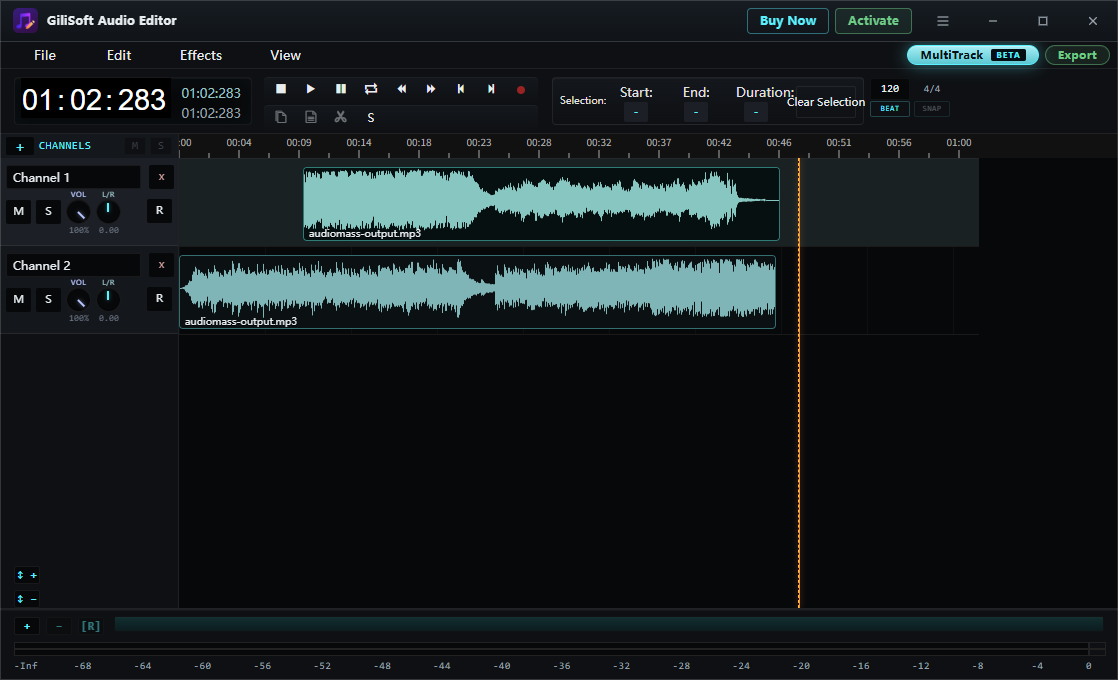
| Repair a difficult boundary | Waveform editing | No click, clipped syllable, or abrupt ambience change |
How to split an M4A file on Windows
-
Keep the original and inspect the audio
Play the full M4A file and note its codec, duration, sample rate, channels, loudness, chapter or topic changes, and any silence between sections. Keep the source unchanged.
-
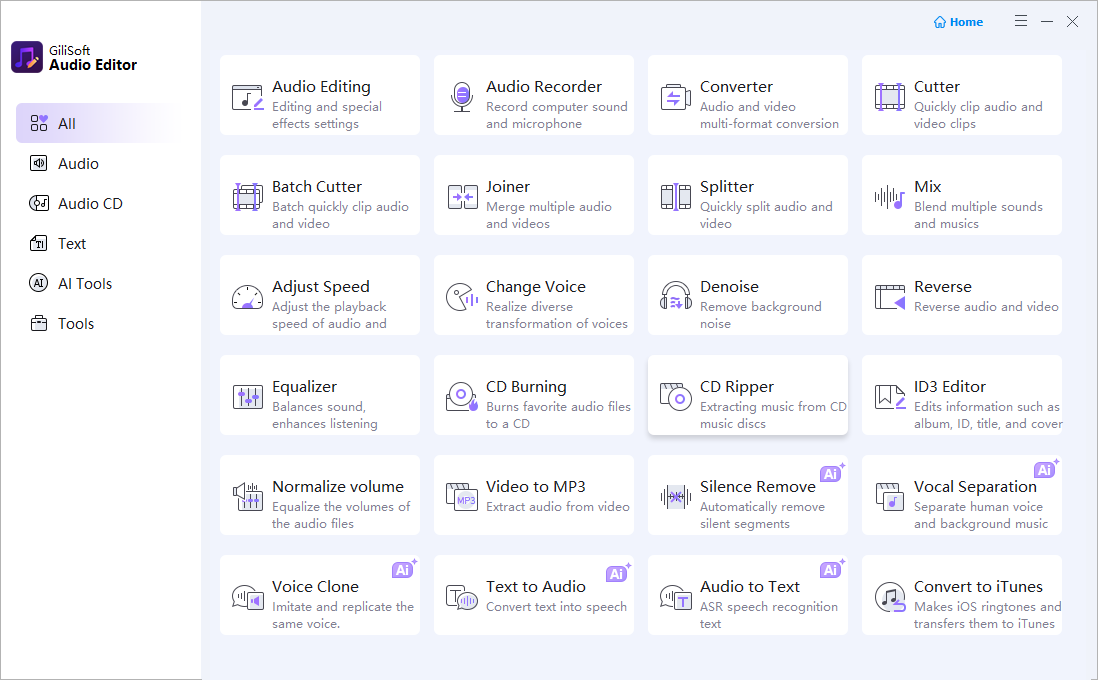
Open the dedicated Splitter
Choose Splitter from the GiliSoft Audio Editor home screen. Use it for a focused segmentation workflow instead of building an unnecessary multitrack project.
-
Add the M4A file and define the parts
Place boundaries at complete songs, chapters, speakers, or topics. For time-based parts, shift a boundary slightly when it lands in the middle of a word, note, or transient.
-
Listen across every boundary
Preview several seconds before and after each split. Check for clicks, clipped speech, cut beats, sudden ambience changes, and inconsistent volume.
-
Choose consistent output settings and names
Keep M4A when the destination supports the source codec. Use ordered names such as Interview-01-Introduction and retain a consistent codec, sample rate, channels, and bitrate across the set.
-
Verify every exported part
Open the files outside the editor and check sequence, beginning, ending, duration, volume, metadata, and playback on the intended device or application.
Preserve M4A quality and useful context
- Identify AAC or ALAC. M4A describes the container; the codec inside determines whether the source is lossy or lossless.
- Avoid repeated lossy encoding. Re-encoding AAC cannot restore detail and can introduce additional artifacts.
- Keep context around speech and music. A technically exact time split can still sound wrong when it clips a breath, word, beat, or room tone.
- Use stable naming. Numbered, descriptive file names keep a lecture, audiobook, meeting, or album in the intended order.
Understand lossless splitting and protected audio
A compatible stream-level split may avoid full re-encoding, but detailed waveform edits, fades, effects, format changes, or unsupported source parameters require a new encode. Keep the original so another export remains possible.
Only edit audio you are authorized to use and that opens normally. This workflow does not remove DRM, subscription restrictions, or account protection from protected music.
Fix common M4A splitting problems
A click appears at the beginning or end
The split may cut through a waveform away from a quiet or zero-crossing area. Move the boundary slightly or apply a very short fade when appropriate.
A word or musical note is clipped
Listen to the transition rather than relying only on the timestamp. Leave enough leading and trailing context for speech, breath, reverberation, and sustained notes.
The exported part will not play on another device
Check whether the M4A contains AAC or ALAC and whether the destination supports that codec, channel layout, and sample rate. Create a compatible copy when required.
Metadata is missing or repeated
Review title, track number, artist, album, and artwork after splitting. Assign unique titles and ordered track numbers when the parts belong to one series.
Frequently Asked Questions
How do I split an M4A file on Windows?
Open Splitter in GiliSoft Audio Editor, add the M4A file, choose the segment boundaries, preview each start and end, and export clearly named parts.
Can I split M4A without losing quality?
A compatible stream-level split can avoid full re-encoding. Exact waveform edits, fades, effects, format changes, or unsupported source settings require a new encode.
Is M4A the same as AAC?
No. M4A is a container commonly holding AAC or ALAC audio. Check the codec inside the file before selecting the output settings.
How can I avoid clicks at M4A split points?
Place boundaries at quiet or zero-crossing areas when possible, listen across every cut, and apply a very short fade when an abrupt waveform transition still clicks.
Can protected Apple Music M4A files be split?
Only edit audio you are authorized to use and that the application can open normally. This workflow does not remove DRM or account protection.