
M4A Joiner for Windows: Merge M4A Audio Files
An M4A joiner places multiple audio files into one continuous track. Because M4A is a container rather than one fixed audio format, reliable joining depends on the codec inside each file, sample rate, bit depth, channel layout, timestamps, loudness, and whether the source is protected.
Quick answer
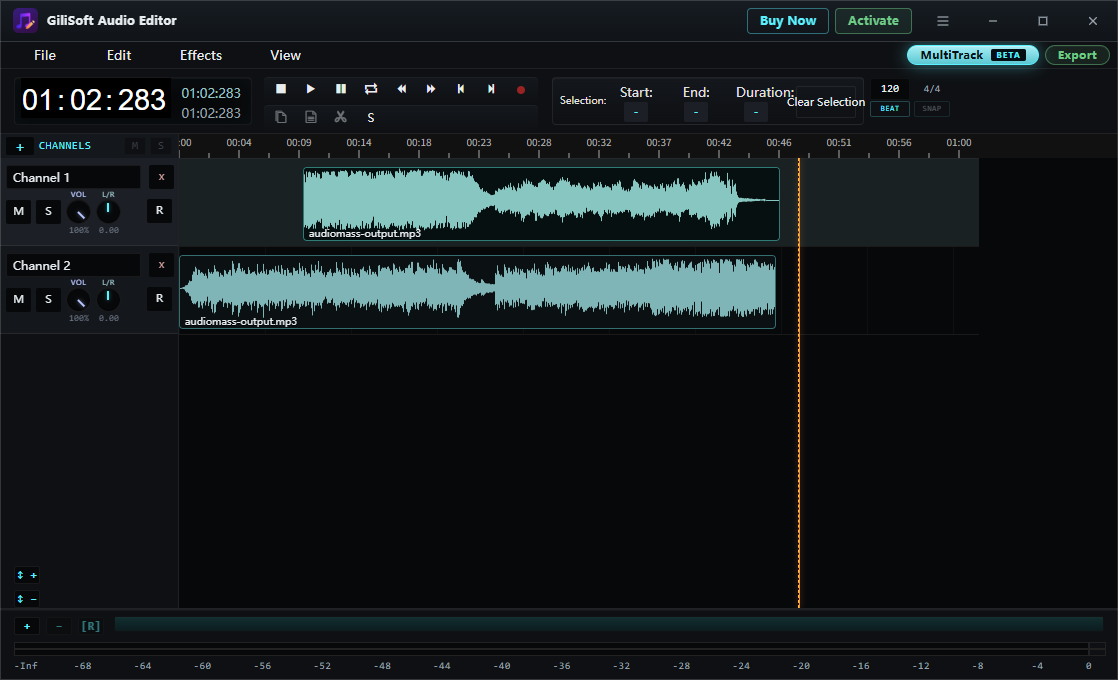
In GiliSoft Audio Editor, import the M4A files, place them in playback order, review the beginning and ending of every waveform, then choose Track > Join All Track. Export a new file and listen at every connection point. Use joining when clips should play one after another; use mixing when narration, music, or another sound should play at the same time.
Check the M4A files before joining
| Property | Why it matters | What to do when files differ |
|---|---|---|
| Codec | M4A commonly contains AAC or ALAC, which are not interchangeable streams | Choose one shared output codec |
| Sample rate | Different rates can cause conversion or timing changes | Export at one rate suited to the destination |
| Channels | Mono and stereo sources can change the listening image | Choose a consistent channel layout |
| Loudness | One segment may sound much louder than the next | Adjust levels before the final join |
| Silence and fades | Unused tails or hard edges can create gaps and clicks | Trim boundaries and use short fades where appropriate |
| Protection | Restricted or account-protected audio may not be editable | Use only audio you are authorized to edit; do not bypass protection |
Join audio or mix audio?
| Workflow | How the audio plays | Typical use |
|---|---|---|
| Join | Track 2 begins after Track 1 ends | Lessons, chapters, interview sections, voice memos, or a music compilation |
| Mix | Two sounds play at the same time | Narration over music, ambience under speech, or combining microphone and system sound |
How to join M4A files with GiliSoft Audio Editor
- Keep the original M4A files
Work from copies or export to a new file. Play every source and confirm that it opens correctly before editing.
- Import the tracks
Open GiliSoft Audio Editor and add the M4A files that belong in the finished audio.
- Set the playback order
Arrange the tracks from first to last. Remove duplicates and verify that no chapter or recording segment is missing.
- Clean every boundary
Trim unwanted silence, clipped words, noise, or abrupt tails. Apply a short fade only when it improves the transition.
- Join all tracks
Open Track and choose Join All Track, then enter the output name and destination.
- Export and listen through the result
Choose the output settings, save the file, and review the beginning, every join, loudness changes, total duration, and ending.


Choose an output that matches the destination
If all M4A files contain compatible audio streams, some tools can concatenate them with minimal processing. When codecs, rates, channels, or timestamps differ, creating one consistent output is safer.
- AAC in M4A: practical for broad playback and smaller delivery files.
- ALAC in M4A: preserves lossless audio but creates larger files and needs compatible playback software.
- MP3: useful when the receiving device or service expects MP3 rather than M4A.
- WAV: useful for continued editing or uncompressed interchange, but substantially larger.
Do not increase sample rate or bitrate simply to make the number larger. Match the actual source quality and final delivery requirement.
Fix common M4A joining problems
A click appears at a connection point
Zoom into the waveform, trim the hard edge, and try a very short fade. Listen on headphones as well as ordinary speakers.
There is a long silent gap
Check the end of the first track and the beginning of the next for recorded silence. Remove only the unwanted portion so speech or music is not clipped.
Volume changes suddenly
Compare the loudness of every source before joining. Adjust the outlier conservatively and preview transitions rather than applying an aggressive global increase.
The joined file will not play
The source files may contain different codecs or parameters despite sharing the M4A extension. Export to one supported codec, sample rate, and channel layout.
The file is protected
Use an authorized, editable source. This workflow does not remove DRM or bypass account restrictions.
M4A joiner FAQ
Can I merge M4A files into one audio file?
Yes. Import the M4A files, arrange them in playback order, join the tracks, choose the output settings, and listen through every connection point before using the result.
Can M4A files be joined without re-encoding?
Sometimes, when the files contain compatible audio streams and matching parameters. Files with different codecs, sample rates, channel layouts, or other properties usually need a new consistent export.
Can AAC and ALAC M4A files be joined directly?
AAC and ALAC are different codecs even when both use the M4A extension. Convert or export them to one shared output codec before expecting a reliable combined file.
What is the difference between joining and mixing audio?
Joining places complete clips one after another. Mixing plays two or more sounds at the same time, such as narration over background music.
Why is there a click or gap between joined M4A clips?
A hard waveform boundary, leading or trailing silence, mismatched levels, or incompatible timestamps can create a click or gap. Trim the boundary, apply a short fade when appropriate, and preview the export.