
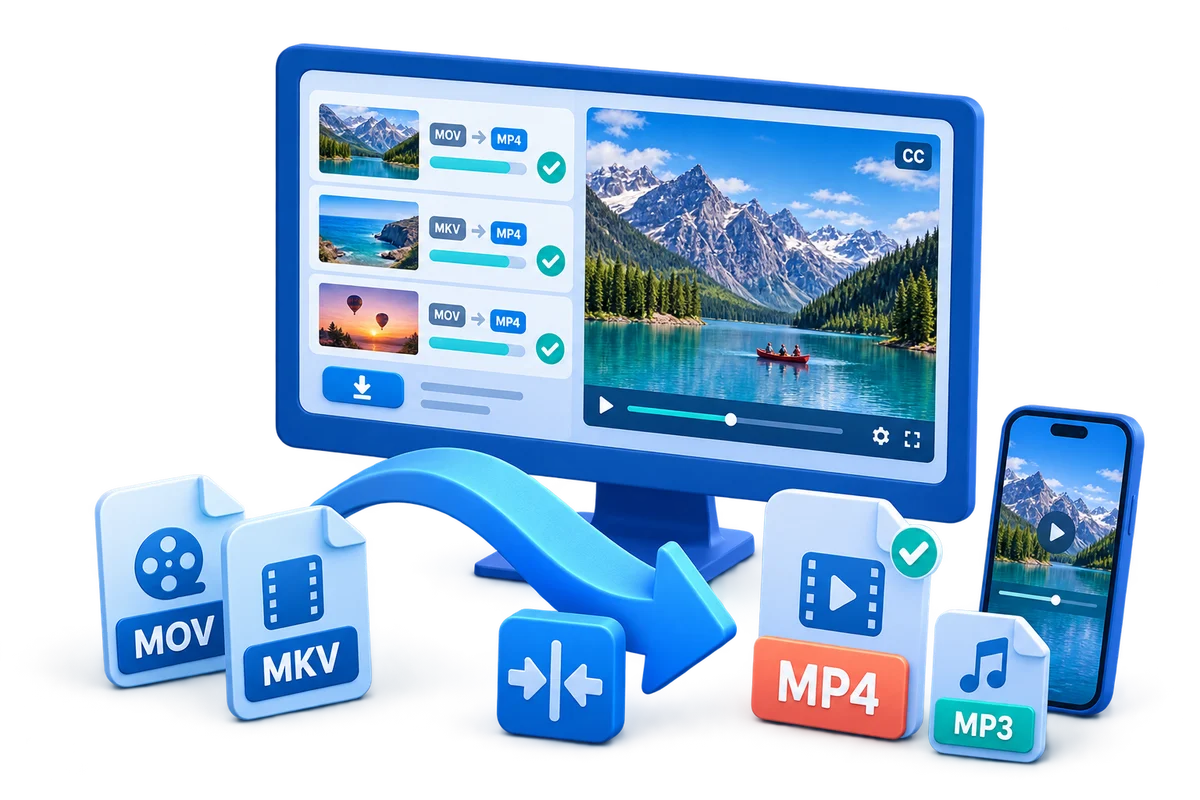
MPEG Converter for Windows
MPEG is an older MPEG-1 or MPEG-2 program-stream style file used by legacy video and disc workflows. The best output depends on whether the file is going to a current device, a browser, an editor, an audio player, or a legacy system.
Quick answer
Open the authorized MPEG file in GiliSoft Video Converter and inspect MPEG generation, interlacing, display aspect ratio, frame rate, and audio codec. Use MP4 for broad current-device compatibility, MP3 only when an audio-only copy is required, and AVI, MOV, or WMV only when the destination explicitly needs that format.
Choose the Right MPEG Output
| Goal | Recommended setting | Verification |
|---|---|---|
| Current phone, PC, TV, or sharing service | Create an MP4 delivery copy with a compatible codec combination | Test on the real destination |
| Audio-only listening or transcription | Extract the intended audio track to MP3 | Verify language, channels, duration, and quality |
| Legacy application or editing workflow | Use the exact AVI, MOV, or WMV requirements | Import and seek through the file in that application |
Step-by-Step Conversion Workflow
- Inspect the source
Play the file and check MPEG generation, interlacing, display aspect ratio, frame rate, and audio codec.
- Choose the destination first
Write down the device, app, browser, editor, storage limit, subtitles, and audio tracks the output must support.
- Select an output profile
In GiliSoft Video Converter, choose the container and codecs for that destination rather than the largest or highest-bitrate preset.
- Convert a short test
Include motion, speech, fine detail, subtitles, and any alternate track that matters.
- Batch only after verification
Check playback, seeking, sync, aspect ratio, duration, and file size before applying the settings to more files.
Protect Quality and Important Tracks
- Keep the authorized source unchanged and export a separate delivery copy.
- Avoid increasing resolution or bitrate when the source does not contain more detail.
- Check audio language, channels, subtitles, chapters, frame rate, aspect ratio, and color information that the destination requires.
Limits to Understand
Older MPEG sources may be interlaced or use non-square pixels. Preserve display aspect ratio and test deinterlacing rather than forcing a generic preset.
Frequently Asked Questions
Does changing a file extension convert the video?
No. A real conversion decodes the source streams and writes compatible output streams into the selected container.
Should I overwrite the source file?
No. Keep the source and export a new delivery copy so tracks, metadata, or quality can be recovered.
Why should I convert a short sample first?
It reveals wrong tracks, aspect ratio, interlacing, sync, subtitle, codec, and quality problems before a long batch.
Can conversion improve a low-quality source?
It can improve compatibility and sometimes reduce visible defects, but it cannot recreate detail that was never captured.