
Convert MPEG and MPG Video to MP3 on Windows
Use an MPEG-to-MP3 converter when you need the soundtrack from an .mpeg or .mpg video without its picture. Check the audio stream first because a source may contain multiple languages or commentary, then choose MP3 when an audio-only, lossy copy fits your listening or editing workflow.
Quick answer
Add the authorized MPEG or MPG video to GiliSoft Audio Converter Ripper, select the intended audio stream, choose MP3 and an appropriate bitrate, set the output folder, and convert one sample. MP3 keeps the audio only, so verify that the result remains useful without the video.
Choose MP3 Settings for the Intended Use
| Goal | Suggested starting point | What to verify |
|---|---|---|
| Speech or lecture | Moderate bitrate, mono or source channels | Voices remain clear without needless file size |
| Everyday music playback | 192 kbps MP3 | Stereo image, volume, and complete duration |
| Higher-quality MP3 copy | 256-320 kbps MP3 | No clipping, dropouts, or wrong audio stream |
| Several MPEG/MPG files | Batch conversion with one tested preset | Every output opens and uses the expected filename |
Convert MPEG or MPG to MP3 in 6 Steps
- Play and verify the MPEG source
Confirm the file opens, contains the intended audio, and may be converted for the planned use.
- Add the MPEG or MPG file
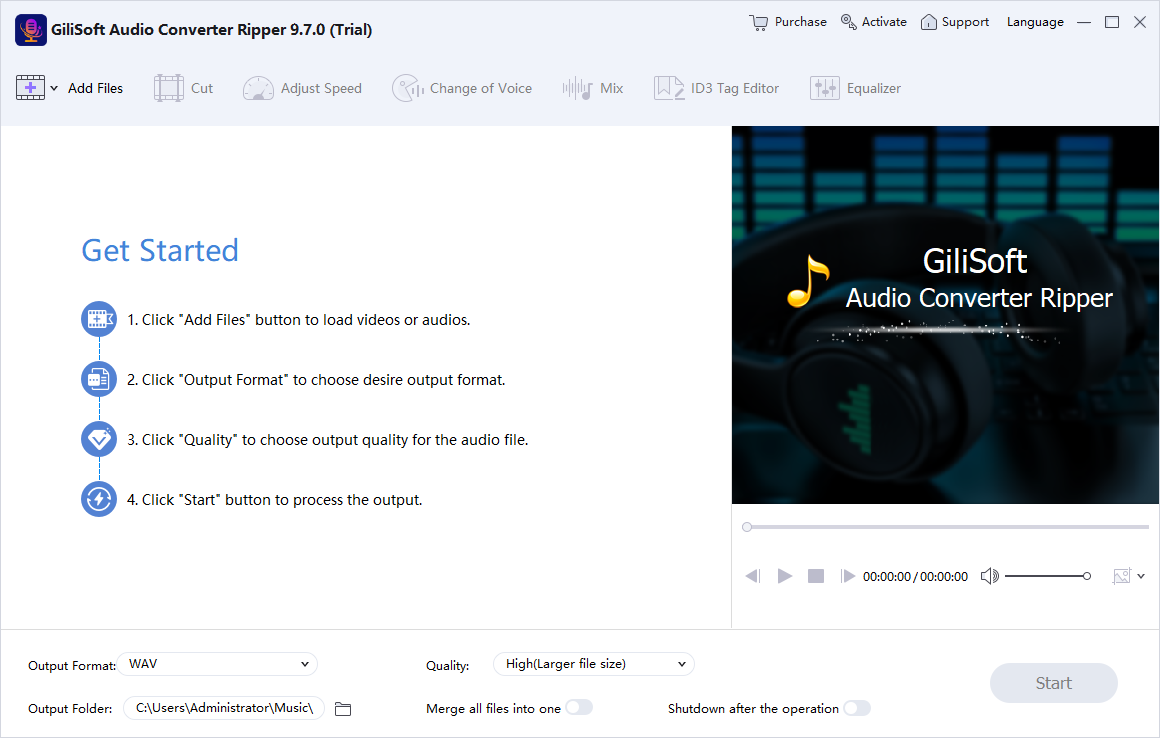
Open GiliSoft Audio Converter Ripper and add one source or a batch of supported videos.
- Select the correct audio stream
Preview the source when multiple languages, commentary tracks, or channel layouts are available.
- Choose MP3 output settings
Select the bitrate, sample rate, channels, filename, and output folder required by the destination.
- Convert the files
Start with one representative source before applying the same tested settings to a larger batch.
- Verify every MP3
Listen to the beginning, middle, and ending; confirm duration, language, channels, volume, and ID3 information.
Protect Audio Quality During MPEG-to-MP3 Conversion
- Convert from the original MPEG source instead of a previously recompressed copy whenever possible.
- Choose the correct language and channel layout before starting a batch.
- Use a bitrate appropriate for speech or music; a larger number cannot restore detail missing from the source.
- Keep the source unchanged until every MP3 has been opened and checked.
What MPEG-to-MP3 Conversion Does Not Keep
MP3 contains audio only. The video picture, subtitles, chapters, menus, and visual context are removed. If the soundtrack is already compressed, converting it to MP3 adds another lossy encoding generation and cannot improve the original recording.
Frequently Asked Questions
Are MPEG and MPG files the same for conversion?
The extensions commonly identify MPEG video files. Open the source and verify its audio stream rather than relying only on the filename.
Does MPEG to MP3 conversion keep the video?
No. MP3 is audio-only, so the video picture, subtitles, chapters, and other visual information are not included.
What MP3 bitrate should I choose?
Use a moderate setting for speech, 192 kbps for a practical everyday balance, or 256 to 320 kbps when retaining more musical detail matters.
Can I convert several MPEG files at once?
Yes. Add supported MPEG or MPG files as a batch, apply the MP3 settings, and verify each completed output.
Why does the MP3 contain the wrong language?
The MPEG file may contain more than one audio stream. Preview and select the intended language or commentary track before conversion.