GiliSoft File Lock Pro

Add password-based control to shared folders on a Windows 11 network while keeping the existing LAN folder structure your team already uses.

  • Lock selected LAN shared folders with a master password
  • Prevent unauthorized opening, copying, editing, or deletion
  • Protect local disks, USB storage, and shared folders from one app
Illustration of password protected files on a Windows computer
Windows 11 Network Folder Guide

How to Password Protect a Shared Folder in Windows 11

Windows 11 can restrict a shared folder with user accounts, share permissions, and NTFS permissions. If you want a separate password prompt for the shared folder itself, GiliSoft File Lock Pro provides a second method designed for LAN folders.

Quick Answer

Windows does not assign an independent password directly to an ordinary shared folder. Its built-in method asks visitors to sign in with an account on the host PC, then checks that account against the folder's share and Security permissions.

Use Method 1 when each person can have a Windows account and individual access level. Use Method 2 when you want File Lock Pro to add its own password-based lock to a selected LAN shared folder.

Method 1: Protect the Folder with Windows Accounts and Permissions

This is the native Windows 11 method. The host computer authenticates the visitor's Windows account, while share and NTFS permissions decide whether that person can read or change the files.

Step 1: Prepare the host PC for private network sharing

  1. Open Settings > Network & internet, select the active connection, and confirm the network profile is Private on a trusted home or office network.
  2. Open Advanced network settings > Advanced sharing settings.
  3. Under Private networks, turn on Network discovery and File and printer sharing.
  4. Keep password-protected sharing enabled when access should require a recognized account on the host PC.

Step 2: Share the folder with specific people

  1. Right-click the folder, choose Show more options, then select Give access to > Specific people.
  2. Add the Windows account that should use the folder.
  3. Choose Read for viewing only or Read/Write when the user may create, edit, rename, or delete files.
  4. Select Share and note the displayed network path.

Step 3: Verify share and NTFS permissions

  1. Open the folder's Properties > Sharing > Advanced Sharing > Permissions and review who can access the share.
  2. Open the Security tab and review the NTFS permissions for the same account.
  3. Remember that both layers matter. A user allowed by the share can still be blocked by the Security tab, and the effective result is the most restrictive combination.
  4. Avoid granting Everyone: Full Control unless the folder truly needs unrestricted access.

Step 4: Test from another Windows PC

  1. Press Win + R on the other PC and enter \\PC-NAME\ShareName.
  2. When prompted, enter the username and account password from the host PC. A Windows Hello PIN is not normally the network-share password.
  3. Test viewing, creating, renaming, and deleting a harmless file so the assigned access level is verified.
  4. Optionally map the share as a network drive after access works correctly.

Method 2: Lock a LAN Shared Folder with File Lock Pro

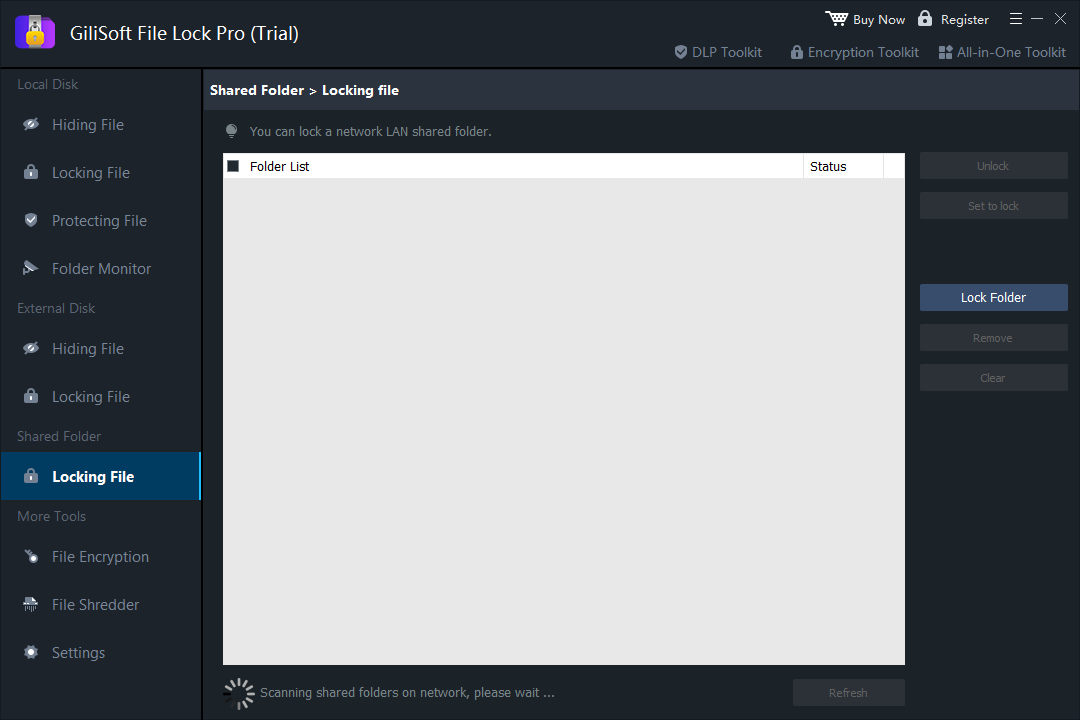
Use this approach when you want a File Lock Pro password on the shared folder instead of relying only on Windows account credentials. The Windows share can stay in its current location; File Lock Pro scans accessible LAN shares and adds the selected folder to its locking list.

GiliSoft File Lock Pro Shared Folder Locking File interface
The Shared Folder > Locking File workspace scans LAN folders and lets the administrator select a folder to lock.
  1. Install File Lock Pro on the Windows PC that manages the protected share, then enter the master password.
  2. Choose Shared Folder in the left navigation and open Locking File.
  3. Wait for the LAN shared-folder scan to finish.
  4. Click Lock Folder and select the shared folder you want to protect.
  5. Apply the lock, then test the folder from another Windows computer.
  6. Keep the master password and recovery email secure so authorized administrators can restore access.

Important: File Lock Pro adds its own access control. Windows network sharing, account permissions, firewall rules, and backups remain separate layers and should still be configured correctly.

Which Shared Folder Protection Method Should You Use?

Method Authentication Per-user access Separate folder password Best use
Windows share + NTFS permissions Host PC account Yes No Teams with managed Windows accounts
GiliSoft File Lock Pro File Lock Pro master password Administrator-managed lock Yes A direct password lock for selected LAN folders
BitLocker Drive or device unlock No folder-level LAN policy No Protecting a drive when the PC is offline or lost
Encrypted archive Archive password No Yes Sending a static group of files, not a live shared folder

Fix Network Credentials and Access Denied Problems

The shared PC is not visible

Confirm both PCs are on the trusted network, the host profile is Private, and Network discovery plus File and printer sharing are enabled.

Windows keeps asking for credentials

Use an account and password from the host PC. Do not substitute the visiting PC's Windows Hello PIN. Check the username format and host account password.

Access is denied

Review both Advanced Sharing permissions and the Security tab. The account needs permission at both layers for the requested action.

Windows uses an old password

Open Credential Manager, review Windows Credentials for the host PC, remove the outdated entry, and reconnect with the correct account.

The mapped drive will not connect

Test the UNC path first: \\PC-NAME\ShareName. Make sure the host is awake, reachable, and still sharing the folder under that name.

A guide suggests enabling SMB1

Do not enable the obsolete SMB1 protocol for a normal Windows 11 share. Use supported SMB2/SMB3 networking and fix discovery, credentials, or permissions instead.

Shared Folder Security Checklist

Use least privilege

Give each person only the Read or Read/Write access needed for the task.

Protect administrator access

Use strong Windows account and File Lock Pro master passwords, plus a recovery email you control.

Test every action

Verify open, create, rename, overwrite, and delete behavior from another PC before relying on the setup.

Keep a separate backup

Permissions and passwords are not backups. Maintain a recoverable copy outside the live shared folder.

Use a trusted network

Do not expose a Windows file share directly to the public internet. Use a VPN for remote access.

Keep software current

Install supported Windows updates and current File Lock Pro releases.

Shared Folder Password FAQ

Can Windows 11 put a password on one shared folder?

Not as a separate folder password. Windows authenticates a host-PC account, then applies share and NTFS permissions.

What username and password should I enter?

Use credentials for an account on the computer hosting the shared folder.

Is my Windows Hello PIN the network password?

Usually no. The PIN is tied to sign-in on one device; network sharing normally expects the host account password.

Do the Sharing and Security tabs both matter?

Yes. The effective access is constrained by both share permissions and NTFS permissions.

Does BitLocker protect shared-folder access?

BitLocker protects a drive at rest. Once Windows has unlocked the drive, network-share access is still controlled separately.

Can File Lock Pro lock a LAN folder?

Yes. Its Shared Folder workspace can scan available LAN folders and add a selected folder to the lock list.

Add a Separate Password Lock to a Shared Folder

Use GiliSoft File Lock Pro when Windows account permissions alone do not match the way your family, office, or support team shares a LAN folder.

Buy File Lock Pro Download Trial