
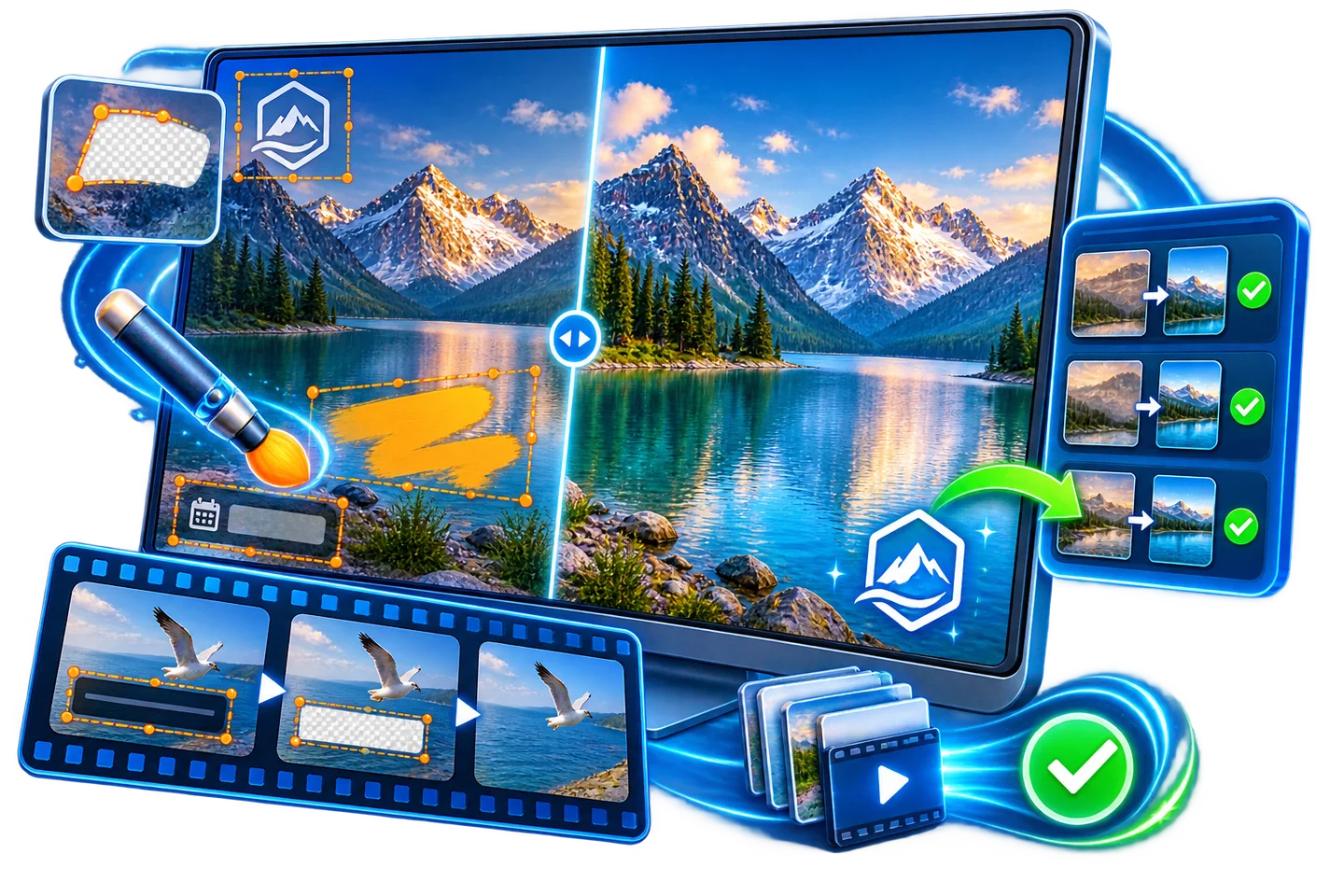
Choose a Watermark That Remains Readable
Start with the intended result, the available source material, and the device or storage destination. This prevents unnecessary conversion, protects important originals, and makes the finished output easier to verify.
Prepare Before You Start
Protect the source
Keep an untouched copy of important files or media before changing, converting, or encrypting anything.
Confirm the destination
Check free space, file-system limits, output compatibility, and the exact save location.
Close competing software
Exit programs that may be using the same disc, drive, media file, or hardware device.
Plan verification
Decide how you will test the completed result before treating the task as finished.
Add and Position the Video Watermark
Import the video
Open the source and preview scenes with both bright and dark backgrounds.
Choose text or logo
Use a concise label or a transparent brand image with suitable resolution.
Set position and size
Keep the mark visible without covering faces, captions, or essential content.
Preview the full timeline
Check scene changes and confirm that the mark remains readable throughout.
Export a reviewed copy
Render the video and inspect quality, placement, and timing before publishing.
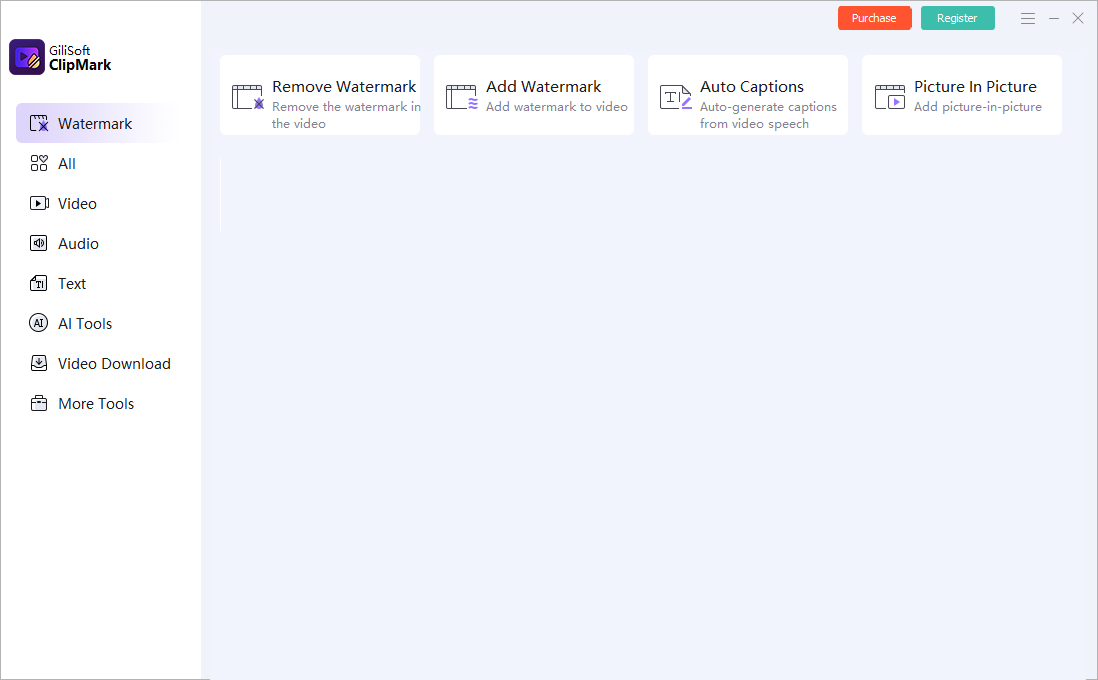 Use the product workspace to review the source, configure the task, and verify the output settings before starting.
Use GiliSoft Watermark Remover for This Workflow
GiliSoft Watermark Remover keeps this task in a dedicated Windows workflow with clear source selection, practical output settings, and a direct path to the completed result. Use the product guide for complete control descriptions and additional workflows.
Troubleshooting Checklist
- The source is missing: reconnect it, confirm the drive or file path, and close software that may be holding it.
- The task cannot start: check free space, write permission, output naming, and the selected destination.
- The result is incomplete: return to the source selection and confirm that every required title, track, file, or area is included.
- The output will not open: test it with the intended player, device, or access workflow and review compatibility settings.
- Quality is lower than expected: use a more suitable output profile and avoid unnecessary repeated conversion.
Frequently Asked Questions
Which GiliSoft product should I use?
Use GiliSoft Watermark Remover for the workflow described on this page. The current product and user-guide links are available in the right-hand panel.
Should I keep the original?
Yes. Keep the original until the result has been opened, inspected, and tested in its intended destination.
Can I test the workflow first?
Use the trial download to review the interface and supported workflow before choosing a license.