
Choose the Right Workflow First
| Approach or project | Best fit | What to protect |
|---|---|---|
| Software tutorial | Window or selected region, cursor, system sound, narration | Keep interface text large and actions deliberate |
| Product demo | Application, webcam or voice, short scripted sequence | Lead with the outcome and remove setup time |
| Webinar or class | Screen, microphone, optional webcam, long-session controls | Test storage, auto-stop, and splitting before the event |
| Support video | Small relevant region and concise narration | Protect private data and show only the required steps |
Prepare Before Editing
A short preparation pass prevents avoidable rework after timing, text, audio, or output choices have already been made.
Frame only useful content
Choose full screen, a window, or a custom region and hide unrelated notifications.
Test both audio paths
Confirm system sound, microphone, levels, sync, and selected devices.
Leave clean edit points
Pause briefly between topics and before important actions.
How to Complete the Workflow on Windows
Follow the steps in order and delay decorative work until the structure and essential sound are stable.
Set the capture area and sources
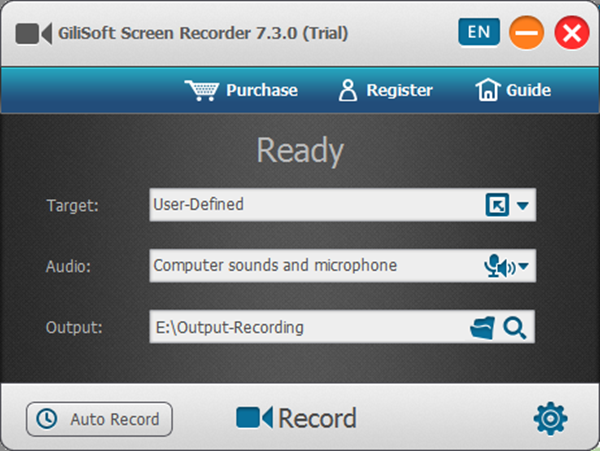
Choose the screen region or window, webcam if needed, system sound, microphone, and output folder.
Record a short test
Play it back and check framing, cursor visibility, voice, application sound, webcam placement, and file output.
Capture the session in manageable parts
Use pause, hotkeys, annotations, auto-stop, or splitting only when they support the workflow.
Trim setup time and mistakes
Remove rough openings, endings, failed actions, long pauses, and repeated explanations.
Add text, subtitles, audio, or picture-in-picture
Complete structural edits first, then add timed explanation and supporting media.
Export and review the finished video
Check cuts, sound balance, subtitle timing, overlay placement, privacy, and compatibility.
Make the Recording Easier to Edit
Record the right area
Excluding unrelated desktop space reduces later cropping and privacy risk.
Speak in short sections
A brief pause between topics creates clean places to cut or rearrange.
Finish cuts before timed elements
Late trimming can force subtitles, callouts, and overlays to be retimed.
Keep the source recording
Do not delete the clean original until the edited export has been approved.
Where Screen Recorder Pro Fits
GiliSoft Screen Recorder Pro fits recording-led projects because capture and practical finishing tools live in the same suite. Move the source into GiliSoft Video Editor Pro when the final video needs a deeper multitrack structure or complex revisions.
Review the GiliSoft Screen Recorder Pro product page for the current feature overview or use the Screen Recorder Pro user guide for task-level instructions.
Troubleshooting and Quality Checks
- The recording has no sound: verify the correct devices and Windows permissions with a short test.
- Cursor actions are hard to follow: slow the demonstration and use emphasis sparingly.
- The video is too long: cut setup, waiting, failed attempts, and repeated explanations.
- Notifications expose private data: use a controlled account and disable unnecessary alerts before capture.
- Audio drifts after editing: avoid unnecessary frame-rate conversion and inspect the full export.
Review Privacy as Well as Picture and Sound
Screen recordings can reveal account names, notifications, file paths, customer data, and browser history. Inspect the entire frame and audio track before sharing the final file.
Frequently Asked Questions
Can I edit a screen recording after capture?
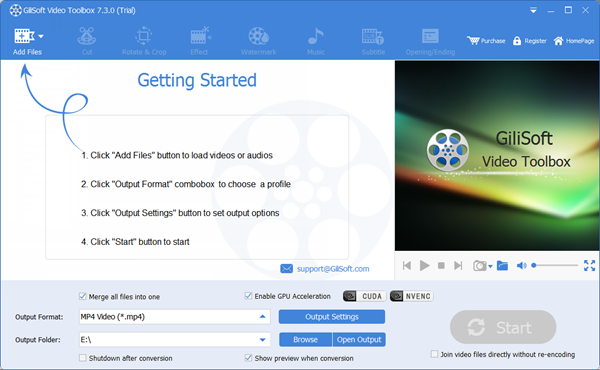
Yes. Trim, join, crop, rotate, add text, subtitles, overlays, or audio, then export the finished file.
Can I record system sound and microphone together?
Yes. Select and test both sources before the full session.
How do I remove a mistake from the middle?
Mark the unwanted range, remove it, and preview the frames and audio immediately before and after the cut.
Can I combine several recordings?
Yes. Arrange the clips in order, balance their audio, and use transitions only where they clarify a real change.
Which output is a practical default?
MP4 is widely compatible, but choose settings based on the actual player, platform, and source quality.
How can I reduce editing time?
Frame only the useful area, record a short test, speak in sections, and leave clean pauses between topics.