
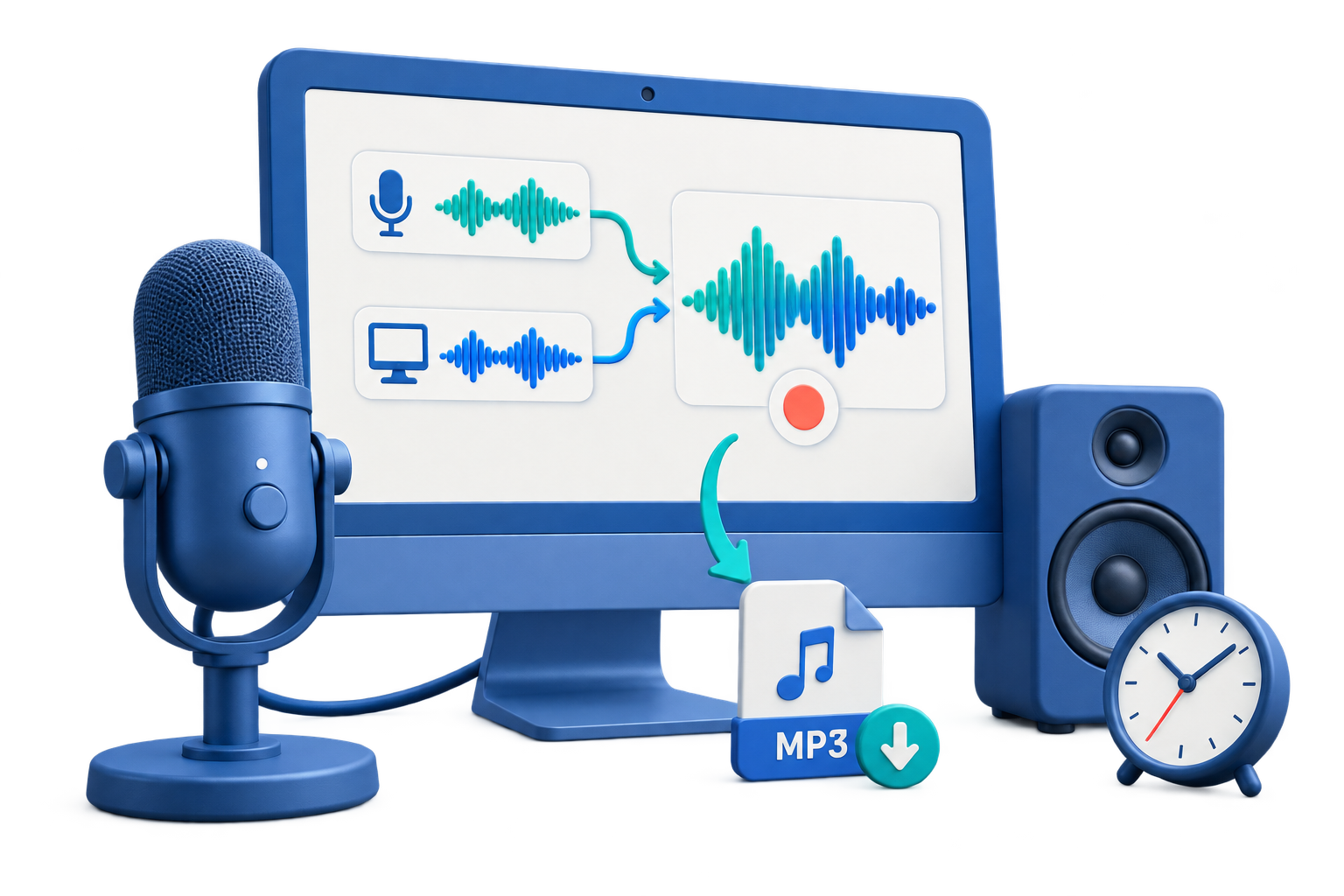
Record Computer Audio and Microphone
Use this workflow to capture PC playback and narration together without feedback, echo, or an unusable balance. A short saved test protects the session better than relying on device names or meters alone.
Quick answer
Select system audio plus the intended microphone, wear headphones so speaker playback does not re-enter the mic, and test both sources together. Balance the computer sound below the voice, confirm whether channels are mixed or separated, and listen to the saved file before the real recording.
Choose the Right Recording Setup
| Situation | Recommended setup | What to verify |
|---|---|---|
| Narration over playback | Use headphones and keep program audio below speech | Voice intelligibility and no speaker echo |
| Call or online session | Capture only with permission and correct routing | Both sides, privacy, sync, and notifications |
| Tutorial commentary | Disable unrelated system sounds | Consistent voice and relevant application audio |
Step-by-Step Recording Workflow
- Confirm permission and required sources
Decide whether the recording needs system audio, microphone input, or both, and obtain any required notice or authorization.
- Check Windows and device settings
Allow microphone access for desktop apps when needed and choose the exact input and output devices rather than relying on defaults.
- Prepare the listening environment
Place the microphone consistently, use headphones for mixed recording, disable notifications, and close unrelated noisy applications.
- Record and replay a short test
Use normal speaking and playback levels, then listen for silence, clipping, echo, noise, balance, latency, and the correct save path.
- Record, verify, and organize
Monitor the opening, play the complete saved file, use clear names, retain the needed master, and create transcripts or notes where useful.
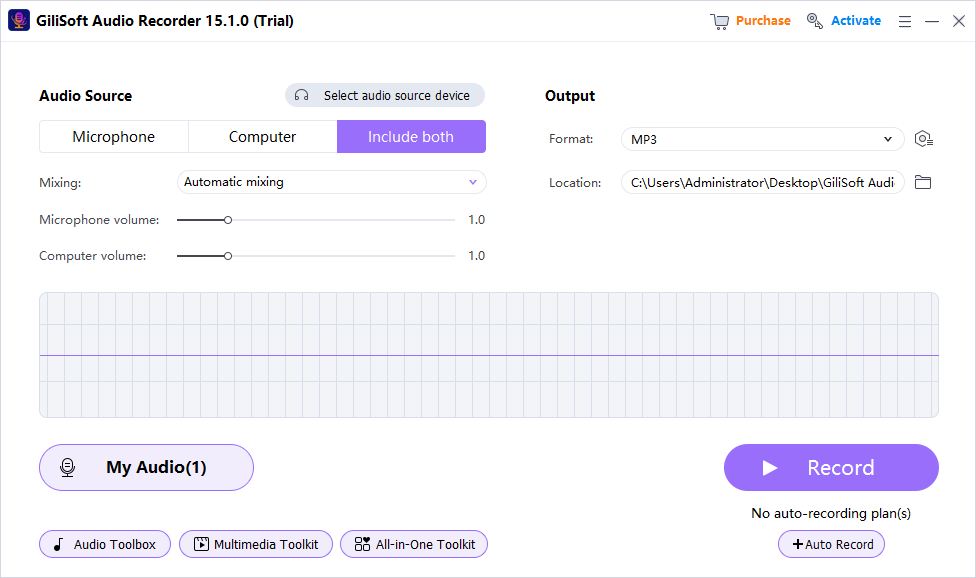
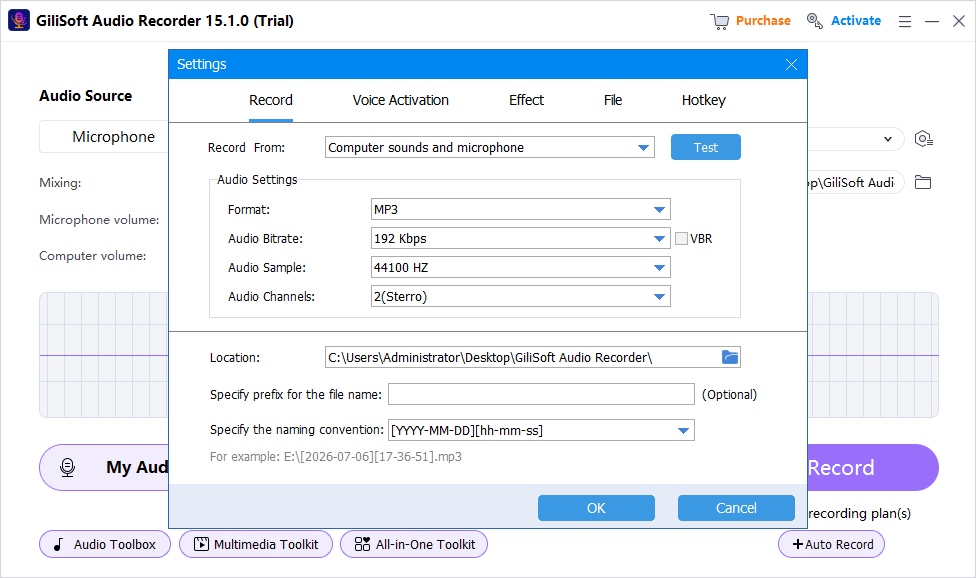
Use the GiliSoft Audio Recorder Pro Workspace
These screenshots show real product workspaces. Windows device names and controls can vary, so select the exact source and verify a saved test with your own hardware.
Check the Recording Before You Use It
| System and microphone balance | Listen to a saved test and the complete recording through reliable headphones or speakers. |
|---|---|
| Signal quality | Check silence, clipping, echo, noise, source balance, speech clarity, dropouts, and unexpected notifications. |
| File handling | Confirm format, name, folder, duration, access, retention, and whether a transcript or delivery copy is needed. |
Frequently Asked Questions
Why do I hear echo in the recording?
Speaker playback may be entering the microphone, or the call application may already include monitoring. Use headphones and disable duplicate monitoring paths.
Why is the computer sound much louder than my voice?
Application volume, Windows playback level, microphone gain, and recorder controls all affect the mix. Test them together before recording.
Can system sound and microphone be managed separately?
The product supports recording them together and can keep them easier to manage in separate channels; verify the selected mode and exported result.
Should I keep the original recording?
Keep an untouched recording master when the content matters, then create edited or compressed delivery copies separately.
Why is a saved test better than watching the meter?
A meter can show activity but not prove that the correct source, balance, routing, noise, echo, or file playback is acceptable.