

Choose the Right Approach
| Situation | Practical approach | What to protect |
|---|---|---|
| Simple sky or wall | Tight rectangular or brush selection | Smooth texture and color continuity |
| Detailed fabric or foliage | Several small controlled passes | Repeated patterns and sharp edges |
| Mark touching a subject | Precise manual selection | Hair, skin, product outlines, and shadows |
| Large central watermark | Alternative source or manual retouch may be safer | Reconstruction cannot recover hidden original pixels |
Prepare the Photo Workflow
Make the source, authorization, output, and review decisions before changing pixels.
Confirm permission
Edit only photos you own or are authorized to modify.
Keep the original
Work on a copy and preserve the untouched source.
Inspect at 100%
Identify every letter, edge, shadow, and transparent part of the mark.
How to Complete the Task on Windows
Work from a preserved source, make controlled changes, and judge the exported result rather than the editor preview alone.
Open the highest-quality source
Avoid starting from a repeatedly compressed preview when a better original exists.
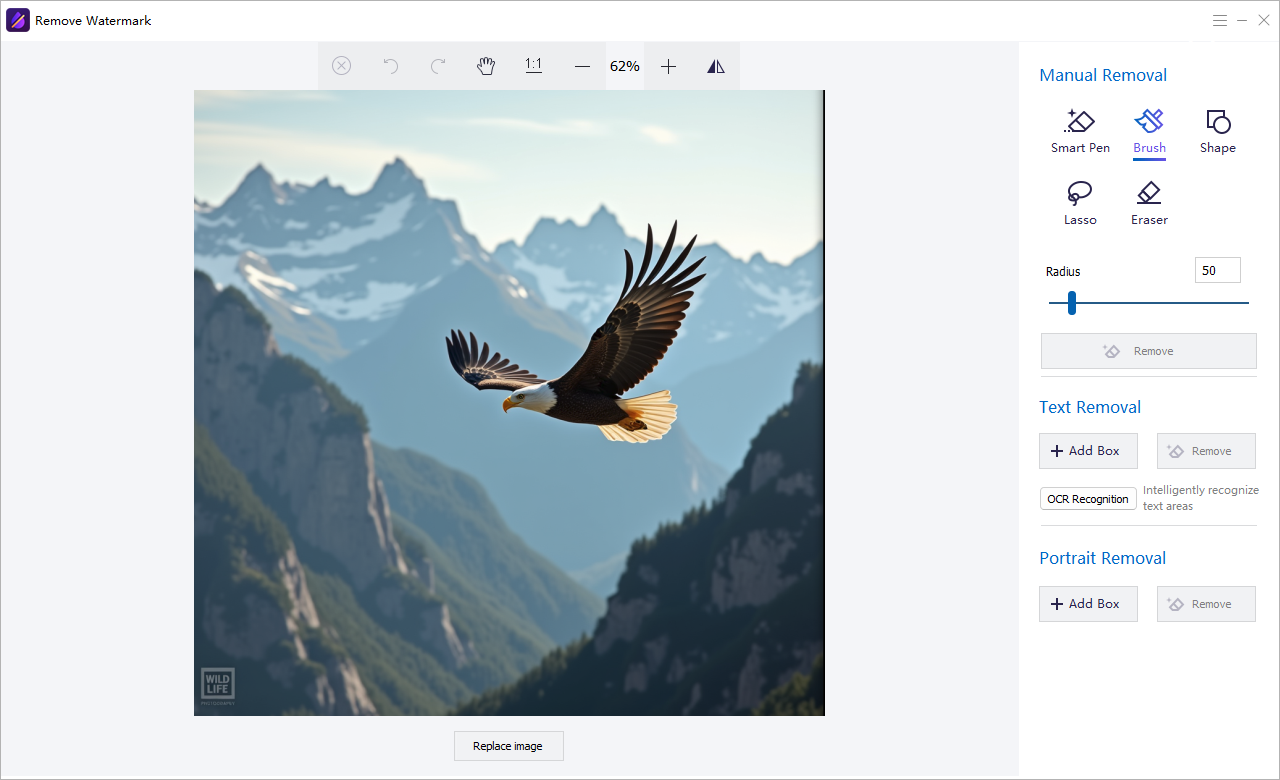
Choose the image watermark-removal tool
Load the photo and zoom into the entire marked area plus its surrounding texture.
Select the watermark precisely
Cover the complete visible mark while including as little clean background as possible.
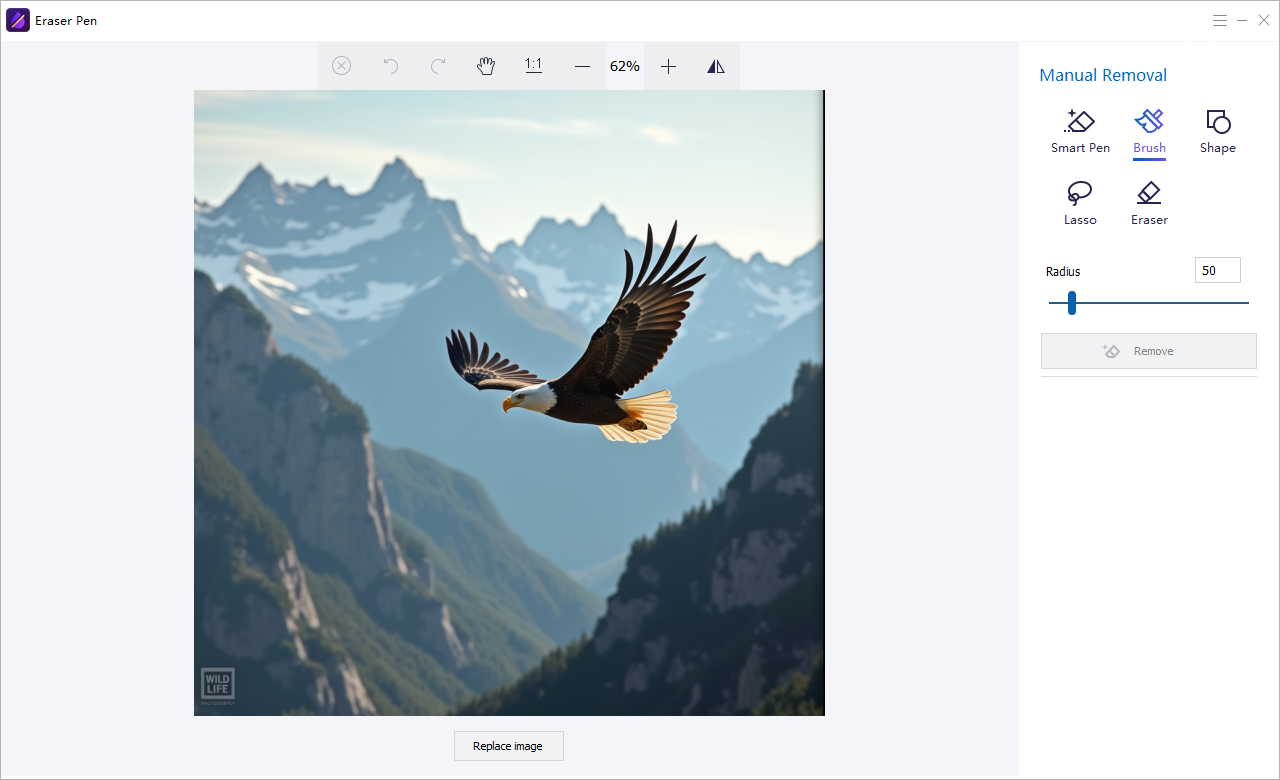
Process and inspect the reconstruction
Check edges, repeated patterns, color shifts, blur, and leftover transparent outlines.
Refine difficult areas in smaller passes
Undo an over-broad result and clean separate parts with tighter selections when necessary.
Export a new file and compare
Keep the source unchanged and inspect the delivered image at full size and intended display size.
Quality Details That Matter
Small selections are easier to rebuild
Background reconstruction has more reliable neighboring detail to work from.
Hidden pixels are not recoverable
A large opaque mark may require another source or careful manual recreation.
Texture exposes repetition
Brick, hair, text, fabric, and foliage reveal duplicated patterns quickly.
Output size changes what viewers notice
Review both at full resolution and at the final publishing size.
Where Watermark Remover Fits
Remove authorized text, logos, date stamps, watermarks, and unwanted areas from photos or videos, including repeated batch work.
Review the GiliSoft Watermark Remover product page or follow the Watermark Remover user guide for product-level instructions.
Troubleshooting and Review
- A faint outline remains: include transparent edges and shadows in the next selection.
- The repair looks smeared: undo and use several smaller passes.
- A repeated pattern is obvious: change the selection boundary and inspect nearby source texture.
- Fine subject detail disappears: reduce the marked area around the subject edge.
- The result is acceptable only when small: do not claim a full-resolution repair without checking it.
Rights, Privacy, and Source Protection
Edit only photos you own or are authorized to modify. Preserve original files, respect client scope and copyright, and review visible details, filenames, metadata, storage, and delivery when privacy matters.
Frequently Asked Questions
Can every watermark be removed cleanly?
No. Results depend on mark size, opacity, placement, background detail, and how much original information is hidden.
Should I select beyond the visible letters?
Include anti-aliased edges, outlines, shadows, and transparent glow, but avoid unnecessary clean background.
Can I remove a logo touching a person or product?
Yes, but use tighter selections and inspect important edges carefully.
Does watermark removal restore the original pixels?
It reconstructs the selected area from surrounding information; it cannot reveal pixels completely hidden by an opaque mark.
Can I try the recommended software before buying?
Yes. Test GiliSoft Watermark Remover with representative photos, difficult edges, and required output settings.
Should I keep the original photo?
Yes. Preserve an untouched source and export edited results as separate files.