

How to Convert TS to MP3 on Windows
A .ts file is an MPEG transport stream that can carry video and one or more audio tracks. MP3 is audio-only. To make an MP3, extract the track you want and encode it, rather than renaming the file extension.
Quick answer
Add the TS file to GiliSoft Video Converter, preview its sound, select the intended audio track if more than one is offered, choose an MP3 output profile and destination folder, then convert. Listen to the beginning, middle and end of the exported MP3.
Choose the right audio output
| Source or goal | What to check | After export |
|---|---|---|
| Speech, class or meeting | Choose the correct language or commentary track; use a moderate MP3 bitrate. | Words remain clear and the file is not unnecessarily large. |
| Music or performance | Preserve the intended stereo track and use a suitable higher-quality MP3 profile. | Listen for distortion, missing sections and channel changes. |
| TS with multiple audio tracks | Preview the source and select the track you need if the app exposes a track selector. | The MP3 contains the requested language or commentary. |
Higher MP3 bitrate cannot restore detail missing from the original TS audio. If the source has no usable audio track, conversion cannot create one.
Convert a TS file to MP3 with GiliSoft Video Converter
- Check the TS recording
Play part of the source and confirm it contains the sound you want. A broadcast recording may have several programs or languages.
- Add the file
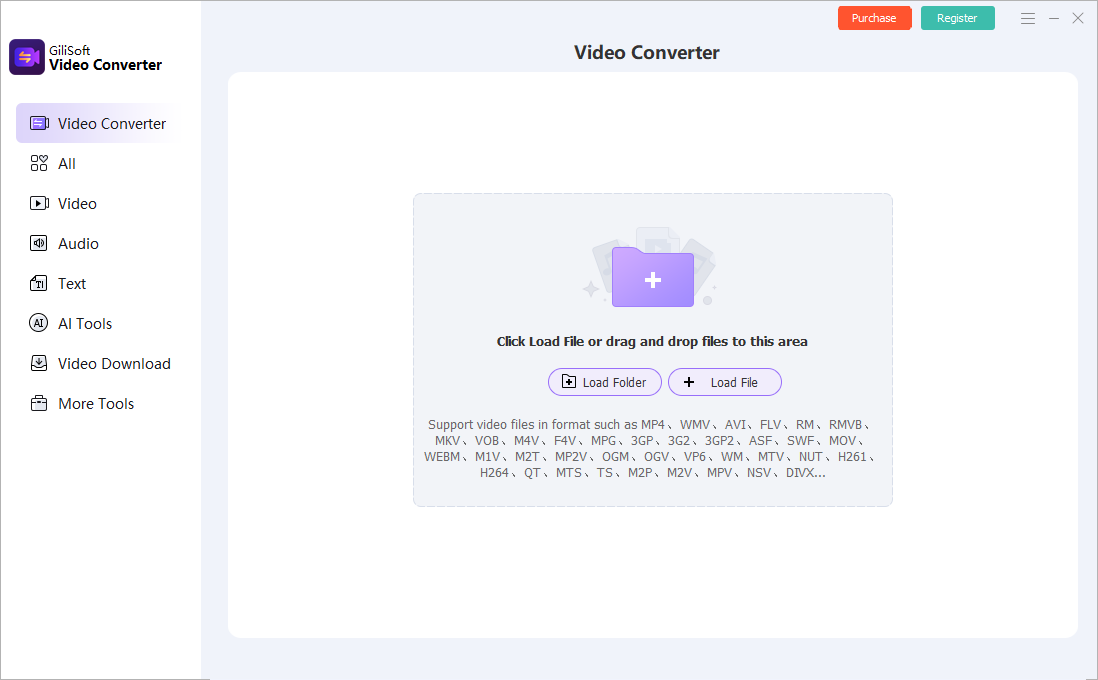
Open Video Converter and use Load File to import the .ts file. Confirm the file and duration shown in the queue.
- Choose the intended audio
Preview the file. If multiple audio tracks are available for selection, choose the right language or commentary track before export.
- Set MP3 as the output
Select an MP3 audio profile, adjust quality settings if needed and choose a separate output folder. Keep the original TS file unchanged.
- Convert and listen
Run a short test first for a long recording, then convert the full file. Check its duration and listen at the beginning, middle and end for silence, wrong language or dropouts.
When the MP3 is silent, incomplete or sounds wrong
- Wrong language or no sound: Replay the TS and check whether another audio track or program was selected.
- Short or interrupted output: Inspect the TS around the missing point; damaged packets or timestamp gaps in a recording can affect conversion.
- Distorted or weak audio: Compare the MP3 with the source. Try a suitable output profile, but remember conversion cannot repair a poor original recording.
- Unexpected file size: Review duration, bitrate and channel settings before converting a full batch.
What the MP3 keeps and leaves out
The exported MP3 contains audio, not the TS video picture, subtitle tracks or DVD-style chapters. Keep the original TS if you may need its video, other languages or metadata later. For a video copy instead, use a TS to MP4 workflow.
TS to MP3 FAQ
Can a TS file be converted to MP3?
Yes, if the TS contains a usable audio track. GiliSoft Video Converter can import TS files and export audio to MP3.
Which audio track will the MP3 contain?
Use the source preview and choose the intended language or commentary track if a track selector is available. Listen to the exported MP3 to confirm.
Will MP3 keep the TS video or subtitles?
No. MP3 is an audio-only format. Keep the TS source or convert it to a video format when you need the picture or subtitle tracks.
Why is the exported MP3 silent or cut short?
Check that the TS plays with sound, verify the selected audio track and inspect the source around any missing section. A damaged or discontinuous recording can affect the result.