
USB Whitelist Software for Windows
Keep approved company USB drives available while personal and unknown storage stays blocked on Windows PCs.
What Is USB Whitelist Software?
A whitelist is more precise than turning every USB port off. It preserves the transfer jobs that still matter, such as a support drive, print counter drive, deployment disk, camera card, or controlled backup device, without accepting every personal flash drive that reaches the PC.
The approval rule should identify a real device, not only a familiar brand name. Windows can describe hardware through device instance IDs, hardware IDs, compatible IDs, and device classes. A broad identifier can unintentionally match other units, while a narrower device record is better suited to an individually inventoried company drive.
What a Business USB Whitelist Must Control
Add the physical company drive that has a legitimate business purpose, then give the entry a clear label that an administrator can recognize later.
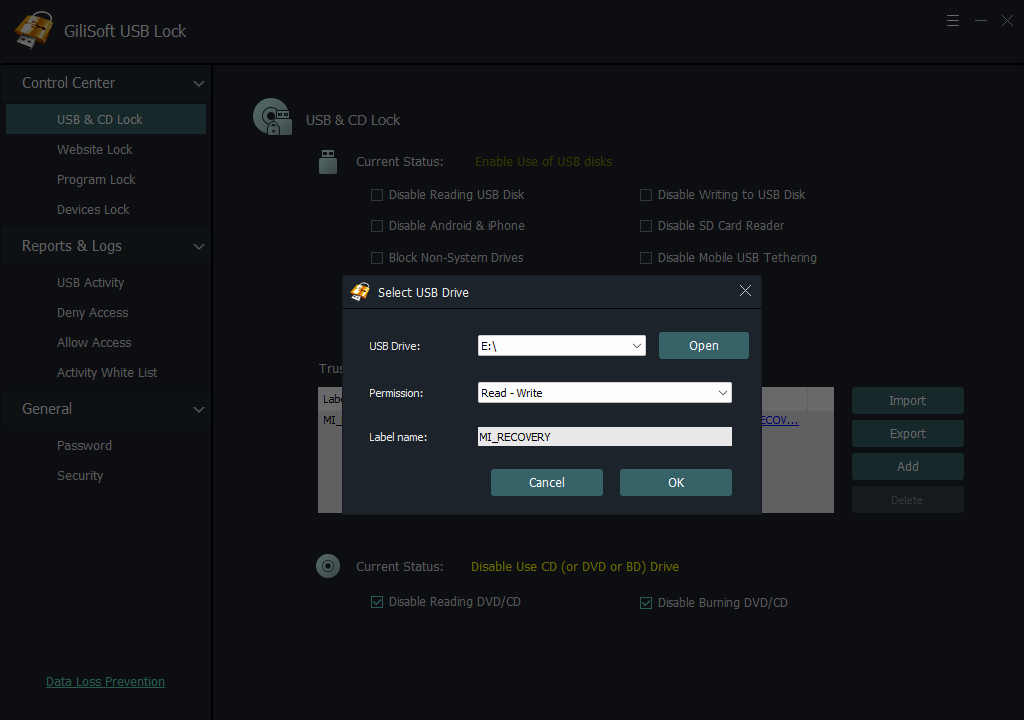
Use read-only for approved delivery media and read-write only where backup, collection, or service work genuinely requires it.
Keep unregistered USB and SD storage under the blocked policy instead of allowing a new device simply because Windows detects it.
Limit whitelist changes to an administrator, protect settings with a password, and maintain recovery information.
Export a tested whitelist and import it on another protected PC, then reconnect every approved device and verify the result.
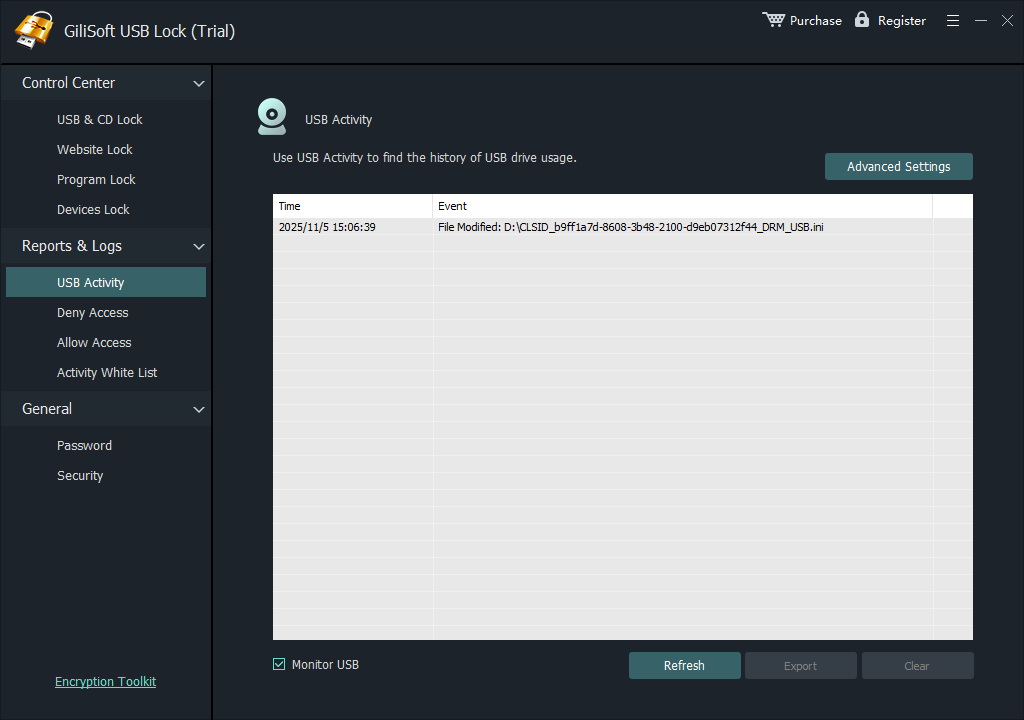
Review allowed and blocked events after policy changes so unexpected devices, failed tests, and replacement drives are visible.
USB Whitelist Options on Windows
| Method | Good fit | What administrators must manage |
|---|---|---|
| GiliSoft USB Lock Focused Windows software | Offices, schools, labs, kiosks, and defined groups of Windows PCs | Add issued drives, assign read or write permission, label entries, export or import the list, and review access events |
| Windows Group Policy | Domain-managed PCs with administrators comfortable collecting hardware identifiers | Device installation rules, identifier selection, parent and child device nodes, retroactive policy behavior, and testing |
| Microsoft Defender Device Control | Organizations already using the required Microsoft endpoint security stack | Reusable device groups, policy deployment, audit events, licensing, and ongoing rule administration |
| Physical custody only | Very small environments with a few issued drives | Numbering, sign-out records, storage, and return procedures; custody alone does not block an unknown drive on the PC |
Microsoft documents both approved-device installation scenarios and the importance of testing device identifiers. Some USB hardware exposes several logical functions, so a rule based on the wrong level of the Plug and Play tree can allow too much or block more than intended.
Build a Trusted USB List with GiliSoft USB Lock
GiliSoft USB Lock turns the policy into a direct local task: insert an approved company drive, add it to the whitelist, choose its access level, and label the entry. Unknown storage remains restricted under the USB policy, while known drives stay available for their assigned work.

Approve company drives without reopening every USB device
Use one Windows tool to maintain the trusted list, choose read-only or read-write access, protect administration, reuse a tested list on other PCs, and review connection events. USB Lock can also restrict USB and SD storage, phone transfer, optical media, tethering, and other transfer channels when required.
- Allow individually approved company USB drives
- Choose read-only or read-write permission
- Keep unknown removable storage restricted
- Label entries by owner, department, or purpose
- Export and import the tested whitelist
- Protect changes and review access events
How to Create the USB Whitelist
- Inventory the company drives that have a real business purpose. Record the owner, label, job, and required permission.
- Install GiliSoft USB Lock on a test PC, set the administrator password and recovery email, then open USB & CD Lock.
- Insert the first approved drive, click Add, choose read-only or read-write access, enter a recognizable label, and save it.
- Repeat the Add process for every issued drive. Do not approve a personal device only because it is temporarily convenient.
- Export the completed list and import it on another protected PC. Reconnect the approved drives and verify their assigned access.
- Connect an unknown drive, confirm it remains restricted, and review the event log before deployment expands.
For screen-by-screen Add, Export, and Import instructions, use the USB Lock whitelisting guide. For a broader policy comparison, see how to allow only approved USB devices. For a maintainable device register with ownership, permissions, and revocation steps, see how to create and maintain a USB allow list.
Deploy the List Across Multiple PCs
Start with one representative Windows PC and the real devices used by the department. Validate read and write behavior, reconnect the drives after restart, test one unknown device, and record the approved-list revision. Only then export the list for another PC.
Test every approved drive and one unknown drive on the Windows versions used in production.
Use owner, department, asset number, and purpose so a future administrator knows why the exception exists.
Remove lost, damaged, replaced, or reassigned drives promptly instead of letting the list grow indefinitely.
Check connection records after rollout and investigate devices that repeatedly reach the blocked policy.
Large Windows deployment or special policy requirements?
GiliSoft can evaluate custom development and licensing. Send the endpoint count, Windows versions, approved-device inventory, permission rules, administrator roles, logging needs, and rollout method so the team can assess the project.
Discuss a USB whitelist deploymentWhere USB Whitelisting Works Well
Company service and recovery drives
Keep named diagnostic, firmware, deployment, and recovery drives available to support staff while personal storage remains unavailable.
Reception, printing, and transfer stations
Allow one labeled business drive for approved file transfer instead of accepting every flash drive brought to a shared workstation.
Schools, labs, and production computers
Give reference media read-only access or allow controlled write access for collection jobs, then review events when an unregistered device appears.
Departments with different device lists
Finance, HR, design, operations, and service teams can maintain separate issued-drive records and permission levels rather than sharing one broad exception.
USB Whitelist Software FAQ
What is the difference between a USB whitelist and blocking all USB ports?
A blanket block removes USB storage access for everyone. A whitelist keeps specifically approved drives available while unknown removable storage stays restricted.
Can approved USB drives be read-only?
Yes. GiliSoft USB Lock supports read-only and read-write permission when an approved drive is added. Use the smaller permission that still completes the job.
Can the whitelist be copied to another computer?
Yes. Export the tested list and import it on another GiliSoft USB Lock installation. Reconnect the physical drives afterward and verify their behavior on that PC.
Does whitelisting encrypt the files on the drive?
No. Whitelisting controls whether the Windows PC accepts the device. Choose GiliSoft USB Encryption when data stored on the drive also needs a password-protected private area.
Can USB Lock restrict phones and SD cards too?
Yes. USB Lock includes controls for USB and SD storage, phones, optical media, tethering, and other transfer paths. Configure only the channels required by the organization.
Can GiliSoft support a large deployment?
Yes. GiliSoft can evaluate custom development for larger Windows environments based on endpoint count, approved-device inventory, permissions, logging, administration, and deployment requirements.
Research Sources
- Microsoft Learn: Manage device installation with Group Policy
- Microsoft Learn: Device Installation Policy CSP
- Microsoft Learn: Device Control overview
- Microsoft Learn: Deploy and manage Device Control with Group Policy
- CISA: Risks of portable devices
Keep approved USB drives working and unknown storage blocked
Build the trusted list with GiliSoft USB Lock, or discuss custom development for a large Windows deployment.