
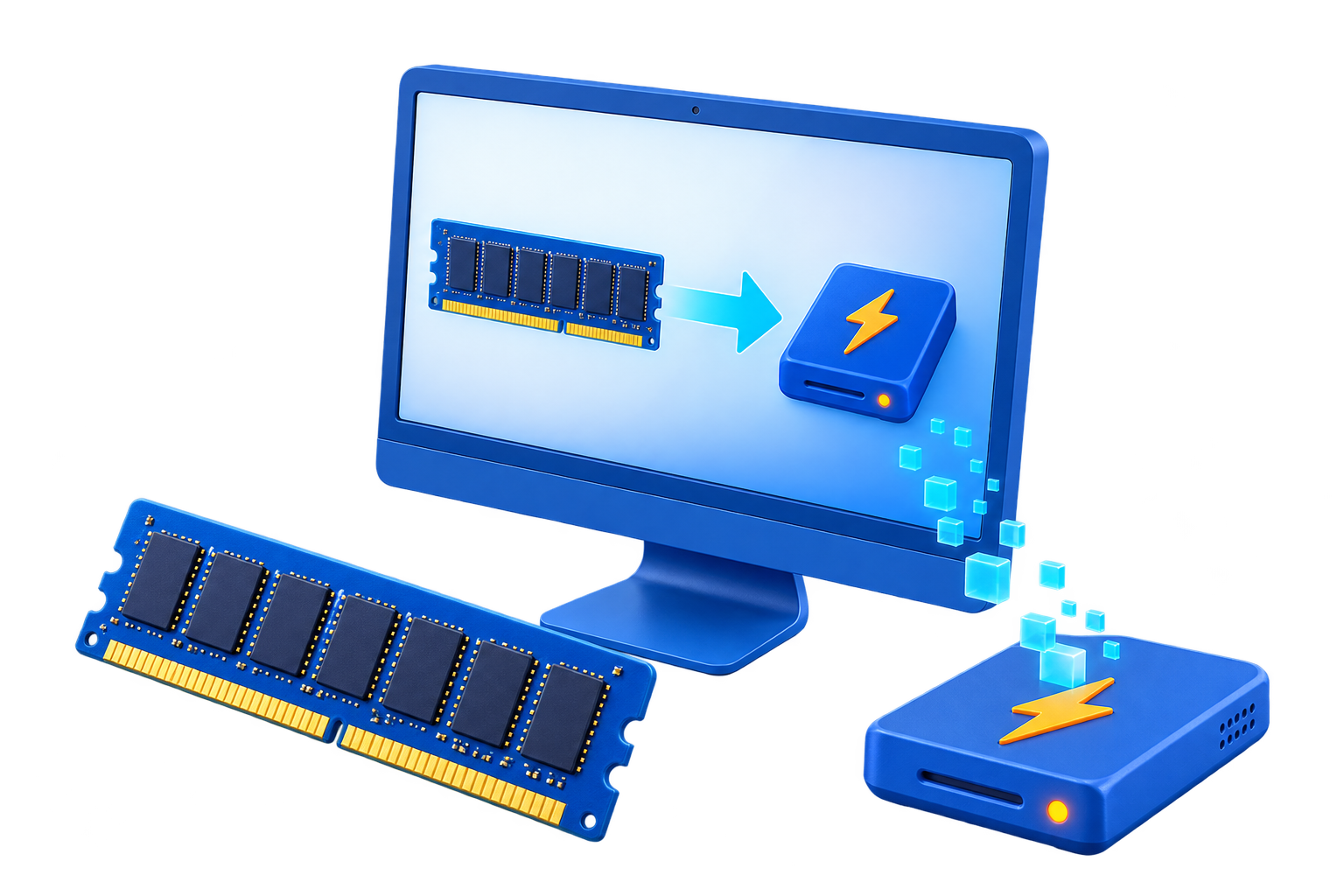
Virtual RAM Drive for Windows
A virtual RAM drive behaves like a drive letter, but its storage comes from system memory. It is extremely fast and normally volatile, so capacity, startup behavior, persistence, and backup expectations must be decided before files are redirected.
Quick answer
Use GiliSoft RAMDisk to create a conservatively sized drive for temporary files or rebuildable caches. Choose an image-backed configuration only when persistence is genuinely required, and still keep important originals and backups on normal storage.
Decide Whether a RAM Disk Fits
| Situation | Recommendation |
|---|---|
| Volatile RAM drive | Fast temporary workspace cleared after shutdown |
| Image-backed RAM drive | Loads and saves an image with added startup and shutdown time |
| Persistent storage | Best home for important originals, backups, and large files |
Step-by-Step Setup
- Calculate a safe memory budget
Start from installed RAM and peak real workload, then leave generous capacity for Windows and applications.
- Choose volatile or image-backed storage
Use volatile mode for disposable data and image backing only when restart persistence is worth the overhead.
- Create and label the drive
Select a stable drive letter, file system, size, and clear volume label.
- Move one supported workload
Redirect a temp or cache path through the application setting and keep the original location documented.
- Test restart, capacity, and rollback
Fill the drive safely, restart Windows, confirm expected persistence, and practice restoring the original path.
Protect Data and System Stability
- Keep important originals, credentials, recovery files, and final outputs on persistent storage.
- Leave enough physical memory for Windows and the real application workload so the system does not increase paging.
- Record the original path, test restart behavior, and keep a working rollback before expanding the setup.
Limits to Understand
Data on a volatile RAM drive disappears after shutdown, restart, power loss, or crash. Image backing adds persistence but is not a substitute for backups and may extend startup or shutdown.
Frequently Asked Questions
Will a RAM disk always make Windows faster?
No. It helps only when storage I/O is the measured bottleneck and enough memory remains for Windows and applications.
Does data survive a restart?
A volatile RAM disk does not. Image-backed settings can load and save data, but they add startup and shutdown overhead and do not replace backups.
How large should the RAM disk be?
Start small and size it from measured peak use after reserving ample memory for the real workload and the operating system.
What belongs on a RAM disk?
Temporary, disposable, or rebuildable data. Keep authoritative files, recovery data, credentials, and important outputs on persistent storage.