
Quick answer
Identify where recording fails
Will not start
Check that another app is not already using the capture device, that the target window still exists, and that the output folder is writable.
Black picture
Try a different target or capture mode, update the graphics driver, and test an ordinary desktop window. Protected content may remain unavailable.
No sound or no file
Check system audio and microphone devices separately, then confirm the save folder and free disk space.
Test a Windows 11 recording step by step
Select a simple target
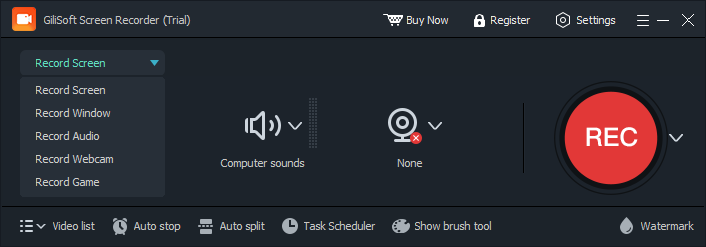
Open GiliSoft Screen Recorder Pro, choose a visible desktop region or ordinary app window, and make sure it stays on screen.
Check audio sources
Select system sound and microphone only when needed. Check the Windows output and input devices before recording.
Record a short sample
Capture ten seconds, stop the recording normally, and open the saved video. Check picture and sound independently.
Change one setting at a time
If the sample fails, switch capture target or reduce the recording load, then repeat. Keep the setting that produces a stable file.
Fix the specific symptom
- Black video: test the desktop instead of the problem app, switch between window and region capture, and check graphics driver updates. DRM-protected playback may be blocked.
- Missing sound: check the app volume, Windows output device, microphone input, and recorder source toggles. Test each source separately.
- Lag or dropped frames: close demanding apps, record a smaller region, and lower demanding capture settings where available.
- Missing or incomplete file: choose a writable local folder with free space, stop normally, and verify the file before closing the source app.
When the issue is not a recorder setting
Streaming services, secure applications, and workplace-managed systems can intentionally prevent recording. Screen Recorder Pro does not bypass those restrictions. Record only material you are authorized to capture.
Frequently asked questions
Why is my Windows 11 recording black?
The selected window or capture mode may be wrong, the graphics path may need attention, or the source may block capture. Test a normal desktop window first.
Why is there no audio in my recording?
Check the selected system sound and microphone sources as well as the active Windows input and output devices. Make a short sample with each source separately.
Where did my recording go?
Check the recorder's output folder and available disk space. Stop the test normally, then open the saved file before starting a longer session.