
Why Can’t a Scanned PDF Convert to Word?
If text cannot be selected, run OCR first. Recognition quality depends on scan resolution, rotation, contrast, language, columns, handwriting, and print quality.
Quick answer
A scanned PDF is usually a collection of page images. Run OCR to create recognized text, then proofread names, numbers, punctuation, columns, and low-quality pages before exporting to Word. Preserve the source, test a representative file, and approve the result in its destination application.
Choose the Output for the Next Task
| Next task | Likely output | Verify |
|---|---|---|
| Fixed viewing, printing, or delivery | Pages, margins, fonts, images, links, and file size | |
| Narrative editing | Word | Paragraphs, headings, lists, tables, and page breaks |
| Table and numeric reuse | Excel | Rows, columns, dates, decimals, formulas, and totals |
| Presentation reuse | PowerPoint | Slide order, dimensions, fonts, charts, images, and media |
| Image-only scan | OCR or searchable text layer | Language, names, numbers, columns, and reading order |
| Reader-oriented publication | eBook format | Chapters, navigation, text flow, images, and encoding |
Prepare the Source Files
- Keep untouched originals.
Write every result to a separate output folder with clear names.
- Open each source.
Identify damage, passwords, missing fonts, hidden content, unsupported media, or linked resources.
- Separate source families.
Do not mix scans, editable PDFs, Office files, images, and protected exceptions blindly.
- Select representative tests.
Include common files and the hardest layout before starting a full batch.
- Define acceptance checks.
Decide who will verify layout, text, data, images, links, accessibility, and confidentiality.
Complete the Task with GiliSoft Formathor
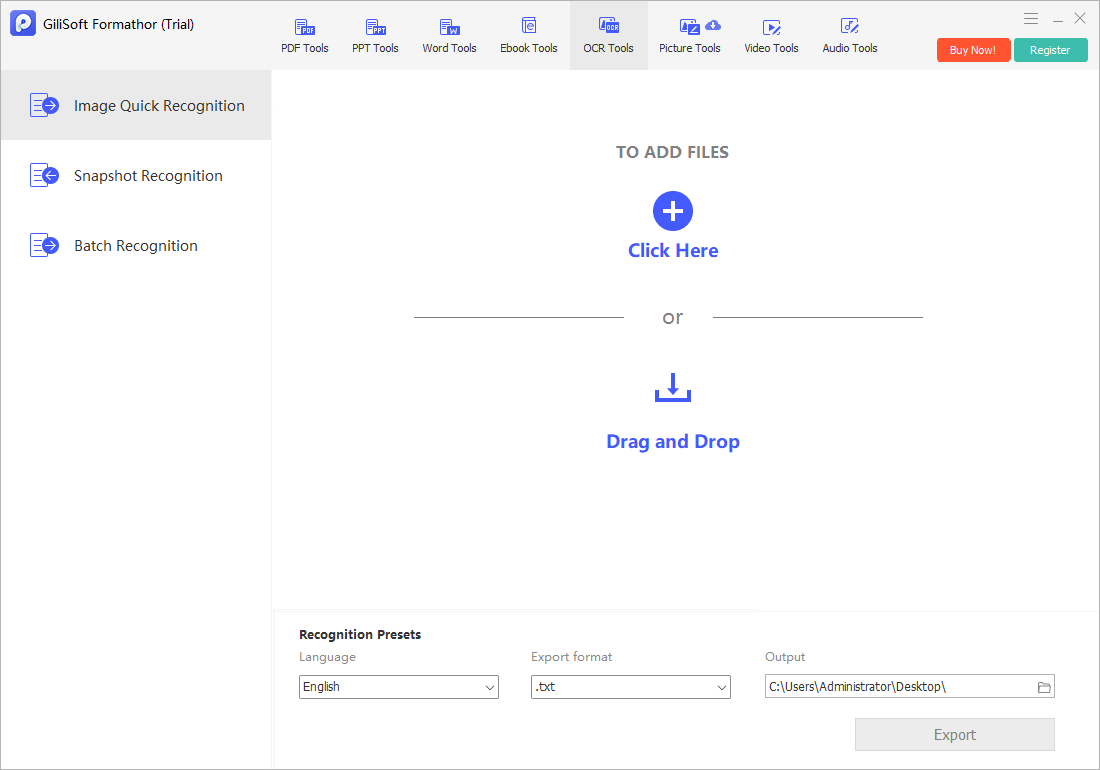
The screenshot below is the real Formathor workspace associated with this type of task.
- Confirm the source is image-based.
Try selecting a sentence; if there is no usable text, ordinary PDF conversion is not enough.
- Improve the page image.
Correct rotation, crop distracting borders, and use the clearest available scan.
- Open the OCR task.
Add the scan or image and select the correct recognition language.
- Recognize a sample first.
Check difficult pages before processing the complete document.
- Proofread before Word delivery.
Verify names, dates, totals, tables, columns, symbols, and reading order.
Review Output Quality Before Delivery
- Confirm the output count.
Compare created, failed, skipped, and duplicate files with the source list.
- Inspect the whole result.
Review beginning, middle, and end rather than only the first page or slide.
- Check text and structure.
Look for missing characters, wrong reading order, table changes, broken lists, and substituted fonts.
- Check images and navigation.
Verify resolution, crop, color, links, bookmarks, page order, and slide order.
- Approve in the destination application.
Use Word, Excel, PowerPoint, an eBook reader, image viewer, or PDF viewer as appropriate.
Handle Confidential and Batch Documents Carefully
A local conversion workflow can reduce routine uploads, but it does not replace Windows account security, protected storage, backups, access controls, secure deletion policy, or an approved delivery channel. Remove confidential temporary output when it is no longer required.
For batches, process a small group first. Keep protected, scanned, corrupt, macro-enabled, multilingual, oversized, and unusual-layout files in an exception queue rather than allowing them to fail silently inside an ordinary batch.
Why Can’t a Scanned PDF Convert to Word? FAQ
Does document conversion preserve formatting perfectly?
No. PDF, Word, Excel, PowerPoint, image, eBook, and text formats represent pages and structure differently. Complex output needs review and correction.
Should I keep the original files?
Yes. Write converted files to a separate folder and keep restorable originals until the complete result has been approved.
Can Formathor process scanned PDFs?
Use the OCR or text-layer workflow for image-only scanned pages, then proofread recognized text before reuse.
Can I convert confidential files without uploading them?
Formathor provides a local Windows workflow. You still need suitable device security, folder permissions, backups, passwords, and delivery controls.
How should I test a large batch?
Use representative common and difficult files first, check output count and quality, separate exceptions, and only then process the remaining batch.
Why should I open the output in another application?
A completed conversion status confirms processing, not layout, data, OCR, link, media, or accessibility quality. The destination application is the real test.