

How to Add Music to a Video on Mac
Music should support the video without hiding speech or creating a rights problem. Choose the track and mix plan before cutting every scene to a beat.
Quick answer
Import music you are authorized to use, place it on an audio track in GiliSoft Video Editor Pro for Mac, trim it to the project, lower it beneath narration, apply short fades, and listen through the exported file.
Choose the Music Role
| Situation | Recommended approach | Check carefully |
|---|---|---|
| Background under narration | Keep music clearly below speech | Voice intelligibility on small speakers |
| Montage or recap | Edit visual changes around musical structure | Rights, abrupt cuts, and final cadence |
| Intro or outro only | Use a short deliberate cue | Fade timing and loudness change |
Step-by-Step Mac Workflow
- Confirm rights and source quality
Use music you created, licensed, or are authorized to publish and keep its license or project record.
- Import and place the track
Add the audio file to the media library, put it on an audio track, and align its start with the intended scene.
- Trim, fade, and balance
Cut the track to length, add short fades, and lower music under narration or important source sound.
- Listen outside the editor
Export a proof and test headphones, laptop speakers, and the destination device for speech clarity, distortion, and abrupt level changes.
See the Video Editor Pro for Mac user guide for the complete timeline, effects, audio, text, privacy, and export workflow.
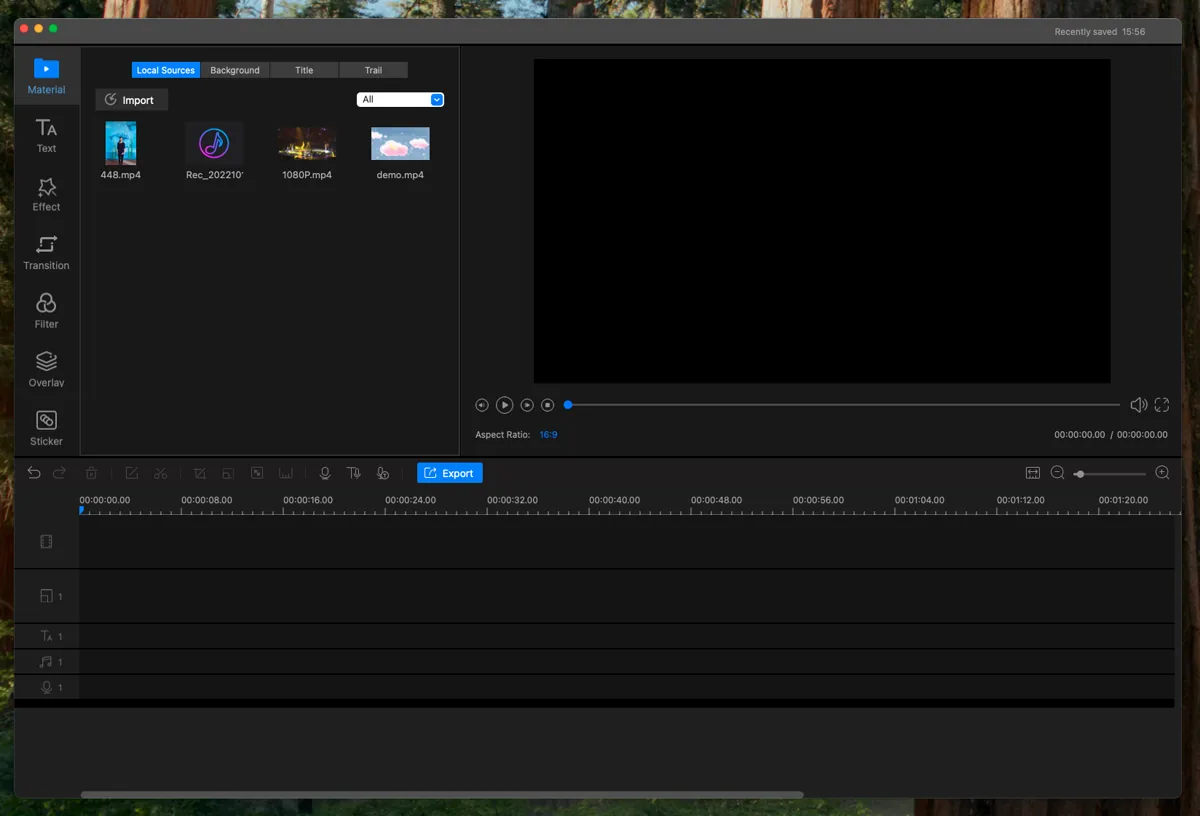
Video Editor Pro for Mac Interface
These real product screenshots connect the workflow to the current Mac editing interface.

Review Before Export
- Keep the source media and project until the finished export has been approved.
- Watch the complete timeline once without stopping and note every visible or audible issue.
- Test the rendered file outside the editor and on the intended destination device or service.
- Confirm reuse rights for video, music, logos, fonts, and other third-party material.
Frequently Asked Questions
Should I normalize music and narration to the same level?
No. Background music normally needs to remain lower so speech stays clear.
Why is music distorted after export?
The combined tracks may peak too high. Reduce track levels, listen for clipping, and export another proof.