

How to Add Subtitles to a Video on Mac
Useful subtitles require accurate wording, readable styling, and timing that follows speech without covering important visual information.
Quick answer
Prepare a reviewed transcript, add text elements in GiliSoft Video Editor Pro for Mac, align each caption with the spoken phrase, keep text inside safe margins, and watch the complete export with sound off.
Plan Captions Before Styling Them
| Situation | Recommended approach | Check carefully |
|---|---|---|
| Short social or promo video | Use concise burned-in captions | Mobile size and platform overlays |
| Tutorial or training video | Match captions to complete spoken ideas | Technical terms and reading time |
| Accessible publication | Provide accurate captions and, where possible, a separate caption file | Speaker identification and meaningful sound cues |
Step-by-Step Mac Workflow
- Prepare accurate text
Transcribe and review names, numbers, technical terms, punctuation, and required sound descriptions before styling.
- Add text to the timeline
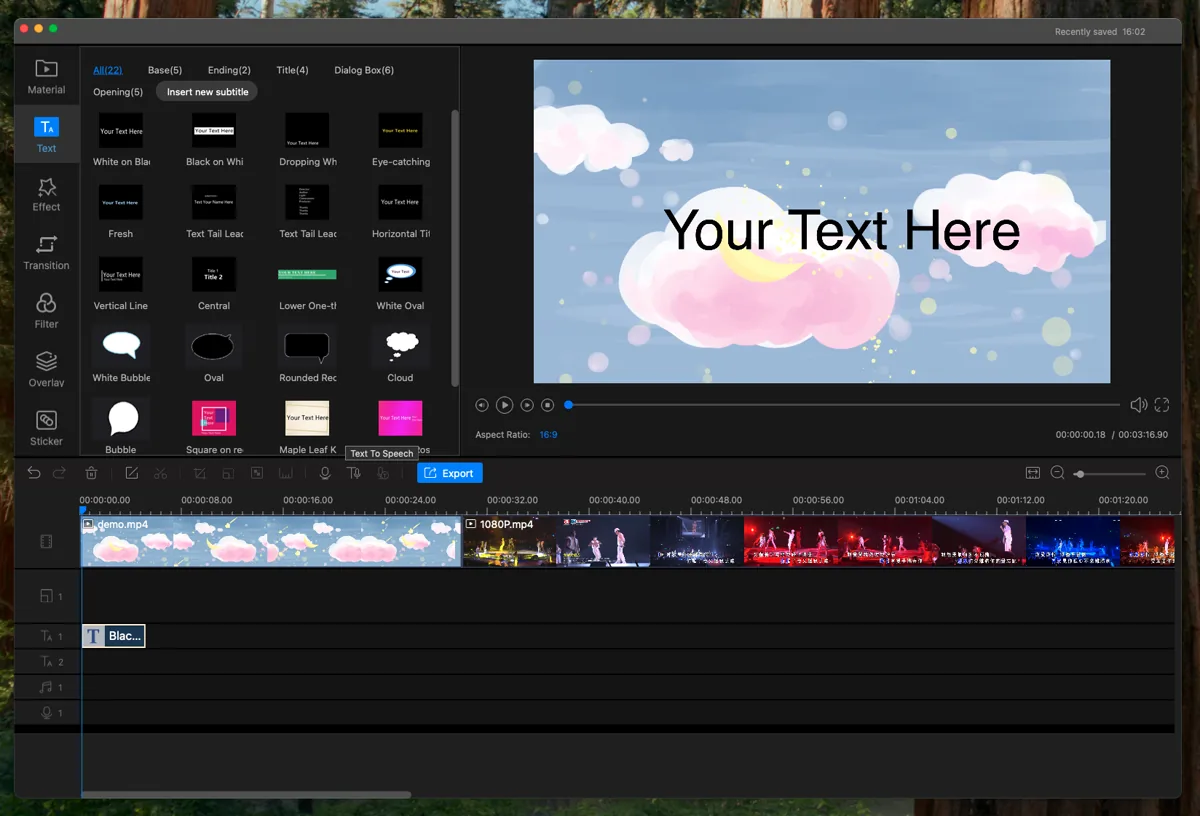
Choose a readable template, place each caption on the text track, and set its start and duration to match the spoken phrase.
- Protect readability
Use sufficient contrast, modest line length, and safe margins; avoid covering faces, controls, products, or existing graphics.
- Review with and without sound
Watch the full export muted, then with sound, checking timing, spelling, scene changes, and whether captions remain understandable.
See the Video Editor Pro for Mac user guide for the complete timeline, effects, audio, text, privacy, and export workflow.
Video Editor Pro for Mac Interface
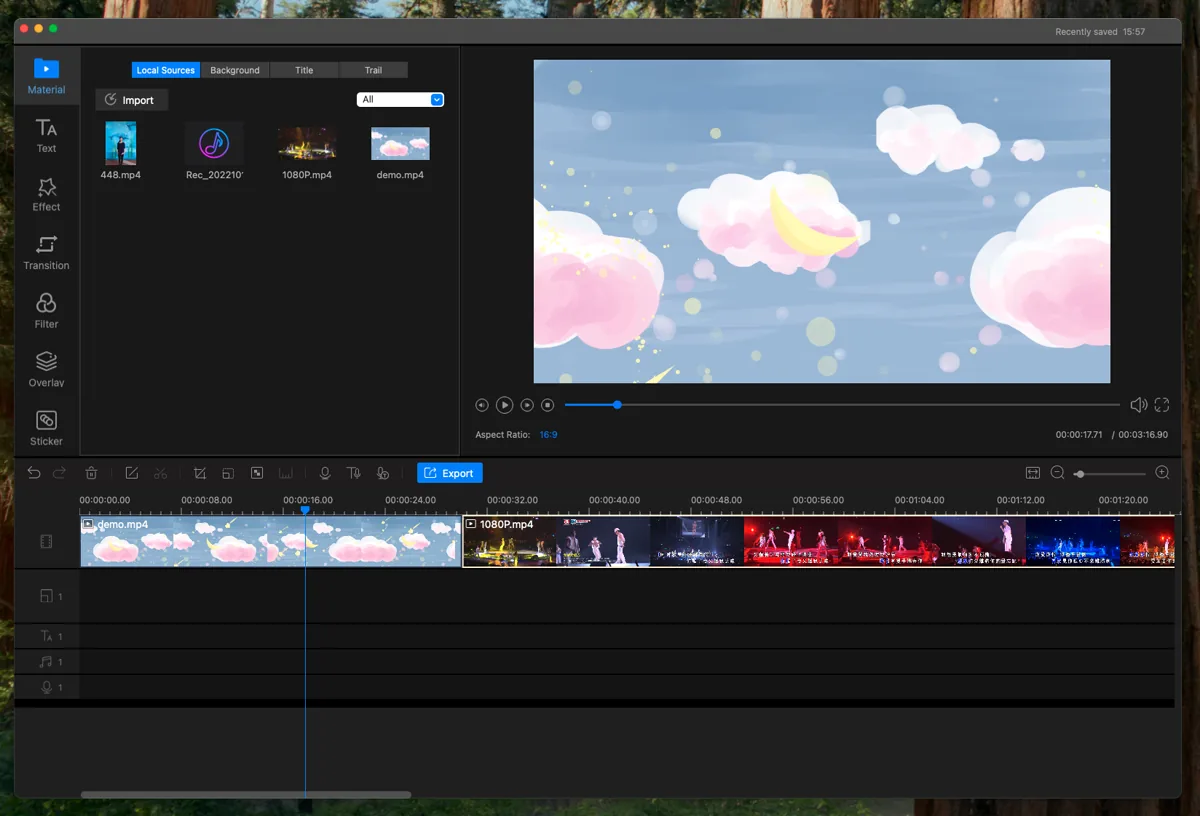
These real product screenshots connect the workflow to the current Mac editing interface.
Review Before Export
- Keep the source media and project until the finished export has been approved.
- Watch the complete timeline once without stopping and note every visible or audible issue.
- Test the rendered file outside the editor and on the intended destination device or service.
- Confirm reuse rights for video, music, logos, fonts, and other third-party material.
Frequently Asked Questions
How long should a subtitle stay visible?
Long enough to read naturally, while still following the spoken phrase. Split dense wording into shorter meaningful captions.
Are burned-in subtitles the same as closed captions?
No. Burned-in subtitles are part of the picture; closed captions are a separate selectable track where the format supports one.