
How to Join Videos on Mac in the Right Order
Joining clips is an editing task, not just placing files beside one another. Mixed orientation, frame rate, resolution, audio level, and color can make the join visible unless the project is planned first.
Quick answer
Create one project in GiliSoft Video Editor Pro for Mac, choose the destination aspect ratio, import the clips, arrange them on the main track, trim weak edges, and use a simple cut or restrained transition between scenes.
Plan the Joined Video
| Situation | Recommended approach | Check carefully |
|---|---|---|
| Clips from the same camera | Use direct cuts where action continues | Boundary frames and audio continuity |
| Mixed phone and camera footage | Choose one project aspect ratio | Crop, background, rotation, and frame rate |
| Presentation or recap video | Arrange by narrative purpose | Titles, section changes, and total duration |
Step-by-Step Mac Workflow
- Inventory the clips
Confirm permission, orientation, resolution, frame rate, audio condition, and the intended story order before editing.
- Create the project and import media
Choose the final aspect ratio, import every clip, and keep the source files in stable Finder locations.
- Arrange and refine the joins
Place clips on the main track, trim weak beginnings and endings, balance audio, and add transitions only when they clarify a scene change.
- Watch the complete sequence
Review every join, title, and audio change without stopping, then export and test the final file on the destination device.
See the Video Editor Pro for Mac user guide for the complete timeline, effects, audio, text, privacy, and export workflow.
Video Editor Pro for Mac Interface
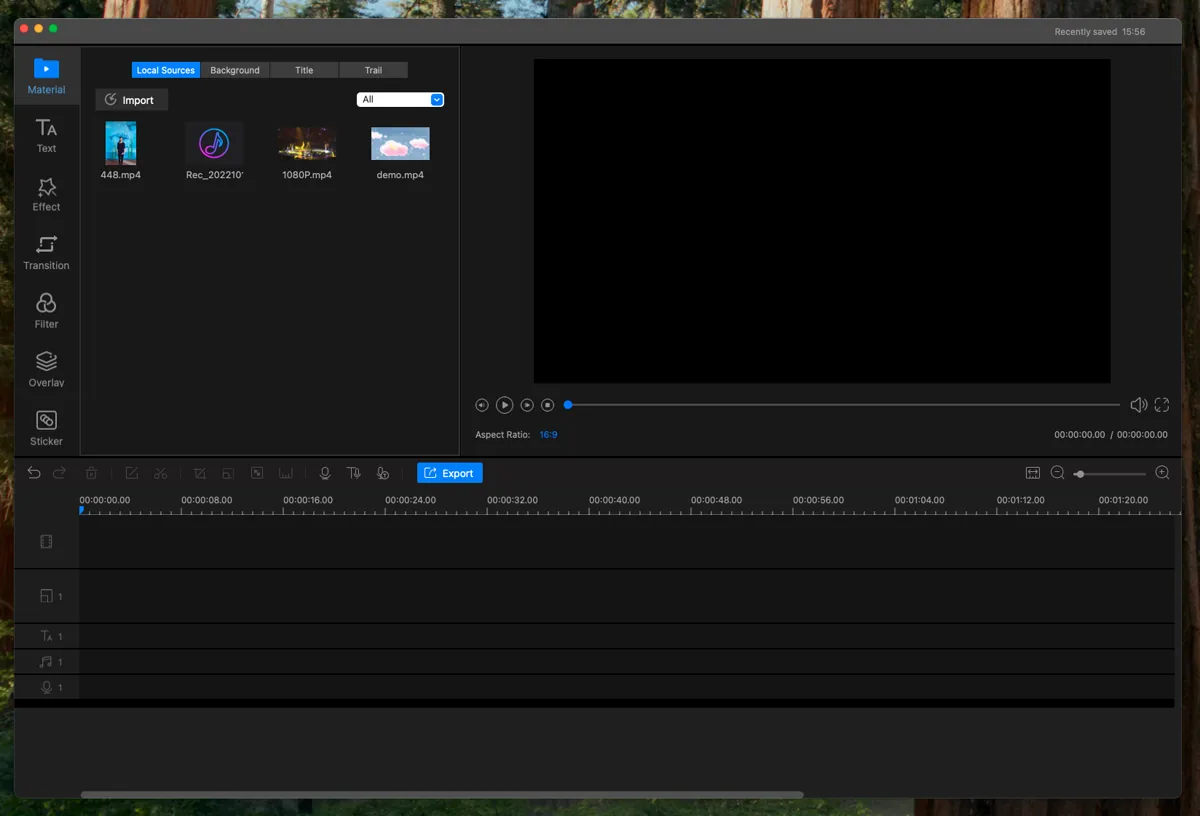
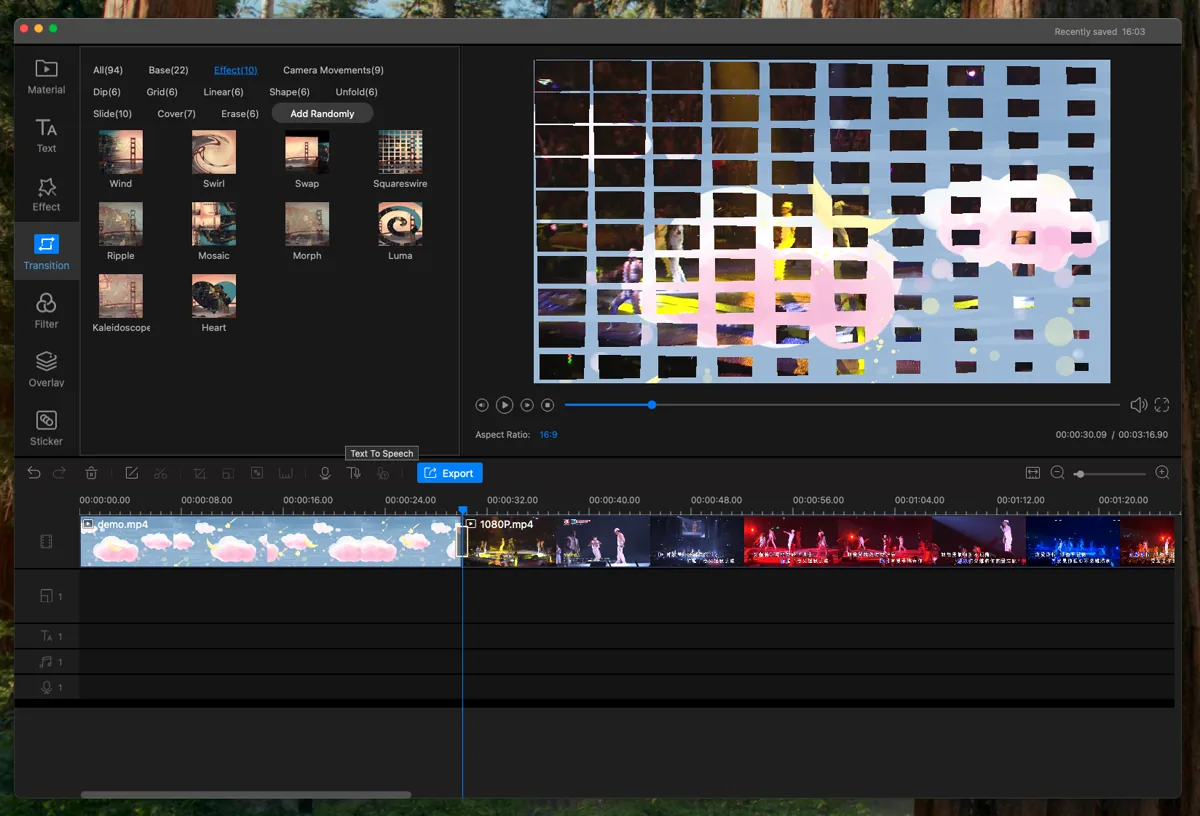
These real product screenshots connect the workflow to the current Mac editing interface.
Review Before Export
- Keep the source media and project until the finished export has been approved.
- Watch the complete timeline once without stopping and note every visible or audible issue.
- Test the rendered file outside the editor and on the intended destination device or service.
- Confirm reuse rights for video, music, logos, fonts, and other third-party material.
Frequently Asked Questions
Do joined clips need the same resolution?
No, but the project still needs one output frame. Decide how smaller, portrait, or differently shaped clips will fit.
Should every join use a transition?
No. Direct cuts are often clearer; use transitions when they communicate a real change in time, place, or topic.