
How to Export Video on Mac with the Right Settings
Export settings should follow the destination and source rather than the largest available number. Compatibility, aspect ratio, frame rate, audio, file size, and review all matter.
Quick answer
Finish one uninterrupted timeline review, open Export in GiliSoft Video Editor Pro for Mac, choose a compatible format and source-appropriate resolution, save to a new file, and play the result outside the editor.
Match Export Settings to Delivery
| Situation | Recommended approach | Check carefully |
|---|---|---|
| Web, LMS, or social upload | Use a broadly compatible video format | Platform frame, file limit, captions, and recompression |
| Client or internal review | Preserve sufficient quality in a clearly named proof | Version labeling and private delivery |
| Archive or future editing | Keep the project, sources, and a high-quality master | Storage, codecs, and future access |
Step-by-Step Mac Workflow
- Lock the edit and review the timeline
Watch from beginning to end and correct cuts, titles, audio, masks, and missing media before rendering.
- Choose the destination settings
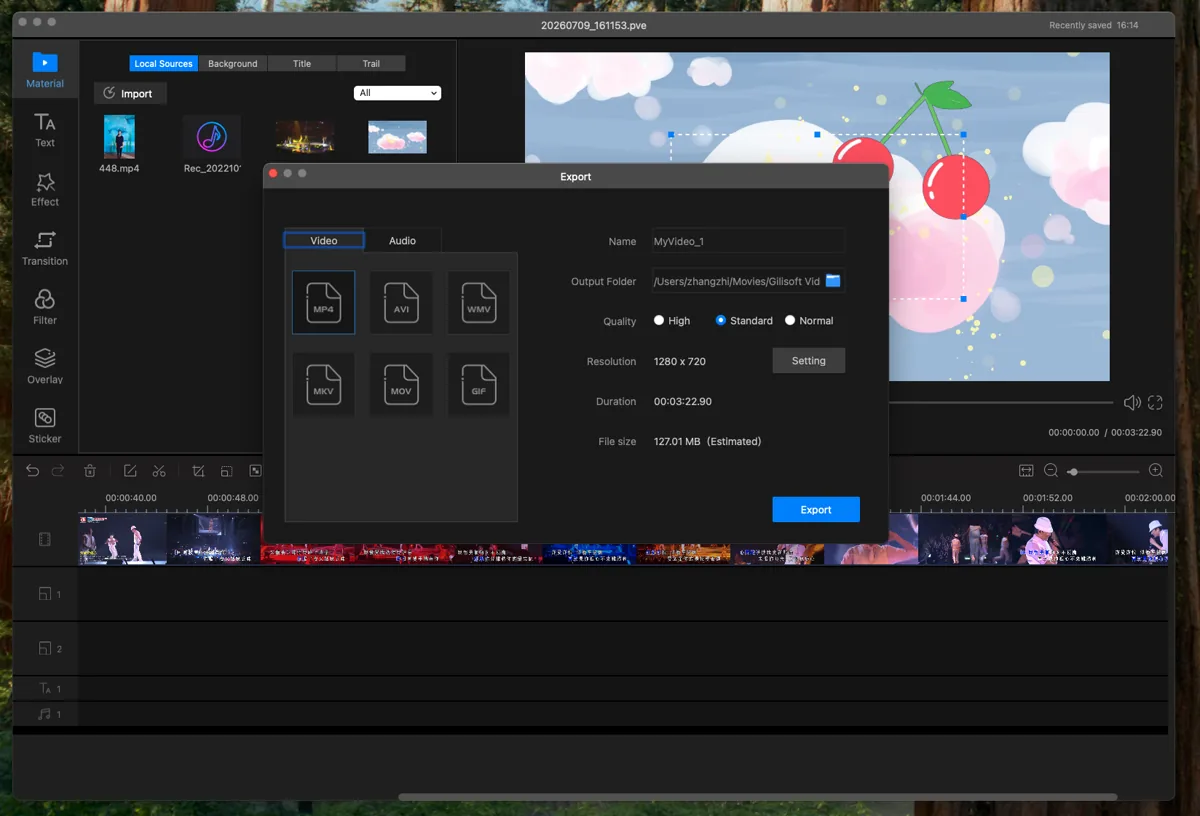
Select the output type, format, resolution, quality, and folder required by the intended service or recipient.
- Export to a new versioned filename
Keep free storage available, avoid overwriting the only approved copy, and let the process complete.
- Verify outside the editor
Open the exported file in another player and inspect duration, framing, motion, captions, audio sync, and representative high-detail scenes.
See the Video Editor Pro for Mac user guide for the complete timeline, effects, audio, text, privacy, and export workflow.
Video Editor Pro for Mac Interface
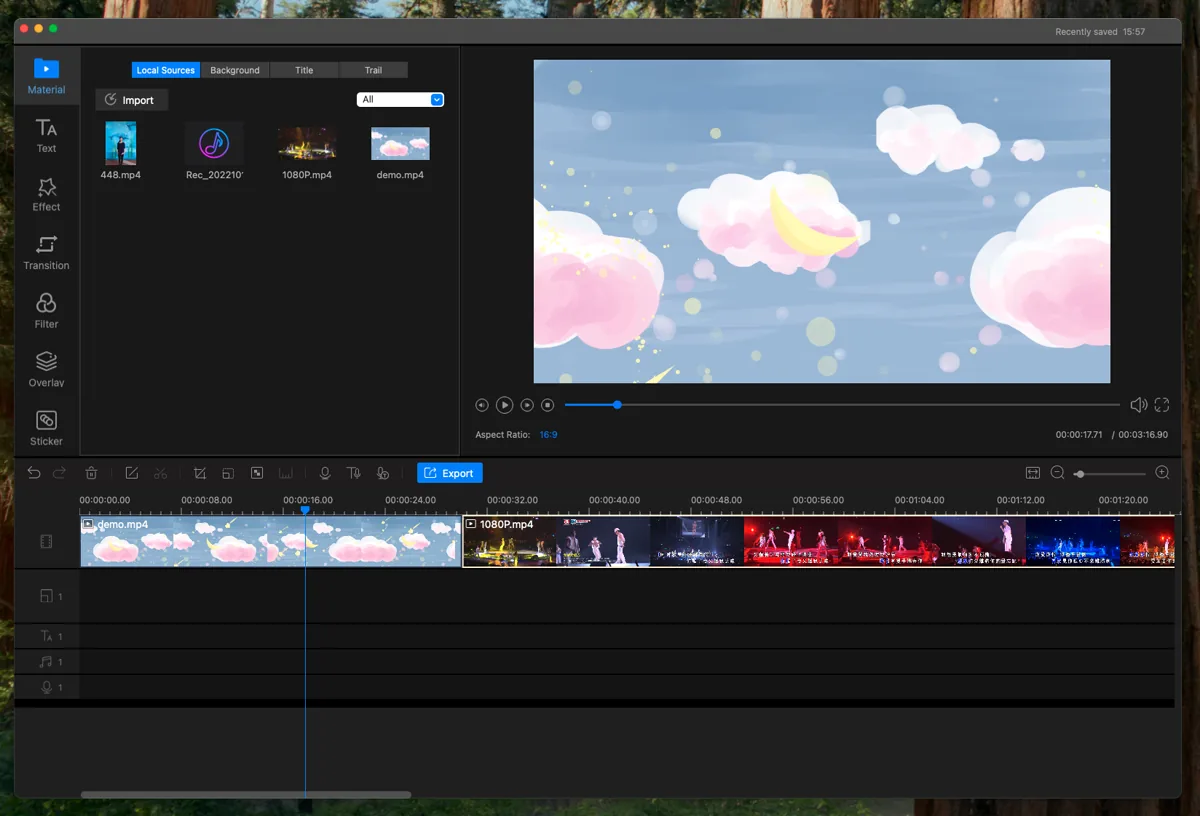
These real product screenshots connect the workflow to the current Mac editing interface.
Review Before Export
- Keep the source media and project until the finished export has been approved.
- Watch the complete timeline once without stopping and note every visible or audible issue.
- Test the rendered file outside the editor and on the intended destination device or service.
- Confirm reuse rights for video, music, logos, fonts, and other third-party material.
Frequently Asked Questions
Should I always export at 4K?
No. Match the source and destination. Upscaling lower-resolution footage does not restore missing detail.
Why should I keep the project after export?
The project, source media, and reviewed master make corrections and alternate deliveries possible without rebuilding the edit.