

Which USB port lock software is best?
The right choice depends on what you need to block. Windows policies can cover basic removable-storage restrictions; a dedicated USB control tool is a better fit when you need device exceptions and separate rules for storage, phones, or network adapters. A physical blocker is for preventing a connector from being used at all.
Compare USB port blocking options
This is a comparison of solution types, not a claim that one vendor is best for every organization. Confirm the exact Windows edition, devices, and management requirements before rollout.
| Option | Best fit | What to verify |
|---|---|---|
| Windows policy controls | Basic removable-storage read/write restrictions on supported, managed Windows PCs. | Edition and administrator requirements; whether the policy supports the device-level exceptions your workflow needs. |
| Device Manager | Temporary troubleshooting or disabling a specific detected device on one PC. | It is a hands-on local setting, not a convenient way to maintain a reviewed allowlist and activity history across many endpoints. |
| USB device-control software | Rules that need to distinguish storage from phones or adapters, keep approved devices usable, and record access events. | Check the exact device categories, read/write options, whitelist process, logs, password protection, Windows support, and deployment model. |
| Physical USB port blocker | Workstations where a port should be physically unavailable, including when the PC is off. | It does not provide software allowlists or access logs; confirm the blocker fits the port and does not obstruct required ports. |
How to choose and test USB Lock software
List the device types and access you need
Record which USB storage devices, phones, network adapters, and peripherals are required. Decide whether storage should be blocked, read-only, or allowed for approved devices.
Choose the narrowest effective policy
A blanket controller shutdown can interrupt keyboards, mice, docks, and other required peripherals. Prefer a rule aimed at the risky device class when that is supported by your chosen method.
Add approved USB devices before enforcing the block
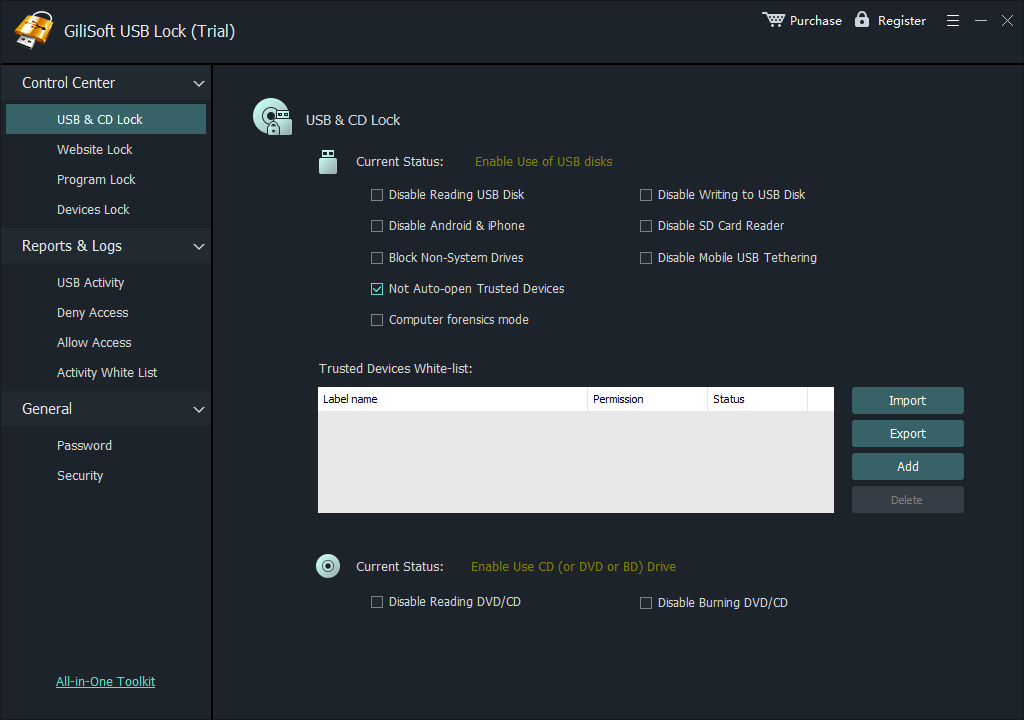
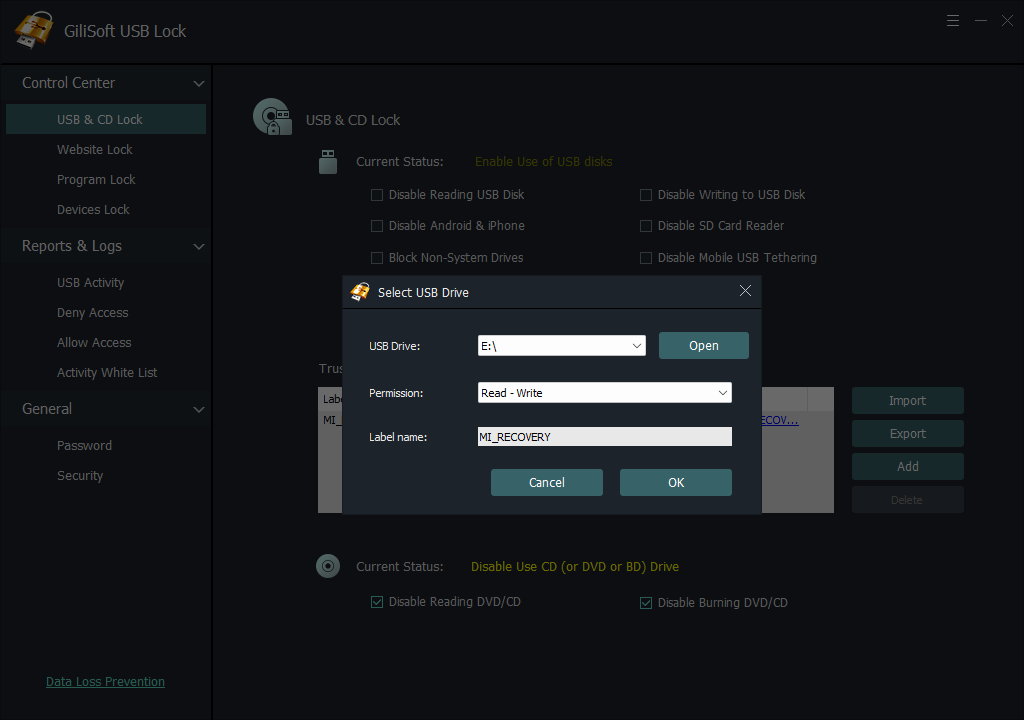
For GiliSoft USB Lock, configure the trusted-device whitelist for company drives that must remain available. Assign an owner to each exception and remove approvals that are no longer needed.
Test allowed and blocked cases on the target PC
Reconnect an approved drive and an unapproved drive; test read and write behavior, phones, adapters, keyboards, and docks that the workstation needs.
Review logs and document recovery
Check the access log after testing, record the expected policy, and make sure an authorized administrator can update or recover the configuration. For multiple PCs, test whitelist export and import before rollout.
What to check before you buy
Device-level exceptions
Can the tool keep a known company drive working while blocking unknown storage, rather than forcing an all-or-nothing port rule?
Separate transfer channels
Check whether USB storage, phone data transfer, and USB network adapters can be handled as distinct policies.
Audit and administration
Look for access logs, password-protected settings, documented recovery, and a practical way to maintain rules on the number of PCs you manage.
Real-world compatibility
Test the exact USB drive models, phones, docks, and Windows configuration in use. Do not assume a rule behaves identically on every device.
When USB port blocking causes problems
- Keyboard, mouse, or dock stops working: review whether a broad USB-controller rule was used and test input devices before enforcing a narrower policy.
- Approved drive is blocked: confirm the correct device was added to the whitelist, reconnect it, and inspect the access log.
- Files can be read but not saved: check whether write access is intentionally disabled; read and write restrictions may be separate.
- Phone charges but cannot transfer files: charging and data transfer are different behaviors; verify the phone-transfer rule and test the connection again.
- Drive works on another computer: endpoint controls apply on the configured Windows PC; they do not encrypt the drive or enforce the same rule on unmanaged PCs.
Frequently Asked Questions
Is a USB port lock the same as physically disabling a port?
No. Software can control device categories and exceptions, while a physical blocker prevents access at the port level.
Can approved USB devices remain available?
Yes, if the selected software supports a trusted-device list. GiliSoft USB Lock provides a USB storage whitelist; add and test approved drives before applying the block policy.
Will a blanket port block affect keyboards?
It can, depending on how the rule is applied. Avoid disabling every USB controller without testing keyboards, mice, docks, security keys, and other required peripherals.
Can this control USB network adapters?
GiliSoft USB Lock includes controls for USB Ethernet adapters. Treat network adapters separately from removable storage and test any approved adapter whitelist on the target PC.
Does USB Lock encrypt files on the USB drive?
No. USB Lock controls device access on the Windows PC where it is configured. Use USB encryption when files must stay protected if the drive is connected to another computer.
Is a physical USB port blocker better than software?
It depends on the requirement. A physical blocker makes a port unavailable; software is more suitable when you need to permit selected devices, change rules, or review access activity.