
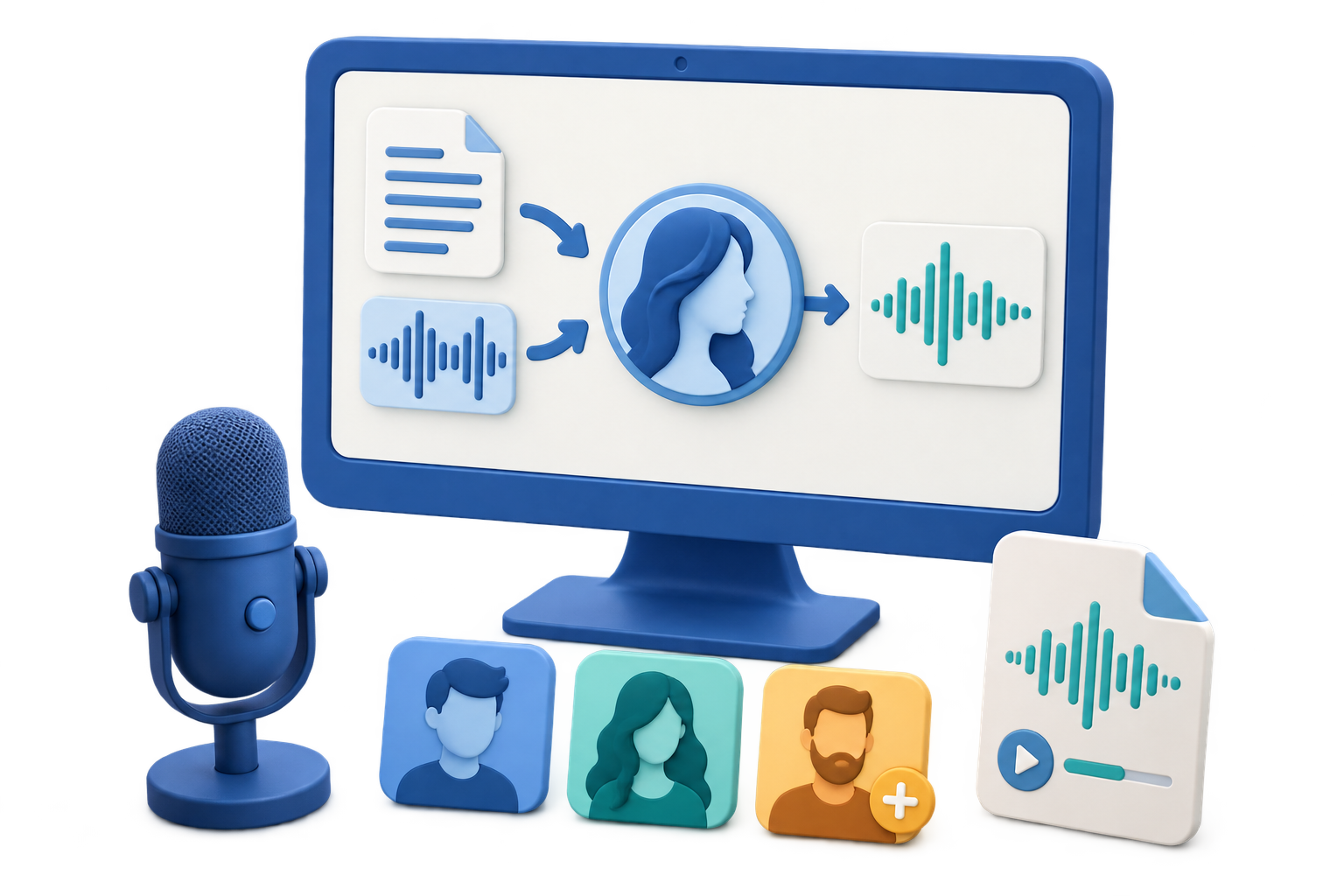
Choose the Right Text-to-Audio Workflow
Quick answer: Use GiliSoft VoiceLab when you need to generate an audio file from prepared text, compare voices, adjust speaking speed, and keep generated tasks organized. Use a human narrator when emotional performance, precise brand delivery, or acting is essential.
| Need | Best starting point | Reason |
|---|---|---|
| Listening copy of notes or an article | VoiceLab Text to Speech | Fast conversion with voice preview and speed control |
| Draft narration for a video or course | Short section-by-section generation | Makes timing and revisions easier to control |
| Expressive character or campaign performance | Human narrator or directed studio session | Performance requirements go beyond basic speech generation |
| Existing recording that needs another voice | Voice Conversion | The source is recorded speech rather than written text |
Prepare Text That Sounds Natural When Spoken
Written text often contains visual shortcuts that sound awkward aloud. Edit a narration copy before generation so listeners can follow the meaning without seeing the page.
Write for the ear
Use shorter sentences, clear transitions, and one main idea at a time.
Expand ambiguous text
Spell out acronyms, symbols, dates, measurements, and URLs in the form listeners should hear.
Remove visual-only material
Rewrite tables, captions, footnotes, and “see above” references as complete spoken sentences.
Split long content
Divide a long document into named sections so corrections do not require regenerating everything.
Convert Text to Audio in 6 Steps
Create a narration copy
Keep the approved source unchanged and edit a separate version specifically for spoken delivery.
Open Text to Speech
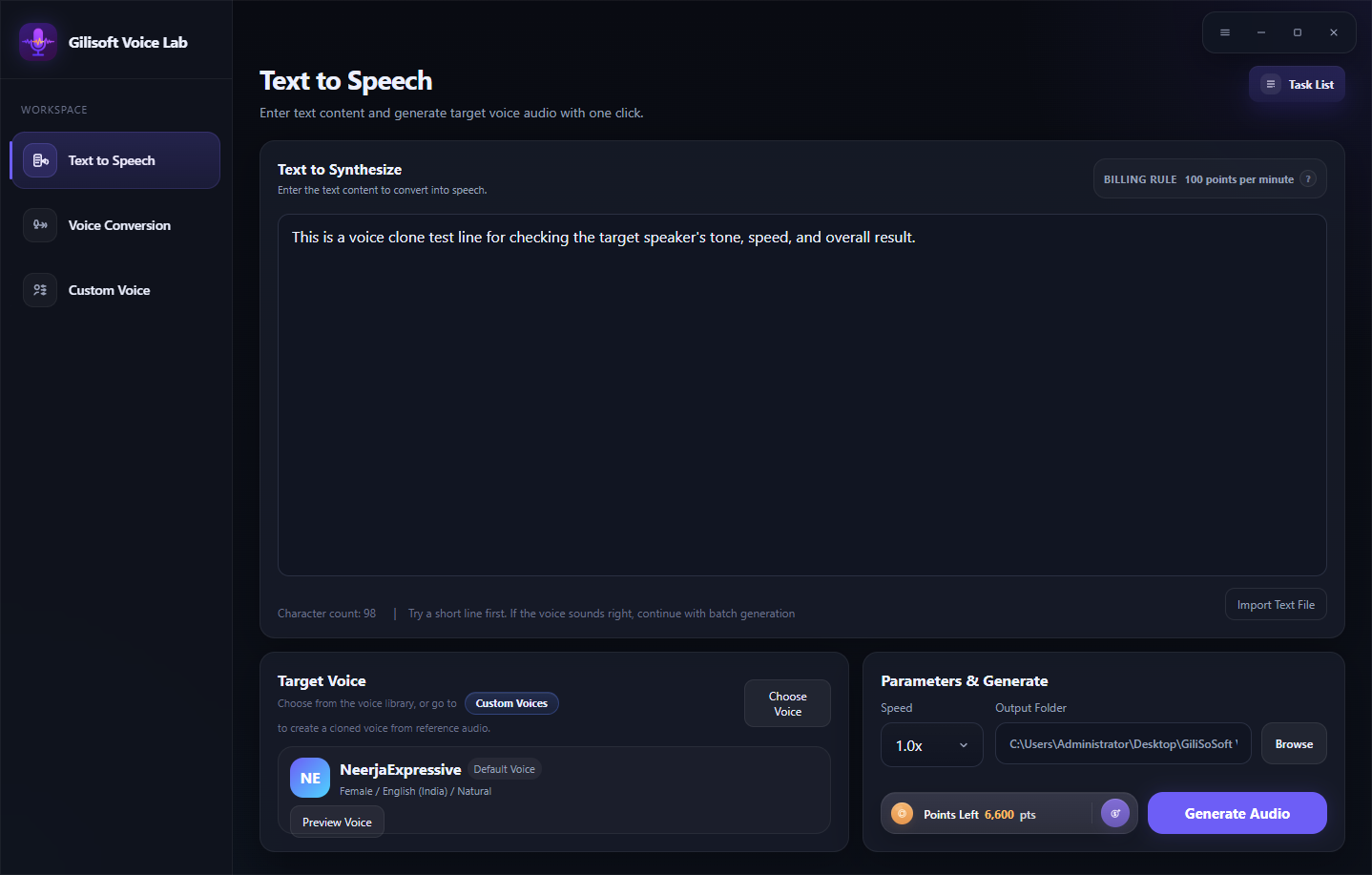
Launch GiliSoft VoiceLab and choose the Text to Speech workspace.
Enter or import the text
Add one manageable section and confirm that headings, punctuation, and reading order are correct.
Choose and preview a voice
Search or filter the available voices, listen to previews, and select one that fits the language and audience.
Set speed and test difficult lines
Adjust speaking speed, choose the output folder, and generate a short sample containing names, numbers, and abbreviations.
Generate and review the result
Check the displayed point requirement, generate the audio, follow the task status, and listen from beginning to end before use.
Check the Audio Before You Publish It
Pronunciation
Listen closely to names, product terms, acronyms, currencies, and technical language.
Pacing
Shorten crowded sentences or add paragraph breaks when the voice sounds rushed.
Section order
Confirm filenames and sequence when a long script is generated in several parts.
Playback
Check the finished audio on the devices and speakers the intended audience will use.
Important: Keep the original text or a transcript available when audio is distributed as an additional format. Audio alone may not serve every accessibility or search need.
Convert Text to Audio with GiliSoft VoiceLab
VoiceLab provides a focused Windows workspace for text-to-speech generation. It combines script input, a searchable voice library, previews, speed control, output selection, point information, and task history without mixing the workflow with unrelated document tools.
- Test a short section before spending points on a complete script.
- Use descriptive filenames so revised sections are easy to replace.
- Keep the script and generated audio together for review and future updates.
Troubleshoot Common Voice Workflow Problems
- The voice mispronounces a name: Rewrite the word phonetically in the narration copy or expand the abbreviation, then test again.
- The result sounds too fast: Reduce speed and simplify long sentences instead of relying on punctuation alone.
- Pauses sound unnatural: Review commas, periods, paragraph breaks, and section boundaries in a short sample.
- The wrong language is spoken: Confirm that the selected voice matches the script language before generation.
- A long job is hard to revise: Generate smaller named sections so only the affected part needs to be replaced.
- The generated result is missing: Open Tasks and review status, details, point use, and any retry option shown by VoiceLab.
Keep the Text Version with the Audio
Text-to-audio can support listening, review, and accessibility, but it does not replace a structured source document or transcript in every situation. Preserve searchable text and provide any captions, descriptions, or alternative formats required by the project.
Frequently Asked Questions
Can VoiceLab convert text into an audio file?
Yes. Text to Speech accepts entered or imported text, lets you select a voice and speed, and generates spoken audio through the VoiceLab task workflow.
Can I preview a voice before generating?
Yes. Preview the available voices first and test a short sample of the actual script before processing the complete text.
Should I convert a long document in one job?
Usually not. Splitting it by chapter or topic makes pronunciation fixes, timing changes, and replacement easier.
How can I improve difficult pronunciation?
Rewrite names, abbreviations, numbers, and symbols in the form they should sound, then generate a short test.
Does VoiceLab use points?
Yes. VoiceLab displays the available balance and relevant point information before AI voice processing.
Is generated audio a replacement for accessible text?
No. It is an additional format. Keep the structured text or transcript available for people who need it.